The 20 Most-Used Excel Functions · Tutorial 18 of 20
How to Use the TRIM Function in Excel
Remove the extra spaces that break lookups and counts with TRIM, and clean up non-breaking spaces and line breaks from web and exported data.
- Level
- Beginner
- Time
- 10 min read
- Updated:
- Applies to:
- Excel for Microsoft 365, Excel 2021, Excel 2019, Excel for the web
What you'll learn
- Remove leading, trailing and doubled spaces with TRIM
- Check for hidden spaces with LEN
- Explain why extra spaces make lookups and COUNTIF fail
- Remove non-breaking spaces and line breaks that TRIM leaves behind
- Replace the original data with the cleaned values
Before you start
None — this is a good first tutorial.
Function Playground
Try TRIM in a live sheet
Type formulas in an Excel-style grid and watch each step of the calculation. Free, no sign-up.
Data that comes from another system, a form or a web page often carries spaces you can't see: one at the end of a name, two between words, a few at the start. They look harmless, but to Excel "Desk Lamp " and "Desk Lamp" are different values, so lookups return #N/A and counts come out too low. TRIM removes those spaces in one step.
The syntax
=TRIM(text)- text is the text to clean, usually a cell such as
A2. It's the only argument.
TRIM returns the same text with two changes:
- spaces at the start and end are removed;
- a run of spaces between words is reduced to a single space.
Single spaces between words stay, so "Desk Lamp" keeps its space. TRIM only removes the ordinary space character (code 32). It doesn't touch tabs, line breaks or the non-breaking spaces that come with text copied from web pages; those are covered further down.
=TRIM1(A52)TRIMRemoves spaces at both ends and squeezes every run of spaces between words to oneA5The text to clean: Laptop Stand with three spaces in front, three in the middle and two at the end
Clean a column of imported names
The product names in column A were exported from an online shop. They look fine at a glance, but several have extra spaces, and a price lookup on them fails. The clean names go in column B.
Click the cell next to the first name
Click B2. If your data has no empty column next to it, insert one first: right-click the column letter to the right of your data and choose Insert.
A B C D E F 1 Product (imported) Clean name Price ($) Product Price ($) 2 Wireless Mouse Wireless Mouse 25 3 USB Cable USB Cable 8 4 Desk Lamp Desk Lamp 32 5 Laptop Stand Laptop Stand 45 6 Wireless Mouse Imported product names in column A, a column for the clean names in B and a price list in E:F. Type =TRIM(A2)
Type the formula below and press Enter. B2 shows Wireless Mouse without the two spaces in front.
=TRIM(A2)A B C D E F 1 Product (imported) Clean name Price ($) Product Price ($) 2 Wireless Mouse Wireless Mouse Wireless Mouse 25 3 USB Cable USB Cable 8 4 Desk Lamp Desk Lamp 32 5 Laptop Stand Laptop Stand 45 6 Wireless Mouse TRIM reads A2 and returns the name without its leading spaces. Fill the formula down
Drag the fill handle at the bottom-right corner of B2 down to B6, or select B2:B6 and press Ctrl+D. Every name is now clean: USB Cable has one space in the middle, and Laptop Stand has lost all seven extra spaces.
A B C D E F 1 Product (imported) Clean name Price ($) Product Price ($) 2 Wireless Mouse Wireless Mouse Wireless Mouse 25 3 USB Cable USB Cable USB Cable 8 4 Desk Lamp Desk Lamp Desk Lamp 32 5 Laptop Stand Laptop Stand Laptop Stand 45 6 Wireless Mouse Wireless Mouse Column B holds the trimmed names. Row 4 had nothing to remove, so it comes back unchanged. Check the result with LEN
Spaces are invisible, so count characters to see the difference.
=LEN(A2)returns 16 for the original, while=LEN(B2)returns 14, the 13 letters of Wireless Mouse plus one space.A B C D 1 Product (imported) Characters After TRIM Characters 2 Wireless Mouse 16 Wireless Mouse 14 3 USB Cable 11 USB Cable 9 4 Desk Lamp 9 Desk Lamp 9 5 Laptop Stand 19 Laptop Stand 12 6 Wireless Mouse 15 Wireless Mouse 14 LEN before and after TRIM. Every row except Desk Lamp loses characters: the spaces you couldn't see. Replace the originals with the clean values
To keep only the clean names, select B2:B6 and press Ctrl+C. Right-click A2 and, under Paste Options, click Values. Column A now holds plain text with no formulas behind it, and you can delete column B.
Why extra spaces break lookups and counts
Excel compares text character by character, and a space is a character. In the sheet, A6 holds "Wireless Mouse " with a space at the end, while the price list in E2:F5 has "Wireless Mouse" without one.
=VLOOKUP(A6,E2:F5,2,FALSE)returns#N/A: there's no exact match.=COUNTIF(A2:A6,"Wireless Mouse")returns 0, even though two rows are the wireless mouse. After cleaning,=COUNTIF(B2:B6,"Wireless Mouse")returns 2.- Remove Duplicates and PivotTables treat the two spellings as different items, so the same product appears twice.
If you can't clean the column itself, trim the lookup value inside the formula:
=VLOOKUP(TRIM(A6),E2:F5,2,FALSE)| A | B | C | D | E | F | |
|---|---|---|---|---|---|---|
| 1 | Product (imported) | Clean name | Price ($) | Product | Price ($) | |
| 2 | Wireless Mouse | Wireless Mouse | 25 | |||
| 3 | USB Cable | USB Cable | 8 | |||
| 4 | Desk Lamp | Desk Lamp | 32 | |||
| 5 | Laptop Stand | Laptop Stand | 45 | |||
| 6 | Wireless Mouse | 25 |
That fixes spaces in the value you look up, not in the table you search. If the price list itself has stray spaces, clean the list too.
Real-world scenarios
Count staff by department
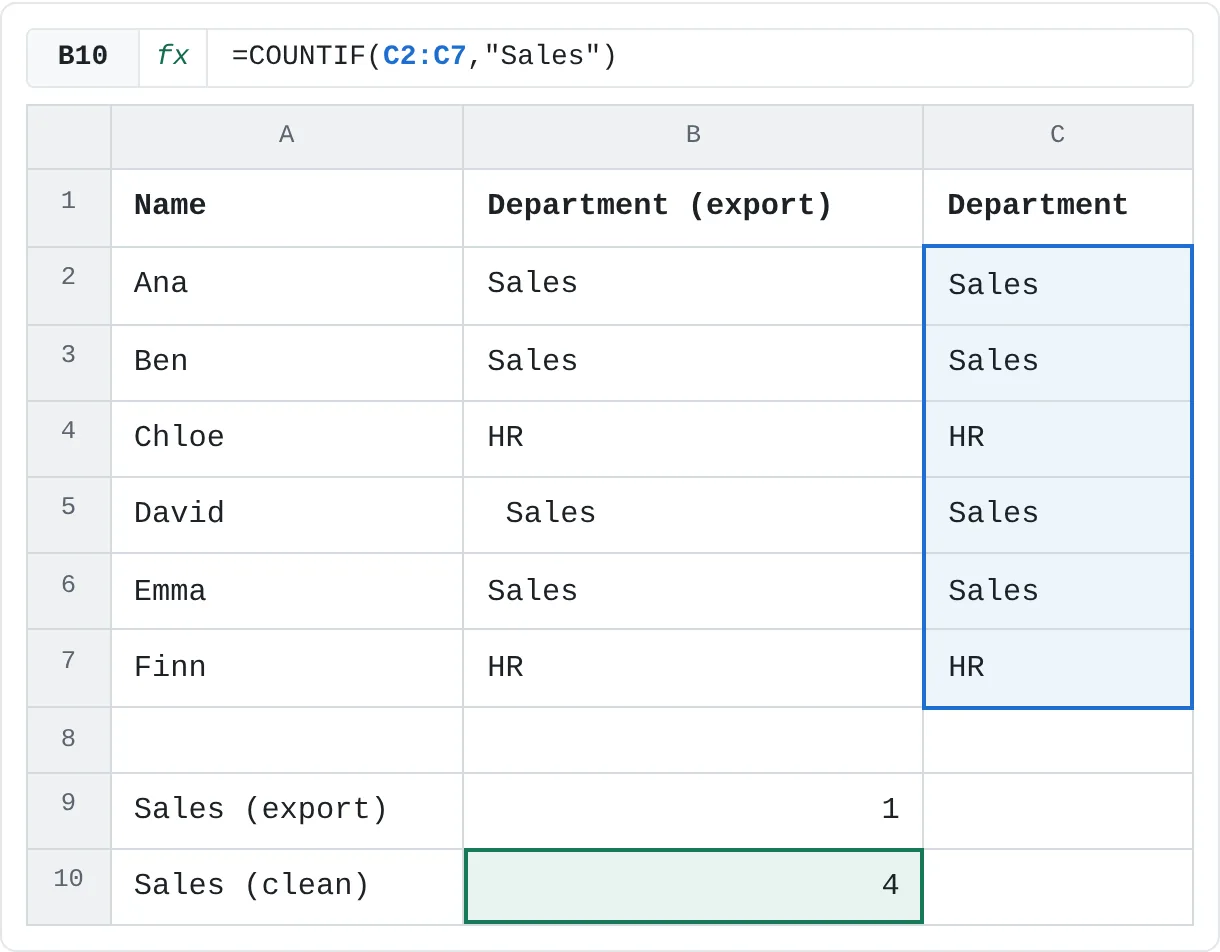
An HR export adds stray spaces to some department names. A count of the Sales team comes out at 1 when there are four people in it.
| A | B | C | |
|---|---|---|---|
| 1 | Name | Department (export) | Department |
| 2 | Ana | Sales | Sales |
| 3 | Ben | Sales | Sales |
| 4 | Chloe | HR | HR |
| 5 | David | Sales | Sales |
| 6 | Emma | Sales | Sales |
| 7 | Finn | HR | HR |
| 8 | |||
| 9 | Sales (export) | 1 | |
| 10 | Sales (clean) | 4 |
=COUNTIF(C2:C7,"Sales")Column C holds =TRIM(B2) filled down. COUNTIF on the export (B2:B7) returns 1, because only B2 is exactly "Sales". On the cleaned column it returns 4.
Mark short answers
Students typed their answers to "What's the capital of Australia?" in an online form. Some added spaces before or after the word, which a plain comparison marks as wrong.
| A | B | C | |
|---|---|---|---|
| 1 | Student | Answer typed | Point |
| 2 | Mia | Canberra | 1 |
| 3 | Noah | Canberra | 1 |
| 4 | Liam | Sydney | 0 |
| 5 | Zoe | Can berra | 0 |
| 6 | Ava | CANBERRA | 1 |
| 7 | |||
| 8 | Answer key | Canberra |
=IF(TRIM(B2)=$B$8,1,0)Mia's " Canberra" and Noah's "Canberra" with two trailing spaces both score 1, and so does Ava's CANBERRA, because = ignores upper and lower case. Without TRIM, Mia's answer would score 0. Zoe's "Can berra" still scores 0: TRIM keeps single spaces between words.
Totals from a bank's web page
You copied your card spending from your bank's website. SUMIF returns 0 for Groceries, and even TRIM doesn't help, because the space after each category is a non-breaking space.
| A | B | C | |
|---|---|---|---|
| 1 | Category (from web) | Amount ($) | Category |
| 2 | Groceries | 82 | Groceries |
| 3 | Transport | 30 | Transport |
| 4 | Groceries | 45 | Groceries |
| 5 | Eating out | 27 | Eating out |
| 6 | |||
| 7 | Groceries (as copied) | 0 | |
| 8 | Groceries (cleaned) | 127 |
=TRIM(SUBSTITUTE(A2,CHAR(160)," "))C2 returns Groceries. =SUMIF(A2:A5,"Groceries",B2:B5) on the copied column returns 0; on the cleaned column, =SUMIF(C2:C5,"Groceries",B2:B5) returns 127 (82 + 45).
When TRIM isn't enough
TRIM handles ordinary spaces only. If LEN still shows too many characters after TRIM, one of these is usually the cause:
| Problem | Where it comes from | Fix |
|---|---|---|
Non-breaking spaces, CHAR(160) | Web pages and some exports | =TRIM(SUBSTITUTE(A2,CHAR(160)," ")) |
Line breaks, CHAR(10) | Alt+Enter in a cell, text pasted from email | =TRIM(SUBSTITUTE(A2,CHAR(10)," ")) |
| Other non-printing characters (codes 0 to 31) | Files from other programs | =TRIM(CLEAN(A2)) |
| Single spaces you don't want at all | Codes typed as "KB 2041" | =SUBSTITUTE(A2," ","") |
=TRIM1(SUBSTITUTE2(A23,CHAR(160)4," "5))TRIMRuns last: trims the result of SUBSTITUTESUBSTITUTERuns first: replaces characters inside A2A2The text copied from the webCHAR(160)The non-breaking space to find" "An ordinary space to put in its place
To find out which character is hiding at the end of a value, use =CODE(RIGHT(A2)). It returns 160 for a non-breaking space, 10 for a line break and 32 for an ordinary space.
CLEAN removes line breaks completely, so "Desk" and "Lamp" on two lines become DeskLamp. When a line break separates words, replace it with a space instead, as in the table. For data with every kind of problem, combine them: =TRIM(CLEAN(SUBSTITUTE(A2,CHAR(160)," "))).
Common mistakes
- Expecting TRIM to remove every space. It keeps one space between words. To remove all spaces, for example from a product code, use
=SUBSTITUTE(A2," ",""). - Non-breaking spaces. If
LENgives the same number before and afterTRIM, the extra character isn't an ordinary space. Check it withCODE(RIGHT(A2))and replaceCHAR(160)withSUBSTITUTE. - Deleting the source column too soon. The TRIM formulas turn into
#REF!. Paste them as values first, then delete. - Trimming numbers.
TRIMalways returns text, so=TRIM(A2)on " 42 " gives the text 42, whichSUMskips. Use=VALUE(TRIM(A2))to get a number. - Trimming only one side of a lookup.
VLOOKUP(TRIM(A6),…)cleans the value you search for, not the table. Clean both if both came from outside.
Practice
Practice
Clean names and fix a lookup
Use the sheet below. Click a highlighted cell, type a formula in the bar above the sheet and press Enter. Afterwards, try it in Excel itself:
- Type five names in column A, adding extra spaces to some of them: at the start, at the end and between words.
- In column B, enter
=LEN(A2)and fill it down to see the hidden spaces. - In column C, enter
=TRIM(A2), fill it down and compareLENagain. - Copy column C and paste it over column A as values, then delete the helper columns.
Try it0 of 3 done
- In B2, remove the extra spaces from the product name in A2.
- In B3, clean the name in A3. It has two spaces between the words and one at the end.
- In C6, look up the price of the product in A6 in the price list E2:F5. A6 ends with a space.
Click a dashed cell, type a formula in the bar and press Enter.
| A | B | C | D | E | F | |
|---|---|---|---|---|---|---|
| 1 | Product (imported) | Clean name | Price ($) | Product | Price ($) | |
| 2 | Wireless Mouse | Wireless Mouse | 25 | |||
| 3 | USB Cable | USB Cable | 8 | |||
| 4 | Desk Lamp | Desk Lamp | 32 | |||
| 5 | Laptop Stand | Laptop Stand | 45 | |||
| 6 | Wireless Mouse |
Related
Was this guide helpful? Spot a mistake? Send feedback · admin@arumsoft.com