The 20 Most-Used Excel Functions · Tutorial 7 of 20
How to Use COUNTIF and COUNTIFS in Excel
Count the cells that meet a condition with COUNTIF, or several conditions at once with COUNTIFS, using operators, cell references and wildcards.
- Level
- Intermediate
- Time
- 14 min read
- Updated:
- Applies to:
- Excel for Microsoft 365, Excel 2021, Excel 2019, Excel for the web
What you'll learn
- Count the cells that match one condition with COUNTIF
- Count the rows that match several conditions with COUNTIFS
- Write criteria with operators, cell references and wildcards
- Avoid the criteria mistakes that give a wrong count
Before you start
Function Playground
Try these functions in a live sheet
Type formulas in an Excel-style grid and watch each step of the calculation. Free, no sign-up.
COUNT tells you how many cells hold numbers. COUNTIF tells you how many cells meet a condition: how many orders are paid, how many scores are 50 or more, how many entries start with "Laptop". COUNTIFS does the same with several conditions at once. Both recount by themselves when the data changes.
The syntax
=COUNTIF(range, criteria)- range is the cells to check, for example the Status column.
- criteria is the condition: a value (
"Paid",1000), a comparison in quotes (">=1000") or a cell reference.
=COUNTIF(D2:D91,"Paid"2)D2:D9range: the cells to check, here the Status column"Paid"criteria: the condition a cell must meet to be counted
=COUNTIFS(criteria_range1, criteria1, [criteria_range2, criteria2], ...)- criteria_range1, criteria1 are the first range to check and its condition.
- criteria_range2, criteria2, … are optional extra pairs, up to 127. A row is counted only when it meets every condition.
=COUNTIFS(B2:B91,"East"2,D2:D93,"Paid"4)B2:B9criteria_range1: the first column to check"East"criteria1: the condition for B2:B9D2:D9criteria_range2: the second column to check"Paid"criteria2: the condition for D2:D9, on the same row
Count the paid orders
The sheet below lists eight orders. The goal is the number of paid orders in G3.
Click the cell for the result
Click G3, next to the label "Paid orders".
A B C D E F G 1 Product Region Amount Status Summary Count 2 Laptop East 1,200 Paid Minimum amount 1,000 3 Monitor West 300 Pending Paid orders 4 Laptop stand East 45 Paid Minimum or more 5 Laptop North 1,100 Paid East, paid 6 Keyboard West 80 Pending Pending, minimum or more 7 Laptop East 1,300 Pending 8 Monitor North 280 Paid 9 Laptop stand West 50 Paid Eight orders with a product, region, amount and status. The count of paid orders goes in G3. Type =COUNTIF( and select the range to check
Type
=COUNTIF(and drag over D2:D9, the Status column. Type a comma.Type the condition and press Enter
Type
"Paid"and press Enter. Text in a condition always goes in double quotes. Capitals don't matter:"paid"counts Paid too.=COUNTIF(D2:D9,"Paid")A B C D E F G 1 Product Region Amount Status Summary Count 2 Laptop East 1,200 Paid Minimum amount 1,000 3 Monitor West 300 Pending Paid orders 5 4 Laptop stand East 45 Paid Minimum or more 5 Laptop North 1,100 Paid East, paid 6 Keyboard West 80 Pending Pending, minimum or more 7 Laptop East 1,300 Pending 8 Monitor North 280 Paid 9 Laptop stand West 50 Paid COUNTIF counts the five cells in D2:D9 that say Paid (green) and returns 5.
Unlike SUMIF, COUNTIF has no third argument. It doesn't add anything; it only counts the cells in range that match.
Use a comparison or a cell in the condition
To compare numbers, put the operator and the number together in quotes:
| Operator | Meaning | Example |
|---|---|---|
= (or nothing) | equal to | "Paid" or 1000 |
<> | not equal to | "<>Paid" |
> / >= | greater than / at least | ">=1000" |
< / <= | less than / at most | "<100" |
This counts the orders of 1,000 or more and returns 3 (1,200, 1,100 and 1,300):
=COUNTIF(C2:C9,">=1000")With ">1000" instead, an order of exactly 1,000 would no longer count. Check whether your limit itself should be included.
A condition that lives in a cell is easier to change. On its own, the cell needs no quotes: =COUNTIF(B2:B9,H2) counts whatever region is typed in H2. To combine an operator with a cell, put the operator in quotes and join it to the cell with &. With 1000 in G2, this also returns 3, and the count changes when you type a new minimum in G2:
=COUNTIF(C2:C9,">="&G2)Two more conditions are worth knowing: "<>" counts cells that aren't empty, and "" counts cells that are.
Count with several conditions: COUNTIFS
COUNTIFS takes the conditions in pairs: a range, then its condition. This counts the paid orders from the East region and returns 2:
=COUNTIFS(B2:B9,"East",D2:D9,"Paid")| A | B | C | D | E | F | G | |
|---|---|---|---|---|---|---|---|
| 1 | Product | Region | Amount | Status | Summary | Count | |
| 2 | Laptop | East | 1,200 | Paid | Minimum amount | 1,000 | |
| 3 | Monitor | West | 300 | Pending | Paid orders | ||
| 4 | Laptop stand | East | 45 | Paid | Minimum or more | ||
| 5 | Laptop | North | 1,100 | Paid | East, paid | 2 | |
| 6 | Keyboard | West | 80 | Pending | Pending, minimum or more | ||
| 7 | Laptop | East | 1,300 | Pending | |||
| 8 | Monitor | North | 280 | Paid | |||
| 9 | Laptop stand | West | 50 | Paid |
You can check the same column twice, which is how you count values between two limits. This counts amounts of at least 100 but under 1,000 and returns 2 (300 and 280):
=COUNTIFS(C2:C9,">=100",C2:C9,"<1000")COUNTIFS has no "or": every condition must be true in the same row. To count East or West orders, add two COUNTIF results together. This returns 6:
=COUNTIF(B2:B9,"East")+COUNTIF(B2:B9,"West")Count partial matches with wildcards
In text conditions, * stands for any number of characters (including none) and ? for exactly one. This counts every product that starts with "Laptop" and returns 5: three Laptops and two Laptop stands.
=COUNTIF(A2:A9,"Laptop*")Without the asterisk, "Laptop" matches only the exact text and returns 3. "*stand" matches anything that ends in "stand" (2), and "?????" matches any five-character entry. To count a real asterisk or question mark, put a tilde before it: "~*".
You can join a wildcard to a cell too. If H2 holds a word, =COUNTIF(A2:A9,"*"&H2&"*") counts the products that contain it anywhere.
COUNTIF and the other counting functions
Excel has several counting functions. They differ in what they count:
| Function | Counts | Example on the order sheet |
|---|---|---|
COUNT | cells that hold numbers | =COUNT(C2:C9) returns 8 |
COUNTA | cells that aren't empty | =COUNTA(D2:D9) returns 8 |
COUNTBLANK | empty cells | =COUNTBLANK(D2:D9) returns 0 |
COUNTIF | cells that meet one condition | =COUNTIF(D2:D9,"Paid") returns 5 |
COUNTIFS | rows that meet every condition | =COUNTIFS(B2:B9,"East",D2:D9,"Paid") returns 2 |
Real-world scenarios
Absences in an attendance register
An attendance register has one row per student and one column per day, with P for present and A for absent. COUNTIF works across a row just as it does down a column.
| A | B | C | D | E | F | G | |
|---|---|---|---|---|---|---|---|
| 1 | Student | Mon | Tue | Wed | Thu | Fri | Absences |
| 2 | Mina | P | P | A | P | P | 1 |
| 3 | Leo | P | A | A | P | P | 2 |
| 4 | Sam | P | P | P | P | P | 0 |
| 5 | Yuna | A | P | P | P | A | 2 |
| 6 | Perfect attendance | 1 |
=COUNTIF(B2:F2,"A")Mina was absent on Wednesday, so G2 returns 1. Fill the formula down to G5 and each row counts its own days: Leo 2, Sam 0, Yuna 2. In G6, =COUNTIF(G2:G5,0) counts the zeros among those results and returns 1: Sam is the only student with perfect attendance.
Items to reorder
An office supply list shows how many of each item are left. Anything below the reorder level in F3 needs ordering, and F2 holds the category to check.
| A | B | C | D | E | F | |
|---|---|---|---|---|---|---|
| 1 | Item | Category | In stock | Reorder check | Value | |
| 2 | Copy paper | Paper | 12 | Category | Paper | |
| 3 | Envelopes | Paper | 40 | Reorder below | 20 | |
| 4 | Sticky notes | Paper | 8 | Category to reorder | 2 | |
| 5 | Toner | Printer | 3 | All to reorder | 5 | |
| 6 | Ink | Printer | 15 | |||
| 7 | Pens | Desk | 60 | |||
| 8 | Staples | Desk | 9 | |||
| 9 | Notebooks | Paper | 25 |
=COUNTIFS(B2:B9,F2,C2:C9,"<"&F3)It returns 2. Of the four Paper items, Copy paper (12) and Sticky notes (8) are below 20, while Envelopes (40) and Notebooks (25) aren't. In F5, =COUNTIF(C2:C9,"<"&F3) drops the category and returns 5: Copy paper, Sticky notes, Toner, Ink and Staples. Change the level in F3 and both counts update.
Duplicate sign-ups
People sign up by email for a morning or an afternoon workshop, and some sign up twice. The same email in two different sessions is fine; the same email twice in the same session is a duplicate.
| A | B | C | |
|---|---|---|---|
| 1 | Session | Check | |
| 2 | ana@example.com | Morning | |
| 3 | ben@example.com | Morning | Duplicate |
| 4 | ana@example.com | Afternoon | Duplicate |
| 5 | chloe@example.com | Morning | |
| 6 | ben@example.com | Morning | Duplicate |
| 7 | dev@example.com | Afternoon | |
| 8 | ana@example.com | Afternoon | Duplicate |
Type this in C2 and fill it down to C8:
=IF(COUNTIFS($A$2:$A$8,A2,$B$2:$B$8,B2)>1,"Duplicate","")For each row, COUNTIFS counts the rows with the same email and the same session. The $ signs keep the whole list fixed while A2 and B2 move down a row at a time. When the count is more than 1, IF shows Duplicate. Ben's two Morning sign-ups (rows 3 and 6) and Ana's two Afternoon sign-ups (rows 4 and 8) are flagged. Ana's Morning sign-up in row 2 isn't, because she's in that session only once. Both copies of a duplicate are flagged, so you can decide which one to delete.
Share of satisfied customers
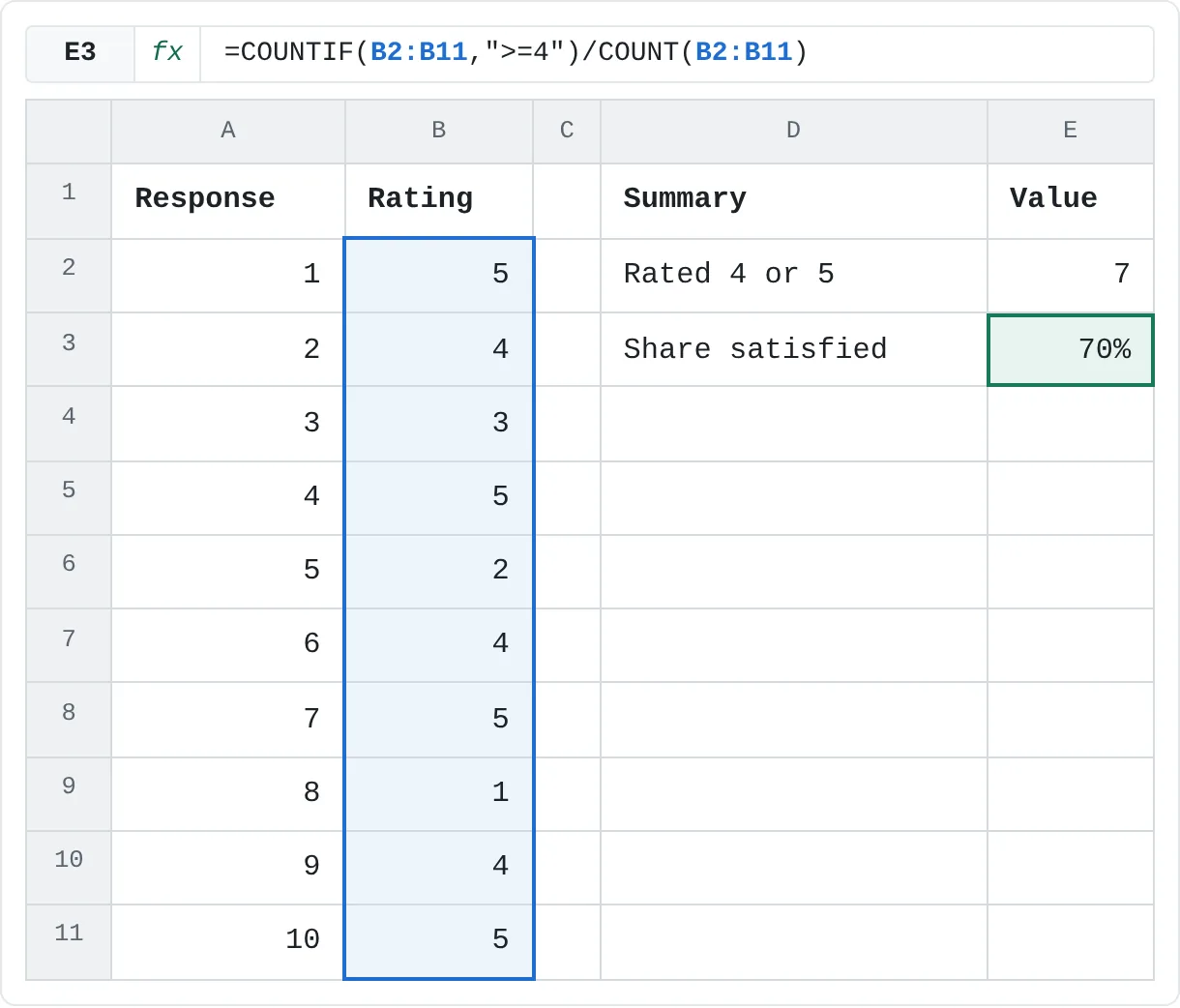
Ten customers rated a service from 1 to 5. Count the 4s and 5s, then divide by the number of ratings to get a percentage.
| A | B | C | D | E | |
|---|---|---|---|---|---|
| 1 | Response | Rating | Summary | Value | |
| 2 | 1 | 5 | Rated 4 or 5 | 7 | |
| 3 | 2 | 4 | Share satisfied | 70% | |
| 4 | 3 | 3 | |||
| 5 | 4 | 5 | |||
| 6 | 5 | 2 | |||
| 7 | 6 | 4 | |||
| 8 | 7 | 5 | |||
| 9 | 8 | 1 | |||
| 10 | 9 | 4 | |||
| 11 | 10 | 5 |
=COUNTIF(B2:B11,">=4")/COUNT(B2:B11)Seven of the ten ratings are 4 or 5, so the formula returns 0.7, which shows as 70% once the cell is formatted as a percentage. COUNT counts only cells with numbers, so if a customer skips the question and the cell stays empty, the share isn't pulled down.
Mistakes that give the wrong count
- A cell reference inside the quotes.
">=G2"compares with the text "G2", so nothing matches and the result is 0. Write">="&G2. - Ranges of different sizes. In
COUNTIFS, every criteria range must have the same number of rows and columns, or the result is#VALUE!. Use the same rows everywhere, like B2:B9 and D2:D9. - Labels that almost match. "Paid " with a trailing space isn't "Paid", so that row is skipped without warning. Clean the data with
TRIM, or use a drop-down list so the labels are always typed the same way. - Expecting "or" from COUNTIFS.
=COUNTIFS(B2:B9,"East",B2:B9,"West")returns 0, because no single cell can be both. Add twoCOUNTIFresults instead. - Counting a header or total. If the range includes the header row or a total row, those cells are checked too. Keep the range to the data rows.
Practice
Practice
Build an order summary
Use the sheet below. Click a highlighted cell, type a formula in the bar above the sheet and press Enter. Afterwards, try it in Excel itself:
- List ten tasks from your week with a category (Work, Home, Study…) and a status (Done or Open).
- Under the list, count the Done tasks with
COUNTIF. - Type a category in a cell and use
COUNTIFSto count the open tasks in that category, using the cell as the condition.
Try it0 of 4 done
- In G3, count the orders whose status is Paid.
- In G4, count the orders of at least the minimum amount in G2.
- In G5, use COUNTIFS to count the paid orders from the East region.
- In G6, count the pending orders of at least the minimum amount in G2.
Click a dashed cell, type a formula in the bar and press Enter.
| A | B | C | D | E | F | G | |
|---|---|---|---|---|---|---|---|
| 1 | Product | Region | Amount | Status | Summary | Count | |
| 2 | Laptop | East | 1,200 | Paid | Minimum amount | 1,000 | |
| 3 | Monitor | West | 300 | Pending | Paid orders | ||
| 4 | Laptop stand | East | 45 | Paid | Minimum or more | ||
| 5 | Laptop | North | 1,100 | Paid | East, paid | ||
| 6 | Keyboard | West | 80 | Pending | Pending, minimum or more | ||
| 7 | Laptop | East | 1,300 | Pending | |||
| 8 | Monitor | North | 280 | Paid | |||
| 9 | Laptop stand | West | 50 | Paid |
Related
Was this guide helpful? Spot a mistake? Send feedback · admin@arumsoft.com