The 20 Most-Used Excel Functions · Tutorial 16 of 20
How to Join Text in Excel: CONCAT, TEXTJOIN and &
Combine names, codes and lists into one cell with the & operator, CONCAT and TEXTJOIN, with spaces, separators, line breaks and number formats where you want them.
- Level
- Beginner
- Time
- 11 min read
- Updated:
- Applies to:
- Excel for Microsoft 365, Excel 2021, Excel 2019, Excel for the web. CONCAT and TEXTJOIN need Excel 2019 or later; the & operator works in every version.
What you'll learn
- Join cells and typed text with the & operator
- Combine values and ranges with CONCAT
- Join a range with a separator and skip empty cells with TEXTJOIN
- Add spaces, punctuation and line breaks between the pieces
- Keep number and date formats in joined text with TEXT
Before you start
None — this is a good first tutorial.
Function Playground
Try these functions in a live sheet
Type formulas in an Excel-style grid and watch each step of the calculation. Free, no sign-up.
Joining text puts the contents of several cells into one: a first and last name into a full name, three codes into a product SKU, a column of email addresses into one line you can paste into a message. Excel gives you three tools for it: the & operator, the CONCAT function, and TEXTJOIN, which puts a separator between the pieces for you and can skip empty cells.
The syntax
=text1&text2=CONCAT(text1, [text2], ...)=TEXTJOIN(delimiter, ignore_empty, text1, [text2], ...)- & joins the value on its left to the value on its right. Chain as many as you need:
=A2&" "&B2is three pieces. - text1, text2, … are the pieces to join: cell references, numbers, text in double quotes or other formulas.
CONCATandTEXTJOINalso accept ranges such asA2:D2.text1is required; the rest are optional. - delimiter (TEXTJOIN, required) is the text placed between every two pieces, such as
", "or" ". Use""for nothing. - ignore_empty (TEXTJOIN, required):
TRUEskips empty cells;FALSEkeeps them, which leaves two separators side by side.
None of them adds spaces on its own. Anything you want between the pieces (a space, a comma, a hyphen) you type yourself, inside double quotes.
=A21&2" "3&B24&" ("5&C26&")"7A2The first name&Glues the next piece on. You need one between every two pieces" "A space, typed as text in double quotesB2The last name" ("A space and an opening parenthesisC2The department")"The closing parenthesis
Join first and last names
The sheet below lists five employees, with first names in column A, last names in column B and departments in column C. The goal is a full name in column D.
Click the cell for the result
Click D2.
A B C D E 1 First name Last name Department Full name Name tag 2 Ana Lopez Sales 3 Ben Carter HR 4 Chloe Kim Finance 5 David Park Marketing 6 Emma Wilson IT First names in column A, last names in column B and departments in column C. The full names go in column D. Type the formula
Type
=A2&" "&B2. Read it as "A2, then a space, then B2". The space goes in double quotes because it's text you're adding, not a cell.A B C D E 1 First name Last name Department Full name Name tag 2 Ana Lopez Sales =A2&" "&B2 3 Ben Carter HR 4 Chloe Kim Finance 5 David Park Marketing 6 Emma Wilson IT While you type, A2 and B2 are colored in the formula and outlined in the same colors on the sheet. Press Enter and fill down
Press Enter. D2 shows Ana Lopez. Drag the fill handle at the bottom-right corner of D2 down to D6, or select D2:D6 and press Ctrl+D. Each row joins its own first and last name.
=A2&" "&B2A B C D E 1 First name Last name Department Full name Name tag 2 Ana Lopez Sales Ana Lopez 3 Ben Carter HR Ben Carter 4 Chloe Kim Finance Chloe Kim 5 David Park Marketing David Park 6 Emma Wilson IT Emma Wilson Filled down, column D holds all five full names.
Leave out the space and =A2&B2 returns AnaLopez. You can keep chaining pieces: the name tag formula from the anatomy above, =A2&" "&B2&" ("&C2&")", returns Ana Lopez (Sales) in E2.
| A | B | C | D | E | |
|---|---|---|---|---|---|
| 1 | First name | Last name | Department | Full name | Name tag |
| 2 | Ana | Lopez | Sales | Ana Lopez | Ana Lopez (Sales) |
| 3 | Ben | Carter | HR | ||
| 4 | Chloe | Kim | Finance | ||
| 5 | David | Park | Marketing | ||
| 6 | Emma | Wilson | IT |
CONCAT: the same job as a function
CONCAT takes the pieces as a list instead of linking them with &. This returns Ana Lopez, exactly like the formula above:
=CONCAT(A2," ",B2)Unlike &, CONCAT also accepts a range. =CONCAT(A2:C2) returns AnaLopezSales: every cell in the range, with nothing in between. That's handy for codes that are meant to run together, but for words you usually want a separator, which is what TEXTJOIN is for.
You may also see CONCATENATE in older workbooks. It's the earlier version of CONCAT, still there so old files keep working, and it doesn't take ranges: you list every cell. Use CONCAT or & in new formulas.
TEXTJOIN: one separator, and empty cells skipped
When every piece gets the same separator, TEXTJOIN saves you typing it again and again. The sheet below splits two mailing addresses over four columns. The second address has no unit number, so B3 is empty.
| A | B | C | D | E | |
|---|---|---|---|---|---|
| 1 | Street | Unit | City | State and ZIP | Mailing address |
| 2 | 12 Main St | Apt 4B | Fort Lee | NJ 07024 | 12 Main St, Apt 4B, Fort Lee, NJ 07024 |
| 3 | 88 Oak Ave | Hackensack | NJ 07601 | =TEXTJOIN(", ",TRUE,A3:D3) |
=TEXTJOIN(", ",TRUE,A2:D2)In E2 this returns 12 Main St, Apt 4B, Fort Lee, NJ 07024. Filled down to E3, it returns 88 Oak Ave, Hackensack, NJ 07601: because the second argument is TRUE, the empty B3 is skipped along with its separator.
| A | B | C | D | E | |
|---|---|---|---|---|---|
| 1 | Street | Unit | City | State and ZIP | Mailing address |
| 2 | 12 Main St | Apt 4B | Fort Lee | NJ 07024 | 12 Main St, Apt 4B, Fort Lee, NJ 07024 |
| 3 | 88 Oak Ave | Hackensack | NJ 07601 | 88 Oak Ave, Hackensack, NJ 07601 |
Change TRUE to FALSE and row 3 returns 88 Oak Ave, , Hackensack, NJ 07601, with a doubled comma where the empty cell was. Joining the four cells with & gives the same doubled comma, because & has no way to skip anything.
Put each piece on its own line
CHAR(10) is the line break character, the same one you type inside a cell with Alt+Enter. Use it as the delimiter to stack the address like a label:
=TEXTJOIN(CHAR(10),TRUE,A2:D2)Then turn on Home then Alignment then Wrap Text for the cell. Until you do, the cell shows everything on one line. With & it works the same way: =A2&CHAR(10)&B2.
Real-world scenarios
Build product SKUs
A clothing shop codes each item by category, size and color. The SKU joins the three codes with hyphens.
| A | B | C | D | E | |
|---|---|---|---|---|---|
| 1 | Product | Category | Size | Color | SKU |
| 2 | T-shirt | TS | M | BLU | TS-M-BLU |
| 3 | Hoodie | HD | L | GRY | HD-L-GRY |
| 4 | Cap | CP | OS | BLK | CP-OS-BLK |
=B2&"-"&C2&"-"&D2E2 returns TS-M-BLU. Because every separator is the same, =TEXTJOIN("-",TRUE,B4:D4) does the same job for the cap in row 4 and returns CP-OS-BLK.
One line of parent emails
A teacher wants to email every parent at once. One student, Liam, has no email on file.
| A | B | |
|---|---|---|
| 1 | Student | Parent email |
| 2 | Mia | rivera.home@example.com |
| 3 | Noah | s.chen@example.net |
| 4 | Liam | |
| 5 | Zoe | patel.family@example.org |
| 6 | Ava | j.okafor@example.com |
| 7 | ||
| 8 | Send to | rivera.home@example.com; s.chen@example.net; patel.family@example.org; j.okafor@example.com |
=TEXTJOIN("; ",TRUE,B2:B6)B8 returns the four addresses separated by semicolons, with no gap for B4. Copy B8 and paste it into the To box of a new email. Outlook separates addresses with semicolons; if your mail app wants commas, use ", " as the delimiter.
A budget summary in words
You track your monthly budget and want a sentence for each category instead of a bare number.
| A | B | C | D | |
|---|---|---|---|---|
| 1 | Category | Budget | Spent | Summary |
| 2 | Groceries | 400 | 389 | Groceries: 97% of budget used |
| 3 | Eating out | 150 | 171 | Eating out: 114% of budget used |
| 4 | Transport | 120 | 84 | Transport: 70% of budget used |
=A2&": "&TEXT(C2/B2,"0%")&" of budget used"D2 returns Groceries: 97% of budget used, because 389 ÷ 400 is 0.9725 and the format code 0% shows it as 97%. Without TEXT, the same sentence reads Groceries: 0.9725 of budget used.
Who's coming, in one cell
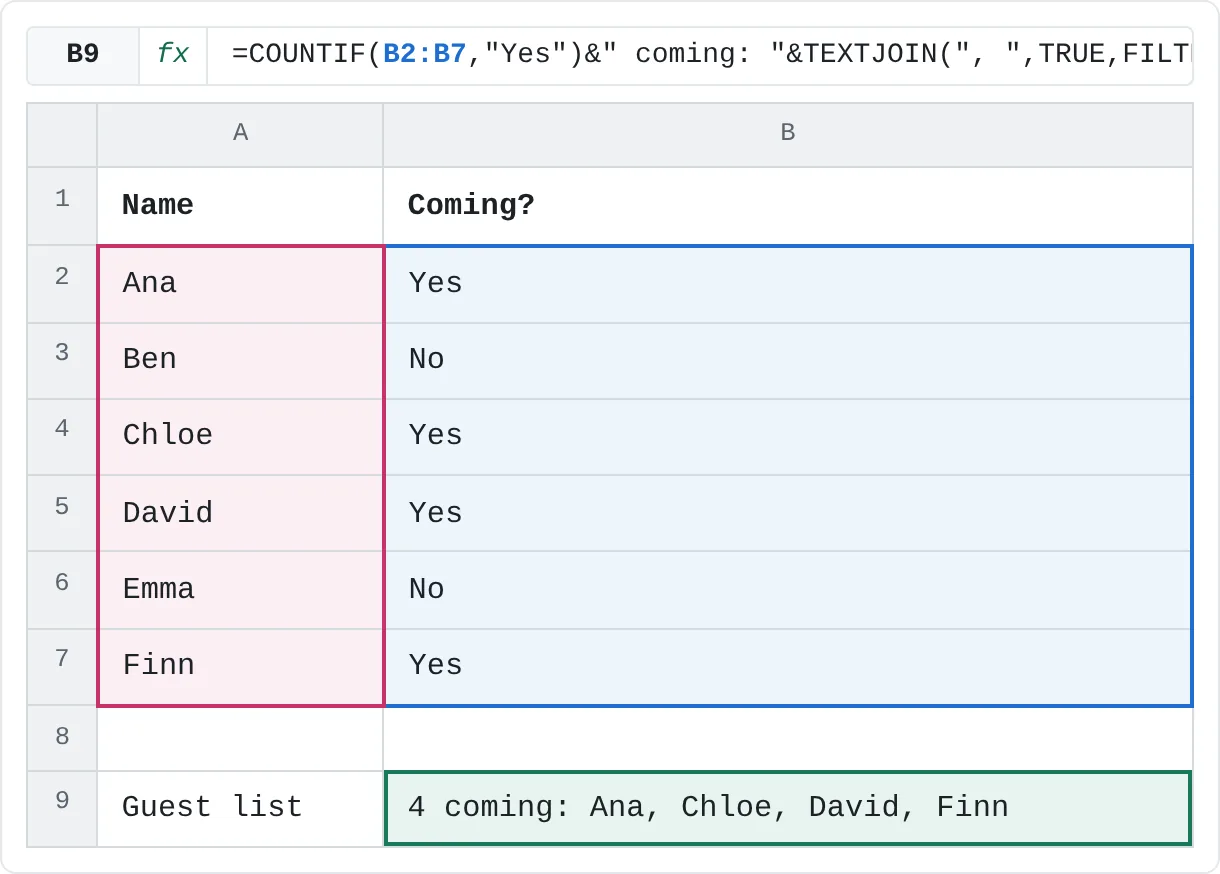
You collect yes/no replies for a team dinner and want a single line with the headcount and the names. This combines TEXTJOIN with COUNTIF and FILTER.
| A | B | |
|---|---|---|
| 1 | Name | Coming? |
| 2 | Ana | Yes |
| 3 | Ben | No |
| 4 | Chloe | Yes |
| 5 | David | Yes |
| 6 | Emma | No |
| 7 | Finn | Yes |
| 8 | ||
| 9 | Guest list | 4 coming: Ana, Chloe, David, Finn |
=COUNTIF(B2:B7,"Yes")&" coming: "&TEXTJOIN(", ",TRUE,FILTER(A2:A7,B2:B7="Yes"))FILTER returns the four names whose reply is Yes, TEXTJOIN turns them into one comma-separated list, and COUNTIF counts the same four replies. B9 shows 4 coming: Ana, Chloe, David, Finn. FILTER needs Excel 2021 or Microsoft 365.
Which one should you use?
& | CONCAT | CONCATENATE | TEXTJOIN | |
|---|---|---|---|---|
| Available in | Every version | Excel 2019 and later | Every version | Excel 2019 and later |
Joins a range like A2:D2 | No | Yes | No | Yes |
| Separator between pieces | You type each one | You type each one | You type each one | Added for you |
| Skips empty cells | No | Adds nothing for them | Adds nothing for them | Yes, with TRUE |
| Good for | A few pieces with different text between them | Codes that run together | Older workbooks | Lists and ranges with the same separator |
Keep number and date formats
A number's format (currency signs, thousands separators, decimal places) is only how the cell displays it. When you join the number, Excel uses the plain value underneath. If B2 holds 12500 formatted as currency, ="Total: "&B2 returns Total: 12500. Dates come out worse: Excel stores them as serial numbers, so 15 March 2026 joins as 46096.
Wrap the value in TEXT with a format code to choose how it appears:
="Total: "&TEXT(B2,"$#,##0.00")With 12500 in B2, this returns Total: $12,500.00. For a date in C2, ="Due "&TEXT(C2,"mmm d, yyyy") returns Due Mar 15, 2026. The TEXT guide lists the format codes.
Common mistakes
- Text without quotes.
=A2&Salesreturns#NAME?, because Excel reads Sales as a name it doesn't know. Put typed text, including spaces and punctuation, in double quotes:=A2&" Sales". - Forgetting the spaces.
=A2&B2gives AnaLopez. Add" "between the pieces, or useTEXTJOIN(" ",TRUE,…). - Numbers and dates that lose their format. A joined price shows every decimal, and a joined date shows a number such as 46096. Wrap them in
TEXT. - Doubled separators. With
ignore_emptyset toFALSE, or with&, an empty cell leaves, ,in the result. UseTEXTJOINwithTRUE. - A range in CONCATENATE.
CONCATENATEdoesn't join a range into one value. UseCONCATorTEXTJOIN, or list the cells one by one. - #NAME? in an older Excel. Versions before Excel 2019 that aren't Microsoft 365 don't have
CONCATorTEXTJOIN. If a workbook must open there, use&. - A result that's too long. A cell holds at most 32,767 characters. If
CONCATorTEXTJOINwould return more, you get#VALUE!.
Practice
Practice
Build names, tags and a team list
Use the sheet below. Click a highlighted cell, type a formula in the bar above the sheet and press Enter. Afterwards, try it in Excel itself:
- Type the first and last names of five people you know in columns A and B, and a role or team for each in column C.
- In column D, join each first and last name with
&and a space, and fill the formula down. - In column E, build a tag such as Ana Lopez (Sales).
- Below the list, use
TEXTJOINto put all the full names in one cell, separated by commas. - Join one of the names with
CHAR(10)instead of a space and turn on Wrap Text to see the line break.
Try it0 of 4 done
- In D2, join the first name in A2 and the last name in B2 with a space between them.
- In E2, build a name tag: the full name, a space and the department in parentheses.
- In D3, build the full name again, this time with CONCAT.
- In B8, list all five departments in one cell, separated by a comma and a space.
Click a dashed cell, type a formula in the bar and press Enter.
| A | B | C | D | E | |
|---|---|---|---|---|---|
| 1 | First name | Last name | Department | Full name | Name tag |
| 2 | Ana | Lopez | Sales | ||
| 3 | Ben | Carter | HR | ||
| 4 | Chloe | Kim | Finance | ||
| 5 | David | Park | Marketing | ||
| 6 | Emma | Wilson | IT | ||
| 7 | |||||
| 8 | Departments |
Related
Was this guide helpful? Spot a mistake? Send feedback · admin@arumsoft.com