The 20 Most-Used Excel Functions · Tutorial 17 of 20
How to Use LEFT, RIGHT and MID in Excel
Pull characters from the start, end or middle of a code, ID or email address with LEFT, RIGHT and MID, and handle parts of varying length with FIND and LEN.
- Level
- Beginner
- Time
- 11 min read
- Updated:
- Applies to:
- Excel for Microsoft 365, Excel 2021, Excel 2019, Excel for the web. TEXTBEFORE and TEXTAFTER need Microsoft 365, Excel 2024 or Excel for the web.
What you'll learn
- Return characters from the start or end of a value with LEFT and RIGHT
- Return characters from the middle of a value with MID
- Combine LEFT, MID and RIGHT with FIND and LEN for parts of varying length
- Turn an extracted number into a real number with VALUE
- Know when TEXTBEFORE and TEXTAFTER are the simpler choice
Before you start
None — this is a good first tutorial.
Function Playground
Try these functions in a live sheet
Type formulas in an Excel-style grid and watch each step of the calculation. Free, no sign-up.
A lot of data packs several facts into one value: a product code holds a category, a model number and a color; an email address holds a user name and a domain; a student ID holds a year, a class and a number. LEFT, RIGHT and MID cut out the piece you need, so you can sort, filter, count or look it up on its own.
The syntax
=LEFT(text, [num_chars])=RIGHT(text, [num_chars])=MID(text, start_num, num_chars)- text is the value to take characters from, usually a cell such as
A2. Numbers work too: Excel uses their digits. - num_chars in
LEFTandRIGHTis optional and says how many characters to return. Leave it out and you get 1 character. Ask for more characters than the text has and you get the whole text. - start_num in
MIDis the position of the first character to return. The first character of the text is position 1. - num_chars in
MIDis required. If it runs past the end of the text,MIDstops at the end.
Every character counts, including spaces, hyphens and dots. Here are the positions in the code KB-2041-BK:
| Position | 1 | 2 | 3 | 4 | 5 | 6 | 7 | 8 | 9 | 10 |
|---|---|---|---|---|---|---|---|---|---|---|
| Character | K | B | - | 2 | 0 | 4 | 1 | - | B | K |
=MID(A21,42,43)A2The text to read: the code KB-2041-BK4Start at position 4, just after the first hyphen4Return 4 characters: 2041
Pull parts out of a product code
Each code in column A has the same layout: two letters for the category, a hyphen, a four-digit model number, a hyphen and two letters for the color. Because the pieces are always in the same place, you can count the positions once and copy the formulas down.
Return the category with LEFT
Click C2, type the formula below and press Enter. It returns KB, the first two characters.
=LEFT(A2,2)A B C D E 1 Product code Product Category Model no. Color 2 KB-2041-BK Keyboard KB 3 MS-1187-WH Mouse 4 HD-3302-BL Headset 5 MN-2750-BK Monitor 6 CB-0415-WH Cable LEFT takes the first two characters of A2. Return the color with RIGHT
Click E2 and enter
=RIGHT(A2,2). It counts from the end and returns BK.Return the model number with MID
Click D2 and enter the formula below. It starts at position 4 and returns four characters: 2041.
=MID(A2,4,4)A B C D E 1 Product code Product Category Model no. Color 2 KB-2041-BK Keyboard KB =MID(A2,4,4) BK 3 MS-1187-WH Mouse 4 HD-3302-BL Headset 5 MN-2750-BK Monitor 6 CB-0415-WH Cable MID starts at the fourth character of A2 and takes four characters. Fill the formulas down
Select C2:E2 and drag the fill handle down to row 6. Each row splits its own code. Notice that 2041 sits on the left of D2: what LEFT, RIGHT and MID return is always text, even when it looks like a number.
A B C D E 1 Product code Product Category Model no. Color 2 KB-2041-BK Keyboard KB 2041 BK 3 MS-1187-WH Mouse 4 HD-3302-BL Headset 5 MN-2750-BK Monitor Row 2 split into category, model number and color. D2 is aligned left because MID returns text.
Extract parts of different lengths with FIND
Counting positions works only when every value has the same layout. In an email address, the user name can be any length, so you need to find where the @ is first. FIND returns the position of one piece of text inside another:
=FIND("@",A2)For sales.team@example.com it returns 11. That position gives you both parts:
- The user name ends one character before the @, so it's
LEFTwith the position minus 1:=LEFT(A2,B2-1)returns sales.team. - The domain starts one character after the @, so it's
MIDfrom the position plus 1. For the length,LEN(A2)(the number of characters in A2) is always enough;MIDstops at the end of the text anyway.=MID(A2,B2+1,LEN(A2))returns example.com.
| A | B | C | D | |
|---|---|---|---|---|
| 1 | @ position | User name | Domain | |
| 2 | sales.team@example.com | 11 | sales.team | example.com |
| 3 | jkim@school.example.org | 5 | jkim | school.example.org |
| 4 | orders@shop.example.net | 7 | orders | shop.example.net |
Once it works, you can skip the helper column and put FIND inside the formula:
=LEFT(A2,FIND("@",A2)-1)RIGHT can return the domain too, if you work out how many characters follow the @: =RIGHT(A2,LEN(A2)-FIND("@",A2)) returns example.com, because 22 characters minus 11 leaves 11.
SEARCH works like FIND with two differences: it ignores upper and lower case, and it accepts the wildcards * and ?. FIND is case-sensitive. Both return #VALUE! when the text isn't there.
Real-world scenarios
Mask phone numbers on receipts
Receipts should show enough of a customer's phone number to recognize it, but not the whole number.
| A | B | C | |
|---|---|---|---|
| 1 | Customer | Phone | Shown on receipt |
| 2 | Ana Lopez | 201-555-0148 | 201-***-0148 |
| 3 | Ben Carter | 973-555-0192 | 973-***-0192 |
| 4 | Chloe Kim | 908-555-0127 | 908-***-0127 |
=LEFT(B2,4)&"***-"&RIGHT(B2,4)C2 returns 201-***-0148: the first four characters (201 and the hyphen), the typed text ***-, and the last four characters.
Split student IDs
Each student ID has five digits: the year, a two-digit class and a two-digit number. 10317 means year 1, class 3, number 17.
| A | B | C | D | E | |
|---|---|---|---|---|---|
| 1 | Student ID | Name | Year | Class | Number |
| 2 | 10317 | Mia Chen | 1 | 3 | 17 |
| 3 | 20514 | Noah Brooks | 2 | 5 | 14 |
| 4 | 31102 | Zoe Patel | 3 | 11 | 2 |
=VALUE(MID(A2,2,2))MID(A2,2,2) returns the text 03, and VALUE turns it into the number 3, so the class column sorts and filters as numbers. The year is =VALUE(LEFT(A2,1)) and the number is =VALUE(RIGHT(A2,2)). The IDs are numbers, and the formulas still work because Excel reads their digits as text.
Fix dates from a bank download
Your bank's export writes dates as eight digits of text, such as 20260302. Excel doesn't see them as dates, so you can't sort or group them by month.
| A | B | C | |
|---|---|---|---|
| 1 | Date (text) | Description | Date |
| 2 | 20260302 | Grocery store | 2026-03-02 |
| 3 | 20260315 | Bus pass | 2026-03-15 |
| 4 | 20260328 | Coffee shop | 2026-03-28 |
=DATE(LEFT(A2,4),MID(A2,5,2),RIGHT(A2,2))LEFT returns 2026, MID returns 03 and RIGHT returns 02. DATE accepts those as numbers and returns the date 2 March 2026, which you can format however you like.
Turn the result into a number
LEFT, RIGHT and MID always return text, even when every character is a digit. Text that looks like a number causes quiet problems: SUM skips it (the total of the model numbers in D2:D6 would be 0), and a lookup for it in a column of real numbers returns #N/A.
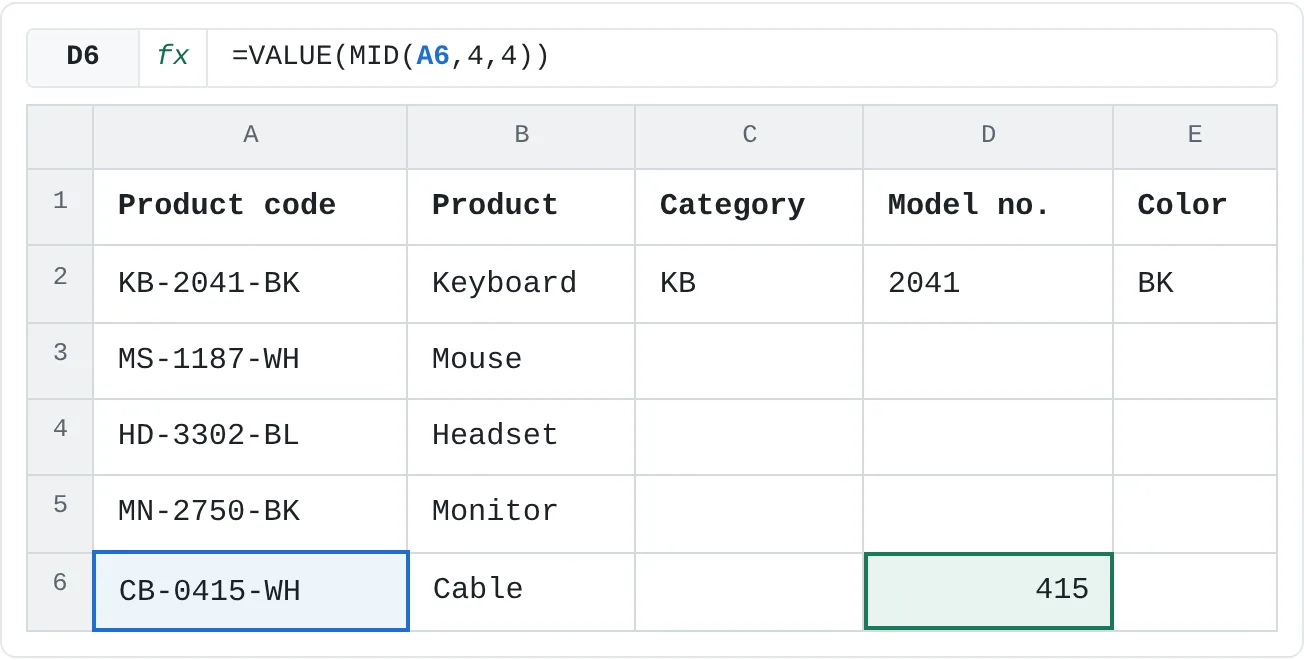
Wrap the formula in VALUE to get a number:
=VALUE(MID(A6,4,4))For the cable's code CB-0415-WH, MID returns the text 0415, and VALUE turns it into the number 415. The leading zero disappears, as it does for any number. If the zero matters, because the value is a code rather than a quantity, leave it as text.
| A | B | C | D | E | |
|---|---|---|---|---|---|
| 1 | Product code | Product | Category | Model no. | Color |
| 2 | KB-2041-BK | Keyboard | KB | 2041 | BK |
| 3 | MS-1187-WH | Mouse | |||
| 4 | HD-3302-BL | Headset | |||
| 5 | MN-2750-BK | Monitor | |||
| 6 | CB-0415-WH | Cable | 415 |
A shorter way you'll see in other people's formulas is two minus signs: =--MID(A2,4,4) returns the number 2041. The first minus turns the text into a negative number and the second turns it back. Adding zero (=MID(A2,4,4)+0) does the same.
TEXTBEFORE and TEXTAFTER in Microsoft 365
In Microsoft 365, Excel 2024 and Excel for the web, two newer functions cut text at a delimiter without any position arithmetic:
| To get | LEFT, RIGHT, MID | TEXTBEFORE, TEXTAFTER |
|---|---|---|
| The user name before @ | =LEFT(A2,FIND("@",A2)-1) | =TEXTBEFORE(A2,"@") |
| The domain after @ | =MID(A2,FIND("@",A2)+1,LEN(A2)) | =TEXTAFTER(A2,"@") |
| The color after the last hyphen | =RIGHT(A2,2) | =TEXTAFTER(A2,"-",-1) |
A negative third argument counts from the end, so -1 means "after the last hyphen". If the workbook also has to work in Excel 2021 or earlier, stick with LEFT, RIGHT and MID: older versions show #NAME? for the new functions.
Common mistakes
- Leaving out num_chars.
=LEFT(A2)returns just K, because the default is one character. Add the number of characters you want. - Off by one around a delimiter.
=LEFT(A2,FIND("@",A2))returns sales.team@, with the @. Subtract 1 for the part before a delimiter and add 1 for the part after it. - The delimiter isn't there. If an address has no @,
FINDreturns#VALUE!and so does the whole formula. Wrap it inIFERRORif some values may be missing it. - Numbers that stay text. Extracted digits are text, so
SUMignores them and lookups against real numbers fail. UseVALUEor--. - Extra spaces shift the positions. If A2 holds " KB-2041-BK" with a space in front,
=LEFT(A2,2)returns " K". Clean the value withTRIMfirst:=LEFT(TRIM(A2),2). - Using LEFT on a date. A date is a serial number underneath, so
=LEFT(A2,4)on the date 15 March 2026 returns 4609, not 2026. UseYEAR,MONTHandDAY, orTEXT, for dates.
Practice
Practice
Split product codes
Use the sheet below. Click a highlighted cell, type a formula in the bar above the sheet and press Enter. Afterwards, try it in Excel itself:
- Type five email addresses (real or made up) in column A.
- In column B, find the position of the @ with
FIND. - In column C, return the user name with
LEFT, and in column D, the domain withMID. - If you have Microsoft 365, compare your results with
TEXTBEFOREandTEXTAFTER.
Try it0 of 4 done
- In C2, return the first two characters of the code in A2 (the category).
- In E2, return the last two characters of the code in A2 (the color).
- In D2, return the four-digit model number from the middle of the code in A2.
- In D6, return the cable's model number as a real number, not text.
Click a dashed cell, type a formula in the bar and press Enter.
| A | B | C | D | E | |
|---|---|---|---|---|---|
| 1 | Product code | Product | Category | Model no. | Color |
| 2 | KB-2041-BK | Keyboard | |||
| 3 | MS-1187-WH | Mouse | |||
| 4 | HD-3302-BL | Headset | |||
| 5 | MN-2750-BK | Monitor | |||
| 6 | CB-0415-WH | Cable |
Related
Was this guide helpful? Spot a mistake? Send feedback · admin@arumsoft.com