The 20 Most-Used Excel Functions · Tutorial 6 of 20
How to Use SUMIF and SUMIFS in Excel
Add up only the numbers that meet a condition with SUMIF, or several conditions at once with SUMIFS.
- Level
- Intermediate
- Time
- 14 min read
- Updated:
- Applies to:
- Excel for Microsoft 365, Excel 2021, Excel 2019, Excel for the web
What you'll learn
- Add up the values that match one condition with SUMIF
- Add up the values that match several conditions with SUMIFS
- Write criteria with operators, cell references and wildcards
- Avoid the argument-order and criteria mistakes that give a wrong total
Before you start
Function Playground
Try these functions in a live sheet
Type formulas in an Excel-style grid and watch each step of the calculation. Free, no sign-up.
SUM adds every number in a range. SUMIF adds only the numbers whose row meets a condition, such as "sales in the East region" or "orders of 1,000 or more". SUMIFS does the same with as many conditions as you need. Both update by themselves when the data changes, so they're the usual way to build a summary next to a list.
The syntax
=SUMIF(range, criteria, [sum_range])- range is the cells to check against the condition, for example the Region column.
- criteria is the condition: a value (
"East",1000), a comparison in quotes (">=1000") or a cell reference. - sum_range is optional: the cells to add. Leave it out and Excel adds the cells in range itself.
=SUMIF(A2:A91,"East"2,C2:C93)A2:A9range: the cells to check, here the regions"East"criteria: the condition a cell must meetC2:C9sum_range: the cells to add, from the same rows
=SUMIFS(sum_range, criteria_range1, criteria1, [criteria_range2, criteria2], ...)- sum_range is the cells to add. In
SUMIFSit comes first, not last. - criteria_range1, criteria1 are the first range to check and its condition.
- criteria_range2, criteria2, … are optional extra pairs, up to 127. A row is added only when it meets every condition.
=SUMIFS(C2:C91,A2:A92,"West"3,B2:B94,"Laptop"5)C2:C9sum_range: the cells to add, now in first placeA2:A9criteria_range1: the first column to check"West"criteria1: the condition for A2:A9B2:B9criteria_range2: the second column to check"Laptop"criteria2: the condition for B2:B9
Compare the two pictures: the amounts C2:C9 are the last argument of SUMIF and the first argument of SUMIFS.
Add up one region's sales
The sheet below lists eight sales. The goal is the total for the East region in F3.
Click the cell for the result
Click F3, next to the label "East total".
A B C D E F 1 Region Product Amount Summary Result 2 East Laptop 1,200 Minimum amount 1,000 3 West Monitor 300 East total 4 East Monitor 250 Minimum or more 5 North Laptop 1,100 West laptops 6 West Laptop 1,300 East, minimum or more 7 East Keyboard 80 8 North Monitor 280 9 West Keyboard 90 Eight sales by region and product. The East total goes in F3. Type =SUMIF( and select the range to check
Type
=SUMIF(and drag over A2:A9, the regions. Type a comma.Type the condition
Type
"East"and another comma. Text in a condition always goes in double quotes. Capitals don't matter:"east"matches East too.Select the cells to add and press Enter
Drag over C2:C9, the amounts, and press Enter. Excel checks each row of A2:A9, and wherever it finds East it adds the amount from the same row of C2:C9: 1,200 + 250 + 80.
=SUMIF(A2:A9,"East",C2:C9)A B C D E F 1 Region Product Amount Summary Result 2 East Laptop 1,200 Minimum amount 1,000 3 West Monitor 300 East total 1,530 4 East Monitor 250 Minimum or more 5 North Laptop 1,100 West laptops 6 West Laptop 1,300 East, minimum or more 7 East Keyboard 80 8 North Monitor 280 9 West Keyboard 90 SUMIF adds only the amounts in the East rows (green) and returns 1,530.
Use a comparison or a cell in the condition
To compare numbers, put the operator and the number together in quotes:
| Operator | Meaning | Example |
|---|---|---|
= (or nothing) | equal to | "East" or 1000 |
<> | not equal to | "<>East" |
> / >= | greater than / at least | ">=1000" |
< / <= | less than / at most | "<500" |
When range already holds the numbers to add, you can leave out sum_range. This adds every amount of 1,000 or more and returns 3,600:
=SUMIF(C2:C9,">=1000")A condition that lives in a cell is easier to change than one typed into the formula. On its own, the cell needs no quotes: =SUMIF(A2:A9,H2,C2:C9) adds the amounts for whatever region is in H2. To combine an operator with a cell, put the operator in quotes and join it to the cell with &. With 1000 in F2, this also returns 3,600, and the result changes when you type a new minimum in F2:
=SUMIF(C2:C9,">="&F2)Add up with several conditions: SUMIFS
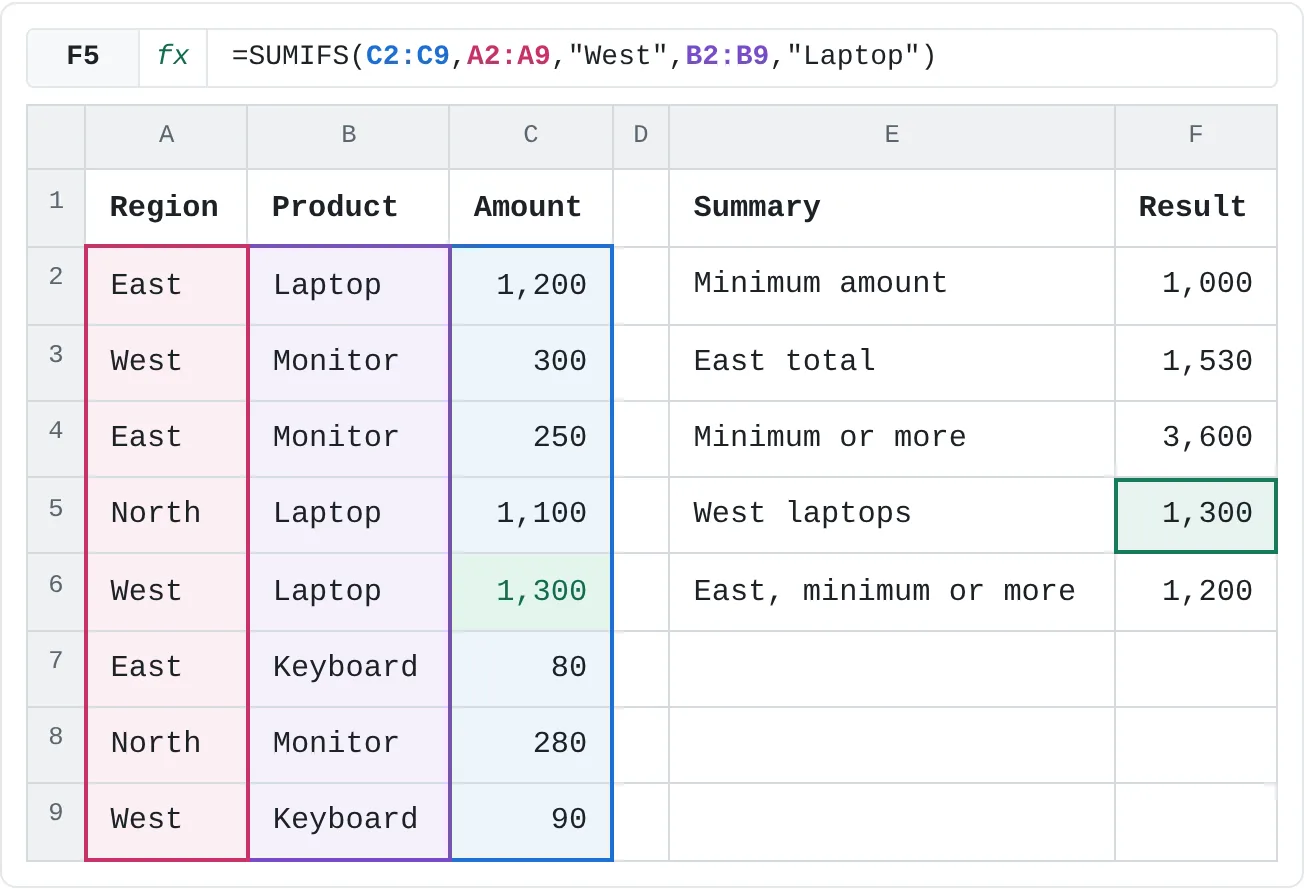
SUMIFS adds a row only when every condition is true. This totals laptop sales in the West region and returns 1,300:
=SUMIFS(C2:C9,A2:A9,"West",B2:B9,"Laptop")Read it in pairs after the first argument: add C2:C9 where A2:A9 is West and B2:B9 is Laptop. You can check the same column twice, or mix text and numbers. East sales of at least the minimum in F2 (only the 1,200 laptop sale) return 1,200:
=SUMIFS(C2:C9,A2:A9,"East",C2:C9,">="&F2)| A | B | C | D | E | F | |
|---|---|---|---|---|---|---|
| 1 | Region | Product | Amount | Summary | Result | |
| 2 | East | Laptop | 1,200 | Minimum amount | 1,000 | |
| 3 | West | Monitor | 300 | East total | 1,530 | |
| 4 | East | Monitor | 250 | Minimum or more | 3,600 | |
| 5 | North | Laptop | 1,100 | West laptops | 1,300 | |
| 6 | West | Laptop | 1,300 | East, minimum or more | 1,200 | |
| 7 | East | Keyboard | 80 | |||
| 8 | North | Monitor | 280 | |||
| 9 | West | Keyboard | 90 |
| SUMIF | SUMIFS | |
|---|---|---|
| Number of conditions | One | One or more, up to 127 |
| Where the cells to add go | Last argument | First argument |
| Cells to add can be left out | Yes: it adds the checked cells | No: the sum range is required |
| Several conditions with "or" | Add two SUMIFs together | Add two SUMIFS together |
Wildcards and "either/or" conditions
In text conditions, * stands for any number of characters and ? for exactly one. This adds every product that starts with M (the three monitors) and returns 830:
=SUMIF(B2:B9,"M*",C2:C9)"*board" would match anything ending in "board", and "??" any two-character entry. To find a real asterisk or question mark, put a tilde before it: "~*".
SUMIFS has no "or": all its conditions must be true at once. For East or West, add two SUMIF results together. This returns 3,220:
=SUMIF(A2:A9,"East",C2:C9)+SUMIF(A2:A9,"West",C2:C9)Real-world scenarios
One region's sales for one month
A sales log has a date, a region and an amount on every row. The report should show the total for the region in F2 during the month that starts on the date in F3, and update when you change either cell.
| A | B | C | D | E | F | |
|---|---|---|---|---|---|---|
| 1 | Date | Region | Amount | Report | Value | |
| 2 | 2026-02-26 | East | 400 | Region | East | |
| 3 | 2026-03-03 | East | 650 | Month starting | 2026-03-01 | |
| 4 | 2026-03-09 | West | 300 | Region total, month | 1,380 | |
| 5 | 2026-03-15 | East | 520 | |||
| 6 | 2026-03-22 | West | 480 | |||
| 7 | 2026-03-30 | East | 210 | |||
| 8 | 2026-04-02 | East | 700 | |||
| 9 | 2026-04-06 | West | 350 |
=SUMIFS(C2:C9,B2:B9,F2,A2:A9,">="&F3,A2:A9,"<="&EOMONTH(F3,0))It returns 1,380 (650 + 520 + 210). The first pair keeps the East rows. The two date pairs keep the rows from March 1 (F3) through March 31, the last day of that month, which EOMONTH(F3,0) works out for you. The East sales on February 26 and April 2 fall outside those dates, so they're left out. Type 2026-04-01 in F3 and the same formula returns the April total, 700.
Pages read by each student
A teacher keeps a reading log with one row per student per week. With the student's name in F2 as the condition, SUMIF gives that student's total.
| A | B | C | D | E | F | |
|---|---|---|---|---|---|---|
| 1 | Student | Week | Pages | Summary | Value | |
| 2 | Mina | 1 | 120 | Student | Mina | |
| 3 | Leo | 1 | 95 | Pages read | 420 | |
| 4 | Sam | 1 | 150 | Week 2, class | 450 | |
| 5 | Mina | 2 | 210 | |||
| 6 | Leo | 2 | 180 | |||
| 7 | Sam | 2 | 60 | |||
| 8 | Mina | 3 | 90 | |||
| 9 | Leo | 3 | 140 |
=SUMIF(A2:A9,F2,C2:C9)Mina's three weeks add up to 420 (120 + 210 + 90). Type another name in F2 and F3 updates. In F4, =SUMIF(B2:B9,2,C2:C9) checks the Week column instead and returns 450, the pages the whole class read in week 2 (210 + 180 + 60). A number condition needs no quotes.
Spending by category
A month of spending has one row per purchase. You want the total for Food, and the total of everything apart from rent.
| A | B | C | D | E | |
|---|---|---|---|---|---|
| 1 | Category | Amount | Summary | Total | |
| 2 | Rent | 1,200 | Food | 195 | |
| 3 | Food | 85 | Everything but rent | 295 | |
| 4 | Transport | 40 | |||
| 5 | Food | 62 | |||
| 6 | Fun | 35 | |||
| 7 | Food | 48 | |||
| 8 | Transport | 25 |
=SUMIF(A2:A8,"<>Rent",B2:B8)"<>Rent" means "not equal to Rent", so this adds the six other rows and returns 295. That's shorter than adding each category, and it still works when you add a new category next month. For one category, use it as the condition: =SUMIF(A2:A8,"Food",B2:B8) in E2 returns 195 (85 + 62 + 48).
Unpaid invoices for one client
When a client pays an invoice, its payment date goes in column C. Unpaid invoices have no date yet. To see what one client still owes, combine the client with an "empty" condition.
| A | B | C | D | E | F | |
|---|---|---|---|---|---|---|
| 1 | Client | Amount | Paid on | Unpaid | Total | |
| 2 | Kim Design | 800 | 2026-09-04 | Client | Kim Design | |
| 3 | Lee Bakery | 450 | Client unpaid | 1,850 | ||
| 4 | Kim Design | 1,200 | All unpaid | 3,200 | ||
| 5 | Park Studio | 300 | 2026-09-12 | |||
| 6 | Kim Design | 650 | ||||
| 7 | Lee Bakery | 500 | 2026-09-20 | |||
| 8 | Park Studio | 900 |
=SUMIFS(B2:B8,A2:A8,F2,C2:C8,"")It returns 1,850. Kim Design has three invoices, but the 800 one has a payment date, so only 1,200 and 650 count. The condition "" matches empty cells. In F4, =SUMIF(C2:C8,"",B2:B8) adds every unpaid invoice and returns 3,200. Type a payment date for one of Kim Design's open invoices and both totals drop by that amount.
Mistakes that give the wrong total
- Arguments in the wrong order. In
SUMIFthe cells to add come last; inSUMIFSthey come first. When you turn aSUMIFinto aSUMIFS, move the sum range to the front. - A cell reference inside the quotes.
">=F2"compares with the text "F2", so nothing matches and the result is 0. Write">="&F2. - Ranges of different sizes. In
SUMIFS, every criteria range must be the same size as the sum range, or the result is#VALUE!. Use the same rows everywhere, like A2:A9, B2:B9 and C2:C9. - Labels that almost match. "East " with a trailing space isn't "East", so that row is skipped without warning. Clean the data with
TRIM, or use a drop-down list so the labels are always typed the same way. - Numbers stored as text in the sum range. Like
SUM,SUMIFandSUMIFSskip them, so the total comes out too small.
Practice
Practice
Build a sales summary
Use the sheet below. Click a highlighted cell, type a formula in the bar above the sheet and press Enter. Afterwards, try it in Excel itself:
- List a month of your own expenses with a category (Food, Transport, Fun…) and an amount.
- Under the list, type each category once and add its total next to it with
SUMIF, using the category cell as the condition. - Add a date column and use
SUMIFSto total one category for a single week.
Try it0 of 4 done
- In F3, add up the amounts for the East region with SUMIF.
- In F4, add up every amount that is at least the minimum in F2.
- In F5, use SUMIFS to add up laptop sales in the West region.
- In F6, add up East sales that are at least the minimum in F2.
Click a dashed cell, type a formula in the bar and press Enter.
| A | B | C | D | E | F | |
|---|---|---|---|---|---|---|
| 1 | Region | Product | Amount | Summary | Result | |
| 2 | East | Laptop | 1,200 | Minimum amount | 1,000 | |
| 3 | West | Monitor | 300 | East total | ||
| 4 | East | Monitor | 250 | Minimum or more | ||
| 5 | North | Laptop | 1,100 | West laptops | ||
| 6 | West | Laptop | 1,300 | East, minimum or more | ||
| 7 | East | Keyboard | 80 | |||
| 8 | North | Monitor | 280 | |||
| 9 | West | Keyboard | 90 |
Related
Was this guide helpful? Spot a mistake? Send feedback · admin@arumsoft.com