The 20 Most-Used Excel Functions · Tutorial 20 of 20
How to Use TODAY and NOW in Excel
Use TODAY and NOW to count days to a deadline, flag overdue items, work out ages and years of service, and enter dates that don't change.
- Level
- Beginner
- Time
- 11 min read
- Updated:
- Applies to:
- Excel for Microsoft 365, Excel 2021, Excel 2019, Excel for the web
What you'll learn
- Insert the current date with TODAY and the current date and time with NOW
- Count the days until a deadline and flag overdue items with IF
- Work out an age or years of service with DATEDIF or YEARFRAC
- Enter a fixed date or time that never changes
Before you start
Function Playground
Try these functions in a live sheet
Type formulas in an Excel-style grid and watch each step of the calculation. Free, no sign-up.
TODAY returns today's date and NOW returns the date and the current time. On their own they're a clock on the sheet; combined with other formulas they keep deadlines, ages and overdue flags up to date without you retyping anything. The catch is that they keep changing, so you also need to know how to enter a date that stays put.
The syntax
=TODAY()=NOW()- Neither function takes any arguments, but the empty parentheses are required.
=TODAYwithout them returns a#NAME?error. - TODAY returns the current date with no time (midnight at the start of the day).
- NOW returns the current date and the current time.
- Both are volatile: Excel works them out again every time the workbook recalculates, so the result is always the date (and time) of the latest recalculation.
You'll rarely use them alone. Most of the time TODAY() is one piece of a bigger formula, like this one that counts the days until a due date:
=B21-2TODAY()3B2The due date-Subtracting one date from another gives the number of days between themTODAY()Today's date, updated whenever the sheet recalculates
Count the days until a deadline
The sheet below tracks four tasks and their due dates. You'll put today's date in one cell and count the days left for each task. The pictures on this page use Thursday, October 15, 2026 as today, and show dates as 2026-10-15; your Excel shows today's real date in your own regional date format.
Put today's date in its own cell
Click E2, type
=TODAY()and press Enter. Excel shows today's date.A B C D E 1 Task Due date Days left Status Today 2 Budget report 2026-11-01 2026-10-15 3 Team survey 2026-10-09 4 Client slides 2026-10-15 5 Website update 2026-10-30 E2 holds =TODAY(). In this picture, today is 2026-10-15. Subtract today from the due date
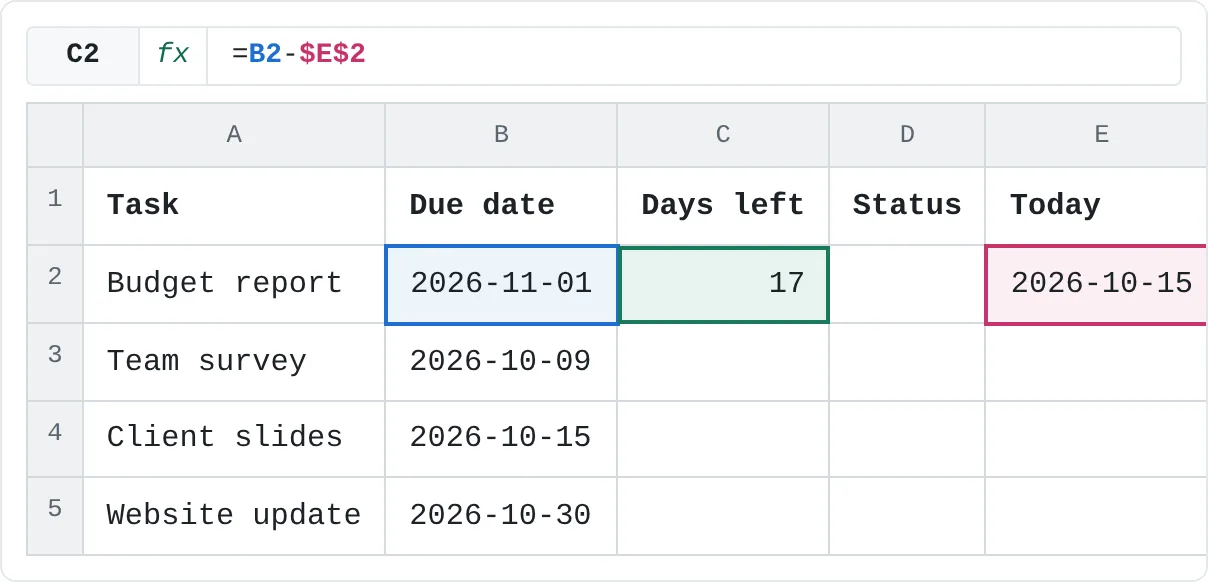
Click C2 and type:
=B2-$E$2The dollar signs lock the reference to E2, so it still points at today's date after you copy the formula down. Press Enter: the budget report is due on November 1, 17 days away.
A B C D E 1 Task Due date Days left Status Today 2 Budget report 2026-11-01 17 2026-10-15 3 Team survey 2026-10-09 4 Client slides 2026-10-15 5 Website update 2026-10-30 The due date in B2 minus today's date in E2 is 17 days. Copy the formula down
Select C2:C5 and press Ctrl+D. Each row now counts its own days left.
A B C D E 1 Task Due date Days left Status Today 2 Budget report 2026-11-01 17 2026-10-15 3 Team survey 2026-10-09 -6 4 Client slides 2026-10-15 0 5 Website update 2026-10-30 15 17, -6, 0 and 15 days. The negative number shows the team survey was due 6 days ago.
A positive result is the number of days left, 0 means the task is due today, and a negative result means the date has passed. Tomorrow, every number in column C drops by one without you touching the sheet.
You could write =B2-TODAY() in each row instead. Keeping TODAY() in one cell has a bonus: to check how the sheet will look on another day, type a fixed date in E2 for a moment, then put =TODAY() back.
Dates are numbers underneath
Excel stores every date as a serial number, a count of days in which January 1, 1900 is day 1. October 15, 2026 is 46310. Formatting makes it look like a date. That's why date math works:
| Formula | Result | Why |
|---|---|---|
=B2-TODAY() | 17 | Two dates subtracted give the days between them |
=TODAY()+30 | 2026-11-14 | Adding a number moves the date forward that many days |
=TODAY()-1 | 2026-10-14 | Yesterday |
=NOW() | 2026-10-15 14:30 | The time is the decimal part: 46310.6041666667 at 2:30 PM |
=NOW()-TODAY() | 14:30 | Only the time part (0.6041666667); format the cell as a time to read it |
A day is 1, so an hour is 1/24 and 2:30 PM is 14.5/24 = 0.6041666667 of a day. NOW()-TODAY() strips off the whole days and leaves that fraction. Give the cell a time format such as h:mm in Format Cells (Ctrl+1), or Excel shows the raw decimal.
Real-world scenarios
In each scenario, today is October 15, 2026.
Flag overdue invoices
Accounts receivable keeps a list of invoices. Column C should say Overdue once an invoice's due date has passed. Combine TODAY with IF:
| A | B | C | |
|---|---|---|---|
| 1 | Invoice | Due date | Status |
| 2 | INV-101 | 2026-09-30 | Overdue |
| 3 | INV-102 | 2026-10-15 | Open |
| 4 | INV-103 | 2026-11-01 | Open |
=IF(TODAY()>B2,"Overdue","Open")INV-101 was due on September 30. Today is later than that, so it's Overdue. INV-102 is due today: today is not later than today, so it's still Open. Use >= instead of > if your rule is that an invoice due today already needs chasing. Add conditional formatting to color the Overdue rows, and the list updates itself every morning.
Years of service
HR wants each employee's completed years of service for an anniversary list. DATEDIF with the unit "Y" counts whole years between two dates:
| A | B | C | |
|---|---|---|---|
| 1 | Employee | Start date | Years |
| 2 | Maria | 2019-03-01 | 7 |
| 3 | Daniel | 2023-10-16 | 2 |
| 4 | Priya | 2026-01-05 | 0 |
=DATEDIF(B2,TODAY(),"Y")Maria started on March 1, 2019: 7 full years. Daniel started on October 16, 2023, so his third anniversary is tomorrow and today he has 2 years. Priya started in January, so she has 0. The same formula with a birth date gives a person's age.
Exam countdown
A student wants a countdown next to each exam. Subtract today from the exam date and join the number into a sentence with &:
| A | B | C | |
|---|---|---|---|
| 1 | Exam | Date | Countdown |
| 2 | Math | 2026-10-26 | Math in 11 days |
| 3 | Science | 2026-11-02 | Science in 18 days |
| 4 | History | 2026-11-09 | History in 25 days |
=A2&" in "&(B2-TODAY())&" days"The math exam on October 26 is 11 days away, so C2 says Math in 11 days. The parentheses make Excel finish the subtraction before it joins the text. The message updates every day until the exam.
Daily spending allowance
You have 510 left in this month's budget and want to know how much you can spend per day. EOMONTH(TODAY(),0) returns the last day of the current month:
| A | B | |
|---|---|---|
| 1 | Left to spend | 510 |
| 2 | Days left in month | 17 |
| 3 | Per day | 30 |
=EOMONTH(TODAY(),0)-TODAY()+1The last day of October minus October 15 is 16; adding 1 counts today as well, so B2 shows 17. B3 divides 510 by 17 for a daily allowance of 30. Tomorrow the allowance recalculates from whatever you have left.
Work out an age
DATEDIF(start_date, end_date, unit) counts the time between two dates. The start date must come first.
| Formula | Returns | For a birth date of March 8, 1992 |
|---|---|---|
=DATEDIF(B2,TODAY(),"Y") | Completed years | 34 |
=DATEDIF(B2,TODAY(),"YM") | Months left over after the full years | 7 |
=DATEDIF(B2,TODAY(),"D") | Total days, the same as =TODAY()-B2 | 12639 |
=YEARFRAC(B2,TODAY(),1) | Years as a decimal | about 34.6 |
Join two DATEDIF results to get "34 years, 7 months":
=DATEDIF(B2,TODAY(),"Y")&" years, "&DATEDIF(B2,TODAY(),"YM")&" months"Excel doesn't suggest DATEDIF as you type it (it's an old function kept for compatibility), but it works in every current version. Use YEARFRAC when you want a decimal, for example to calculate pro-rated amounts; the 1 tells it to use the actual number of days in each year. For a whole-number age, stick with DATEDIF and "Y".
Enter a date that doesn't change
TODAY and NOW are the wrong tool for recording when something happened, such as the date an order arrived: the cell will show a different date tomorrow. Use a shortcut instead. It types the current date or time into the cell as a fixed value.
| You want | Do this | Changes later? |
|---|---|---|
| A date that is always today | =TODAY() | Yes, on every recalculation |
| Today's date, fixed | Ctrl+; | No |
| The current time, fixed | Ctrl+Shift+; | No |
| Date and time, fixed | Ctrl+;, a space, then Ctrl+Shift+; | No |
To freeze a cell that already contains =TODAY(), copy it and paste it back as values (right-click, then choose Values under Paste Options).
When do TODAY and NOW update?
They recalculate whenever Excel recalculates the workbook: when you open it, when you enter or change anything on the sheet, and when you press F9. They don't tick by themselves, so NOW() shows the time of the last recalculation, not a live clock. Because they change on opening, Excel may ask whether to save a workbook that contains them even if you didn't edit anything.
Common mistakes
- A number of days shows as a date.
=B2-TODAY()displaying 1/17/1900 means the cell has a date format. Change it to General or Number. - Using TODAY to record when something happened. A "date received" column built with
=TODAY()shows today's date in every row tomorrow. Press Ctrl+; to enter a fixed date. - Comparing NOW with a date.
=IF(NOW()>B2,"Overdue","")marks a task as overdue on its own due date, because any time after midnight is greater than the date. UseTODAY()when you compare whole dates. - Forgetting the parentheses.
=TODAYand=NOWreturn#NAME?. Type=TODAY()and=NOW(). - DATEDIF dates in the wrong order. If the start date is later than the end date,
DATEDIFreturns#NUM!. Put the earlier date first. - Dates stored as text. A date typed in a format Excel doesn't recognize, or imported as text, stays aligned to the left, and date math on it can return
#VALUE!. Re-enter it as a real date, or convert it withDATEVALUE.
Practice
Practice
Track the deadlines
The practice sheet can't use TODAY(), because its answer would change every day, so E2 holds a fixed date that stands in for today. Click a highlighted cell, type the formula in the bar above the sheet and press Enter. Then build the same tracker in Excel with =TODAY() in E2, and check tomorrow that the days left have gone down by one.
Try it0 of 4 done
- In C2, work out how many days are left until the due date in B2. Use the date in E2 as today.
- In C3, do the same for the team survey. What does a negative result mean?
- In D3, show Overdue if the due date in B3 is before today (E2), otherwise On track.
- In D4, use the same test for the client slides, which are due today.
Click a dashed cell, type a formula in the bar and press Enter.
| A | B | C | D | E | |
|---|---|---|---|---|---|
| 1 | Task | Due date | Days left | Status | Today |
| 2 | Budget report | 2026-11-01 | 2026-10-15 | ||
| 3 | Team survey | 2026-10-09 | |||
| 4 | Client slides | 2026-10-15 | |||
| 5 | Website update | 2026-10-30 |
Related
Was this guide helpful? Spot a mistake? Send feedback · admin@arumsoft.com