The 20 Most-Used Excel Functions · Tutorial 10 of 20
How to Use AND and OR in Excel
Test several conditions at once with AND and OR, reverse a test with NOT, and use them inside IF to label, flag and calculate rows.
- Level
- Beginner
- Time
- 12 min read
- Updated:
- Applies to:
- Excel for Microsoft 365, Excel 2021, Excel 2019, Excel for the web
What you'll learn
- Check that every condition is met with AND, or at least one with OR
- Put AND and OR inside IF to return words, numbers or calculations
- Reverse a test with NOT and combine AND with OR in one rule
- Test a whole range at once and avoid the 50 < B2 < 100 trap
Before you start
Function Playground
Try these functions in a live sheet
Type formulas in an Excel-style grid and watch each step of the calculation. Free, no sign-up.
AND and OR check several conditions at once. AND returns TRUE only when every condition is true; OR returns TRUE when at least one of them is. On their own they show TRUE or FALSE, so most of the time you'll put them inside IF, which turns that answer into a label, a number or a calculation.
The syntax
=AND(logical1, [logical2], ...)=OR(logical1, [logical2], ...)- logical1 is required: the first condition. It's usually a comparison such as
B2>=70, but it can also be a cell or a range that holds TRUE and FALSE values. - logical2, … are optional extra conditions, separated by commas, up to 255 in all.
- Both functions return a single TRUE or FALSE. Numbers count as conditions too: 0 is FALSE and any other number is TRUE. Text and empty cells inside a range are skipped, and a range with no TRUE, FALSE or number values at all returns
#VALUE!.
=AND1(B22>=703,C24>=80%5)ANDReturns TRUE only if every condition inside is TRUEB2The exam score to test>=70Condition 1: at least 70C2The attendance to test>=80%Condition 2: at least 80% (the same as 0.8)
Here's how the two functions answer for every combination of two conditions:
| Condition 1 | Condition 2 | AND gives | OR gives |
|---|---|---|---|
| TRUE | TRUE | TRUE | TRUE |
| TRUE | FALSE | FALSE | TRUE |
| FALSE | TRUE | FALSE | TRUE |
| FALSE | FALSE | FALSE | FALSE |
Check two conditions with AND
The sheet below lists five trainees on a course. To earn a certificate, a trainee needs an exam score of at least 70 and attendance of at least 80%.
Click the first result cell
Click D2, next to Ana's attendance.
A B C D E F 1 Trainee Exam Attendance Both met? Certificate Follow-up 2 Ana Reyes 82 95% 3 Ben Cho 91 70% 4 Chloe Kim 68 88% 5 Dev Rao 75 80% 6 Eli Park 55 60% Five trainees with their exam score and attendance. The AND check goes in column D. Type the AND formula and press Enter
Type the formula below and press Enter. Each condition is a comparison, and the comma separates them. Typing
80%in a formula is the same as typing0.8, which is how Excel stores the percentage in C2.=AND(B2>=70,C2>=80%)The result is TRUE: Ana's 82 is at least 70, and her 95% is at least 80%. Both conditions are TRUE, so AND is TRUE.
A B C D E F 1 Trainee Exam Attendance Both met? Certificate Follow-up 2 Ana Reyes 82 95% TRUE 3 Ben Cho 91 70% 4 Chloe Kim 68 88% 5 Dev Rao 75 80% 6 Eli Park 55 60% AND checks B2 and C2, the two cells outlined in the formula's colours, and returns TRUE. Fill the formula down
Double-click the fill handle at the bottom-right corner of D2 to copy the formula down to D6. Each copy checks its own row.
A B C D E F 1 Trainee Exam Attendance Both met? Certificate Follow-up 2 Ana Reyes 82 95% TRUE 3 Ben Cho 91 70% FALSE 4 Chloe Kim 68 88% FALSE 5 Dev Rao 75 80% TRUE 6 Eli Park 55 60% FALSE Only Ana and Dev meet both conditions. Dev's 75 and exactly 80% pass because >= includes the boundary. Ben scored 91 but attended only 70%, Chloe attended 88% but scored 68, and Eli misses both. One FALSE is enough to make AND return FALSE.
Turn TRUE and FALSE into words with IF
TRUE and FALSE are useful for checking, but a report usually needs words. Put the AND test in IF's first argument. In E2:
=IF(AND(B2>=70,C2>=80%),"Certified","Not yet")Fill it down to E6. Ana and Dev show Certified; Ben, Chloe and Eli show Not yet.
A B C D E F 1 Trainee Exam Attendance Both met? Certificate Follow-up 2 Ana Reyes 82 95% TRUE Certified 3 Ben Cho 91 70% FALSE Not yet 4 Chloe Kim 68 88% FALSE Not yet 5 Dev Rao 75 80% TRUE Certified 6 Eli Park 55 60% FALSE Not yet IF reads the AND result: Certified when both conditions are met, Not yet otherwise.
Accept either condition with OR
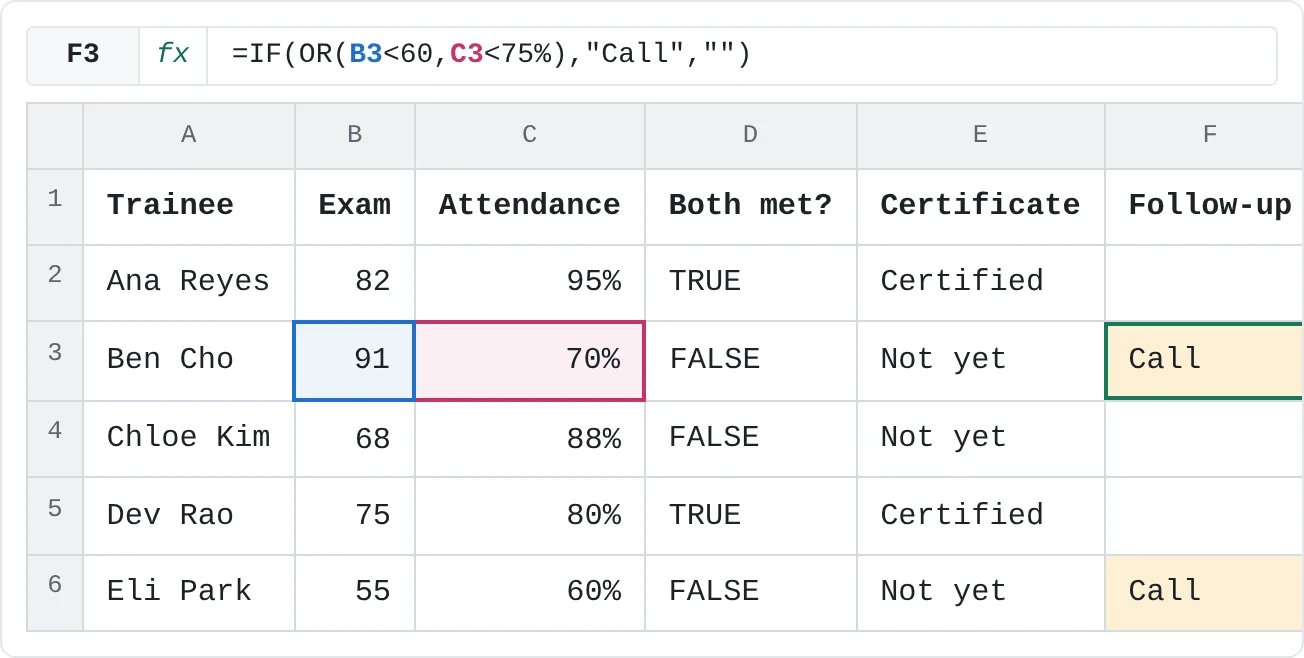
The course coordinator calls anyone who looks at risk: an exam score under 60 or attendance under 75%. One warning sign is enough, so this is a job for OR. In F2, then filled down:
=IF(OR(B2<60,C2<75%),"Call","")Ben and Eli show Call; the other three cells stay empty. Ben passed the exam easily, but his 70% attendance is under 75%, and that one TRUE is all OR needs. The "" at the end returns empty text, so rows without a warning look blank.
| A | B | C | D | E | F | |
|---|---|---|---|---|---|---|
| 1 | Trainee | Exam | Attendance | Both met? | Certificate | Follow-up |
| 2 | Ana Reyes | 82 | 95% | TRUE | Certified | |
| 3 | Ben Cho | 91 | 70% | FALSE | Not yet | Call |
| 4 | Chloe Kim | 68 | 88% | FALSE | Not yet | |
| 5 | Dev Rao | 75 | 80% | TRUE | Certified | |
| 6 | Eli Park | 55 | 60% | FALSE | Not yet | Call |
Reverse a test with NOT
NOT takes one condition and returns its opposite: =NOT(C2>=80%) returns FALSE for Ana, because her attendance is at least 80%. For a single comparison it's usually clearer to flip the operator instead (C2<80%), but NOT is handy around a whole AND or OR. This returns TRUE for everyone who did not earn a certificate, which here is Ben, Chloe and Eli:
=NOT(AND(B2>=70,C2>=80%))Another common use is NOT(ISBLANK(B2)), which is TRUE when B2 has something in it.
| Function | Returns TRUE when | Example for Ana (row 2) | Result |
|---|---|---|---|
AND | every condition is TRUE | AND(B2>=70,C2>=80%) | TRUE |
OR | at least one condition is TRUE | OR(B2<60,C2<75%) | FALSE |
NOT | its one condition is FALSE | NOT(C2>=80%) | FALSE |
Combine AND with OR
Rules often mix the two. Suppose the course changes its rule: anyone who scores 90 or more no longer needs 80% attendance. A trainee now needs a score of at least 70 and either 80% attendance or a score of 90 or more:
=AND(B2>=70,OR(C2>=80%,B2>=90))=AND(B2>=701,OR(C2>=80%,B2>=90)2)B2>=70Must be TRUE: a score of at least 70OR(C2>=80%,B2>=90)Must also be TRUE: attendance of at least 80% or a score of at least 90
Excel works out the inner OR first and hands its TRUE or FALSE to AND, just like brackets in arithmetic. Filled down, the results are TRUE, TRUE, FALSE, TRUE and FALSE: Ben now qualifies because his 91 makes the OR part TRUE. Chloe still doesn't, because her 68 fails the first condition.
Test a whole range at once
AND and OR accept a range comparison, which checks every cell in one go:
=AND(B2:B6>=60)That returns FALSE, because Eli's 55 is under 60. =OR(B2:B6>=90) returns TRUE, because Ben scored 91. In Excel for Microsoft 365 and Excel 2021, press Enter as usual. In Excel 2019 and earlier, confirm a range comparison like this with Ctrl+Shift+Enter, or use a version that works everywhere: =MIN(B2:B6)>=60 or =COUNTIF(B2:B6,"<60")=0.
If a range already holds TRUE and FALSE values, point AND or OR straight at it. With column D filled in, =AND(D2:D6) returns FALSE (not everyone qualified) and =OR(D2:D6) returns TRUE (at least one person did).
Real-world scenarios
Bonus only when both targets are hit
A rep earns a 500 bonus when sales reach the target and the manager's rating is at least 4. Everyone else gets 0.
| A | B | C | D | E | |
|---|---|---|---|---|---|
| 1 | Rep | Sales | Target | Rating | Bonus |
| 2 | Maya | 52,000 | 50,000 | 4 | 500 |
| 3 | Tom | 61,000 | 55,000 | 3 | 0 |
| 4 | Sara | 47,500 | 50,000 | 5 | 0 |
| 5 | Leo | 40,000 | 40,000 | 4 | 500 |
=IF(AND(B2>=C2,D2>=4),500,0)Maya and Leo get 500. Leo's sales exactly equal his target, and >= counts that. Tom beat his target but has a rating of 3, and Sara has a 5 but missed her target, so both get 0.
Free shipping for big orders or members
An online shop ships free when the order total is 50 or more or the customer is a member. Other orders pay 5.
| A | B | C | D | |
|---|---|---|---|---|
| 1 | Order | Total | Member | Shipping |
| 2 | 1001 | 64 | No | 0 |
| 3 | 1002 | 38 | Yes | 0 |
| 4 | 1003 | 22 | No | 5 |
| 5 | 1004 | 50 | No | 0 |
=IF(OR(B2>=50,C2="Yes"),0,5)Orders 1001 (64), 1002 (a member) and 1004 (exactly 50) ship free. Only order 1003, a non-member spending 22, pays 5. Text comparisons ignore capitals, so "yes" would match too.
Honor roll: every subject 85 or above
A student makes the honor roll only if all three scores are at least 85. A range comparison inside AND checks the whole row at once.
| A | B | C | D | E | |
|---|---|---|---|---|---|
| 1 | Student | Math | English | Science | Honor roll |
| 2 | Hana | 92 | 88 | 95 | Yes |
| 3 | Jun | 97 | 84 | 90 | |
| 4 | Mia | 85 | 85 | 85 | Yes |
| 5 | Omar | 78 | 91 | 89 |
=IF(AND(B2:D2>=85),"Yes","")Hana and Mia (exactly 85 in each subject) show Yes. Jun's 84 in English and Omar's 78 in Math keep them off the list. =IF(MIN(B2:D2)>=85,"Yes","") gives the same answers and works in every version of Excel.
Flag big weekend purchases
To spot weekend splurges in a spending log, flag purchases over 100 made on a Saturday or Sunday. WEEKDAY(A2,2) numbers the days from Monday (1) to Sunday (7), so a result above 5 means the weekend.
| A | B | C | D | |
|---|---|---|---|---|
| 1 | Date | Item | Amount | Check |
| 2 | 2026-03-06 | Concert tickets | 140 | |
| 3 | 2026-03-07 | Groceries | 85 | |
| 4 | 2026-03-08 | Dinner out | 120 | Review |
| 5 | 2026-03-11 | Phone bill | 60 | |
| 6 | 2026-03-14 | New shoes | 135 | Review |
=IF(AND(WEEKDAY(A2,2)>5,C2>100),"Review","")Dinner out on Sunday, March 8 (120) and new shoes on Saturday, March 14 (135) show Review. The concert tickets cost more but were bought on a Friday, and Saturday's groceries were only 85.
Common mistakes
- Writing
50 < B2 < 100.=50 < B2 < 100looks like "between 50 and 100" but returns FALSE for every value, with no error to warn you. Excel compares left to right:50 < B2gives TRUE or FALSE, and then Excel compares that TRUE or FALSE with 100. TRUE and FALSE always rank above numbers in comparisons, so the second step is always FALSE. Write=AND(B2>50,B2<100)instead. - OR with "not equal" tests.
=OR(C2<>"Paid",C2<>"Waived")is always TRUE, because every value differs from at least one of the two. To mean "neither Paid nor Waived", useAND(C2<>"Paid",C2<>"Waived"). - Expecting words from AND alone.
=AND(…)only ever shows TRUE or FALSE. Wrap it inIFto show "Certified", a number or a calculation. - Putting TRUE in quotes.
=IF(D2="TRUE",…)compares D2 with the text "TRUE", which never equals the logical value TRUE, so the test fails. Write=IF(D2,…)or=IF(D2=TRUE,…). - Using AND for row-by-row tests in FILTER or SUMPRODUCT.
AND(B2:B6>=70,C2:C6>=80%)returns one TRUE or FALSE for the whole block, not one per row (here FALSE). Inside those functions, multiply conditions for "and" and add them for "or":=FILTER(A2:A6,(B2:B6>=70)*(C2:C6>=80%))returns Ana Reyes and Dev Rao. - #VALUE! from a range of text.
=AND(A2:A6)on a column of names returns#VALUE!, because the range holds no TRUE, FALSE or number values. Point AND at comparisons or at TRUE/FALSE cells.
Practice
Practice
Check the trainees
Use the sheet below. Click a highlighted cell, type a formula in the bar above the sheet and press Enter. Afterwards, try it in Excel itself:
- List five people with two numbers each, such as a test score and attendance, or sales and a rating.
- Add a column with
ANDthat shows TRUE only when both numbers clear their limits, and fill it down. - Wrap the test in
IFso the column shows words instead of TRUE and FALSE. - Add a second column with
IFandORthat flags anyone below either limit.
Try it0 of 4 done
- In D2, use AND to check whether Ana scored at least 70 on the exam (B2) and attended at least 80% of classes (C2).
- In E3, show Certified if Ben meets both conditions, otherwise Not yet.
- In F6, show Call if Eli scored under 60 or attended less than 75% of classes, otherwise leave the cell empty with "".
- In B7, check with one AND formula whether every exam score in B2:B6 is 60 or more.
Click a dashed cell, type a formula in the bar and press Enter.
| A | B | C | D | E | F | |
|---|---|---|---|---|---|---|
| 1 | Trainee | Exam | Attendance | Both met? | Certificate | Follow-up |
| 2 | Ana Reyes | 82 | 95% | |||
| 3 | Ben Cho | 91 | 70% | |||
| 4 | Chloe Kim | 68 | 88% | |||
| 5 | Dev Rao | 75 | 80% | |||
| 6 | Eli Park | 55 | 60% | |||
| 7 | All 60 or more? |
Related
Was this guide helpful? Spot a mistake? Send feedback · admin@arumsoft.com