The 20 Most-Used Excel Functions · Tutorial 13 of 20
How to Use VLOOKUP in Excel
Look up a value in a table and return a matching value from the same row with VLOOKUP, and fix the #N/A and #REF! errors it can return.
- Level
- Intermediate
- Time
- 15 min read
- Updated:
- Applies to:
- Excel for Microsoft 365, Excel 2021, Excel 2019, Excel for the web
What you'll learn
- Write a VLOOKUP formula that finds an exact match in a table
- Explain why the last argument should usually be FALSE
- Lock the table with $ before copying a VLOOKUP formula
- Fix the causes of #N/A and #REF! in a VLOOKUP
Before you start
Function Playground
Try VLOOKUP in a live sheet
Type formulas in an Excel-style grid and watch each step of the calculation. Free, no sign-up.
VLOOKUP finds a value in the first column of a table and returns something from the same row: the price for a product code, the department for an employee ID, the rate for a country. The V stands for vertical, because it searches down a column. It works in every version of Excel, so you'll meet it in almost any workbook that someone else built.
The syntax
=VLOOKUP(lookup_value, table_array, col_index_num, [range_lookup])- lookup_value is what you're looking for, such as a product code. It can be a cell (
G2) or a value typed in the formula ("P-102"). - table_array is the whole table. VLOOKUP searches only its first column.
- col_index_num is the number of the column to return, counted from the first column of the table: 1 is the first column, 2 the second, and so on.
- range_lookup is
FALSEfor an exact match orTRUEfor an approximate match. It's optional, but if you leave it out Excel usesTRUE, which is rarely what you want.
=VLOOKUP(G21,A2:D72,33,FALSE4)G2lookup_value: the code to findA2:D7table_array: the table, searched down its first column3col_index_num: return the third column of the table, PriceFALSErange_lookup: exact match only
Look up a price by code
The sheet below is a small product list. The goal is the price of the code in G2 (P-104), shown in G3.
Click the cell for the result
Click G3, next to the label "Price".
A B C D E F G 1 Code Product Price Stock Lookup Result 2 P-101 Notebook 4.5 120 Code P-104 3 P-102 Pen 1.2 300 Price 4 P-103 Highlighter 1.8 85 Stock 5 P-104 Stapler 12 15 Product 6 P-105 Scissors 6.5 40 Price of P-102 7 P-106 Tape 2.5 60 A product list with codes in column A. The code to look up is in G2, and its price goes in G3. Type =VLOOKUP( and the value to find
Type
=VLOOKUP(, click G2 and type a comma.Select the table
Drag over A2:D7, the whole product list without its headers, and type a comma. The column with the codes must be the first column you select.
Type the column number and FALSE
Price is the third column of the table, so type
3, a comma andFALSE. Press Enter.=VLOOKUP(G2,A2:D7,3,FALSE)A B C D E F G 1 Code Product Price Stock Lookup Result 2 P-101 Notebook 4.5 120 Code P-104 3 P-102 Pen 1.2 300 Price 12 4 P-103 Highlighter 1.8 85 Stock 5 P-104 Stapler 12 15 Product 6 P-105 Scissors 6.5 40 Price of P-102 7 P-106 Tape 2.5 60 VLOOKUP finds P-104 in the first column (amber) and returns the price from the third column of that row (green): 12.
Change G2 to P-102 and G3 updates to 1.2. Change the column number to 4 and the same formula returns the stock instead; 2 returns the product name.
The column number counts from the table's first column, not from column A. If the table started at column B, =VLOOKUP("Stapler",B2:D7,2,FALSE) would return the price, 12, because Price is the second column of B2:D7.
Why FALSE matters
With FALSE, VLOOKUP looks for exactly the value you gave it. If it isn't there, you get #N/A, which tells you something is wrong.
With TRUE, or with the last argument left out, VLOOKUP does an approximate match. It assumes the first column is sorted from smallest to largest and returns the row with the largest value that is less than or equal to the one you're looking for. It doesn't tell you when it hasn't found an exact match. On the product list, this returns 2.5, the price of Tape, for a code that doesn't exist:
=VLOOKUP("P-110",A2:D7,3)"P-110" sorts after "P-106", the last code, so the approximate match stops there. With FALSE added, the same formula returns #N/A. On an unsorted list, an approximate match can return a row that has nothing to do with the code you asked for.
Approximate match is the right choice for one job: finding which band a number falls into. Say a discount table in H2:I4 lists the smallest order amount for each discount, sorted from smallest to largest:
| Order from | Discount |
|---|---|
| 0 | 0% |
| 100 | 5% |
| 500 | 10% |
=VLOOKUP(250,H2:I4,2,TRUE) returns 5%: 250 isn't in the list, so VLOOKUP takes the largest value that isn't over 250, which is 100.
Lock the table before you copy
Suppose you have a column of codes in H2:H5 and write =VLOOKUP(H2,A2:D7,3,FALSE) in I2. When you fill it down, Excel shifts every relative reference. In I3 the formula becomes =VLOOKUP(H3,A3:D8,3,FALSE): row 2 has slid out of the table, so if H3 holds P-101, the result is #N/A.
Make the table reference absolute before you copy. Click inside A2:D7 in the formula bar and press F4, or type the dollar signs yourself:
=VLOOKUP(H2,$A$2:$D$7,3,FALSE)Now the lookup value moves down with each row, and the table stays put.
VLOOKUP can't look left
VLOOKUP searches only the first column of the table and can only return columns to its right. On the product list, you can't use it to find the code for "Stapler", because the codes are to the left of the product names.
If you have Microsoft 365 or Excel 2021 and later, use XLOOKUP, which takes the column to search and the column to return separately. This returns P-104:
=XLOOKUP("Stapler",B2:B7,A2:A7)In older versions, INDEX and MATCH do the same job: =INDEX(A2:A7,MATCH("Stapler",B2:B7,0)) also returns P-104.
| VLOOKUP | XLOOKUP | INDEX and MATCH | |
|---|---|---|---|
| Available in | Every version | Microsoft 365, Excel 2021 and later | Every version |
| Return a column to the left | No | Yes | Yes |
| Default match | Approximate | Exact | Approximate (write 0 in MATCH for exact) |
| Column to return | A number | A range | A range |
| Insert a column inside the table | Can return the wrong column | Keeps working | Keeps working |
| Value to show when nothing is found | None (wrap in IFNA) | Built in (fourth argument) | None (wrap in IFNA) |
Real-world scenarios
Commission by sales band
Sales reps earn a commission rate that depends on how much they sold: 0% below 5,000, 3% from 5,000, 5% from 10,000 and 7% from 20,000. The bands are in E2:F5, sorted from smallest to largest, which is what an approximate match needs.
| A | B | C | D | E | F | |
|---|---|---|---|---|---|---|
| 1 | Rep | Sales | Commission | Sales from | Rate | |
| 2 | Ana | 4,200 | 0 | 0 | 0% | |
| 3 | Ben | 12,500 | 625 | 5,000 | 3% | |
| 4 | Chris | 20,000 | 1,400 | 10,000 | 5% | |
| 5 | Dana | 8,700 | 261 | 20,000 | 7% |
Type this in C2 and fill it down to C5:
=B2*VLOOKUP(B2,$E$2:$F$5,2,TRUE)For Ben's 12,500 in row 3, VLOOKUP finds the largest band start that isn't over 12,500, which is 10,000, and returns 5%. C3 shows 625 (12,500 × 5%). Chris's 20,000 matches a band start exactly and gets 7%: 1,400. Dana's 8,700 gets 3% (261), and Ana's 4,200 falls in the first band, so she gets 0. The table is locked with $, so filling down doesn't slide the bands.
Rooms for a day's timetable
A timetable lists one course code per period. The course list in E2:G6 holds each course's room. One VLOOKUP, filled down, fills in every room.
| A | B | C | D | E | F | G | |
|---|---|---|---|---|---|---|---|
| 1 | Period | Course | Room | Code | Course | Room | |
| 2 | 1 | MATH-2 | 118 | BIO-1 | Biology | 204 | |
| 3 | 2 | ENG-1 | 305 | CHEM-2 | Chemistry | 112 | |
| 4 | 3 | BIO-1 | 204 | ENG-1 | English | 305 | |
| 5 | 4 | HIS-3 | 210 | HIS-3 | History | 210 | |
| 6 | MATH-2 | Math | 118 |
=VLOOKUP(B2,$E$2:$G$6,3,FALSE)C2 returns 118, the room for MATH-2 in the third column of the course list. Fill it down to C5 and you get 305, 204 and 210. The $ signs keep E2:G6 in place while B2 becomes B3, B4 and B5. The course list doesn't need to be in timetable order, and it can hold courses that aren't on the timetable, such as CHEM-2: an exact match finds each code wherever it is.
Name tag from an employee ID
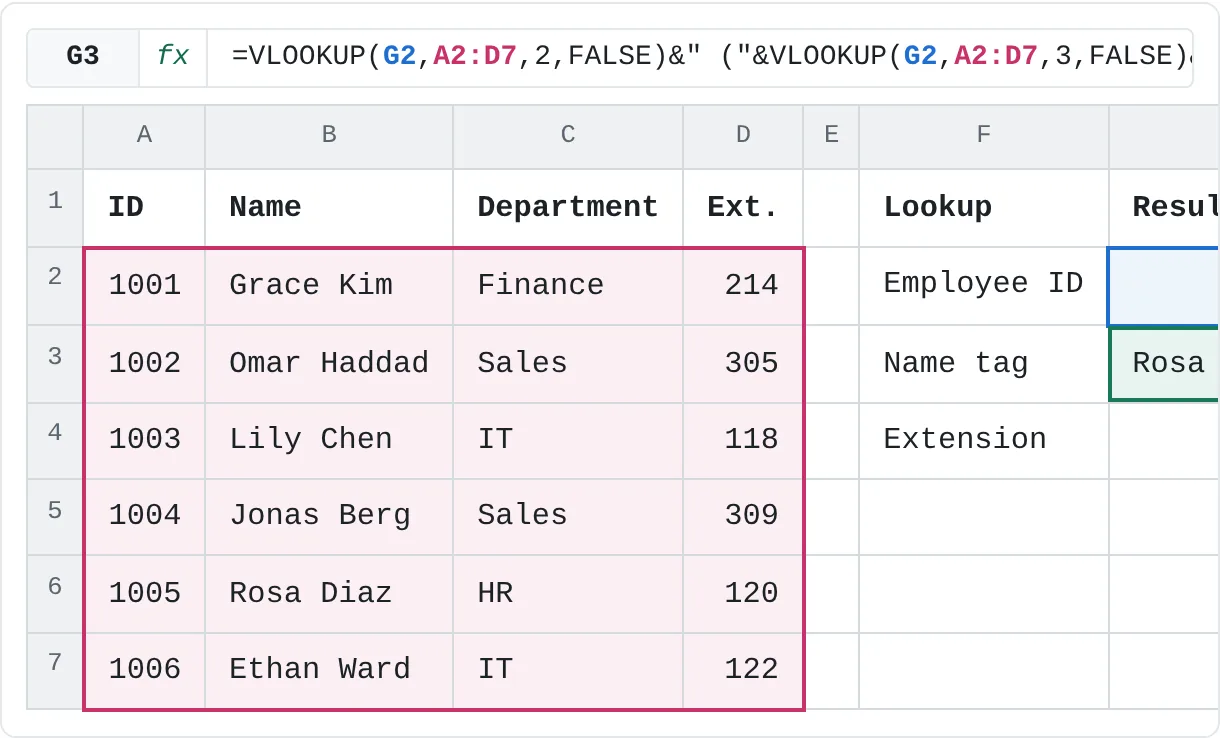
An employee list has IDs in column A. Type an ID in G2, and G3 should show a name tag that reads Name (Department). Two VLOOKUPs with different column numbers, joined with &, build it.
| A | B | C | D | E | F | G | |
|---|---|---|---|---|---|---|---|
| 1 | ID | Name | Department | Ext. | Lookup | Result | |
| 2 | 1001 | Grace Kim | Finance | 214 | Employee ID | 1005 | |
| 3 | 1002 | Omar Haddad | Sales | 305 | Name tag | Rosa Diaz (HR) | |
| 4 | 1003 | Lily Chen | IT | 118 | Extension | 120 | |
| 5 | 1004 | Jonas Berg | Sales | 309 | |||
| 6 | 1005 | Rosa Diaz | HR | 120 | |||
| 7 | 1006 | Ethan Ward | IT | 122 |
=VLOOKUP(G2,A2:D7,2,FALSE)&" ("&VLOOKUP(G2,A2:D7,3,FALSE)&")"With 1005 in G2, it returns Rosa Diaz (HR). The first VLOOKUP returns column 2, the name, and the second returns column 3, the department; the text in quotes adds the space and parentheses. The IDs in column A are numbers, and so is the 1005 in G2, so they match. In G4, =VLOOKUP(G2,A2:D7,4,FALSE) returns the extension, 120.
Pick the month as well as the category
A budget has one column per month. To choose both the category (G2) and the month (G3) from cells, let MATCH work out the column number instead of typing it.
| A | B | C | D | E | F | G | |
|---|---|---|---|---|---|---|---|
| 1 | Category | Jan | Feb | Mar | Lookup | Result | |
| 2 | Rent | 1,200 | 1,200 | 1,200 | Category | Food | |
| 3 | Food | 420 | 380 | 455 | Month | Feb | |
| 4 | Transport | 90 | 110 | 85 | Amount | 380 | |
| 5 | Utilities | 160 | 175 | 140 |
=VLOOKUP(G2,A2:D5,MATCH(G3,A1:D1,0),FALSE)MATCH(G3,A1:D1,0) finds Feb in the header row and returns its position, 3. VLOOKUP then returns the third column of the Food row: 380. Change G3 to Mar and the result is 455. The header range A1:D1 starts in the same column as the table A2:D5, so MATCH's position and VLOOKUP's column number line up. And if you insert a column inside the table, both ranges grow and MATCH finds Feb's new position, so the formula keeps returning the right month.
Why VLOOKUP returns #N/A or #REF!
- #N/A: the value isn't in the first column. Check for typos and extra spaces: "P-104 " with a trailing space doesn't match "P-104".
TRIMremoves them. - #N/A: a number on one side, text on the other. The code 101 typed as a number won't match "101" stored as text (often left-aligned, with a green triangle). Make both the same type.
- #N/A: the table slid when you copied the formula. Lock it with
$, as shown above. - #REF!: the column number is too big. A2:D7 has four columns, so
=VLOOKUP(G2,A2:D7,5,FALSE)returns#REF!. Count the columns of the table you selected, not of the sheet. - A wrong answer with no error. Usually the last argument is missing or
TRUE. AddFALSE.
Two more things to watch: VLOOKUP returns the first match only, so duplicate codes hide the later rows. And the column number is a fixed number, so if you insert a column inside the table, the formula may start returning the wrong column. Check your lookups after changing the table's layout.
Practice
Practice
Look up product details
Use the sheet below. Click a highlighted cell, type a formula in the bar above the sheet and press Enter. Afterwards, try it in Excel itself:
- Make a list of five people you know with an ID number (1 to 5), a city and a birthday month.
- In a cell next to the list, type an ID, and use
VLOOKUPwithFALSEto show that person's city. - Type an ID that isn't in the list and look at the
#N/A. Then remove,FALSE(the comma too) and see what the formula returns instead.
Try it0 of 4 done
- In G3, look up the price of the code in G2.
- In G4, look up the stock for the same code.
- In G5, look up the product name for the same code.
- In G6, look up the price of P-102 by typing the code into the formula.
Click a dashed cell, type a formula in the bar and press Enter.
| A | B | C | D | E | F | G | |
|---|---|---|---|---|---|---|---|
| 1 | Code | Product | Price | Stock | Lookup | Result | |
| 2 | P-101 | Notebook | 4.5 | 120 | Code | P-104 | |
| 3 | P-102 | Pen | 1.2 | 300 | Price | ||
| 4 | P-103 | Highlighter | 1.8 | 85 | Stock | ||
| 5 | P-104 | Stapler | 12 | 15 | Product | ||
| 6 | P-105 | Scissors | 6.5 | 40 | Price of P-102 | ||
| 7 | P-106 | Tape | 2.5 | 60 |
Related
Was this guide helpful? Spot a mistake? Send feedback · admin@arumsoft.com