The 20 Most-Used Excel Functions · Tutorial 5 of 20
How to Round Numbers in Excel: ROUND, ROUNDUP and ROUNDDOWN
Round prices to the cent, sales to the nearest thousand and box counts up to whole numbers with ROUND, ROUNDUP and ROUNDDOWN.
- Level
- Beginner
- Time
- 11 min read
- Updated:
- Applies to:
- Excel for Microsoft 365, Excel 2021, Excel 2019, Excel for the web
What you'll learn
- Round a number or a calculation to a set number of decimal places with ROUND
- Round to tens, hundreds or thousands with a negative num_digits
- Choose between ROUND, ROUNDUP and ROUNDDOWN, including for negative numbers
- Explain the difference between rounding a value and formatting how it looks
Before you start
Function Playground
Try these functions in a live sheet
Type formulas in an Excel-style grid and watch each step of the calculation. Free, no sign-up.
ROUND changes a number to a set number of digits: prices to the cent, averages to one decimal place, big totals to the nearest thousand. Its two siblings always go one way: ROUNDUP rounds away from zero (handy for "how many boxes do I need?") and ROUNDDOWN rounds toward zero ("how many tickets can I afford?"). Unlike the decimal buttons on the ribbon, these functions change the value itself, so every later calculation uses the rounded number.
The syntax
=ROUND(number, num_digits)ROUNDUP and ROUNDDOWN take exactly the same two arguments:
=ROUNDUP(number, num_digits)=ROUNDDOWN(number, num_digits)- number (required) is the value to round: a cell such as
B2, a typed number, or a whole calculation such asB2/C2orAVERAGE(B2:D2). - num_digits (required) says where to round.
2keeps two decimal places,0rounds to a whole number, and a negative number rounds to the left of the decimal point:-1to tens,-2to hundreds,-3to thousands. There is no default: leave it out and Excel refuses the formula.
=ROUND(B21/C22,23)B2The pack price, divided byC2the number of units. Together, B2/C2 is the number to round2num_digits: keep two decimal places
Round a price to the cent
A shop sells supplies in packs, and you want the price of a single unit. Dividing gives long decimals; ROUND trims them to cents.
Divide to see the raw result
Click D2 and type
=B2/C2, then press Enter. A pack of 3 pens for 12.50 costs 4.166666667 per pen. Excel stores even more digits than it shows.A B C D 1 Item Pack price Units Unit price 2 Pens 12.5 3 4.166666667 3 Notebooks 20 6 4 Markers 9.99 4 5 Folders 7 8 Dividing the pack price by the units gives a long decimal: 4.166666667. Wrap the calculation in ROUND
Press F2 to edit D2, and change the formula so the division sits inside
ROUND, followed by a comma and2:=ROUND(B2/C2,2)A B C D 1 Item Pack price Units Unit price 2 Pens 12.5 3 4.17 3 Notebooks 20 6 4 Markers 9.99 4 5 Folders 7 8 ROUND takes the result of B2/C2 and keeps two decimal places: 4.17. Press Enter. D2 now holds 4.17, not 4.1666…: the third decimal, 6, is 5 or more, so the cents round up.
Fill the formula down
Drag the fill handle in the bottom-right corner of D2 down to D5, or select D2:D5 and press Ctrl+D. Each row divides its own pack price by its own units.
A B C D 1 Item Pack price Units Unit price 2 Pens 12.5 3 4.17 3 Notebooks 20 6 3.33 4 Markers 9.99 4 2.5 5 Folders 7 8 0.88 Unit prices rounded to the cent: 4.17, 3.33, 2.5 and 0.88.
Look at the results row by row:
- Notebooks: 20 ÷ 6 = 3.3333…, and the third decimal is 3, so it rounds down to 3.33.
- Markers: 9.99 ÷ 4 = 2.4975, which rounds up to 2.50. Excel shows it as 2.5 in a General cell; format the column with two decimals if you want to see the trailing zero.
- Folders: 7 ÷ 8 = 0.875. The digit after the cents is exactly 5, and
ROUNDrounds a 5 up (away from zero), so the result is 0.88.
Rounding is not the same as formatting
The Decrease Decimal button (Home then Number then Decrease Decimal) and the number formats in Format Cells (Ctrl+1) only change how many digits a cell shows. The full value is still stored and used in every calculation. ROUND changes the stored value.
That difference matters when you add up amounts. Below, 7.5% tax is worked out for three items. Column C uses =B2*0.075 with the cells formatted to two decimals; column D uses =ROUND(B2*0.075,2).
| A | B | C | D | |
|---|---|---|---|---|
| 1 | Item | Price | Tax (formatted) | Tax (ROUND) |
| 2 | Coffee | 4.99 | 0.37 | 0.37 |
| 3 | Muffin | 2.99 | 0.22 | 0.22 |
| 4 | Juice | 1.99 | 0.15 | 0.15 |
| 5 | Total | 0.75 | 0.74 |
Column C shows 0.37, 0.22 and 0.15, which add up to 0.74, yet its total says 0.75. The cells really hold 0.37425, 0.22425 and 0.14925, and their sum, 0.74775, is displayed as 0.75. Column D holds exactly 0.37, 0.22 and 0.15, so its total is 0.74. On an invoice, a receipt or a payroll sheet, round each line with ROUND so the printed lines and the total agree.
Choose how many digits to keep
The second argument counts from the decimal point: positive numbers move right, negative numbers move left. Here is 1234.567 rounded with each setting:
| Formula | Result | Rounds to |
|---|---|---|
=ROUND(1234.567,2) | 1234.57 | Hundredths (cents) |
=ROUND(1234.567,1) | 1234.6 | Tenths |
=ROUND(1234.567,0) | 1235 | Whole number |
=ROUND(1234.567,-1) | 1230 | Tens |
=ROUND(1234.567,-2) | 1200 | Hundreds |
=ROUND(1234.567,-3) | 1000 | Thousands |
A negative num_digits is how you get report-friendly figures such as 1,287,000 instead of 1,287,450. It still returns a real number, so you can add and chart the rounded values.
Real-world scenarios
Sales report in round thousands
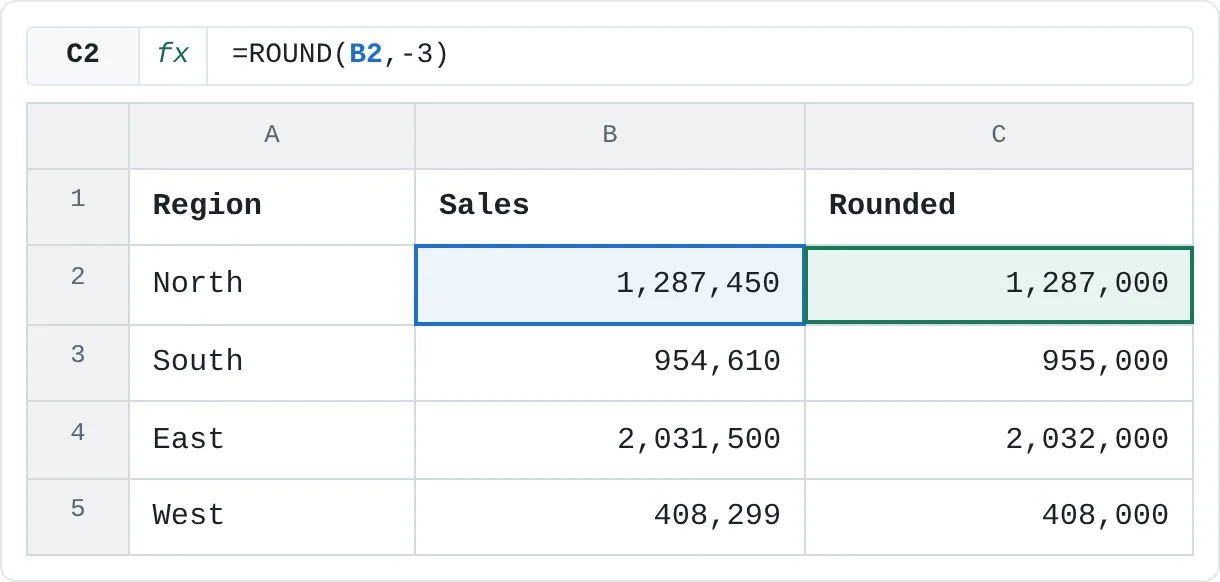
A regional sales summary for a slide doesn't need every last unit. Round each region's sales to the nearest thousand in column C.
| A | B | C | |
|---|---|---|---|
| 1 | Region | Sales | Rounded |
| 2 | North | 1,287,450 | 1,287,000 |
| 3 | South | 954,610 | 955,000 |
| 4 | East | 2,031,500 | 2,032,000 |
| 5 | West | 408,299 | 408,000 |
=ROUND(B2,-3)North's 1,287,450 becomes 1,287,000, because the hundreds digit (4) is below 5. East's 2,031,500 becomes 2,032,000: the hundreds digit is exactly 5, so it rounds up.
Report-card averages as whole numbers
A teacher wants each student's average across three tests as a whole number. Put AVERAGE inside ROUND, so the average is calculated first and then rounded.
| A | B | C | D | E | |
|---|---|---|---|---|---|
| 1 | Student | Test 1 | Test 2 | Test 3 | Average |
| 2 | Ana | 88 | 93 | 79 | 87 |
| 3 | Ben | 72 | 85 | 90 | 82 |
| 4 | Chloe | 95 | 89 | 92 | 92 |
=ROUND(AVERAGE(B2:D2),0)Ana's scores add up to 260, so her average is 86.666…, which rounds to 87. Ben's 82.333… rounds to 82, and Chloe's 92 stays 92.
How many boxes to ship
A warehouse packs mugs 24 to a box. 250 mugs is 10.42 boxes, but you can't ship part of a box, and 10 boxes would leave mugs behind. Round up.
| A | B | C | D | |
|---|---|---|---|---|
| 1 | Product | Units | Per box | Boxes needed |
| 2 | Mugs | 250 | 24 | 11 |
| 3 | Plates | 180 | 12 | 15 |
| 4 | Bowls | 95 | 16 | 6 |
=ROUNDUP(B2/C2,0)The mugs need 11 boxes and the bowls (95 ÷ 16 = 5.94) need 6. The plates divide exactly (180 ÷ 12 = 15), and ROUNDUP leaves a whole number alone, so they need 15.
Tickets on a fixed budget
You have 100 to spend on movie tickets at 15 each. 100 ÷ 15 is 6.67, but two-thirds of a ticket is no use, and rounding to 7 would go over budget. Round down.
| A | B | |
|---|---|---|
| 1 | Budget | 100 |
| 2 | Ticket price | 15 |
| 3 | Tickets you can buy | 6 |
| 4 | Left over | 10 |
=ROUNDDOWN(B1/B2,0)The result is 6 tickets. B4 uses =B1-B3*B2 to show what's left: 100 − 6 × 15 = 10.
ROUND vs ROUNDUP vs ROUNDDOWN
All three take the same arguments; only the direction differs. ROUNDUP always moves away from zero and ROUNDDOWN always moves toward zero, so with negative numbers "up" and "down" refer to the size of the number, not its position on a number line.
| Number | ROUND(x,0) | ROUNDUP(x,0) | ROUNDDOWN(x,0) |
|---|---|---|---|
| 3.2 | 3 | 4 | 3 |
| 3.5 | 4 | 4 | 3 |
| 3.7 | 4 | 4 | 3 |
| -3.2 | -3 | -4 | -3 |
| -3.5 | -4 | -4 | -3 |
| -3.7 | -4 | -4 | -3 |
Notice that ROUND sends an exact half away from zero: 3.5 becomes 4 and -3.5 becomes -4.
Other rounding functions
When you need a different kind of rounding, reach for one of these:
| Function | What it does | Example |
|---|---|---|
MROUND(number, multiple) | Rounds to the nearest multiple | =MROUND(17,5) returns 15; =MROUND(4.12,0.05) returns 4.1 |
CEILING.MATH(number, significance) | Rounds up to a multiple | =CEILING.MATH(17,5) returns 20 |
FLOOR.MATH(number, significance) | Rounds down to a multiple | =FLOOR.MATH(17,5) returns 15 |
INT(number) | Rounds down to a whole number, toward the lower value | =INT(-3.2) returns -4 |
TRUNC(number, [num_digits]) | Cuts off digits without rounding | =TRUNC(-3.2) returns -3; =TRUNC(3.14159,2) returns 3.14 |
For positive numbers, INT, TRUNC and ROUNDDOWN(x,0) give the same answer. They only disagree on negative numbers.
Common mistakes
- Formatting instead of rounding. Decrease Decimal makes 0.37425 look like 0.37, but totals and later formulas still use 0.37425, so a column can appear not to add up by a cent. Use
ROUNDwhen the rounded value is what should be used. - Leaving out num_digits.
=ROUND(B2)isn't accepted: Excel says you've entered too few arguments for this function. Add,0to round to a whole number. - Rounding too early.
=ROUND(B2,0)*C2rounds the price before multiplying, so 2.49 × 100 comes out as 200 instead of 249. Round the final result instead:=ROUND(B2*C2,0). - Expecting ROUNDDOWN to lower a negative number.
=ROUNDDOWN(-3.7,0)returns -3, not -4, because it rounds toward zero. UseINTorFLOOR.MATHwhen you need the lower value. - Trying to round to 0.05 or 0.25 with ROUND.
num_digitscounts decimal places, so it can't round to a step like 0.05. Use=MROUND(B2,0.05), orCEILING.MATHandFLOOR.MATHto force the direction.
Practice
Practice
Round four ways
Use the sheet below. Click a highlighted cell, type the formula in the bar above the sheet and press Enter. For each row, decide first whether the situation calls for ROUND, ROUNDUP or ROUNDDOWN. Then try it in Excel: list a few prices, add 8% tax to each with and without ROUND, format both columns to two decimals and compare the totals.
Try it0 of 4 done
- In C2, round the average rating in B2 to one decimal place.
- In C3, round the population in B3 to the nearest hundred.
- In C4, work out how many tables the guests in B4 need if each table seats 6.
- In C5, split the budget in B5 between 7 people, rounded down to 2 decimal places so the total never goes over.
Click a dashed cell, type a formula in the bar and press Enter.
| A | B | C | |
|---|---|---|---|
| 1 | What | Value | Rounded |
| 2 | Average rating | 4.29 | |
| 3 | Town population | 48,615 | |
| 4 | Guests (6 per table) | 50 | |
| 5 | Budget split 7 ways | 500 |
Related
Was this guide helpful? Spot a mistake? Send feedback · admin@arumsoft.com