The 20 Most-Used Excel Functions · Tutorial 11 of 20
How to Use the IFS Function in Excel
Sort values into grades, tiers and price bands with IFS instead of nested IFs, and know when SWITCH or a lookup table is the better choice.
- Level
- Intermediate
- Time
- 13 min read
- Updated:
- Applies to:
- Excel for Microsoft 365, Excel 2021, Excel 2019, Excel for the web
What you'll learn
- Write an IFS formula that returns a result for the first TRUE condition
- Order the conditions so every value lands in the right band
- Add a TRUE catch-all so IFS never returns #N/A
- Choose between IFS, nested IF, SWITCH and a lookup table
Before you start
Function Playground
Try IFS in a live sheet
Type formulas in an Excel-style grid and watch each step of the calculation. Free, no sign-up.
IFS checks a list of conditions in order and returns the result paired with the first one that is TRUE. It's the tidy way to sort a value into three or more bands, such as letter grades, commission tiers or shipping prices, without stacking one IF inside another. IFS is available in Excel 2019 and later, Excel for Microsoft 365 and Excel for the web.
The syntax
=IFS(logical_test1, value_if_true1, [logical_test2, value_if_true2], ...)- logical_test1 is required: the first condition, a comparison that is TRUE or FALSE, such as
B2>=90. - value_if_true1 is required: what IFS returns when logical_test1 is TRUE. It can be text in quotes, a number, a cell reference or a calculation.
- logical_test2, value_if_true2, … are optional further pairs, always a test followed by its result, up to 127 pairs.
- There is no "otherwise" argument. If none of the tests is TRUE, IFS returns
#N/A. To set a result for everything else, makeTRUEthe last test: it is always TRUE, so it catches whatever is left.
=IFS(B2>=901,"A"2,B2>=803,"B"4,B2>=70,"C",B2>=60,"D",TRUE5,"F"6)B2>=90Test 1, checked first"A"Returned if test 1 is TRUE, and IFS stops thereB2>=80Test 2, checked only if test 1 is FALSE"B"Returned if test 2 is the first TRUE testTRUEThe catch-all: always TRUE, so it takes every score left over"F"Returned when no earlier test is TRUE
Turn scores into letter grades
The sheet below lists six students and their scores. The goal is a letter grade in column C: A for 90 or more, B for 80 or more, C for 70 or more, D for 60 or more and F for anything lower. Ignore the small table in E:F for now; you'll use it later.
Click the first grade cell
Click C2, next to Aiden's score.
A B C D E F 1 Student Score Grade Min score Grade 2 Aiden 94 0 F 3 Bella 81 60 D 4 Carlos 77 70 C 5 Dana 90 80 B 6 Ethan 58 90 A 7 Fiona 65 Six scores in column B. The grade goes in column C. E1:F6 holds the same grade bands as a table. Type the IFS formula, highest band first
Type the formula below and press Enter. Each test is followed by a comma and its result, and
TRUE,"F"at the end handles every score under 60.=IFS(B2>=90,"A",B2>=80,"B",B2>=70,"C",B2>=60,"D",TRUE,"F")The result is A: Aiden's 94 makes the very first test TRUE, so IFS returns "A" and doesn't look any further.
A B C D E F 1 Student Score Grade Min score Grade 2 Aiden 94 A 0 F 3 Bella 81 60 D 4 Carlos 77 70 C 5 Dana 90 80 B 6 Ethan 58 90 A 7 Fiona 65 Every test reads the same cell, B2, so it's outlined once in the formula's colour. Fill the formula down
Double-click the fill handle of C2 to copy the formula down to C7.
A B C D E F 1 Student Score Grade Min score Grade 2 Aiden 94 A 0 F 3 Bella 81 B 60 D 4 Carlos 77 C 70 C 5 Dana 90 A 80 B 6 Ethan 58 F 90 A 7 Fiona 65 D The grades: A, B, C, A, F and D. Dana's 90 is an A because >= includes the boundary.
Here is what IFS does with Bella's 81 in row 3:
| Test | For 81 | What happens |
|---|---|---|
B3>=90 | FALSE | IFS moves on to the next test |
B3>=80 | TRUE | IFS returns "B" and stops |
B3>=70, B3>=60, TRUE | not checked | IFS already has its answer |
Ethan's 58 fails all four comparisons, so the TRUE catch-all gives him F.
Order matters: the first TRUE wins
IFS doesn't look for the best match. It returns the result of the first test that is TRUE. Write the same bands in the opposite order and almost everyone gets a D:
=IFS(B2>=60,"D",B2>=70,"C",B2>=80,"B",B2>=90,"A",TRUE,"F")| A | B | C | D | E | F | |
|---|---|---|---|---|---|---|
| 1 | Student | Score | Grade | Min score | Grade | |
| 2 | Aiden | 94 | D | 0 | F | |
| 3 | Bella | 81 | D | 60 | D | |
| 4 | Carlos | 77 | D | 70 | C | |
| 5 | Dana | 90 | D | 80 | B | |
| 6 | Ethan | 58 | F | 90 | A | |
| 7 | Fiona | 65 | D |
Excel shows no error, so this mistake is easy to miss. Two rules keep the order right:
- With
>=or>, start with the largest threshold and work down, as in the grade formula. - With
<=or<, start with the smallest threshold and work up, as in the shipping scenario below.
End with TRUE, or get #N/A
Leave out the catch-all and any value that fails every test returns #N/A:
=IFS(B2>=90,"A",B2>=80,"B",B2>=70,"C",B2>=60,"D")| A | B | C | D | E | F | |
|---|---|---|---|---|---|---|
| 1 | Student | Score | Grade | Min score | Grade | |
| 2 | Aiden | 94 | A | 0 | F | |
| 3 | Bella | 81 | B | 60 | D | |
| 4 | Carlos | 77 | C | 70 | C | |
| 5 | Dana | 90 | A | 80 | B | |
| 6 | Ethan | 58 | #N/A | 90 | A | |
| 7 | Fiona | 65 | D |
Add TRUE,"F" as the last pair and Ethan gets his F. Anything you write after a TRUE pair is never reached, so TRUE always goes last.
Real-world scenarios
Commission tiers
Reps earn 8% on sales of 50,000 or more, 5% from 25,000, 3% from 10,000 and nothing below that. Because the tests use >=, the biggest threshold comes first.
| A | B | C | D | |
|---|---|---|---|---|
| 1 | Rep | Sales | Rate | Commission |
| 2 | Kim | 62,000 | 8% | 4,960 |
| 3 | Lee | 31,500 | 5% | 1,575 |
| 4 | Park | 25,000 | 5% | 1,250 |
| 5 | Ray | 8,200 | 0% | 0 |
=IFS(B2>=50000,8%,B2>=25000,5%,B2>=10000,3%,TRUE,0)Kim's 62,000 earns 8%, so =B2*C2 in D2 gives a commission of 4,960. Lee and Park both get 5%; Park's 25,000 sits exactly on the boundary, and >= includes it, so Park earns 1,250. Ray's 8,200 falls through to the catch-all, 0.
Shipping price by weight
A shop charges 5 up to 1 kg, 9 up to 5 kg, 15 up to 20 kg and 30 for anything heavier. These tests use <=, so the order flips: the smallest limit comes first.
| A | B | C | |
|---|---|---|---|
| 1 | Parcel | Weight (kg) | Cost |
| 2 | P-01 | 0.8 | 5 |
| 3 | P-02 | 3.5 | 9 |
| 4 | P-03 | 5 | 9 |
| 5 | P-04 | 12 | 15 |
| 6 | P-05 | 26 | 30 |
=IFS(B2<=1,5,B2<=5,9,B2<=20,15,TRUE,30)The costs are 5, 9, 9, 15 and 30. P-03 weighs exactly 5 kg, so B4<=5 is TRUE and it pays 9, not 15. Had the 20 kg test come first, every parcel up to 20 kg would have cost 15.
Budget traffic light
A monthly budget shows Over when spending is above the budget, Close when it has reached 90% of the budget, and OK otherwise. The tests can be calculations, not only cell-versus-number comparisons.
| A | B | C | D | |
|---|---|---|---|---|
| 1 | Category | Budget | Spent | Status |
| 2 | Groceries | 450 | 512 | Over |
| 3 | Dining out | 200 | 185 | Close |
| 4 | Transport | 120 | 96 | OK |
| 5 | Fun | 150 | 150 | Close |
=IFS(C2>B2,"Over",C2>=B2*90%,"Close",TRUE,"OK")Groceries (512 of 450) is Over. Dining out (185 of 200) and Fun (exactly 150 of 150) are Close: 185 is at least 180, and 150 is not above 150 but is at least 135. Transport (96 of 120) is OK, because 96 is under 108.
Training status with IFS and AND
Employees are certified when they score at least 70 and have finished the lab. A passing score without the lab means "Finish lab"; anything else means "Retake test". Each IFS test can be an AND or OR, and the strictest test goes first.
| A | B | C | D | |
|---|---|---|---|---|
| 1 | Employee | Test | Lab done | Status |
| 2 | Grace | 88 | Yes | Certified |
| 3 | Henry | 74 | No | Finish lab |
| 4 | Iris | 65 | Yes | Retake test |
| 5 | Jack | 70 | Yes | Certified |
=IFS(AND(B2>=70,C2="Yes"),"Certified",B2>=70,"Finish lab",TRUE,"Retake test")Grace and Jack (exactly 70) are Certified. Henry passed the test but hasn't done the lab, so he gets Finish lab. Iris scored 65 and gets Retake test, even though her lab is done. Swap the first two pairs and Grace and Jack would wrongly see "Finish lab".
IFS, nested IF, SWITCH or a lookup table?
The grade formula written with nested IFs gives exactly the same results and works in every version of Excel, but every extra band adds another IF and another closing bracket:
=IF(B2>=90,"A",IF(B2>=80,"B",IF(B2>=70,"C",IF(B2>=60,"D","F"))))SWITCH (Excel 2019 and later) compares one value with a list of exact matches, and its last argument is a default, so it doesn't need a TRUE pair. It suits codes and labels, not ranges of numbers. This turns Aiden's grade in C2 into 4 grade points:
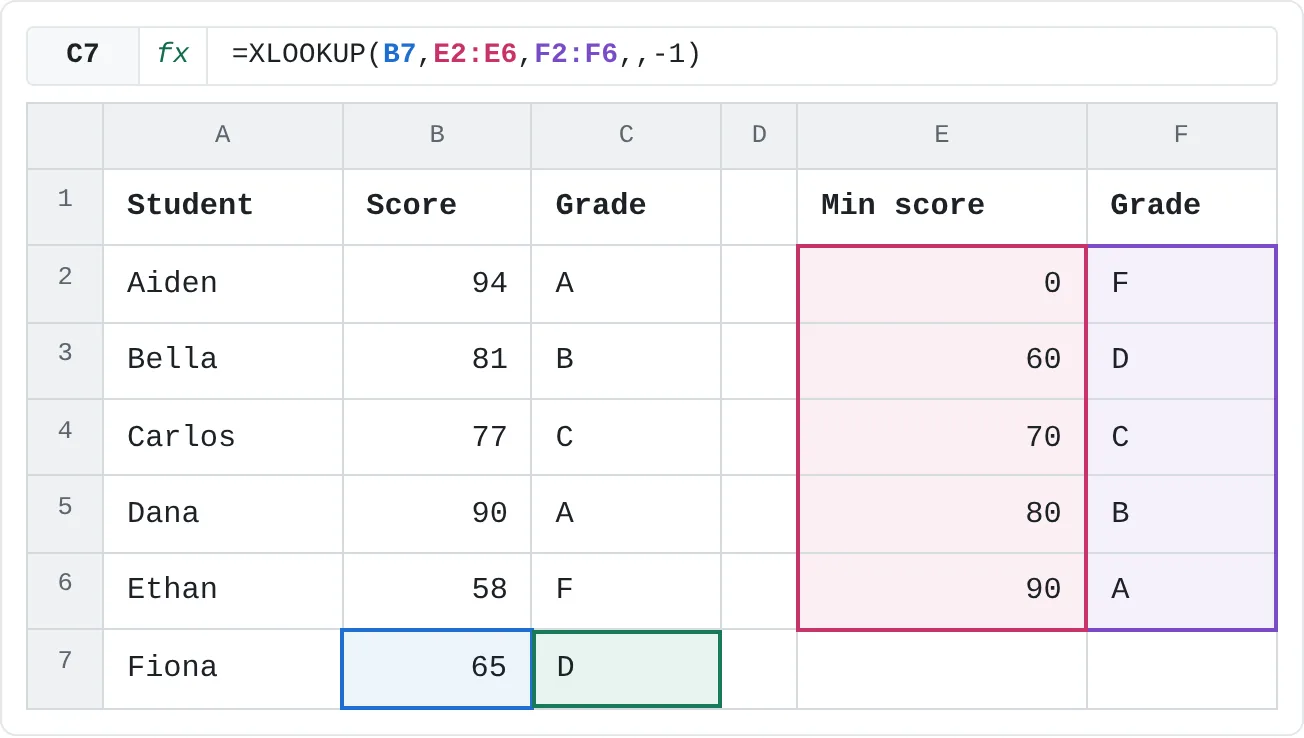
=SWITCH(C2,"A",4,"B",3,"C",2,"D",1,0)For many bands, or bands that change, put them in a table and look them up. The table in E1:F6 lists the lowest score for each grade. XLOOKUP with match mode -1 finds an exact match or, failing that, the next smaller value:
=XLOOKUP(B7,E2:E6,F2:F6,,-1)| A | B | C | D | E | F | |
|---|---|---|---|---|---|---|
| 1 | Student | Score | Grade | Min score | Grade | |
| 2 | Aiden | 94 | A | 0 | F | |
| 3 | Bella | 81 | B | 60 | D | |
| 4 | Carlos | 77 | C | 70 | C | |
| 5 | Dana | 90 | A | 80 | B | |
| 6 | Ethan | 58 | F | 90 | A | |
| 7 | Fiona | 65 | D |
To change a cut-off, you edit one cell in the table instead of every formula. When you fill this formula down, lock the table with $E$2:$E$6 and $F$2:$F$6. XLOOKUP needs Excel 2021 or Microsoft 365; in older versions, =VLOOKUP(B7,$E$2:$F$6,2,TRUE) does the same job as long as the first column is sorted from smallest to largest.
| Approach | Best for | Result for "everything else" | Versions |
|---|---|---|---|
IFS | 3 to 6 bands, or tests that mix different conditions | add TRUE,"…" as the last pair | Excel 2019 and later |
Nested IF | the same jobs in older versions | the last value_if_false | all versions |
SWITCH | one value compared with exact matches | the last argument | Excel 2019 and later |
| Lookup table | many bands, or bands that change often | the lowest band in the table | XLOOKUP: Excel 2021 and later; VLOOKUP: all |
Common mistakes
- Bands in the wrong order. The first TRUE test wins, so
B2>=60beforeB2>=90gives a 94 a D. There's no error, only wrong labels. With>=, start from the largest threshold; with<=, from the smallest. - No catch-all. A value that fails every test returns
#N/A. End the formula withTRUE,and the result for everything else. - An "else" value without TRUE.
=IFS(B2>=90,"A",B2>=80,"B","F")tries to use "F" like IF's last argument. IFS needs pairs, so Excel won't accept the formula. WriteTRUE,"F"instead. - Gaps between bands.
=IFS(B2>80,"High",B2<80,"Low")has no test for exactly 80, so 80 returns#N/A(or falls into the catch-all, if you added one). Use>=on one side so every value belongs somewhere. - #NAME? in an older Excel. Excel 2016 and earlier one-time-purchase versions don't have IFS, so a workbook that uses it shows
#NAME?there. Use nested IF if the file must work in those versions.
Practice
Practice
Grade the class
Use the sheet below. Click a highlighted cell, type a formula in the bar above the sheet and press Enter. Afterwards, try it in Excel itself:
- List eight scores between 40 and 100, including one that is exactly 80.
- Grade them with
IFS, highest band first andTRUE,"F"at the end, and fill the formula down. - Swap the first two pairs and watch which grades change, then put them back.
- Build a band table next to the scores and get the same grades with
XLOOKUPand match mode -1.
Try it0 of 4 done
- In C2, use IFS to give A for 90 or more, B for 80 or more, C for 70 or more, D for 60 or more, and F for everything else.
- In C3, grade the score in B3 the same way.
- In C6, grade the score in B6. It's under 60, so only the TRUE catch-all can give it an F.
- In C7, get the grade from the band table in E2:F6 instead, with XLOOKUP and match mode -1 (exact match or next smaller).
Click a dashed cell, type a formula in the bar and press Enter.
| A | B | C | D | E | F | |
|---|---|---|---|---|---|---|
| 1 | Student | Score | Grade | Min score | Grade | |
| 2 | Aiden | 94 | 0 | F | ||
| 3 | Bella | 81 | 60 | D | ||
| 4 | Carlos | 77 | 70 | C | ||
| 5 | Dana | 90 | 80 | B | ||
| 6 | Ethan | 58 | 90 | A | ||
| 7 | Fiona | 65 |
Related
Was this guide helpful? Spot a mistake? Send feedback · admin@arumsoft.com