Excel Basics · Tutorial 11 of 12
How to Clean Up Data in Excel
Fix a messy list: trim stray spaces, swap values with Find and Replace, split names into columns, remove duplicate rows and find blank cells.
- Level
- Beginner
- Time
- 12 min read
- Updated:
- Applies to:
- Excel for Microsoft 365, Excel 2021, Excel 2019
What you'll learn
- Remove stray spaces with TRIM and keep the cleaned values
- Replace one value with another across a sheet with Find and Replace
- Split one column into two with Text to Columns
- Remove exact duplicate rows
- Select every blank cell at once with Go To Special
Before you start
Example file
How to Clean Up Data in Excel.xlsx
Download the workbook used in this tutorial and follow along in Excel.
Excel workbook (.xlsx) · 7 KB
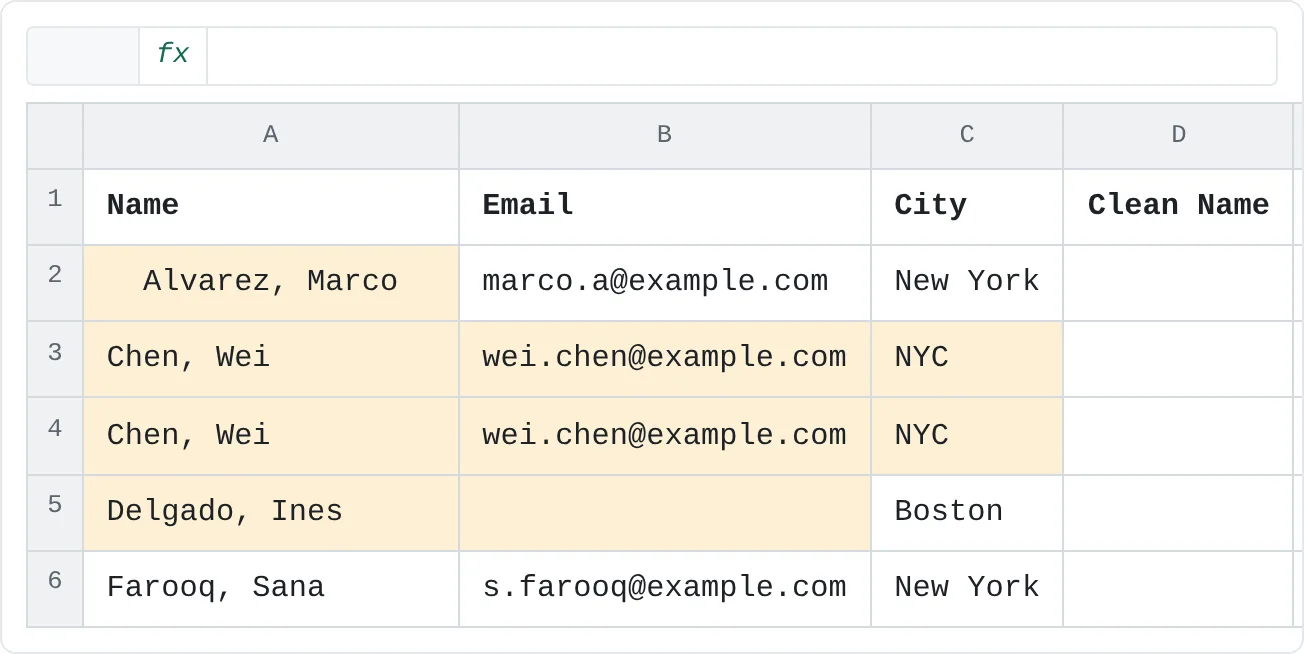
Data copied from a website, exported from another system or typed by several people is rarely tidy. Stray spaces, two pieces of information in one cell, repeated rows and empty cells all make sorting, filtering and formulas give the wrong answers. Excel has a tool for each of these problems, and this guide uses them one after another on a small contact list.
| A | B | C | D | E | |
|---|---|---|---|---|---|
| 1 | Name | City | Clean Name | Length | |
| 2 | Alvarez, Marco | marco.a@example.com | New York | ||
| 3 | Chen, Wei | wei.chen@example.com | NYC | ||
| 4 | Chen, Wei | wei.chen@example.com | NYC | ||
| 5 | Delgado, Ines | Boston | |||
| 6 | Farooq, Sana | s.farooq@example.com | New York |
Remove stray spaces with TRIM
Spaces at the start or end of a cell are invisible, but Excel counts them. "Chen, Wei" and "Chen, Wei " (with a space at the end) are different values to Excel, so they don't match in a filter, a lookup or Remove Duplicates.
LEN shows the problem. It counts every character, spaces included:
=LEN(A2)It returns 18 for A2, although "Alvarez, Marco" is only 14 characters long. The other 4 are spaces.
Write TRIM in a helper column
In D2, type the formula below and press Enter.
TRIMremoves spaces from the start and end of the text and turns any run of spaces inside it into a single space.=TRIM(A2)D2 shows Alvarez, Marco, and
=LEN(D2)now returns 14.Copy the formula down
Double-click the fill handle on D2 to copy the formula to D6.
Replace the originals with the cleaned values
Select D2:D6 and press Ctrl+C. Click A2, then on the Home tab click the arrow under Paste and choose Values (under Paste Values). Column A now holds the clean text itself, not formulas.
Delete the helper column
Select D2:D6 and press Delete. You don't need them any more.
Swap one value for another with Find and Replace
In the City column, "NYC" and "New York" are the same place, but a filter or PivotTable would treat them as two cities. Replace one with the other everywhere at once.
Open Replace
Press Ctrl+H, or go to Home then Editing then Find & Select then Replace. The Find and Replace dialog opens on the Replace tab.
Fill in both boxes
Type
NYCin Find what andNew Yorkin Replace with.Replace them all
Click Replace All. Excel tells you how many replacements it made, here 2. Click OK and Close.
Click Options in the dialog for more control. Match case treats "nyc" and "NYC" as different, and Match entire cell contents only replaces cells that contain exactly "NYC" and nothing else, so a value like "NYC Office" is left alone. Within lets you replace across the whole workbook instead of one sheet.
Split one column into two with Text to Columns
The Name column holds "Last, First" in one cell. To sort by first name or write a letter that says "Dear Marco", you need the two parts in separate columns.
Make room for the new column
Right-click the column B heading and choose Insert. Text to Columns writes the second half of each name into the column to the right, so it has to be empty, or Excel asks whether to replace the emails there.
Select the names and open the wizard
Select A2:A6, then go to Data then Data Tools then Text to Columns. On the first page of the Convert Text to Columns Wizard, choose Delimited and click Next.
Choose the delimiters
Under Delimiters, tick Comma and Space, and tick Treat consecutive delimiters as one. The comma and the space after it now count as a single break, so the first names don't start with a space. Check the Data preview at the bottom: you should see two columns.
Finish
Click Finish. Column A holds the last names (Alvarez, Chen, Chen, Delgado, Farooq) and column B the first names. Type new headings in A1 and B1, such as
LastandFirst.
Splitting on spaces also splits names that contain one, such as "De la Cruz, Ana". Check the preview for names like that, or tick only Comma and run TRIM on the first-name column afterwards.
Remove duplicate rows
Wei Chen appears twice with exactly the same details. Remove Duplicates deletes repeated rows and keeps the first one.
Open Remove Duplicates
Click any cell in the list and go to Data then Data Tools then Remove Duplicates.
Choose which columns must match
Leave My data has headers ticked. Every column is ticked, which means a row is removed only when all its values match an earlier row. Untick a column to ignore it; for example, tick only Email to treat two rows with the same email as duplicates even if the names are spelled differently.
Click OK
Excel reports that it found and removed 1 duplicate and that 4 unique values remain. The second Wei Chen row is gone, and the rows below it moved up.
Remove Duplicates deletes rows for good (you can still press Ctrl+Z straight away). To check first, count each value instead: =COUNTIF(B2:B6,B3) returns 2 on the original list, because the email in B3 appears twice. Any result above 1 is a duplicate.
Find every blank cell at once
In a long list, empty cells are easy to miss. Go To Special selects all of them in one step.
Select the list
Select the whole list, headings included.
Open Go To Special
Go to Home then Editing then Find & Select then Go To Special. You can also press F5 and click Special.
Choose Blanks
Choose Blanks and click OK. Every empty cell in the selection is selected, here Ines Delgado's email.
While the blanks are selected, you can fill them all at once: type a value, such as missing, and press Ctrl+Enter. Every selected cell gets the same entry. To count blanks with a formula instead, use COUNTBLANK: on the original list, =COUNTBLANK(B2:B6) returns 1 for the Email column.
Common mistakes
- Cleaning the only copy. Remove Duplicates and Text to Columns change the data in place. Keep a copy of the original sheet (right-click the sheet tab and choose Move or Copy, then tick Create a copy) until you're sure the result is right.
- Removing duplicates before trimming. "Chen, Wei" and "Chen, Wei " don't count as duplicates. Trim first, then remove duplicates.
- Spaces that TRIM leaves behind. Text copied from web pages can contain non-breaking spaces, which look like spaces but aren't, so
TRIMdoesn't remove them. IfLENstill shows extra characters afterTRIM, use Find and Replace: in Find what, hold Alt and type0160on the number pad, and leave Replace with empty. - Splitting into a full column. Text to Columns overwrites the cells to the right. Insert empty columns first.
Practice
Practice
Clean a messy export
Try the formulas in the sheet below first. Then take a genuinely messy list, such as a CSV export or a list copied from a web page, or type the contact list from the top of this page into Excel, and clean it in this order:
- Check a few names with
LEN, then trim the stray spaces withTRIMand paste the results back as values. - Use Find and Replace to make the same thing always spelled the same way.
- Split any combined column with Text to Columns (or Flash Fill).
- Remove exact duplicate rows.
- Select the blanks with Go To Special and decide what each one should be.
Try it0 of 4 done
- In E2, count the characters in A2 with LEN, spaces included.
- In D2, remove the extra spaces from the name in A2.
- In B8, count the empty cells in the Email column, B2:B6.
- In B9, count how many times the email in B3 appears in B2:B6. More than 1 means a duplicate.
Click a dashed cell, type a formula in the bar and press Enter.
| A | B | C | D | E | |
|---|---|---|---|---|---|
| 1 | Name | City | Clean Name | Length | |
| 2 | Alvarez, Marco | marco.a@example.com | New York | ||
| 3 | Chen, Wei | wei.chen@example.com | NYC | ||
| 4 | Chen, Wei | wei.chen@example.com | NYC | ||
| 5 | Delgado, Ines | Boston | |||
| 6 | Farooq, Sana | s.farooq@example.com | New York | ||
| 7 | |||||
| 8 | Blank emails | ||||
| 9 | Copies of B3 |
Check your skills
- Can you use Find and Replace to swap one value for another across a sheet?
- Can you remove exact duplicate rows?
- Can you split "Smith, John" into separate last-name and first-name columns?
- Can you trim stray spaces from a cell, and select every blank cell at once?
Related
Was this guide helpful? Spot a mistake? Send feedback · admin@arumsoft.com