The 20 Most-Used Excel Functions · Tutorial 2 of 20
How to Use the AVERAGE Function in Excel
Find the average of a column, a row or several ranges with AVERAGE, and know how it treats blank cells, zeros and text.
- Level
- Beginner
- Time
- 12 min read
- Updated:
- Applies to:
- Excel for Microsoft 365, Excel 2021, Excel 2019, Excel for the web
What you'll learn
- Write an AVERAGE formula for a column, a row or several ranges
- Predict how AVERAGE treats blank cells, zeros and text
- Round an average with ROUND
- Fix a #DIV/0! error and other wrong averages
Before you start
Function Playground
Try AVERAGE in a live sheet
Type formulas in an Excel-style grid and watch each step of the calculation. Free, no sign-up.
AVERAGE returns the arithmetic mean of a set of numbers: it adds them up and divides by how many there are. Use it for average scores, average sales per day or average delivery time. The trick is knowing which cells count as "how many", because blank cells and zeros are treated very differently.
The syntax
=AVERAGE(number1, [number2], ...)- number1 is the first number, cell or range to average, such as
B2:B6. - number2, … are optional. Separate them with commas (up to 255 arguments in all), and Excel averages all the numbers together.
=AVERAGE1(B2:B62,C2:C63)AVERAGEAdds up the numbers it finds, then divides by how many numbers there areB2:B6The first range: the Test 1 scoresC2:C6The second range: the Test 2 scores, pooled with the first
Average a column of numbers
The sheet below has two test scores for five students. Start with the class average for Test 1 in B7.
Click the cell where the average should appear
Click B7, under the Test 1 scores.
A B C D 1 Student Test 1 Test 2 Average 2 Ana 82 88 3 Ben 74 4 Chloe 91 95 5 David 68 0 6 Emma 85 77 7 Class average 8 Both tests Test scores for five students. The Test 1 average goes in B7. Type =AVERAGE( and select the scores
Type
=AVERAGE(and drag from B2 down to B6. Excel writesB2:B6into the formula and outlines the cells.A B C D 1 Student Test 1 Test 2 Average 2 Ana 82 88 3 Ben 74 4 Chloe 91 95 5 David 68 0 6 Emma 85 77 7 Class average =AVERAGE(B2:B6 8 Both tests The five Test 1 scores are outlined while you select them. Press Enter
Excel closes the parenthesis and shows 80. The five scores add up to 400, and 400 divided by 5 is 80.
=AVERAGE(B2:B6)A B C D 1 Student Test 1 Test 2 Average 2 Ana 82 88 3 Ben 74 4 Chloe 91 95 5 David 68 0 6 Emma 85 77 7 Class average 80 8 Both tests The class average for Test 1 is 80.
Blank cells, zeros and text
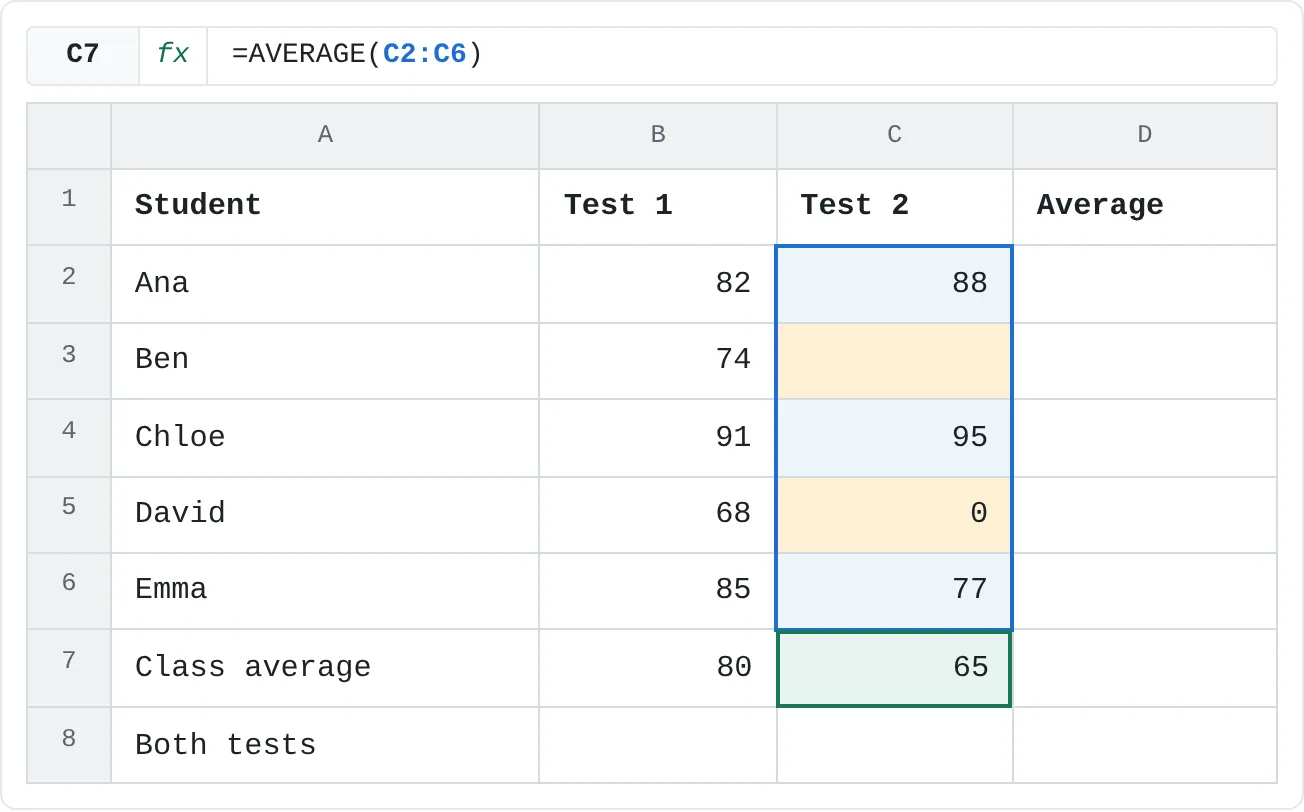
Now look at Test 2. Ben hasn't taken it yet, so C3 is empty. David missed it and was given 0 in C5. Type this in C7:
=AVERAGE(C2:C6)| A | B | C | D | |
|---|---|---|---|---|
| 1 | Student | Test 1 | Test 2 | Average |
| 2 | Ana | 82 | 88 | |
| 3 | Ben | 74 | ||
| 4 | Chloe | 91 | 95 | |
| 5 | David | 68 | 0 | |
| 6 | Emma | 85 | 77 | |
| 7 | Class average | 80 | 65 | |
| 8 | Both tests |
The result is 65. Excel adds 88 + 95 + 0 + 77 = 260 and divides by 4, not 5, because it skips the empty cell. The zero is a real number, so it counts and pulls the average down.
| What's in the cell | How AVERAGE treats it |
|---|---|
| A number, including 0 | Counted |
| Nothing (an empty cell) | Ignored |
| Text, such as "absent" | Ignored |
| TRUE or FALSE | Ignored |
So if David's cell said "absent" instead of 0, the average would be 260 ÷ 3, about 86.67. Decide what a missing result should mean before you fill the cell: leave it empty if it shouldn't count, enter 0 only if it really is a zero.
To average only the non-zero scores while keeping the zeros in the sheet, use AVERAGEIF with the condition "not equal to 0". This also returns about 86.67:
=AVERAGEIF(C2:C6,"<>0")Average a row or several ranges
AVERAGE works the same way across a row. To average Ana's two tests in D2:
=AVERAGE(B2:C2)That returns 85, halfway between 82 and 88.
To average every score from both tests, give AVERAGE the whole block, or the two columns separated by a comma. These two formulas give the same result:
=AVERAGE(B2:C6)=AVERAGE(B2:B6,C2:C6)The result is about 73.33: nine numbers (Ben's empty cell is skipped) that add up to 660. Notice that this is not the same as averaging the two class averages, (80 + 65) ÷ 2 = 72.5. AVERAGE pools all the numbers first, so a test with more results carries more weight.
Round the average
Averages often come out with long decimals. To round the value itself, wrap AVERAGE in ROUND and give the number of decimal places you want:
=ROUND(AVERAGE(B2:C6),1)That returns 73.3. Clicking Decrease Decimal on the Home tab only changes how many decimals the cell shows; the full value is still used in later calculations. Use ROUND when later formulas should work with the rounded number.
AVERAGE, MEDIAN and the conditional averages
AVERAGE isn't the only way to describe a typical value. Here is how its relatives compare on the Test 2 scores in C2:C6 (88, empty, 95, 0, 77):
| Function | What it returns | Example on Test 2 | Result |
|---|---|---|---|
AVERAGE | The mean of the numbers; empty cells and text are skipped | =AVERAGE(C2:C6) | 65 |
AVERAGEIF | The mean of only the cells that meet one condition | =AVERAGEIF(C2:C6,"<>0") | 86.67 |
AVERAGEIFS | The mean of the cells whose rows meet one or more conditions; the range to average comes first | =AVERAGEIFS(C2:C6,B2:B6,">=85") | 86 |
MEDIAN | The middle value once the numbers are sorted, so one extreme value barely moves it | =MEDIAN(C2:C6) | 82.5 |
The AVERAGEIFS example averages Test 2 for the students who scored 85 or more on Test 1: Chloe's 95 and Emma's 77. The median sorts the four numbers (0, 77, 88, 95) and, because there is an even count, averages the two in the middle, 77 and 88. The zero drags the average down to 65 but hardly affects the median. There is also AVERAGEA, which counts text and FALSE as 0 and TRUE as 1; you'll rarely need it.
Real-world scenarios
Average daily sales, skipping a closed day
A shop was closed on Wednesday, so nobody entered sales for that day. The owner wants the average for a day the shop was open.
| A | B | |
|---|---|---|
| 1 | Day | Sales |
| 2 | Mon | 820 |
| 3 | Tue | 640 |
| 4 | Wed (closed) | |
| 5 | Thu | 710 |
| 6 | Fri | 930 |
| 7 | Sat | 1,150 |
| 8 | Daily average | 850 |
=AVERAGE(B2:B7)It returns 850: 820 + 640 + 710 + 930 + 1,150 = 4,250, divided by 5. Leaving Wednesday empty is what makes this right. If someone typed 0 there, the average would drop to 4,250 ÷ 6, about 708.33, which understates a normal day.
Average three lab trials
In a physics lab, students time a pendulum's swing three times for each string length and report the average, which smooths out small timing errors.
| A | B | C | D | E | |
|---|---|---|---|---|---|
| 1 | String length | Trial 1 | Trial 2 | Trial 3 | Average (s) |
| 2 | 50 cm | 1.42 | 1.38 | 1.46 | 1.42 |
| 3 | 100 cm | 2.01 | 1.97 | 2.05 | 2.01 |
| 4 | 150 cm | 2.44 | 2.5 | 2.47 | 2.47 |
=AVERAGE(B2:D2)For the 50 cm string, (1.42 + 1.38 + 1.46) ÷ 3 = 1.42 seconds. Filled down, the formula returns 2.01 for 100 cm and 2.47 for 150 cm.
Plan for a bill that changes every month
Your electric bill goes up and down with the seasons. To budget a steady amount each month, average the last six bills.
| A | B | |
|---|---|---|
| 1 | Month | Electric bill |
| 2 | Jan | 84 |
| 3 | Feb | 92 |
| 4 | Mar | 110 |
| 5 | Apr | 128 |
| 6 | May | 120 |
| 7 | Jun | 96 |
| 8 | Monthly average | 105 |
=AVERAGE(B2:B7)The six bills add up to 630, so the formula returns 105. If you set aside 105 every month, the cheaper months build up a cushion for the expensive ones.
Hide #DIV/0! for someone with no data yet
A team sheet averages each agent's weekly calls. Cara started this week and has no numbers yet, so a plain AVERAGE would show #DIV/0! in her row. IFERROR replaces the error with a message.
| A | B | C | D | E | F | |
|---|---|---|---|---|---|---|
| 1 | Agent | Week 1 | Week 2 | Week 3 | Week 4 | Average |
| 2 | Ana | 42 | 38 | 45 | 39 | 41 |
| 3 | Ben | 30 | 36 | 33 | 33 | |
| 4 | Cara (new) | No data yet |
=IFERROR(AVERAGE(B2:E2),"No data yet")Ana's row returns 41 (164 ÷ 4). Ben's returns 33: his week 3 cell is empty, so the formula divides 99 by 3. Cara's row has no numbers, AVERAGE returns #DIV/0!, and IFERROR shows No data yet instead. IFERROR hides every kind of error, so use it where you know why the error happens, as here.
Mistakes that make an average wrong
- Zeros standing in for "no data". A 0 counts as a result. If a cell means "not yet" or "not applicable", leave it empty or use
AVERAGEIFas shown above. - A #DIV/0! error. AVERAGE returns
#DIV/0!when the range contains no numbers at all, for example a column you haven't filled in yet. Excel can't divide by a count of zero. The error goes away once there's at least one number. - Numbers stored as text. Values aligned to the left or marked with a small green triangle are text, and AVERAGE ignores them, so the average is based on fewer values than you think. Select them, click the warning icon and choose Convert to Number.
- Hidden and filtered rows still count. AVERAGE uses every cell in the range. To average only the rows a filter leaves visible, use
=SUBTOTAL(1,B2:B6). - The average inside its own range. Writing
=AVERAGE(B2:B7)in B7 makes the formula refer to itself, and Excel warns about a circular reference. Keep the result outside the range.
Practice
Practice
Average the test scores
Use the sheet below. Click a highlighted cell, type the formula in the bar above the sheet and press Enter. Check whether the Test 2 average matches what you expect from the empty cell and the zero. Then try it in Excel: enter a week of your own daily step counts or expenses, leave one day empty, and compare the average with and without a 0 in that cell.
Try it0 of 4 done
- In B7, find the class average for Test 1.
- In C7, find the class average for Test 2. Watch what happens to the blank cell and the zero.
- In D2, average the first student's two test scores.
- In B8, average every score from both tests, rounded to one decimal place.
Click a dashed cell, type a formula in the bar and press Enter.
| A | B | C | D | |
|---|---|---|---|---|
| 1 | Student | Test 1 | Test 2 | Average |
| 2 | Ana | 82 | 88 | |
| 3 | Ben | 74 | ||
| 4 | Chloe | 91 | 95 | |
| 5 | David | 68 | 0 | |
| 6 | Emma | 85 | 77 | |
| 7 | Class average | |||
| 8 | Both tests |
Related
Was this guide helpful? Spot a mistake? Send feedback · admin@arumsoft.com