The 20 Most-Used Excel Functions · Tutorial 12 of 20
How to Use IFERROR in Excel
Replace error values such as #DIV/0! and #N/A with a value or message of your own using IFERROR and IFNA, without hiding real mistakes.
- Level
- Intermediate
- Time
- 14 min read
- Updated:
- Applies to:
- Excel for Microsoft 365, Excel 2021, Excel 2019, Excel for the web
What you'll learn
- Wrap a formula in IFERROR to show your own value instead of an error
- Choose between 0, an empty string and a message as the replacement
- Use IFNA to handle only #N/A from a lookup
- Recognize when IFERROR hides a real mistake
Before you start
Function Playground
Try IFERROR in a live sheet
Type formulas in an Excel-style grid and watch each step of the calculation. Free, no sign-up.
Some formulas return an error for a perfectly ordinary reason: a division by an empty cell, a lookup for a product that isn't on the list yet. IFERROR lets you decide what to show instead, such as 0, a blank or a short message, so a report doesn't fill up with #DIV/0! and #N/A. It's useful, but it also hides errors you'd want to see, so use it where you expect a particular error and nowhere else.
The syntax
=IFERROR(value, value_if_error)- value is the formula to check, for example
B2/C2or aVLOOKUP. - value_if_error is what to return if value gives an error: a number, text in quotes,
""for an empty-looking cell, or another formula.
If value works, IFERROR returns its result unchanged. If it gives any error (such as #N/A, #VALUE!, #REF!, #DIV/0!, #NUM!, #NAME? or #NULL!), IFERROR returns value_if_error instead.
=IFERROR(B4/C41,"No sales"2)B4/C4value: the formula to try. With 0 units in C4 it returns #DIV/0!"No sales"value_if_error: what to show instead whenever the formula returns an error
Replace #DIV/0! in a column of results
The sheet below shows revenue and units sold for five products. The average price in column D is revenue divided by units. Highlighter hasn't sold anything yet, so a plain =B4/C4 divides 0 by 0 and returns #DIV/0!.
| A | B | C | D | E | F | G | |
|---|---|---|---|---|---|---|---|
| 1 | Product | Revenue | Units | Avg price | Lookup | Result | |
| 2 | Notebook | 540 | 120 | 4.5 | Product | Glue | |
| 3 | Pen | 360 | 300 | 1.2 | Units | ||
| 4 | Highlighter | 0 | 0 | #DIV/0! | Product | Stapler | |
| 5 | Stapler | 180 | 15 | 12 | Units | ||
| 6 | Scissors | 260 | 40 | 6.5 |
Click the first result cell
Click D2.
Type =IFERROR( and the formula
Type
=IFERROR(followed by the divisionB2/C2, then a comma.Type the replacement value and press Enter
Type
0and press Enter. D2 shows 4.5, the same as a plain division, because 540 ÷ 120 works.=IFERROR(B2/C2,0)Fill the formula down
Drag the fill handle at the bottom-right corner of D2 down to D6, or select D2:D6 and press Ctrl+D. The other products show their prices as before, and Highlighter shows 0 instead of
#DIV/0!.A B C D E F G 1 Product Revenue Units Avg price Lookup Result 2 Notebook 540 120 4.5 Product Glue 3 Pen 360 300 1.2 Units 4 Highlighter 0 0 0 Product Stapler 5 Stapler 180 15 12 Units 6 Scissors 260 40 6.5 With IFERROR, D4 shows 0 instead of the error. The other rows are unchanged.
Choose what to show instead
The replacement is your choice, and it matters when other formulas use the results.
| Replacement | Looks like | How later formulas treat it |
|---|---|---|
0 | 0 | A real number: it counts in AVERAGE and COUNT |
"" | an empty cell | Text: SUM, AVERAGE and COUNT skip it |
"No sales" | the message | Text: skipped like "" |
With 0 in D4, =AVERAGE(D2:D6) returns 4.84: the five values add up to 24.2, divided by 5. With "" or "No sales" in D4, the same formula returns 6.05, because the four real prices are divided by 4. A product with no sales has no average price, so a message is more honest here than a 0:
=IFERROR(B4/C4,"No sales")Catch a lookup that finds nothing
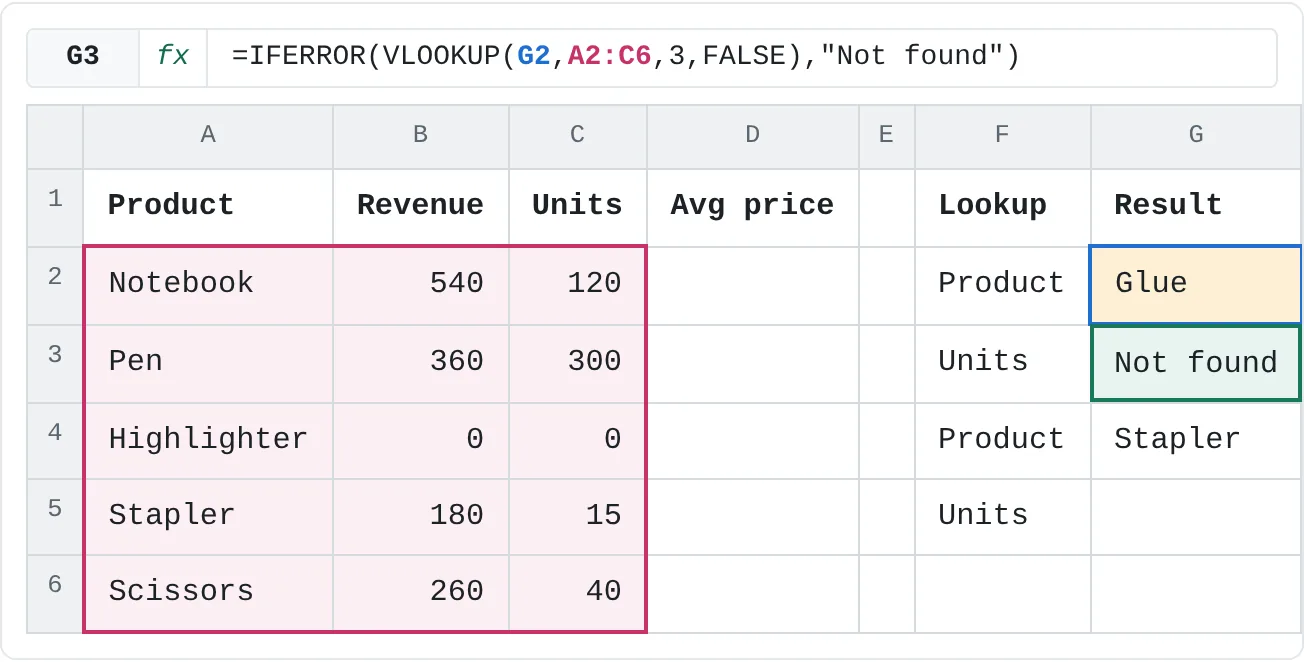
A lookup returns #N/A when the value isn't in the table. There's no Glue on the list, so =VLOOKUP(G2,A2:C6,3,FALSE) with Glue in G2 returns #N/A. Wrap it in IFERROR to show a message instead:
=IFERROR(VLOOKUP(G2,A2:C6,3,FALSE),"Not found")| A | B | C | D | E | F | G | |
|---|---|---|---|---|---|---|---|
| 1 | Product | Revenue | Units | Avg price | Lookup | Result | |
| 2 | Notebook | 540 | 120 | Product | Glue | ||
| 3 | Pen | 360 | 300 | Units | Not found | ||
| 4 | Highlighter | 0 | 0 | Product | Stapler | ||
| 5 | Stapler | 180 | 15 | Units | |||
| 6 | Scissors | 260 | 40 |
If you use XLOOKUP, you don't need IFERROR for this: its fourth argument does the same job, as in =XLOOKUP(G2,A2:A6,C2:C6,"Not found").
IFERROR or IFNA?
IFNA has the same two arguments but catches only #N/A, the error a lookup gives when the value isn't found. Every other error still shows.
=IFNA(VLOOKUP(G4,A2:C6,3,FALSE),"Not found")With Stapler in G4, this returns 15, the units sold. With a product that isn't on the list, it returns Not found.
The difference shows when the formula itself has a mistake. This lookup asks for column 4 of a table that has only three columns, which gives #REF!:
=IFERROR(VLOOKUP("Pen",A2:C6,4,FALSE),"Not found")It returns Not found, even though Pen is on the list. IFERROR has turned a broken formula into a believable answer. The same lookup wrapped in IFNA returns #REF!, so you see the problem and fix the column number.
| Catches | Use it for | |
|---|---|---|
IFERROR | every error | a calculation where you expect one particular error, such as division by zero |
IFNA | #N/A only | lookups with VLOOKUP, MATCH or INDEX and MATCH |
| XLOOKUP's fourth argument | "not found" only | lookups with XLOOKUP |
IF with a test | nothing: you test the cause yourself | a cause you can check, such as C4=0 |
Real-world scenarios
Share of the budget used
A monthly budget compares what you spent with what you planned. A new category, Gifts, has spending but no budget yet, so dividing by its budget of 0 returns #DIV/0!.
| A | B | C | D | |
|---|---|---|---|---|
| 1 | Category | Budget | Spent | % used |
| 2 | Rent | 1,200 | 1,200 | 100% |
| 3 | Food | 400 | 436 | 109% |
| 4 | Fun | 150 | 96 | 64% |
| 5 | Gifts | 0 | 45 | No budget |
| 6 | Travel | 300 | 0 | 0% |
Type this in D2 and fill it down to D6:
=IFERROR(C2/B2,"No budget")Food shows 109% (436 ÷ 400): over budget, which is worth seeing. Gifts shows No budget instead of #DIV/0!, which tells you what to fix. Travel has a budget but no spending yet, so 0 ÷ 300 works and shows 0%. IFERROR steps in only when the division fails.
Average of the tests taken so far
A grade book has three tests, and not every student has taken all of them. AVERAGE skips empty cells, but for a student with no scores at all it returns #DIV/0!.
| A | B | C | D | E | |
|---|---|---|---|---|---|
| 1 | Student | Test 1 | Test 2 | Test 3 | Average |
| 2 | Mina | 82 | 90 | 86 | |
| 3 | Leo | 75 | 81 | 78 | |
| 4 | Sam | No scores | |||
| 5 | Yuna | 88 | 92 | 96 | 92 |
Type this in E2 and fill it down to E5:
=IFERROR(AVERAGE(B2:D2),"No scores")Mina has two scores, so E2 averages just those: 86 (82 + 90, divided by 2). Leo's two scores average 78, and Yuna's three average 92. Sam has none, so AVERAGE has nothing to divide by; IFERROR shows No scores instead of the error. A 0 here would look like a failing grade, so a message is the honest choice.
Growth on last year
Growth is this year's sales minus last year's, divided by last year's. A product launched this year had no sales last year, so its growth would be a division by 0.
| A | B | C | D | |
|---|---|---|---|---|
| 1 | Product | Last year | This year | Growth |
| 2 | Notebook | 500 | 600 | 20% |
| 3 | Pen | 800 | 720 | -10% |
| 4 | Planner | 0 | 350 | New |
| 5 | Stickers | 200 | 260 | 30% |
Type this in D2 and fill it down to D5:
=IFERROR((C2-B2)/B2,"New")Notebook grows 20% (100 more on 500), Pen shows -10%, and Stickers grow 30%. For Planner, 350 divided by 0 has no answer, so IFERROR shows New. Because the only error you expect is a 0 in column B, =IF(B2=0,"New",(C2-B2)/B2) gives the same results and still shows any other error.
Order lines with a price lookup
An order form looks up each code in a price list and multiplies the price by the quantity. A code that isn't on the price list should be flagged, but any other problem should still show as an error.
| A | B | C | D | E | F | |
|---|---|---|---|---|---|---|
| 1 | Code | Qty | Line total | Code | Price | |
| 2 | P-102 | 10 | 12 | P-101 | 4.5 | |
| 3 | P-104 | 2 | 24 | P-102 | 1.2 | |
| 4 | P-107 | 3 | Check code | P-104 | 12 | |
| 5 | P-101 | 4 | 18 | P-105 | 6.5 |
Type this in C2 and fill it down to C5:
=IFNA(VLOOKUP(A2,$E$2:$F$5,2,FALSE)*B2,"Check code")P-102 costs 1.2, so 10 of them come to 12. P-107 isn't in E2:E5, so VLOOKUP returns #N/A, the multiplication passes it on, and IFNA shows Check code. IFNA catches only #N/A: if someone typed "two" in the Qty column, that line would show #VALUE! rather than a misleading message. With IFERROR, that mistake would also read Check code.
Mistakes to avoid
- Hiding errors you need to see. A typo in a function name (
#NAME?), a deleted column (#REF!) or text in a number column (#VALUE!) all disappear behind IFERROR. Build the formula first, check it works, then add IFERROR. - A 0 that changes your totals. A 0 replacement counts in averages and counts. Use
""or a message when "no result" shouldn't count as zero. - Text without quotes.
=IFERROR(B4/C4,No sales)returns#NAME?, because Excel reads No sales as a name. Put text in double quotes. - Wrapping the whole formula when one part can fail. In
=IFERROR(VLOOKUP(G2,A2:C6,3,FALSE)*B2,0), any error anywhere becomes 0. Wrap only the lookup if that's the part that can be missing.
Practice
Practice
Clean up errors in a sales report
Use the sheet below. Click a highlighted cell, type a formula in the bar above the sheet and press Enter. Afterwards, try it in Excel itself:
- List five items you bought this month with the total spent and the number of times you bought each. Leave one count at 0.
- Add a column that divides total by count, and see the
#DIV/0!. - Wrap the formula in
IFERRORwith"", then with0, and compare theAVERAGEof the column each time.
Try it0 of 4 done
- In D2, divide revenue by units, and show 0 if the division gives an error.
- In D4, divide revenue by units for Highlighter, and show No sales instead of #DIV/0!.
- In G3, look up the units sold for the product in G2, and show Not found if it isn't in the list.
- In G5, look up the units sold for the product in G4, catching only #N/A with IFNA.
Click a dashed cell, type a formula in the bar and press Enter.
| A | B | C | D | E | F | G | |
|---|---|---|---|---|---|---|---|
| 1 | Product | Revenue | Units | Avg price | Lookup | Result | |
| 2 | Notebook | 540 | 120 | Product | Glue | ||
| 3 | Pen | 360 | 300 | Units | |||
| 4 | Highlighter | 0 | 0 | Product | Stapler | ||
| 5 | Stapler | 180 | 15 | Units | |||
| 6 | Scissors | 260 | 40 |
Related
Was this guide helpful? Spot a mistake? Send feedback · admin@arumsoft.com