The 20 Most-Used Excel Functions · Tutorial 14 of 20
How to Use XLOOKUP in Excel
Find a value in one column and return the matching value from another with XLOOKUP, including a fallback for missing values, nearest matches and wildcards.
- Level
- Intermediate
- Time
- 15 min read
- Updated:
- Applies to:
- Excel for Microsoft 365, Excel 2024, Excel 2021, Excel for the web
What you'll learn
- Write an XLOOKUP formula that returns a value from any column, including one to the left
- Show your own message when a value isn't found
- Choose a match_mode for nearest matches and wildcards
- Use search_mode to search from the bottom of a list
Before you start
Function Playground
Try XLOOKUP in a live sheet
Type formulas in an Excel-style grid and watch each step of the calculation. Free, no sign-up.
XLOOKUP finds a value in one column (or row) and returns the value in the same position from another. It does everything VLOOKUP does with fewer ways to go wrong: it matches exactly unless you ask otherwise, it can return a column to the left, and it has a built-in answer for values that aren't there.
The syntax
=XLOOKUP(lookup_value, lookup_array, return_array, [if_not_found], [match_mode], [search_mode])- lookup_value is what you're looking for, such as a product name.
- lookup_array is the single column (or row) to search.
- return_array is the column (or row) to return from. It must have the same number of rows as lookup_array.
- if_not_found is optional: what to show when there's no match. Leave it out and you get
#N/A. - match_mode is optional:
0exact match (the default),-1exact or next smaller,1exact or next larger,2wildcard match. - search_mode is optional:
1searches from first to last (the default),-1from last to first.
=XLOOKUP(G21,B2:B72,A2:A73,"Not found"4)G2lookup_value: the product name to findB2:B7lookup_array: the column to searchA2:A7return_array: the column to return from, here to the left of the search column"Not found"if_not_found: what to show when the name is not in B2:B7
Find a code from a product name
The sheet below lists six products with their codes in column A. The goal is the code for the product in G2 (Stapler), shown in G3. VLOOKUP can't do this, because the codes are to the left of the names.
Click the cell for the result
Click G3, next to the label "Code".
A B C D E F G 1 Code Product Price Stock Lookup Result 2 P-101 Notebook 4.5 120 Product Stapler 3 P-102 Pen 1.2 300 Code 4 P-103 Highlighter 1.8 85 Price 5 P-104 Stapler 12 15 Glue price 6 P-105 Scissors 6.5 40 Order qty 25 7 P-106 Tape 2.5 60 Discount A product list with codes in column A and names in column B. The code for the product in G2 goes in G3. Type =XLOOKUP( and the value to find
Type
=XLOOKUP(, click G2 and type a comma.Select the column to search
Drag over B2:B7, the product names, and type a comma.
Select the column to return and press Enter
Drag over A2:A7, the codes, and press Enter. The result is P-104.
=XLOOKUP(G2,B2:B7,A2:A7)A B C D E F G 1 Code Product Price Stock Lookup Result 2 P-101 Notebook 4.5 120 Product Stapler 3 P-102 Pen 1.2 300 Code P-104 4 P-103 Highlighter 1.8 85 Price 5 P-104 Stapler 12 15 Glue price 6 P-105 Scissors 6.5 40 Order qty 25 7 P-106 Tape 2.5 60 Discount XLOOKUP finds Stapler in B2:B7 (amber) and returns the code in the same row of A2:A7 (green).
To get the price instead, point the third argument at the Price column. This returns 12:
=XLOOKUP(G2,B2:B7,C2:C7)Because the search column and the return column are separate arguments, inserting a column inside the table doesn't break the formula, unlike the fixed column number in VLOOKUP.
The return array can also be several columns wide. =XLOOKUP(G2,B2:B7,C2:D7) returns the price and the stock, 12 and 15, side by side: the result spills into the cell to the right. If that cell isn't empty, you get #SPILL! until you clear it.
Show a message when nothing is found
There's no Glue on the list, so a plain lookup for it returns #N/A. Add a fourth argument and XLOOKUP shows that instead:
=XLOOKUP("Glue",B2:B7,C2:C7,"Not found")The result is Not found. You can use any value here: 0, an empty string "" or a cell reference. Unlike wrapping the formula in IFERROR, this replaces only the "not found" case, so other mistakes, such as ranges of different sizes, still show up as errors.
Find the nearest match with match_mode
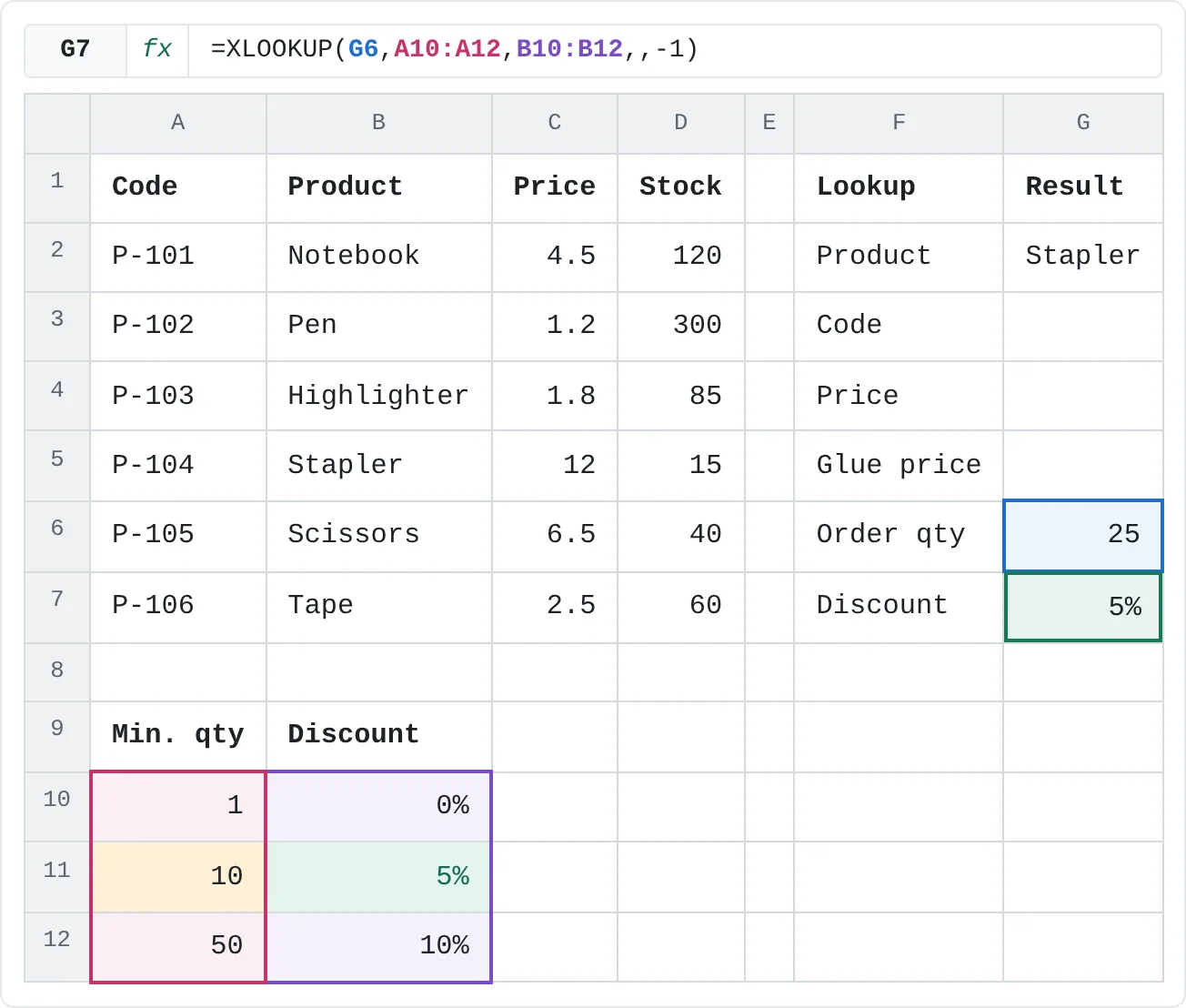
Some lookups need the nearest value rather than an exact one. Rows 10 to 12 hold a discount table: orders of 1 or more get 0%, 10 or more get 5%, and 50 or more get 10%. The order quantity in G6 is 25, which isn't in the table.
With match_mode -1, XLOOKUP returns the exact match or, if there isn't one, the next smaller value. This returns 5%, the discount for 10:
=XLOOKUP(G6,A10:A12,B10:B12,,-1)| A | B | C | D | E | F | G | |
|---|---|---|---|---|---|---|---|
| 1 | Code | Product | Price | Stock | Lookup | Result | |
| 2 | P-101 | Notebook | 4.5 | 120 | Product | Stapler | |
| 3 | P-102 | Pen | 1.2 | 300 | Code | ||
| 4 | P-103 | Highlighter | 1.8 | 85 | Price | ||
| 5 | P-104 | Stapler | 12 | 15 | Glue price | ||
| 6 | P-105 | Scissors | 6.5 | 40 | Order qty | 25 | |
| 7 | P-106 | Tape | 2.5 | 60 | Discount | 5% | |
| 8 | |||||||
| 9 | Min. qty | Discount | |||||
| 10 | 1 | 0% | |||||
| 11 | 10 | 5% | |||||
| 12 | 50 | 10% |
The two commas leave if_not_found empty so that -1 lands in the match_mode position. Unlike an approximate VLOOKUP, this works even if the table isn't sorted.
| match_mode | Finds | Example on this sheet |
|---|---|---|
0 (default) | an exact match only | 25 returns #N/A |
-1 | exact, or the next smaller value | 25 returns 5% |
1 | exact, or the next larger value | 25 returns 10% (the row for 50) |
2 | a wildcard match | "High*" finds Highlighter |
With match_mode 2, * stands for any number of characters and ? for exactly one. This returns 1.8, the price of Highlighter:
=XLOOKUP("High*",B2:B7,C2:C7,"Not found",2)Without the 2, the asterisk is treated as a normal character and the formula shows Not found.
Search from the bottom with search_mode
XLOOKUP returns the first match it finds. By default it searches from the top, so in a list where the same item appears several times you get the earliest row. Set search_mode to -1 to search from the bottom up instead. In a delivery log sorted by date, with products in B2:B50 and dates in D2:D50, this returns the date of the most recent Pen delivery:
=XLOOKUP("Pen",B2:B50,D2:D50,"None",0,-1)Search modes 2 and -2 run a faster binary search but need the lookup array sorted ascending or descending. On unsorted data they can return a wrong result without any error, so leave them for very large, sorted lists.
XLOOKUP, VLOOKUP or INDEX and MATCH?
All three find a value in a table. XLOOKUP is the most flexible; the other two work in every version of Excel.
| XLOOKUP | VLOOKUP | INDEX and MATCH | |
|---|---|---|---|
| Available in | Microsoft 365, Excel 2021 and later | Every version | Every version |
| Return a column to the left | Yes | No | Yes |
| Default match | Exact | Approximate | Approximate (write 0 in MATCH for exact) |
| Column to return | A range | A number | A range |
| Insert a column inside the table | Keeps working | Can return the wrong column | Keeps working |
| Value to show when nothing is found | Built in (fourth argument) | None (wrap in IFNA) | None (wrap in IFNA) |
| Search from the bottom | Yes (search_mode -1) | No | No |
If everyone who opens the file has Excel 2021 or Microsoft 365, use XLOOKUP. If the file goes to people with older versions, use VLOOKUP or INDEX and MATCH.
Real-world scenarios
An employee card from one ID
An employee list has an ID, a name, a department and an extension on every row. Type an ID in B8, and one XLOOKUP in B9 returns all of that person's details.
| A | B | C | D | |
|---|---|---|---|---|
| 1 | ID | Name | Department | Ext. |
| 2 | E-101 | Grace Kim | Finance | 214 |
| 3 | E-102 | Omar Haddad | Sales | 305 |
| 4 | E-103 | Lily Chen | IT | 118 |
| 5 | E-104 | Jonas Berg | Sales | 309 |
| 6 | E-105 | Rosa Diaz | HR | 120 |
| 7 | ||||
| 8 | Find ID | E-103 | ||
| 9 | Result | Lily Chen | IT | 118 |
=XLOOKUP(B8,A2:A6,B2:D6)The return array B2:D6 is three columns wide, so XLOOKUP returns three values for E-103: Lily Chen, IT and 118. You type the formula only in B9, and Excel fills C9 and D9. Keep those cells empty, or B9 shows #SPILL!. To return fewer columns, point the return array at just those, such as C2:D6 for the department and extension.
Shipping cost by weight band
A courier charges by weight band: up to 1 kg, up to 2 kg, up to 5 kg and up to 10 kg. Anything heavier needs a different service. Each parcel uses the first band that is at least as heavy as the parcel, which is exactly what match_mode 1 finds.
| A | B | C | D | E | F | |
|---|---|---|---|---|---|---|
| 1 | Up to (kg) | Rate | Order | Weight (kg) | Cost | |
| 2 | 1 | 5.5 | 501 | 0.8 | 5.5 | |
| 3 | 2 | 7 | 502 | 2 | 7 | |
| 4 | 5 | 11 | 503 | 3.4 | 11 | |
| 5 | 10 | 16 | 504 | 7.5 | 16 | |
| 6 | 505 | 12 | Too heavy |
Type this in F2 and fill it down to F6:
=XLOOKUP(E2,$A$2:$A$5,$B$2:$B$5,"Too heavy",1)Order 503 weighs 3.4 kg. There's no 3.4 in the table, so match_mode 1 takes the next larger value, 5, and F4 returns 11. Order 502 weighs exactly 2 kg and matches the 2 kg band: 7. Order 505 weighs 12 kg, and nothing in the table is that large, so XLOOKUP returns the if_not_found text, Too heavy. With match_mode -1, 3.4 kg would fall into the 2 kg band, which is the wrong rule for "up to" prices.
A student's latest test score
Test results go into a log in date order, so each student appears several times. XLOOKUP normally returns the first match, which is the oldest score. Searching from the bottom with search_mode -1 returns the newest.
| A | B | C | D | E | F | |
|---|---|---|---|---|---|---|
| 1 | Date | Student | Score | Lookup | Result | |
| 2 | 2026-09-04 | Mina | 72 | Student | Mina | |
| 3 | 2026-09-04 | Leo | 85 | Latest score | 84 | |
| 4 | 2026-09-11 | Mina | 78 | First score | 72 | |
| 5 | 2026-09-11 | Sam | 90 | |||
| 6 | 2026-09-18 | Leo | 88 | |||
| 7 | 2026-09-18 | Mina | 84 | |||
| 8 | 2026-09-25 | Sam | 93 | |||
| 9 | 2026-09-25 | Leo | 81 |
=XLOOKUP(F2,B2:B9,C2:C9,"No tests",0,-1)Mina appears in rows 2, 4 and 7. Searching up from row 9, the first Mina that XLOOKUP meets is in row 7, so F3 returns 84, her score from September 18. The 0 keeps the match exact, and the -1 in sixth place sets the direction. In F4, =XLOOKUP(F2,B2:B9,C2:C9) searches from the top and returns her first score, 72. A student with no tests yet would show No tests.
Sales for any region and quarter
A table has regions down the side and quarters across the top. Pick a region in G2 and a quarter in G3, and an XLOOKUP inside another XLOOKUP finds the value where that row and that column cross.
| A | B | C | D | E | F | G | |
|---|---|---|---|---|---|---|---|
| 1 | Region | Q1 | Q2 | Q3 | Q4 | Pick | Lookup |
| 2 | East | 4,200 | 3,900 | 4,600 | 5,100 | Region | North |
| 3 | West | 3,800 | 4,100 | 4,300 | 4,700 | Quarter | Q3 |
| 4 | North | 2,900 | 3,100 | 3,500 | 3,300 | Sales | 3,500 |
| 5 | South | 3,300 | 3,600 | 3,400 | 3,900 |
=XLOOKUP(G2,A2:A5,XLOOKUP(G3,B1:E1,B2:E5))Work from the inside out. XLOOKUP(G3,B1:E1,B2:E5) searches the header row for Q3 and returns that whole column, D2:D5. The outer XLOOKUP then finds North in A2:A5 and returns the matching value from that column: 3,500. Change G2 or G3 and the result follows. In versions without XLOOKUP, =INDEX(B2:E5,MATCH(G2,A2:A5,0),MATCH(G3,B1:E1,0)) gives the same result.
Mistakes that give the wrong result
- Ranges of different sizes.
=XLOOKUP(G2,B2:B7,C2:C6)returns#VALUE!, because the lookup array has six rows and the return array five. Use the same rows in both. - #N/A with no if_not_found. The value isn't in the lookup array, or it differs by a space or by type (the number 101 doesn't match the text "101"). Fix the data, or add a fourth argument if missing values are expected.
- The ranges slide when you copy. Fill a lookup down a column and the arrays move with it. Lock them with F4:
=XLOOKUP(H2,$B$2:$B$7,$C$2:$C$7). - #NAME? in an older version. The file was opened in Excel 2019 or earlier, which doesn't have XLOOKUP.
- match_mode and search_mode mixed up. They're the fifth and sixth arguments, in that order.
=XLOOKUP("Pen",B2:B50,D2:D50,"None",-1)asks for the next smaller value, not a search from the bottom. Count the commas.
Practice
Practice
Look up products and discounts
Use the sheet below. Click a highlighted cell, type a formula in the bar above the sheet and press Enter. Afterwards, try it in Excel itself:
- List six of your contacts with a name in column A and a phone number in column B, then a city in column C.
- Type a city in a cell and use
XLOOKUPto return the name of someone in that city. The names are to the left. - Add
"No one there"as the fourth argument and type a city that isn't on the list.
Try it0 of 4 done
- In G3, find the code of the product in G2. The codes are to the left of the names.
- In G4, find the price of the product in G2.
- In G5, look up the price of Glue, and show Not found if it isn't in the list.
- In G7, find the discount for the order quantity in G6 from the table in A10:B12.
Click a dashed cell, type a formula in the bar and press Enter.
| A | B | C | D | E | F | G | |
|---|---|---|---|---|---|---|---|
| 1 | Code | Product | Price | Stock | Lookup | Result | |
| 2 | P-101 | Notebook | 4.5 | 120 | Product | Stapler | |
| 3 | P-102 | Pen | 1.2 | 300 | Code | ||
| 4 | P-103 | Highlighter | 1.8 | 85 | Price | ||
| 5 | P-104 | Stapler | 12 | 15 | Glue price | ||
| 6 | P-105 | Scissors | 6.5 | 40 | Order qty | 25 | |
| 7 | P-106 | Tape | 2.5 | 60 | Discount | ||
| 8 | |||||||
| 9 | Min. qty | Discount | |||||
| 10 | 1 | 0% | |||||
| 11 | 10 | 5% | |||||
| 12 | 50 | 10% |
Related
Was this guide helpful? Spot a mistake? Send feedback · admin@arumsoft.com