The 20 Most-Used Excel Functions · Tutorial 4 of 20
How to Use MIN and MAX in Excel
Find the smallest and largest numbers in a range with MIN and MAX, within a group with MINIFS and MAXIFS, and use them to cap a value.
- Level
- Beginner
- Time
- 13 min read
- Updated:
- Applies to:
- Excel for Microsoft 365, Excel 2021, Excel 2019, Excel for the web
What you'll learn
- Find the lowest and highest number in a range with MIN and MAX
- Predict how MIN and MAX treat empty cells, text and zeros
- Find the highest or lowest value in one group with MAXIFS and MINIFS
- Set an upper or lower limit on a result with MIN and MAX
Before you start
Function Playground
Try these functions in a live sheet
Type formulas in an Excel-style grid and watch each step of the calculation. Free, no sign-up.
MIN returns the smallest number in a set of cells and MAX returns the largest. Use them for the cheapest quote, the best month's sales, the earliest date in a list or the slowest delivery time. Like SUM, they recalculate by themselves whenever the data changes.
The syntax
=MIN(number1, [number2], ...)=MAX(number1, [number2], ...)- number1 is the first number, cell or range to look at, such as
C2:C8. - number2, … are optional. Separate them with commas (up to 255 arguments in all), and Excel looks at all of them together.
=MAX1(C2:C82)-MIN3(C2:C84)MAXReturns the largest number it findsC2:C8The range to look at: the sales figuresMINReturns the smallest number it findsC2:C8The same range again. Largest minus smallest is the gap between the best and the worst result
Find the lowest and highest sales
The sheet below lists one month's sales for seven reps. David is on leave, so his cell holds a note, and Felix hasn't reported yet, so his cell is empty. Start with the lowest sales figure in F2.
Click the cell for the result
Click F2, next to the label "Lowest".
A B C D E F 1 Rep Region Sales Summary Result 2 Ana East 4,200 Lowest 3 Ben West 3,100 Highest 4 Chloe East 5,600 Gap 5 David West on leave Highest in West 6 Emma East 2,700 7 Felix West 8 Grace West 4,900 Sales for seven reps. C5 holds a note and C7 is empty. Type =MIN( and select the sales
Type
=MIN(and drag from C2 down to C8. Excel writesC2:C8into the formula and outlines the cells.Press Enter
Excel closes the parenthesis and shows 2,700, Emma's sales. The note in C5 and the empty C7 are skipped, so they don't count as zero.
=MIN(C2:C8)A B C D E F 1 Rep Region Sales Summary Result 2 Ana East 4,200 Lowest 2,700 3 Ben West 3,100 Highest 4 Chloe East 5,600 Gap 5 David West on leave Highest in West 6 Emma East 2,700 7 Felix West 8 Grace West 4,900 MIN returns 2,700, the smallest number in C2:C8 (green).
MAX works the same way. In F3, this returns 5,600, Chloe's sales:
=MAX(C2:C8)Because both functions return a number, you can use them inside a larger formula. The gap between the best and the worst result is the highest minus the lowest, 2,900:
=MAX(C2:C8)-MIN(C2:C8)Empty cells, text and zeros
In a range, MIN and MAX look only at numbers:
| What's in the cell | How MIN and MAX treat it |
|---|---|
| A number, including 0 | Included |
| A date or time | Included (dates are numbers) |
| Nothing (an empty cell) | Ignored |
| Text, such as "on leave" | Ignored |
| TRUE or FALSE | Ignored |
| An error value, such as #N/A | Returned as the result |
Two consequences matter in practice:
- A zero is a real value. If Felix's empty cell held 0 instead,
=MIN(C2:C8)would return 0. Leave a cell empty if it means "no data yet". - No numbers at all gives 0, not an error. If the range holds only text or empty cells,
MINandMAXboth return 0. That's different fromAVERAGE, which returns#DIV/0!. A 0 you didn't expect is a sign that the range is empty or holds numbers stored as text.
Because dates are numbers, MIN returns the earliest date in a range and MAX the latest. If the result shows a number such as 46000 instead of a date, give the cell a date format on the Home tab.
Highest or lowest in one group: MAXIFS and MINIFS
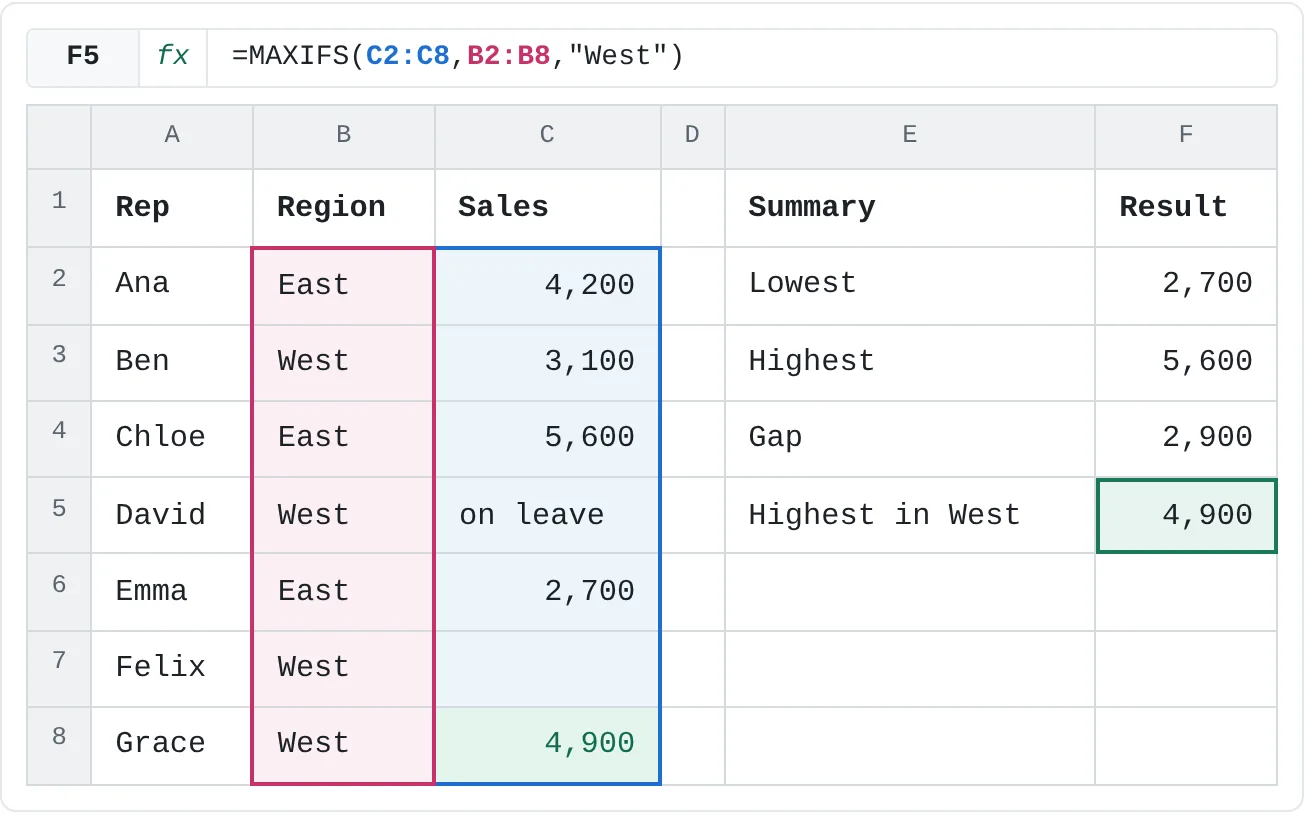
To find the best result in the West region only, use MAXIFS. Like SUMIFS, the cells to look at come first, followed by pairs of a range to check and a condition:
=MAXIFS(max_range, criteria_range1, criteria1, [criteria_range2, criteria2], ...)In F5, this returns 4,900, Grace's sales. Ben's 3,100 is lower, and David's note and Felix's empty cell are ignored:
=MAXIFS(C2:C8,B2:B8,"West")| A | B | C | D | E | F | |
|---|---|---|---|---|---|---|
| 1 | Rep | Region | Sales | Summary | Result | |
| 2 | Ana | East | 4,200 | Lowest | 2,700 | |
| 3 | Ben | West | 3,100 | Highest | 5,600 | |
| 4 | Chloe | East | 5,600 | Gap | 2,900 | |
| 5 | David | West | on leave | Highest in West | 4,900 | |
| 6 | Emma | East | 2,700 | |||
| 7 | Felix | West | ||||
| 8 | Grace | West | 4,900 |
MINIFS has the same arguments. =MINIFS(C2:C8,B2:B8,"West") returns 3,100. Both functions return 0 when no row meets the conditions. MAXIFS and MINIFS are available in Excel 2019 and later, Microsoft 365 and Excel for the web.
Set a limit with MIN and MAX
MIN and MAX also work on two values, which makes them a neat way to limit a result. Say each rep earns a bonus of 10% of sales, but never more than 500. Take the smaller of the two:
=MIN(C4*10%,500)For Chloe, 10% of 5,600 is 560, so the formula returns 500. For anyone with sales under 5,000, it returns the 10% figure.
To stop a result from going below zero, take the larger of it and 0. This shows how far Ben is from a target of 4,000, and returns 900:
=MAX(4000-C3,0)For Ana, who beat the target, 4,000 minus 4,200 is -200, so the formula returns 0 instead of a negative number. It sounds backwards at first, but it follows from what each function keeps: MIN keeps the smaller value, so it sets a ceiling; MAX keeps the larger one, so it sets a floor.
MIN and MAX compared with MINIFS, MAXIFS, SMALL and LARGE
Each of these functions picks one number out of a range. They differ in which one. On the sales sheet above (C2:C8 holds 4,200, 3,100, 5,600, 2,700 and 4,900, plus a note and an empty cell):
| Function | What it returns | Example | Result |
|---|---|---|---|
MIN / MAX | The smallest / largest number in the range | =MIN(C2:C8) / =MAX(C2:C8) | 2,700 / 5,600 |
MINIFS / MAXIFS | The smallest / largest number among the rows that meet one or more conditions | =MINIFS(C2:C8,B2:B8,"West") | 3,100 |
SMALL / LARGE | The k-th smallest / largest number: 1 for the smallest or largest, 2 for the runner-up, and so on | =SMALL(C2:C8,2) / =LARGE(C2:C8,2) | 3,100 / 4,900 |
SMALL(C2:C8,1) is the same as MIN(C2:C8), and LARGE(C2:C8,1) the same as MAX(C2:C8). Use LARGE with 1, 2 and 3 to list the top three. MINIFS and MAXIFS need Excel 2019 or later; the other four work in every version.
Real-world scenarios
Pick the cheapest supplier quote
Five suppliers were asked to quote for the same order. One didn't bid, so its cell holds a note instead of a price.
| A | B | |
|---|---|---|
| 1 | Supplier | Quote |
| 2 | Northwind | 1,840 |
| 3 | Contoso | 1,725 |
| 4 | Fabrikam | no bid |
| 5 | Litware | 1,910 |
| 6 | Tailspin | 1,790 |
| 7 | Lowest | 1,725 |
| 8 | Highest | 1,910 |
=MIN(B2:B6)It returns 1,725, Contoso's quote. The "no bid" note is text, so MIN ignores it instead of treating it as 0. =MAX(B2:B6) returns 1,910, so choosing the cheapest supplier saves 185 compared with the most expensive one.
Drop the lowest quiz score
A teacher drops each student's lowest quiz score before adding up the quizzes. Subtract the MIN from the SUM.
| A | B | |
|---|---|---|
| 1 | Quiz | Score (out of 10) |
| 2 | Quiz 1 | 8 |
| 3 | Quiz 2 | 6 |
| 4 | Quiz 3 | 9 |
| 5 | Quiz 4 | 10 |
| 6 | Quiz 5 | 7 |
| 7 | Lowest | 6 |
| 8 | Total, lowest dropped | 34 |
=SUM(B2:B6)-MIN(B2:B6)The five scores add up to 40 and the lowest is 6 (Quiz 2), so the formula returns 34. If two quizzes tie for the lowest score, only one of them is dropped, because MIN returns the value once.
How much is left to save, never below zero
You're saving toward three goals. For each one, show what's still needed, but once a goal is reached, show 0 instead of a negative number.
| A | B | C | D | |
|---|---|---|---|---|
| 1 | Goal | Target | Saved | Still to save |
| 2 | Laptop | 1,200 | 950 | 250 |
| 3 | Trip | 800 | 860 | 0 |
| 4 | Emergency fund | 2,000 | 1,250 | 750 |
=MAX(B2-C2,0)For the laptop, 1,200 − 950 = 250, which is larger than 0, so the formula returns 250. For the trip you've saved 860 toward 800, so the difference is -60; MAX keeps the larger value, 0. The emergency fund still needs 750.
Find the best month with INDEX and MATCH
MAX tells you the highest sales figure, but a report usually needs the month that goes with it. MATCH finds where the maximum sits in the list, and INDEX returns the month in the same position.
| A | B | C | D | |
|---|---|---|---|---|
| 1 | Month | Sales | Summary | Result |
| 2 | Jan | 18,400 | Best sales | 23,150 |
| 3 | Feb | 16,950 | Best month | May |
| 4 | Mar | 21,300 | ||
| 5 | Apr | 19,800 | ||
| 6 | May | 23,150 | ||
| 7 | Jun | 20,600 |
=INDEX(A2:A7,MATCH(MAX(B2:B7),B2:B7,0))MAX(B2:B7) returns 23,150. MATCH(23150,B2:B7,0) finds it in position 5, and INDEX(A2:A7,5) returns May. In Excel 2021 or Microsoft 365, =XLOOKUP(MAX(B2:B7),B2:B7,A2:A7) gives the same answer. If two months tie for the top figure, both formulas return the first one.
Mistakes that give the wrong result
- Zeros standing in for "no data". A 0 is always the lowest value in a list of positive numbers, so
MINreturns it. Leave the cell empty, or useMINIFSwith the condition">0". - The total inside the range. If row 9 held a total of the sales,
=MAX(C2:C9)would return the total. Keep summary rows out of the range. - Numbers stored as text. Values aligned to the left or marked with a small green triangle are text and are skipped. Select them, click the warning icon and choose Convert to Number.
- An error in the range. One
#N/Aor#DIV/0!anywhere in the range makesMINandMAXreturn that error. Fix the source cell first. - Hidden and filtered rows still count. To use only the rows a filter leaves visible, use
=SUBTOTAL(4,C2:C8)for the maximum and=SUBTOTAL(5,C2:C8)for the minimum.
Practice
Practice
Summarize the month's sales
Use the sheet below. Click a highlighted cell, type a formula in the bar above the sheet and press Enter. Afterwards, try it in Excel itself:
- Enter the price of one item at five different stores, leaving one store empty.
- Find the cheapest and the most expensive price with
MINandMAX, and check that the empty cell isn't treated as 0. - Work out how much you save by buying at the cheapest store instead of the most expensive one.
Try it0 of 4 done
- In F2, find the lowest sales figure in C2:C8.
- In F3, find the highest sales figure.
- In F4, work out the gap between the highest and the lowest sales in one formula.
- In F5, use MAXIFS to find the highest sales in the West region.
Click a dashed cell, type a formula in the bar and press Enter.
| A | B | C | D | E | F | |
|---|---|---|---|---|---|---|
| 1 | Rep | Region | Sales | Summary | Result | |
| 2 | Ana | East | 4,200 | Lowest | ||
| 3 | Ben | West | 3,100 | Highest | ||
| 4 | Chloe | East | 5,600 | Gap | ||
| 5 | David | West | on leave | Highest in West | ||
| 6 | Emma | East | 2,700 | |||
| 7 | Felix | West | ||||
| 8 | Grace | West | 4,900 |
Related
Was this guide helpful? Spot a mistake? Send feedback · admin@arumsoft.com