The 20 Most-Used Excel Functions · Tutorial 9 of 20
How to Use the IF Function in Excel
Make a formula return one result when a condition is true and another when it's false, with text, numbers or calculations.
- Level
- Beginner
- Time
- 13 min read
- Updated:
- Applies to:
- Excel for Microsoft 365, Excel 2021, Excel 2019, Excel for the web
What you'll learn
- Write an IF formula that returns one of two results
- Compare values with =, <>, >, >=, < and <=
- Return a number or a calculation instead of text
- Handle three or more outcomes with nested IF or IFS
- Fix the mistakes that make IF return #NAME? or FALSE
Before you start
Function Playground
Try IF in a live sheet
Type formulas in an Excel-style grid and watch each step of the calculation. Free, no sign-up.
IF lets a formula make a decision. It checks a condition, then returns one result when the condition is true and another when it's false: "Over" or "OK", a fee or 0, a bonus or nothing. Once you can write one IF, you can label, flag and calculate rows automatically instead of checking each one by eye.
The syntax
=IF(logical_test, value_if_true, [value_if_false])- logical_test is the condition: a comparison that is either TRUE or FALSE, such as
C2>B2. - value_if_true is what the formula returns when the condition is TRUE.
- value_if_false is optional: what it returns when the condition is FALSE. If you leave it out, the formula returns the value FALSE.
Each result can be text in double quotes ("Over"), a number (0), a cell reference or another formula.
=IF(C21>2B23,"Over"4,"OK"5)C2The amount spent on Rent>The comparison: is greater thanB2The budget for Rent. Together, C2>B2 is the logical test"Over"value_if_true: returned when the test is TRUE"OK"value_if_false: returned when the test is FALSE
Flag the categories that went over budget
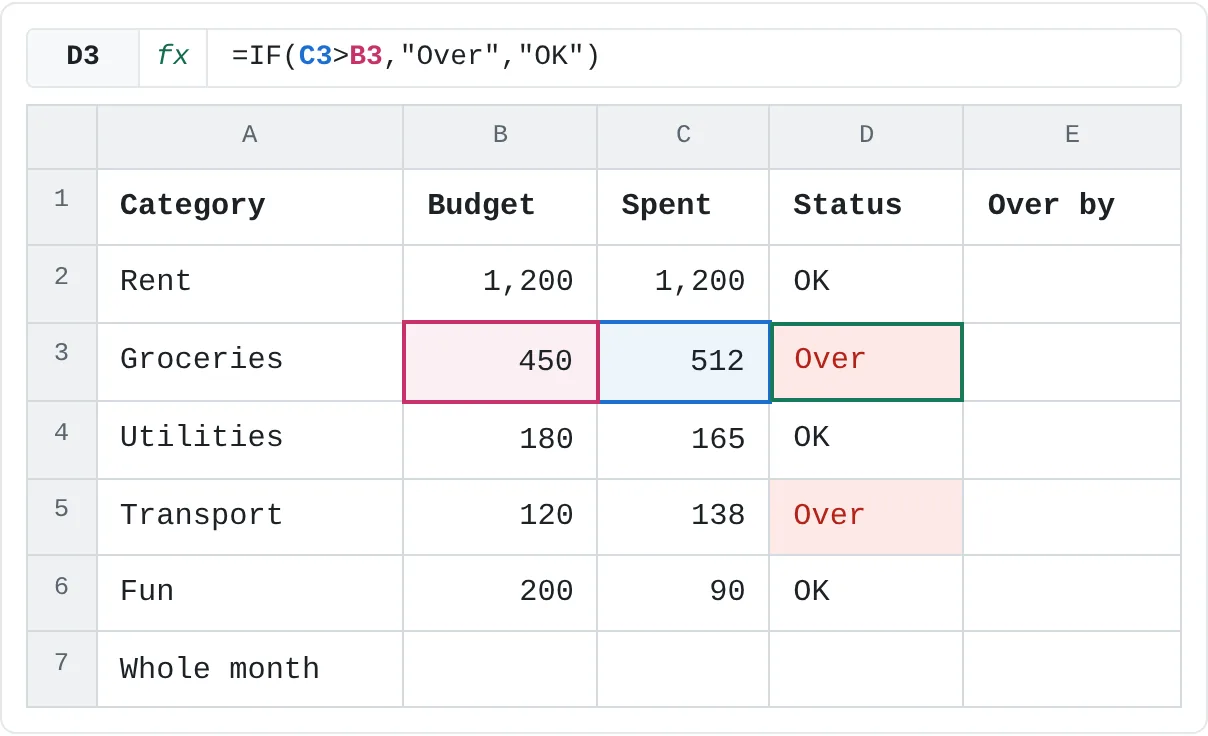
The sheet below compares a monthly budget with what was actually spent. The goal is a status in column D: Over when spending is higher than the budget, OK otherwise.
Click the first status cell
Click D2, next to Rent.
A B C D E 1 Category Budget Spent Status Over by 2 Rent 1,200 1,200 3 Groceries 450 512 4 Utilities 180 165 5 Transport 120 138 6 Fun 200 90 7 Whole month A budget and actual spending for five categories. The status goes in column D. Type the test
Type
=IF(C2>B2followed by a comma. The test asks whether the amount spent is greater than the budget, and the comma ends the first argument.Type the two results and press Enter
Type
"Over","OK")and press Enter. Text results always go in straight double quotes.=IF(C2>B2,"Over","OK")The result is OK. Rent spending is exactly 1,200, the same as the budget, and 1,200 is not greater than 1,200, so the test is FALSE and IF returns the third argument.
Fill the formula down
Click D2 again and double-click the fill handle, the small square at its bottom-right corner. Excel copies the formula down to D6 and changes the row numbers in each copy: D3 checks
C3>B3, and so on.A B C D E 1 Category Budget Spent Status Over by 2 Rent 1,200 1,200 OK 3 Groceries 450 512 Over 4 Utilities 180 165 OK 5 Transport 120 138 Over 6 Fun 200 90 OK 7 Whole month After filling down, Groceries and Transport show Over (red); the other three show OK.
Return a number or a calculation
The results don't have to be text. To show how much each category went over budget, return the difference when the test is true and 0 when it's false. In E3:
=IF(C3>B3,C3-B3,0)Groceries returns 62 (512 minus 450). Filled down from E2 to E6, the column shows 0, 62, 0, 18 and 0. Numbers go without quotes; "0" in quotes would be text, which SUM skips.
To leave the cell looking empty instead of showing 0, return "" (two double quotes with nothing between them):
=IF(C3>B3,C3-B3,"")The cell isn't really empty, though. It holds empty text, so COUNTA counts it, and a formula such as =E2+1 that does arithmetic on it returns #VALUE!. SUM skips it, so a total of the column still works.
Compare with operators
The test is usually a comparison. These are the six operators, each tested on Rent's spending in C2, which is 1,200:
| Operator | Meaning | Example | Result |
|---|---|---|---|
= | equal to | C2=1200 | TRUE |
<> | not equal to | C2<>1200 | FALSE |
> | greater than | C2>1200 | FALSE |
>= | greater than or equal to | C2>=1200 | TRUE |
< | less than | C2<1200 | FALSE |
<= | less than or equal to | C2<=1200 | TRUE |
You can compare a cell with a number, as here, or with another cell, as in C2>B2.
To compare with text, put the text in quotes. Capitals don't matter, so "rent" matches Rent too. This returns Fixed for row 2:
=IF(A2="Rent","Fixed","Varies")The test can also contain other functions. This compares the month's total spending (2,105) with the total budget (2,150) and returns OK:
=IF(SUM(C2:C6)>SUM(B2:B6),"Over","OK")Three or more outcomes
One IF chooses between two results. For a third, put a second IF in the value_if_false spot. This shows On budget for Rent, Over for Groceries and Under for Utilities:
=IF(C2>B2,"Over",IF(C2=B2,"On budget","Under"))Excel works from the left: if the first test is TRUE it stops there; if not, it moves on to the second IF. In Excel 2019 and later, IFS does the same thing without the nesting. Each test is followed by its result, and TRUE at the end catches everything else:
=IFS(C2>B2,"Over",C2=B2,"On budget",TRUE,"Under")To combine two conditions in one test, such as "over budget and more than 50 over", use IF with AND or OR.
IF or another decision function?
IF is the starting point, but Excel has a few related functions for other shapes of decision. Each example below uses the budget sheet:
| Function | Use it when | Example | Result |
|---|---|---|---|
IF | There are two possible results | =IF(C3>B3,"Over","OK") | Over |
IFS | There are three or more results, tested in order | =IFS(C2>B2,"Over",C2=B2,"On budget",TRUE,"Under") | On budget |
SWITCH | One value is compared with a list of exact matches | =SWITCH(A4,"Rent","Fixed","Utilities","Fixed","Varies") | Fixed |
IF with AND | Every one of several conditions must be true | =IF(AND(C3>B3,C3-B3>50),"Review","OK") | Review |
IF with OR | At least one of several conditions must be true | =IF(OR(A2="Rent",A2="Utilities"),"Fixed","Varies") | Fixed |
IFS and SWITCH need Excel 2019 or later; a nested IF does the same job in any version. In the SWITCH example, A4 holds Utilities, so the second pair matches; any other category falls through to the last value, Varies. To replace an error such as #DIV/0! with your own result, wrap the formula in IFERROR instead.
Real-world scenarios
Pass or retake
A teacher marks each final exam: 70 or more passes, anything lower means a retake. Ben scored exactly 70, so the boundary matters.
| A | B | C | |
|---|---|---|---|
| 1 | Student | Final exam | Result |
| 2 | Ana | 72 | Pass |
| 3 | Ben | 70 | Pass |
| 4 | Chloe | 64 | Retake |
| 5 | David | 88 | Pass |
| 6 | Emma | 59 | Retake |
=IF(B2>=70,"Pass","Retake")Ana's 72 returns Pass. Ben's 70 also returns Pass, because >= includes the boundary; with > he would get Retake. Chloe (64) and Emma (59) get Retake.
Commission above a sales threshold
Reps earn 5% commission, but only in a month when their sales reach 10,000. Return a calculation when the test is true and 0 when it isn't.
| A | B | C | |
|---|---|---|---|
| 1 | Rep | Sales | Commission |
| 2 | Ana | 12,500 | 625 |
| 3 | Ben | 9,800 | 0 |
| 4 | Chloe | 10,000 | 500 |
| 5 | David | 15,200 | 760 |
=IF(B2>=10000,B2*5%,0)Ana sold 12,500, so the formula returns 12,500 × 5% = 625. Ben's 9,800 is under the threshold and returns 0. Chloe sold exactly 10,000 and earns 500, and David earns 760.
Free shipping over 50
An online shop charges 6 for shipping unless the cart comes to 50 or more. Before you order, work out what each cart will really cost.
| A | B | C | D | |
|---|---|---|---|---|
| 1 | Order | Cart | Shipping | To pay |
| 2 | Books | 42 | 6 | 48 |
| 3 | Shoes | 65 | 0 | 65 |
| 4 | Phone case | 50 | 0 | 50 |
=IF(B2>=50,0,6)The books come to 42, which is less than 50, so the formula returns 6 and the order costs 48. The shoes (65) and the phone case (exactly 50) ship free and return 0. The 42 cart is 8 short of free shipping, which is useful to know before you check out.
Bonus only when two conditions are met
A bonus goes to employees with a rating of at least 4 and attendance of at least 95%. AND returns TRUE only when every condition inside it is true, and IF turns that into Yes or No.
| A | B | C | D | |
|---|---|---|---|---|
| 1 | Employee | Rating | Attendance | Bonus |
| 2 | Ana | 4.5 | 98% | Yes |
| 3 | Ben | 4.8 | 91% | No |
| 4 | Chloe | 3.9 | 99% | No |
| 5 | David | 4 | 95% | Yes |
=IF(AND(B2>=4,C2>=95%),"Yes","No")Ana (4.5 and 98%) returns Yes. Ben has a 4.8 rating, but 91% attendance fails the second condition, so he gets No. Chloe's 3.9 rating fails the first, so No. David is exactly on both limits, 4 and 95%, and >= includes them, so Yes. With OR instead of AND, all four would get Yes, because each meets at least one condition.
Mistakes that break an IF formula
- Text without quotes.
=IF(C2>B2,Over,OK)returns#NAME?, because Excel reads Over and OK as names it doesn't know. Put text results in double quotes. - A result of FALSE. You left out value_if_false, so the formula returns FALSE whenever the test fails. Add the third argument, even if it's only
"". - Curly quotes. Formulas need straight quotes ("). Curly quotes (“ ”) copied from a document or an email make the formula fail. Retype the quotes in Excel.
- The wrong boundary.
>leaves out the value itself and>=includes it. Rent spent exactly its budget, soC2>B2says OK butC2>=B2would say Over. Decide which side the boundary belongs to. - Numbers stored as text. Excel treats any text as greater than any number, so a number stored as text passes a
>test even when it's small. Convert such cells with Convert to Number from the warning icon. - Numbers in quotes.
"0"and"100"are text, so they don't add up inSUM. Leave numbers unquoted.
Practice
Practice
Check the budget
Use the sheet below. Click a highlighted cell, type a formula in the bar above the sheet and press Enter. Afterwards, try it in Excel itself:
- List five of your own monthly expenses with a budget and the amount you actually spent.
- Add a status column that shows "Over" or "OK" with
IF, and fill it down. - Add a column that shows how much each category went over budget, or nothing if it didn't.
Try it0 of 4 done
- In D2, show Over if the amount spent on Rent is more than its budget, otherwise OK.
- In D3, do the same check for Groceries.
- In E3, show how much Groceries went over budget, or 0 if it didn't.
- In D7, check whether total spending for the month is over the total budget.
Click a dashed cell, type a formula in the bar and press Enter.
| A | B | C | D | E | |
|---|---|---|---|---|---|
| 1 | Category | Budget | Spent | Status | Over by |
| 2 | Rent | 1,200 | 1,200 | ||
| 3 | Groceries | 450 | 512 | ||
| 4 | Utilities | 180 | 165 | ||
| 5 | Transport | 120 | 138 | ||
| 6 | Fun | 200 | 90 | ||
| 7 | Whole month |
Related
Was this guide helpful? Spot a mistake? Send feedback · admin@arumsoft.com