Intermediate Excel · Tutorial 5 of 12
Text and Date Functions in Excel
Clean up names with TRIM, pull parts out of codes, join values into labels, and count the working days left before a deadline.
- Level
- Intermediate
- Time
- 14 min read
- Updated:
- Applies to:
- Excel for Microsoft 365, Excel 2024, Excel 2021, Excel 2019, Excel for the web. TEXTBEFORE and TEXTAFTER need Microsoft 365, Excel 2024 or Excel for the web.
What you'll learn
- Remove stray spaces and hidden characters with TRIM and CLEAN
- Extract part of a value with LEFT, RIGHT, MID, TEXTBEFORE and TEXTAFTER
- Join cells into one label with the & operator, CONCAT and TEXTJOIN
- Pull parts out of a date and find a month-end with YEAR, MONTH, DAY and EOMONTH
- Count working days between two dates with NETWORKDAYS
Example file
Text and Date Functions in Excel.xlsx
Download the workbook used in this tutorial and follow along in Excel.
Excel workbook (.xlsx) · 7 KB
Function Playground
Try these functions in a live sheet
Type formulas in an Excel-style grid and watch each step of the calculation. Free, no sign-up.
Real lists are rarely tidy. Names arrive with extra spaces, IDs pack several pieces of information into one code, and deadlines need counting in working days, not calendar days. Text functions fix and reshape words; date functions turn calendar math into a formula you can copy down. This tutorial covers the ones you'll use most.
The examples use a short staff list. Column A holds names exported from another system, with spaces around them. Each ID has three parts: a prefix, a four-digit number and an office code. The as-of date for the deadline math is in H2.
| A | B | C | D | E | F | G | H | |
|---|---|---|---|---|---|---|---|---|
| 1 | Name | ID | Due Date | Clean Name | ID Number | Label | Workdays Left | As Of |
| 2 | Delgado, Ines | EMP-0472-NY | 2026-10-09 | 0472 | Delgado, Ines - EMP-0472-NY | 2026-09-28 | ||
| 3 | Chen, Wei | EMP-1190-SF | 2026-09-30 | Chen, Wei | Chen, Wei - EMP-1190-SF | 3 | ||
| 4 | Okafor, Grace | EMP-0355-CHI | 2026-10-15 | Okafor, Grace | 0355 | 14 |
Remove extra spaces with TRIM and CLEAN
Two values can look identical and still not match. " Delgado, Ines " with spaces at either end isn't equal to "Delgado, Ines", so lookups fail, duplicates slip past Remove Duplicates and sorting puts the name in the wrong place.
TRIM removes spaces from the start and end of a text value and turns runs of spaces between words into a single space.
Click the cell for the clean value
Click D2, next to the first name.
Type the formula and press Enter
=TRIM(A2)D2 shows Delgado, Ines with no spaces around it.
A B C D E F G H 1 Name ID Due Date Clean Name ID Number Label Workdays Left As Of 2 Delgado, Ines EMP-0472-NY 2026-10-09 Delgado, Ines 0472 Delgado, Ines - EMP-0472-NY 2026-09-28 3 Chen, Wei EMP-1190-SF 2026-09-30 Chen, Wei Chen, Wei - EMP-1190-SF 3 4 Okafor, Grace EMP-0355-CHI 2026-10-15 Okafor, Grace 0355 14 TRIM removes the spaces before and after the name in A2. Replace the originals if you need to
The formula depends on column A, so you can't delete the messy names yet. When you want only the clean ones, copy D2:D4, then right-click A2 and, under Paste Options, choose Values. After that you can delete column D.
CLEAN removes non-printing characters, such as the line breaks that come with text pasted from web pages or other programs. Combine the two when data comes from outside Excel: =TRIM(CLEAN(A2)).
Pull out part of a value
Three functions extract characters by position:
| Function | Returns | Example with EMP-0472-NY | Result |
|---|---|---|---|
LEFT(text, n) | the first n characters | =LEFT(B2,3) | EMP |
RIGHT(text, n) | the last n characters | =RIGHT(B2,2) | NY |
MID(text, start, n) | n characters starting at position start | =MID(B2,5,4) | 0472 |
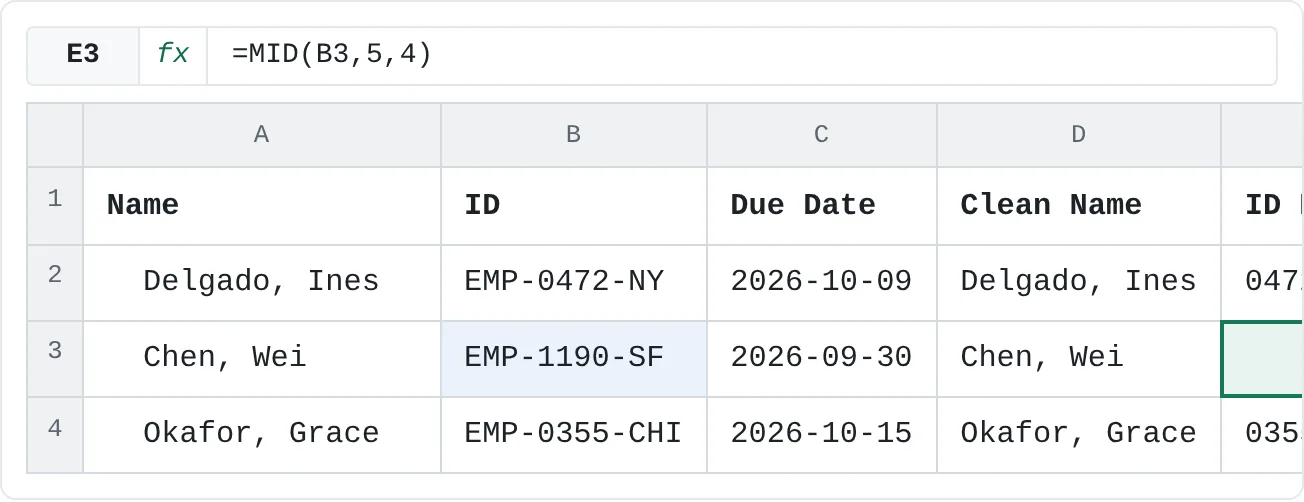
MID counts from 1, and the hyphen counts as a character. In EMP-0472-NY, positions 1 to 3 are EMP, position 4 is the first hyphen and the number starts at position 5. To get Chen Wei's number, click E3 and type:
=MID(B3,5,4)E3 shows 1190.
| A | B | C | D | E | F | G | H | |
|---|---|---|---|---|---|---|---|---|
| 1 | Name | ID | Due Date | Clean Name | ID Number | Label | Workdays Left | As Of |
| 2 | Delgado, Ines | EMP-0472-NY | 2026-10-09 | Delgado, Ines | 0472 | Delgado, Ines - EMP-0472-NY | 2026-09-28 | |
| 3 | Chen, Wei | EMP-1190-SF | 2026-09-30 | Chen, Wei | 1190 | Chen, Wei - EMP-1190-SF | 3 | |
| 4 | Okafor, Grace | EMP-0355-CHI | 2026-10-15 | Okafor, Grace | 0355 | 14 |
Results from text functions are always text, even when they look like numbers. That's why 0472 keeps its leading zero. If you need to calculate with the result, wrap it in VALUE: =VALUE(MID(B2,5,4)) returns the number 472.
Split at a delimiter with TEXTBEFORE and TEXTAFTER
Position-based extraction breaks when the pieces vary in length. The office codes here are NY, SF and CHI, so =RIGHT(B4,2) returns HI for Grace Okafor instead of CHI.
TEXTBEFORE and TEXTAFTER split at a delimiter instead, so you don't have to count characters:
=TEXTBEFORE(B4,"-")returns EMP, everything before the first hyphen.=TEXTAFTER(B4,"-")returns 0355-CHI, everything after the first hyphen.=TEXTAFTER(B4,"-",2)returns CHI, everything after the second hyphen. The third argument picks which hyphen to split at.=TEXTAFTER(B4,"-",-1)also returns CHI: a negative number counts hyphens from the end.
If the delimiter isn't in the text, both functions return #N/A.
Join values into one label
There are three ways to put values together. Each of these returns Delgado, Ines (EMP-0472-NY):
=D2&" ("&B2&")"=CONCAT(D2," (",B2,")")- The & operator joins two values. Type it between each piece.
- CONCAT takes the pieces as a list of arguments and also accepts a range:
=CONCAT(A2:C2)joins three cells with nothing between them. - TEXTJOIN puts the same separator between every piece and can skip empty cells.
Neither & nor CONCAT adds spaces for you. Include them inside the quotes, as in " (" above.
TEXTJOIN is the best choice when you're joining several pieces with the same separator:
=TEXTJOIN(delimiter, ignore_empty, text1, [text2], ...)- delimiter is the text to put between the pieces, such as
" - "or", ". - ignore_empty:
TRUEskips empty cells, so you never get two separators in a row. - text1, text2, ... are the cells, ranges or text to join.
Build Grace Okafor's label in F4:
=TEXTJOIN(" - ",TRUE,D4,B4)F4 shows Okafor, Grace - EMP-0355-CHI.
| A | B | C | D | E | F | G | H | |
|---|---|---|---|---|---|---|---|---|
| 1 | Name | ID | Due Date | Clean Name | ID Number | Label | Workdays Left | As Of |
| 2 | Delgado, Ines | EMP-0472-NY | 2026-10-09 | Delgado, Ines | 0472 | Delgado, Ines - EMP-0472-NY | 2026-09-28 | |
| 3 | Chen, Wei | EMP-1190-SF | 2026-09-30 | Chen, Wei | 1190 | Chen, Wei - EMP-1190-SF | 3 | |
| 4 | Okafor, Grace | EMP-0355-CHI | 2026-10-15 | Okafor, Grace | 0355 | Okafor, Grace - EMP-0355-CHI | 14 |
CONCAT and TEXTJOIN need Excel 2019 or later. In older files you'll see CONCATENATE, which works like CONCAT but can't join a whole range in one argument.
Work with dates
Excel stores every date as a whole number that counts days, with January 1, 1900 as day 1. September 28, 2026 is 46293; the cell's date format only changes how it looks. That's why you can do arithmetic with dates:
=C2-H2This returns 11, the number of calendar days from September 28 to October 9. If the result shows up formatted as a date, change the cell's number format to General.
These functions take a date apart or build a new one:
| Formula | Result | What it does |
|---|---|---|
=YEAR(C2) | 2026 | the year of the date in C2 |
=MONTH(C2) | 10 | the month, 1 to 12 |
=DAY(C2) | 9 | the day of the month |
=EOMONTH(C2,0) | 2026-10-31 | the last day of the same month |
=EOMONTH(C2,1) | 2026-11-30 | the last day of the next month |
=DATE(2026,12,31) | 2026-12-31 | a date built from a year, month and day |
EOMONTH is handy for invoice terms such as "due at the end of the month". The second argument moves forward (positive) or back (negative) that many months. Excel may show its result as a plain number such as 46326; give the cell a date format with Home then Number then Number Format and choose Short Date.
=TODAY() returns today's date and updates every time the workbook recalculates. It needs no arguments, but you still type the empty parentheses. To enter today's date as a fixed value that won't change tomorrow, press Ctrl+; instead.
Count working days with NETWORKDAYS
NETWORKDAYS counts the weekdays (Monday to Friday) between two dates, including both the start and end dates.
=NETWORKDAYS(start_date, end_date, [holidays])Click the cell for the count
Click G2, in Ines Delgado's row.
Type the formula
Put the start date first and the due date second. The
$signs keep the as-of date fixed when you copy the formula down:=NETWORKDAYS($H$2,C2)Press Enter and copy down
G2 shows 10: the two working weeks from Monday, September 28 to Friday, October 9. Copy the formula to G3 and G4 to get 3 and 14.
A B C D E F G H 1 Name ID Due Date Clean Name ID Number Label Workdays Left As Of 2 Delgado, Ines EMP-0472-NY 2026-10-09 Delgado, Ines 0472 Delgado, Ines - EMP-0472-NY 10 2026-09-28 3 Chen, Wei EMP-1190-SF 2026-09-30 Chen, Wei 1190 Chen, Wei - EMP-1190-SF 3 4 Okafor, Grace EMP-0355-CHI 2026-10-15 Okafor, Grace 0355 Okafor, Grace - EMP-0355-CHI 14 NETWORKDAYS counts the weekdays from September 28 to October 9, counting both dates: 10.
Because both dates count, Chen Wei's result is 3: Monday, Tuesday and Wednesday. If you don't want to count the start date, subtract 1.
To skip public or company holidays, list them in a range and add it as the third argument. If K2:K5 holds your holiday dates and one of them, Friday, October 9, 2026, falls in Grace Okafor's period, =NETWORKDAYS($H$2,C4,$K$2:$K$5) returns 13 instead of 14.
In a live tracker, use TODAY() as the start date: =NETWORKDAYS(TODAY(),C2) always shows the working days left, counting today. If your weekend isn't Saturday and Sunday, use NETWORKDAYS.INTL, which lets you choose the weekend days.
Common mistakes
- Forgetting that text results are text.
=LEFT(B2,3)+1returns#VALUE!, and=MID(B2,5,4)gives text thatSUMignores. Wrap the result inVALUEwhen you need a number. - Counting positions from 0. The first character is position 1.
=MID(B2,4,4)returns -047, because position 4 is the hyphen. - Dates stored as text. A date typed or imported as text, often left-aligned in the cell, makes
YEAR,EOMONTHandNETWORKDAYSreturn#VALUE!. Convert it to a real date first (for example with Data then Data Tools then Text to Columns) before using date functions. - Swapping the dates in NETWORKDAYS. With the later date first, the result is negative:
=NETWORKDAYS(C2,$H$2)returns -10. - Leaving out the spaces when joining.
=D2&B2givesDelgado, InesEMP-0472-NY. Put the separator inside quotes or useTEXTJOIN.
Practice
Practice
Clean a real contact list
- Open a list you work with that has names, IDs or codes, and dates: a contact export, a staff list or a task list. If you don't have one, type the three rows from this tutorial.
- Add a column that cleans the names with
TRIM(orTRIM(CLEAN(...))if the data came from outside Excel). - Pull one standard part out of each ID or code with
LEFT,RIGHT,MIDorTEXTAFTER. Check one row where the pieces have a different length. - Build a display label that joins the clean name and the ID with
TEXTJOIN. - Add a due-date column, then count the working days left with
NETWORKDAYSfrom a date in a fixed cell, then fromTODAY(). Add a holiday range and watch the counts change.
Then fill in the four empty cells on the sheet below.
Try it0 of 4 done
- In D2, remove the extra spaces around the name in A2.
- In E3, use MID to pull the four-digit number out of the ID in B3, starting at the 5th character.
- In F4, use TEXTJOIN to join the clean name in D4 and the ID in B4 with " - " between them.
- In G2, count the working days from the as-of date in H2 to the due date in C2.
Click a dashed cell, type a formula in the bar and press Enter.
| A | B | C | D | E | F | G | H | |
|---|---|---|---|---|---|---|---|---|
| 1 | Name | ID | Due Date | Clean Name | ID Number | Label | Workdays Left | As Of |
| 2 | Delgado, Ines | EMP-0472-NY | 2026-10-09 | 0472 | Delgado, Ines - EMP-0472-NY | 2026-09-28 | ||
| 3 | Chen, Wei | EMP-1190-SF | 2026-09-30 | Chen, Wei | Chen, Wei - EMP-1190-SF | 3 | ||
| 4 | Okafor, Grace | EMP-0355-CHI | 2026-10-15 | Okafor, Grace | 0355 | 14 |
Check your skills
- Can you remove stray spaces from a cell with
TRIM, and explain why they cause lookups to fail? - Can you pull part of a value out with
LEFT,RIGHT,MIDorTEXTAFTER? - Can you combine two cells into one label with
TEXTJOINorCONCAT? - Can you find the last day of a month with
EOMONTH? - Can you count the working days between two dates with
NETWORKDAYS?
Related
Was this guide helpful? Spot a mistake? Send feedback · admin@arumsoft.com