The 20 Most-Used Excel Functions · Tutorial 8 of 20
How to Use AVERAGEIF and AVERAGEIFS in Excel
Average only the numbers that meet a condition with AVERAGEIF, or several conditions at once with AVERAGEIFS, including date ranges and wildcards.
- Level
- Intermediate
- Time
- 12 min read
- Updated:
- Applies to:
- Excel for Microsoft 365, Excel 2021, Excel 2019, Excel for the web
What you'll learn
- Average the values that match one condition with AVERAGEIF
- Average the values that match several conditions with AVERAGEIFS
- Write criteria with operators, cell references, wildcards and dates
- Explain which cells are skipped and fix a #DIV/0! result
Function Playground
Try these functions in a live sheet
Type formulas in an Excel-style grid and watch each step of the calculation. Free, no sign-up.
AVERAGE averages every number in a range. AVERAGEIF averages only the numbers whose row meets a condition, such as "orders from the East region" or "amounts of 1,000 or more", and AVERAGEIFS does the same with as many conditions as you need. Reach for them when one overall average hides the difference between groups: one region, one class, one month.
The syntax
=AVERAGEIF(range, criteria, [average_range])- range is the cells to check against the condition, for example the Region column.
- criteria is the condition: a value (
"East",1000), a comparison in quotes (">=1000") or a cell reference. - average_range is optional: the cells to average. Leave it out and Excel averages the cells in range itself.
=AVERAGEIFS(average_range, criteria_range1, criteria1, [criteria_range2, criteria2], ...)- average_range is the cells to average. In
AVERAGEIFSit comes first, not last. - criteria_range1, criteria1 are the first range to check and its condition.
- criteria_range2, criteria2, … are optional extra pairs, up to 127. A row counts only when it meets every condition.
Both functions skip empty cells and text in the cells being averaged, so neither drags the average down. A cell that contains 0 is a number, so it does count. When no row meets the conditions, there's nothing to divide by and the result is #DIV/0!.
=AVERAGEIFS(D2:D101,B2:B102,G23,C2:C104,"Laptop"5)D2:D10The amounts to average, always firstB2:B10The first range to check (Region)G2Its condition: the region typed in G2C2:C10The second range to check (Product)"Laptop"Its condition, typed in quotes
Average one region with AVERAGEIF
The sheet below lists nine orders. One West order has no amount yet: D8 says Pending. The goal is the average order amount for the region in G2, East, shown in G6.
Click the cell for the result
Click G6, next to "Region average".
A B C D E F G 1 Date Region Product Amount Summary Value 2 2026-03-02 East Laptop 1,200 Region East 3 2026-03-05 West Monitor 300 Minimum 1,000 4 2026-03-09 East Monitor 280 From 2026-03-01 5 2026-03-12 North Laptop 1,100 To 2026-03-31 6 2026-03-16 West Laptop 1,300 Region average 7 2026-03-20 East Keyboard 80 Minimum or more 8 2026-04-02 West Monitor Pending Region laptops 9 2026-04-06 East Laptop 1,000 March average 10 2026-04-10 North Keyboard 90 Nine orders with a date, region, product and amount. The inputs are in G2:G5; the East average goes in G6. Type the range to check and the condition
Type
=AVERAGEIF(, drag over B2:B10 (the regions), type a comma, click G2 and type another comma. Using a cell for the condition means you can change the region later without touching the formula.Select the amounts and press Enter
Drag over D2:D10 and press Enter.
=AVERAGEIF(B2:B10,G2,D2:D10)A B C D E F G 1 Date Region Product Amount Summary Value 2 2026-03-02 East Laptop 1,200 Region East 3 2026-03-05 West Monitor 300 Minimum 1,000 4 2026-03-09 East Monitor 280 From 2026-03-01 5 2026-03-12 North Laptop 1,100 To 2026-03-31 6 2026-03-16 West Laptop 1,300 Region average 640 7 2026-03-20 East Keyboard 80 Minimum or more 8 2026-04-02 West Monitor Pending Region laptops 9 2026-04-06 East Laptop 1,000 March average 10 2026-04-10 North Keyboard 90 AVERAGEIF checks B2:B10 for the region in G2 and averages the matching amounts in D2:D10.
The result is 640. Four orders are from East: 1,200, 280, 80 and 1,000. They add up to 2,560, and 2,560 ÷ 4 = 640.
Now type West in G2. The result is 800: West has three orders, but D8 holds the text Pending, so AVERAGEIF averages only 300 and 1,300. If Pending were counted as 0, the average would be 533.33, which no West order is anywhere near.
If the condition is about the numbers themselves, leave out the third argument. This averages every amount of at least the minimum in G3 (1,000) and returns 1,150:
=AVERAGEIF(D2:D10,">="&G3)Add conditions with AVERAGEIFS
AVERAGEIFS takes the range to average first, then pairs of range and condition. To average laptop sales in the region in G2:
=AVERAGEIFS(D2:D10,B2:B10,G2,C2:C10,"Laptop")| A | B | C | D | E | F | G | |
|---|---|---|---|---|---|---|---|
| 1 | Date | Region | Product | Amount | Summary | Value | |
| 2 | 2026-03-02 | East | Laptop | 1,200 | Region | East | |
| 3 | 2026-03-05 | West | Monitor | 300 | Minimum | 1,000 | |
| 4 | 2026-03-09 | East | Monitor | 280 | From | 2026-03-01 | |
| 5 | 2026-03-12 | North | Laptop | 1,100 | To | 2026-03-31 | |
| 6 | 2026-03-16 | West | Laptop | 1,300 | Region average | 640 | |
| 7 | 2026-03-20 | East | Keyboard | 80 | Minimum or more | 1,150 | |
| 8 | 2026-04-02 | West | Monitor | Pending | Region laptops | 1,100 | |
| 9 | 2026-04-06 | East | Laptop | 1,000 | March average | ||
| 10 | 2026-04-10 | North | Keyboard | 90 |
The result is 1,100, the average of 1,200 and 1,000. AVERAGEIFS works with a single condition too, so some people use it everywhere to avoid remembering two argument orders.
Average between two dates
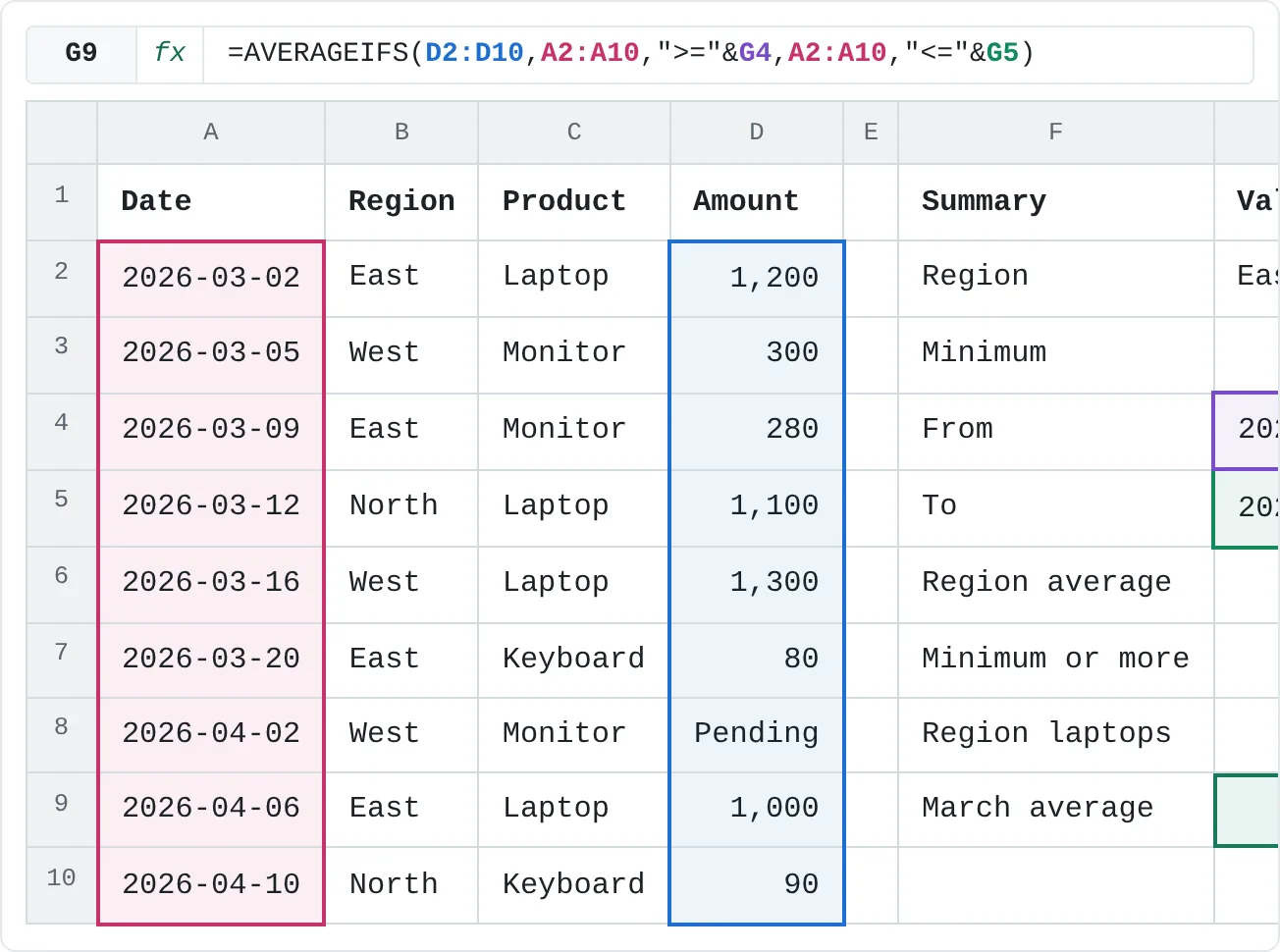
A date range is two conditions on the same column: on or after the start, and on or before the end. With the dates in G4 and G5:
=AVERAGEIFS(D2:D10,A2:A10,">="&G4,A2:A10,"<="&G5)| A | B | C | D | E | F | G | |
|---|---|---|---|---|---|---|---|
| 1 | Date | Region | Product | Amount | Summary | Value | |
| 2 | 2026-03-02 | East | Laptop | 1,200 | Region | East | |
| 3 | 2026-03-05 | West | Monitor | 300 | Minimum | 1,000 | |
| 4 | 2026-03-09 | East | Monitor | 280 | From | 2026-03-01 | |
| 5 | 2026-03-12 | North | Laptop | 1,100 | To | 2026-03-31 | |
| 6 | 2026-03-16 | West | Laptop | 1,300 | Region average | 640 | |
| 7 | 2026-03-20 | East | Keyboard | 80 | Minimum or more | 1,150 | |
| 8 | 2026-04-02 | West | Monitor | Pending | Region laptops | 1,100 | |
| 9 | 2026-04-06 | East | Laptop | 1,000 | March average | 710 | |
| 10 | 2026-04-10 | North | Keyboard | 90 |
The result is 710: six orders fall in March, and they total 4,260. To type the dates into the formula instead, build them with DATE so Excel can't misread them: =AVERAGEIFS(D2:D10,A2:A10,">="&DATE(2026,3,1),A2:A10,"<"&DATE(2026,4,1)) also returns 710. "Before April 1" catches every moment of March 31 too, which matters if your dates include times.
Write the criteria
The criteria work the same way as in SUMIF and COUNTIF. Results below use the sales sheet:
| You want | Criteria | Example | Result |
|---|---|---|---|
| Equal to a text | "East" | =AVERAGEIF(B2:B10,"East",D2:D10) | 640 |
| Not equal to | "<>East" | =AVERAGEIF(B2:B10,"<>East",D2:D10) | 697.5 |
| A comparison | "<300" | =AVERAGEIF(D2:D10,"<300") | 150 |
| Compare with a cell | ">="&G3 | =AVERAGEIF(D2:D10,">="&G3) | 1,150 |
| Starts with | "Lap*" | =AVERAGEIF(C2:C10,"Lap*",D2:D10) | 1,150 |
- Put the operator and the value inside one pair of quotes:
">=1000". - To compare with a cell, keep the operator in quotes and join the cell with
&:">="&G3. Inside the quotes,">=G3"would compare with the letters G3. *stands for any number of characters and?for exactly one. To find a real asterisk or question mark, put a tilde in front:"~*".- Text criteria aren't case-sensitive:
"east"matches East.
Real-world scenarios
Class average with an absent student
Chloe missed the test, so her score cell is empty. The teacher wants the Class A average of the students who sat it.
| A | B | C | D | E | F | |
|---|---|---|---|---|---|---|
| 1 | Student | Class | Score | Class | A | |
| 2 | Ana | A | 84 | Average | 85 | |
| 3 | Ben | B | 72 | |||
| 4 | Chloe | A | ||||
| 5 | David | B | 90 | |||
| 6 | Emma | A | 78 | |||
| 7 | Finn | A | 93 | |||
| 8 | Grace | B | 65 |
=AVERAGEIF(B2:B8,F1,C2:C8)The result is 85: (84 + 78 + 93) ÷ 3. The empty cell is skipped. Type 0 in C4 instead and the average drops to 63.75, as if Chloe had scored zero. Leave missing results empty, and use 0 only for a real score of 0.
Overtime for one team and contract type
HR is reviewing overtime for full-time staff on the Support team. Part-time staff and other teams shouldn't affect the number.
| A | B | C | D | E | F | |
|---|---|---|---|---|---|---|
| 1 | Employee | Team | Contract | Overtime | Support, full-time | |
| 2 | Ana | Support | Full-time | 12 | 12 | |
| 3 | Ben | Sales | Full-time | 8 | ||
| 4 | Chloe | Support | Part-time | 4 | ||
| 5 | David | Support | Full-time | 15 | ||
| 6 | Emma | Sales | Part-time | 2 | ||
| 7 | Finn | Support | Full-time | 9 | ||
| 8 | Grace | Sales | Full-time | 11 |
=AVERAGEIFS(D2:D8,B2:B8,"Support",C2:C8,"Full-time")The result is 12 hours: (12 + 15 + 9) ÷ 3. With only the team condition, =AVERAGEIF(B2:B8,"Support",D2:D8) returns 10, because Chloe's 4 part-time hours are included.
Average grocery trip
Your bank export labels each grocery purchase a little differently: "Grocery - market", "Grocery - bakery", "Grocery - online". You want the average spend per grocery trip in May.
| A | B | C | D | E | |
|---|---|---|---|---|---|
| 1 | Date | Description | Amount | Avg. grocery trip | |
| 2 | 2026-05-02 | Grocery - market | 64 | 55 | |
| 3 | 2026-05-03 | Coffee | 5 | ||
| 4 | 2026-05-07 | Grocery - bakery | 18 | ||
| 5 | 2026-05-10 | Gas | 52 | ||
| 6 | 2026-05-14 | Grocery - online | 91 | ||
| 7 | 2026-05-18 | Coffee | 6 | ||
| 8 | 2026-05-21 | Grocery - market | 47 |
=AVERAGEIF(B2:B8,"Grocery*",C2:C8)The result is 55: four grocery purchases totalling 220. Coffee and Gas don't start with Grocery, so they're left out. Without the asterisk, the formula would look for the exact text Grocery, find nothing and return #DIV/0!.
Average rating, rounded
An online shop shows each product's average review score with one decimal place. Wrap AVERAGEIF in ROUND to get the number ready to publish.
| A | B | C | D | E | |
|---|---|---|---|---|---|
| 1 | Product | Rating | Product | Lamp | |
| 2 | Mug | 5 | Avg. rating | 3.7 | |
| 3 | Lamp | 4 | |||
| 4 | Mug | 4 | |||
| 5 | Mug | 3 | |||
| 6 | Lamp | 5 | |||
| 7 | Mug | 5 | |||
| 8 | Lamp | 2 | |||
| 9 | Mug | 4 |
=ROUND(AVERAGEIF(A2:A9,E1,B2:B9),1)The result is 3.7. Excel works from the inside out: AVERAGEIF gives 11 ÷ 3 = 3.666…, then ROUND keeps one decimal place. Changing the cell format would only change how the number looks; ROUND changes the value itself, which matters if other formulas use it. Type Mug in E1 and the result is 4.2.
AVERAGE, AVERAGEIF or AVERAGEIFS?
| Function | Averages | Average range goes | Example on the sales sheet |
|---|---|---|---|
AVERAGE | every number in the range | the only argument | =AVERAGE(D2:D10) returns 668.75 |
AVERAGEIF | numbers whose row meets one condition | last (optional) | =AVERAGEIF(B2:B10,"East",D2:D10) returns 640 |
AVERAGEIFS | numbers whose row meets every condition | first (required) | =AVERAGEIFS(D2:D10,B2:B10,"East",C2:C10,"Laptop") returns 1,100 |
You might expect SUMIF divided by COUNTIF to give the same answer. It does only when every matching row has a number. For West, =SUMIF(B2:B10,"West",D2:D10)/COUNTIF(B2:B10,"West") returns 533.33, because COUNTIF counts the Pending row too. AVERAGEIF returns 800.
AVERAGEIF and AVERAGEIFS work in every current version of Excel, including Excel for the web. For the largest or smallest value that meets conditions, use MAXIFS and MINIFS (Excel 2019 and later).
Common mistakes
- The arguments in the wrong order. AVERAGEIF puts the range to average last; AVERAGEIFS puts it first. Written the AVERAGEIF way, an AVERAGEIFS formula averages the wrong column or returns an error. Check that the first range in AVERAGEIFS holds the numbers.
- #DIV/0! when nothing matches. There's no South region, so
=AVERAGEIF(B2:B10,"South",D2:D10)returns#DIV/0!. Check the spelling and any extra spaces in the data. If an empty group is normal, show a message instead:=IFERROR(AVERAGEIF(B2:B10,"South",D2:D10),"No orders"). - The cell reference inside the quotes.
=AVERAGEIF(D2:D10,">=G3")compares the amounts with the text G3, matches no number and returns#DIV/0!. Write">="&G3. - Zeros where there should be blanks. A 0 is averaged like any other number, so typing 0 for "no data yet" pulls the average down. Leave the cell empty, as in the class scenario.
- Ranges of different sizes in AVERAGEIFS. Every range must cover the same rows, or the formula returns
#VALUE!. AVERAGEIF doesn't complain: it quietly resizes average_range to match range, starting from its top-left cell, which can average the wrong cells. Select ranges of the same size in both. - The ranges slide when you copy. Fill a formula down a summary column and the ranges move with it. Lock them with F4:
=AVERAGEIF($B$2:$B$10,F2,$D$2:$D$10).
Practice
Practice
Average sales by region, product and date
Use the sheet below. Click a highlighted cell, type a formula in the bar above the sheet and press Enter. Afterwards, try it in Excel itself:
- List ten of your expenses with a date, a category (Food, Transport, Fun) and an amount.
- In a summary area, type each category once and use AVERAGEIF to show its average expense next to it. Lock the ranges with F4 before you fill the formula down.
- Add a start date and an end date, and use AVERAGEIFS to average one category within that period.
Try it0 of 4 done
- In G6, average the amounts for the region in G2 with AVERAGEIF.
- In G7, average only the amounts that are at least the minimum in G3.
- In G8, use AVERAGEIFS to average laptop sales in the region in G2.
- In G9, average the amounts dated from G4 to G5.
Click a dashed cell, type a formula in the bar and press Enter.
| A | B | C | D | E | F | G | |
|---|---|---|---|---|---|---|---|
| 1 | Date | Region | Product | Amount | Summary | Value | |
| 2 | 2026-03-02 | East | Laptop | 1,200 | Region | East | |
| 3 | 2026-03-05 | West | Monitor | 300 | Minimum | 1,000 | |
| 4 | 2026-03-09 | East | Monitor | 280 | From | 2026-03-01 | |
| 5 | 2026-03-12 | North | Laptop | 1,100 | To | 2026-03-31 | |
| 6 | 2026-03-16 | West | Laptop | 1,300 | Region average | ||
| 7 | 2026-03-20 | East | Keyboard | 80 | Minimum or more | ||
| 8 | 2026-04-02 | West | Monitor | Pending | Region laptops | ||
| 9 | 2026-04-06 | East | Laptop | 1,000 | March average | ||
| 10 | 2026-04-10 | North | Keyboard | 90 |
Related
Was this guide helpful? Spot a mistake? Send feedback · admin@arumsoft.com