The 20 Most-Used Excel Functions · Tutorial 1 of 20
How to Use the SUM Function in Excel
Add up a column, a row or scattered cells with SUM, and get a total in one keystroke with AutoSum.
- Level
- Beginner
- Time
- 11 min read
- Updated:
- Applies to:
- Excel for Microsoft 365, Excel 2021, Excel 2019, Excel for the web
What you'll learn
- Write a SUM formula that adds a range of cells
- Add cells that aren't next to each other
- Insert a total in one step with AutoSum
- Spot the mistakes that make a total wrong
Before you start
None — this is a good first tutorial.
Function Playground
Try SUM in a live sheet
Type formulas in an Excel-style grid and watch each step of the calculation. Free, no sign-up.
SUM is the function you'll use more than any other: it adds numbers. Point it at some cells and it returns their total, and the total updates by itself whenever one of those numbers changes.
The syntax
=SUM(number1, [number2], ...)- number1 is the first thing to add: a single cell (
B2), a range of cells (B2:B5) or a number. - number2, … are optional. Separate them with commas; a single SUM takes up to 255 arguments in all.
=SUM(B2:B51,D22,1003)B2:B5A range: every cell from B2 down to B5D2A single cell100A number typed straight into the formula
Add a column of numbers
The example below is a small monthly budget. The goal is a total in B6.
Click the cell where the total should appear
Click B6, the empty cell under the amounts.
A B 1 Expense Amount 2 Rent 1,200 3 Groceries 450 4 Utilities 180 5 Transport 120 6 Total 7 Rent + Utilities A small budget. The total goes in B6, directly under the four amounts. Type =SUM(
Type an equals sign, the word SUM and an opening parenthesis. Every formula starts with
=, which tells Excel to calculate instead of treating what you type as text. Capitals don't matter:=sum(works too.Select the numbers to add
Drag from B2 down to B5. Excel writes the range into the formula for you,
B2:B5, and outlines those cells on the sheet. You can also type the range yourself.A B 1 Expense Amount 2 Rent 1,200 3 Groceries 450 4 Utilities 180 5 Transport 120 6 Total =SUM(B2:B5 7 Rent + Utilities While you select, the formula shows the range being added, and the cells are outlined. Press Enter
Excel adds the closing parenthesis for you and shows the result, 1,950. Click B6 again: the cell shows the total, and the formula bar shows the formula behind it.
=SUM(B2:B5)A B 1 Expense Amount 2 Rent 1,200 3 Groceries 450 4 Utilities 180 5 Transport 120 6 Total 1,950 7 Rent + Utilities The finished total. Change any amount in B2:B5 and B6 updates immediately.
The fast way: AutoSum
Click the empty cell directly under (or to the right of) your numbers and press Alt+=. On a Mac, press Cmd+Shift+T. You can also click AutoSum (the Σ button) on the Home tab.
Excel writes the SUM formula and guesses the range. Check the outlined cells before you press Enter: AutoSum stops at the first blank cell or heading, so in a list with gaps it can select too little.
Add cells that aren't next to each other
Separate the cells with commas. To add only Rent (B2) and Utilities (B4):
=SUM(B2,B4)That returns 1,380. While you're typing the formula, you can also hold Ctrl (Cmd on a Mac) and click each cell; Excel inserts the commas for you.
You can mix ranges, single cells and numbers in one formula. This adds two columns of amounts plus a fixed 100:
=SUM(B2:B5,D2:D5,100)What SUM skips, and why it beats +
In a range, SUM adds only numbers:
| What's in the cell | How SUM treats it |
|---|---|
| A number, including 0, or a date | Added |
| Nothing (an empty cell) | Skipped |
| Text, such as "n/a", or a number stored as text | Skipped |
| TRUE or FALSE | Skipped |
| An error value, such as #N/A | SUM returns the error |
You could also total the budget with =B2+B3+B4+B5, and you'd get the same 1,950. SUM is still the better habit for two reasons. If one of the cells holds text such as "n/a", the + formula returns #VALUE!, while SUM skips the text. And if you insert a row inside the range, Excel stretches B2:B5 to include it, while a + formula leaves the new cell out.
SUM or a related function?
SUM adds everything you give it. When you need to add only some of the numbers, reach for one of its relatives:
| Function | What it adds | Example |
|---|---|---|
SUM | Every number in the cells you give it | =SUM(B2:B5) |
SUMIF | Only the cells that meet one condition | =SUMIF(B2:B5,">200") adds the amounts over 200 |
SUMIFS | Only the rows that meet every one of several conditions | =SUMIFS(C2:C9,A2:A9,"East",B2:B9,"Jan") |
SUBTOTAL with 9 | Only the rows a filter leaves visible | =SUBTOTAL(9,B2:B5) |
SUMPRODUCT | Multiplies pairs of cells, then adds the results | =SUMPRODUCT(B2:B5,C2:C5) for quantity times price |
On the budget above, =SUMIF(B2:B5,">200") returns 1,650: Rent and Groceries are over 200, Utilities and Transport aren't.
Real-world scenarios
Total a team's hours for the week
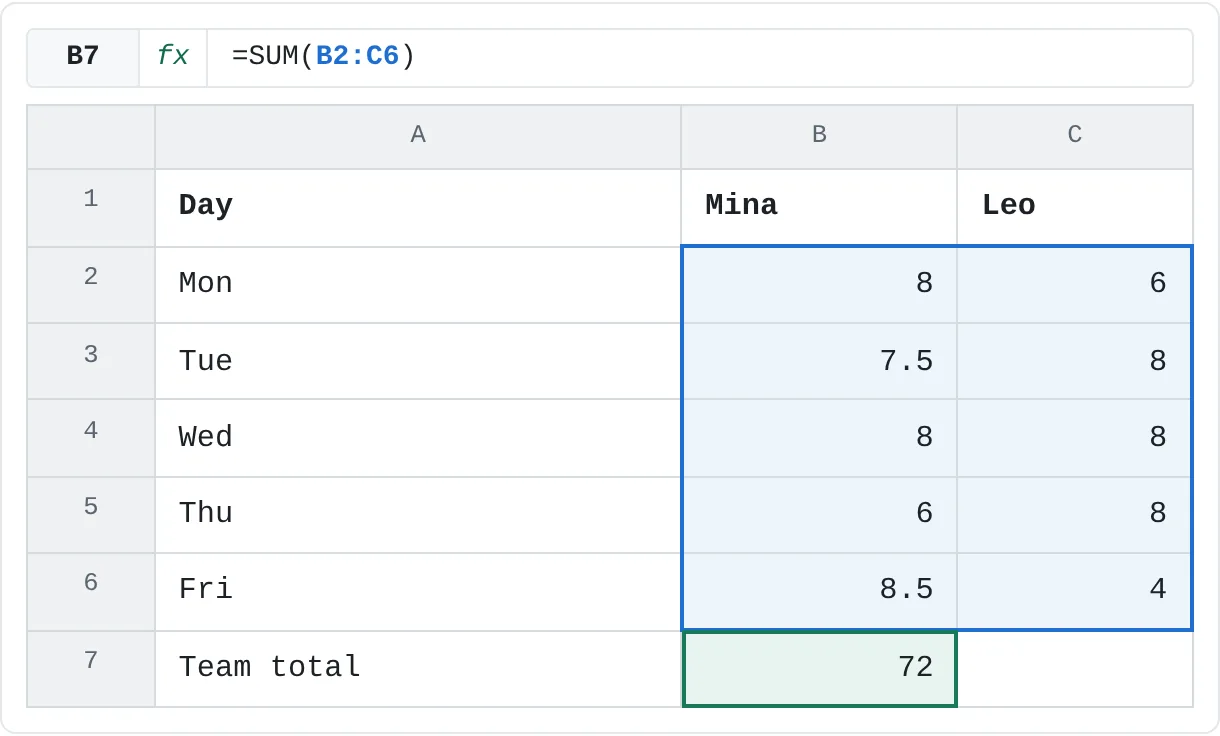
Mina and Leo log their hours in two columns, one row per day. Payroll needs one number: every hour the two of them worked.
| A | B | C | |
|---|---|---|---|
| 1 | Day | Mina | Leo |
| 2 | Mon | 8 | 6 |
| 3 | Tue | 7.5 | 8 |
| 4 | Wed | 8 | 8 |
| 5 | Thu | 6 | 8 |
| 6 | Fri | 8.5 | 4 |
| 7 | Team total | 72 |
=SUM(B2:C6)It returns 72: Mina's 38 hours plus Leo's 34. A range can be a whole block, not only one column, so you don't need a total for each person first. Half hours such as 7.5 are added like any other number.
Add up ticket sales across a row
Three classes sell tickets for a school concert, and each class's daily sales run across a row. Each class's total goes at the end of its row, in column G.
| A | B | C | D | E | F | G | |
|---|---|---|---|---|---|---|---|
| 1 | Class | Mon | Tue | Wed | Thu | Fri | Total |
| 2 | 7A | 12 | 8 | 15 | 10 | 9 | 54 |
| 3 | 7B | 6 | 11 | 9 | 14 | 7 | 47 |
| 4 | 7C | 10 | 10 | 12 | 8 | 13 | 53 |
=SUM(B2:F2)Class 7A sold 54 tickets: 12 + 8 + 15 + 10 + 9. Fill the formula down to G4 and each copy adds its own row: 7B sold 47 and 7C 53. For the whole school, add the three totals: =SUM(G2:G4) returns 154.
Running total of your savings
You put some money aside each month and want to see how much you've saved so far at every point, not only at the end.
| A | B | C | |
|---|---|---|---|
| 1 | Month | Saved | Saved so far |
| 2 | Jan | 150 | 150 |
| 3 | Feb | 200 | 350 |
| 4 | Mar | 120 | 470 |
| 5 | Apr | 180 | 650 |
| 6 | May | 250 | 900 |
=SUM($B$2:B2)The $ signs lock the start of the range at B2, while the end moves down as you fill the formula. In C4 the formula has become =SUM($B$2:B4), which returns 470 (150 + 200 + 120). The last row, C6, shows 900, the total of the whole column. To add the $ signs, press F4 right after typing B2.
Round a weekly distance total
A running app exports distances with two decimals, but your training log uses one. Add up the week and round the total in the same formula.
| A | B | |
|---|---|---|
| 1 | Run | km |
| 2 | Mon | 5.25 |
| 3 | Tue | 3.8 |
| 4 | Thu | 6.42 |
| 5 | Sat | 4.15 |
| 6 | Sun | 7.06 |
| 7 | Week | 26.7 |
=ROUND(SUM(B2:B6),1)The five runs add up to 26.68 km. ROUND takes that total and keeps one decimal place, so the formula returns 26.7. Excel works from the inside out: first SUM, then ROUND. Round the total, not each run: rounding the five runs first and then adding them gives 26.8, further from the real distance.
Mistakes that make a total wrong
- Numbers stored as text. If some cells are aligned to the left or show a small green triangle, Excel is treating them as text, and
SUMskips them without warning, so the total comes out too small. Select those cells, click the warning icon that appears and choose Convert to Number. - The total inside its own range. Writing
=SUM(B2:B6)in B6 makes the formula refer to itself. Excel shows a circular reference warning and the result is 0. Keep the total outside the range. - Hidden and filtered rows still count.
SUMadds every cell in the range, visible or not. To total only the rows a filter leaves visible, use=SUBTOTAL(9,B2:B5)instead.
Practice
Practice
Total the budget
Use the sheet below. Click the highlighted cell, type a formula in the bar above the sheet and press Enter. Afterwards, try it in Excel itself: list five of your own monthly expenses and add a total with AutoSum.
Try it0 of 2 done
- In B6, add up all four expenses with SUM.
- In B7, add only Rent and Utilities. They aren't next to each other.
Click a dashed cell, type a formula in the bar and press Enter.
| A | B | |
|---|---|---|
| 1 | Expense | Amount |
| 2 | Rent | 1,200 |
| 3 | Groceries | 450 |
| 4 | Utilities | 180 |
| 5 | Transport | 120 |
| 6 | Total | |
| 7 | Rent + Utilities |
Was this guide helpful? Spot a mistake? Send feedback · admin@arumsoft.com