The 20 Most-Used Excel Functions · Tutorial 15 of 20
How to Use INDEX and MATCH in Excel
Combine INDEX and MATCH to look up a value in any column, including one to the left, and to find the value where a row and a column meet.
- Level
- Intermediate
- Time
- 13 min read
- Updated:
- Applies to:
- Excel for Microsoft 365, Excel 2024, Excel 2021, Excel 2019, Excel 2016, Excel for the web
What you'll learn
- Find the position of a value with MATCH and choose the right match_type
- Return a value from any column, including one to the left, with INDEX and MATCH
- Build a two-way lookup with one MATCH for the row and one for the column
- Fix the mistakes that give #N/A, #REF! or a quietly wrong result
Before you start
Function Playground
Try these functions in a live sheet
Type formulas in an Excel-style grid and watch each step of the calculation. Free, no sign-up.
INDEX and MATCH are two small functions that together make the most flexible lookup in Excel. MATCH answers "where is it?" with a position number, and INDEX answers "what's at that position?" in whichever column you choose. The pair can look to the left, look up a row and a column at once, and keeps working when someone inserts a column into the table. It also works in every version of Excel.
The syntax
=INDEX(array, row_num, [column_num])- array is the range to return a value from: one column, one row or a whole table.
- row_num is which row of that range, counting from 1. If the range is a single row, this number counts across instead.
- column_num is optional: which column of the range. You need it only when array is more than one column wide.
A position outside the range, such as row 7 of a six-row range, returns #REF!.
=MATCH(lookup_value, lookup_array, [match_type])- lookup_value is what you're looking for: text, a number or a cell reference.
- lookup_array is a single column or a single row to search.
- match_type is optional, and it decides what counts as a match:
0finds the first value exactly equal to lookup_value. The list can be in any order.1finds the largest value that is less than or equal to lookup_value. The list must be sorted ascending. This is the default when you leave the argument out.-1finds the smallest value that is greater than or equal to lookup_value. The list must be sorted descending.
MATCH returns a position inside lookup_array, not a row number on the sheet: in B2:B7, the value in B5 is at position 4. It isn't case-sensitive, so "stapler" matches "Stapler".
Put the two together and MATCH supplies the row number for INDEX:
=INDEX(C2:C71,MATCH(G22,B2:B73,04))C2:C7The column that holds the answer (Price)G2The value to find (Stapler)B2:B7The column to search for it0Exact match only, in a list in any order
Look up a price with INDEX and MATCH
The sheet below lists six products. The goal is the price of the product in G2, Stapler. You'll build the formula in two steps so you can see what each function does.
Find the position with MATCH
Click G3 and type this formula, then press Enter:
=MATCH(G2,B2:B7,0)A B C D E F G 1 Code Product Price Stock Lookup Result 2 P-101 Notebook 4.5 120 Product Stapler 3 P-102 Pen 1.2 300 Position 4 4 P-103 Highlighter 1.8 85 Price 5 P-104 Stapler 12 15 Code 6 P-105 Scissors 6.5 40 Column Stock 7 P-106 Tape 2.5 60 Value MATCH looks for the product in G2 (blue) in B2:B7 (pink). Stapler is the 4th item, so G3 shows 4. The result is 4: Stapler is the fourth product in B2:B7. On its own, a position isn't very useful, but it's exactly what INDEX needs.
Hand the position to INDEX
Click G4 and type the full formula. The MATCH part is the same; INDEX wraps around it and names the column to return from:
=INDEX(C2:C7,MATCH(G2,B2:B7,0))Press Enter and check the result
G4 shows 12, Stapler's price. Excel worked from the inside out: MATCH returned 4, so the formula became
=INDEX(C2:C7,4), the fourth value in the Price column.A B C D E F G 1 Code Product Price Stock Lookup Result 2 P-101 Notebook 4.5 120 Product Stapler 3 P-102 Pen 1.2 300 Position 4 4 P-103 Highlighter 1.8 85 Price 12 5 P-104 Stapler 12 15 Code 6 P-105 Scissors 6.5 40 Column Stock 7 P-106 Tape 2.5 60 Value INDEX returns the 4th value of C2:C7 (blue), the position MATCH found for G2 in B2:B7. Look to the left
To get the product code, change only the first range. The codes are in column A, to the left of the names, which
VLOOKUPcan't reach:=INDEX(A2:A7,MATCH(G2,B2:B7,0))The result is P-104.
A B C D E F G 1 Code Product Price Stock Lookup Result 2 P-101 Notebook 4.5 120 Product Stapler 3 P-102 Pen 1.2 300 Position 4 4 P-103 Highlighter 1.8 85 Price 12 5 P-104 Stapler 12 15 Code P-104 6 P-105 Scissors 6.5 40 Column Stock 7 P-106 Tape 2.5 60 Value The search column (B) and the return column (A) are separate ranges, so the answer can come from any side.
Two-way lookup: a row and a column
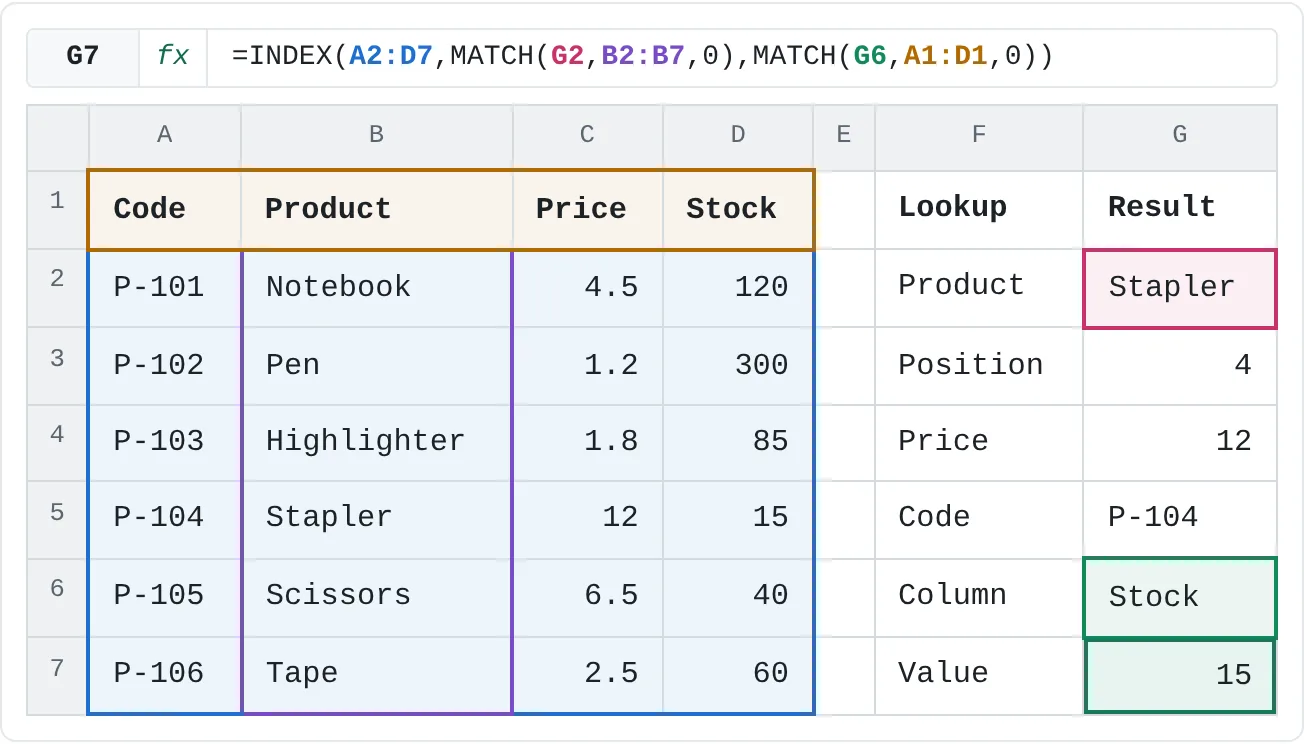
Give INDEX a whole table and two positions, and it returns the cell where that row and column cross. Use one MATCH to find the row and a second MATCH, searching the header row, to find the column. G6 holds the column you want, Stock:
=INDEX(A2:D7,MATCH(G2,B2:B7,0),MATCH(G6,A1:D1,0))The first MATCH returns 4 (Stapler's row in the table), the second returns 4 (Stock is the fourth header in A1:D1), and INDEX(A2:D7,4,4) returns 15. Type Price in G6 instead and the same formula returns 12.
| A | B | C | D | E | F | G | |
|---|---|---|---|---|---|---|---|
| 1 | Code | Product | Price | Stock | Lookup | Result | |
| 2 | P-101 | Notebook | 4.5 | 120 | Product | Stapler | |
| 3 | P-102 | Pen | 1.2 | 300 | Position | 4 | |
| 4 | P-103 | Highlighter | 1.8 | 85 | Price | 12 | |
| 5 | P-104 | Stapler | 12 | 15 | Code | P-104 | |
| 6 | P-105 | Scissors | 6.5 | 40 | Column | Stock | |
| 7 | P-106 | Tape | 2.5 | 60 | Value | 15 |
Keep the table and the two search ranges lined up: the table starts in row 2, so the row search must start in row 2 too, and the table starts in column A, so the header search must start in column A.
Real-world scenarios
Commission rate by sales tier
A rep earns 2% commission on sales under 5,000, 3% from 5,000, 4% from 10,000 and 5% from 20,000. The tier table is sorted from low to high, and Sam sold 13,500 this month.
| A | B | C | D | E | |
|---|---|---|---|---|---|
| 1 | Sales from | Rate | Rep | Sam | |
| 2 | 0 | 2% | Sales | 13,500 | |
| 3 | 5,000 | 3% | Rate | 4% | |
| 4 | 10,000 | 4% | |||
| 5 | 20,000 | 5% |
=INDEX(B2:B5,MATCH(E2,A2:A5,1))The result is 4%. With match_type 1, MATCH returns position 3 (the 10,000 row) because it's the largest value that is less than or equal to 13,500. This is the one situation where type 1 is what you want, and it only works because the tiers are sorted ascending.
A score from a grade table
A teacher keeps one row per student and one column per subject, and wants any student's score in any subject without scrolling.
| A | B | C | D | E | F | G | |
|---|---|---|---|---|---|---|---|
| 1 | Student | Math | Science | English | Student | Chloe | |
| 2 | Ana | 88 | 92 | 79 | Subject | Science | |
| 3 | Ben | 75 | 68 | 90 | Score | 85 | |
| 4 | Chloe | 94 | 85 | 88 | |||
| 5 | David | 62 | 77 | 71 | |||
| 6 | Emma | 81 | 96 | 84 |
=INDEX(B2:D6,MATCH(G1,A2:A6,0),MATCH(G2,B1:D1,0))The result is 85. Here the table B2:D6 holds only scores, so the header search runs over B1:D1 to match it column for column. Change G1 or G2 and the score updates.
Pick the smallest box that fits
A warehouse packs orders into four box sizes, listed from largest to smallest. Order A-2207 has 18 items, and the goal is the smallest box that holds them.
| A | B | C | D | E | |
|---|---|---|---|---|---|
| 1 | Box | Holds | Order | A-2207 | |
| 2 | Large | 50 | Items | 18 | |
| 3 | Medium | 30 | Box | Small | |
| 4 | Small | 20 | |||
| 5 | Mini | 10 |
=INDEX(A2:A5,MATCH(E2,B2:B5,-1))The result is Small. MATCH returns 3, because 20 is the smallest value in B2:B5 that is greater than or equal to 18. A Mini box (10) is too small, and Medium (30) would waste space.
Which month cost the most
You track six months of spending and want the name of the most expensive month, not just the amount. MAX finds the amount; INDEX and MATCH turn it into a month.
| A | B | C | D | E | |
|---|---|---|---|---|---|
| 1 | Month | Spent | Summary | Result | |
| 2 | Jan | 420 | Highest month | Mar | |
| 3 | Feb | 385 | |||
| 4 | Mar | 510 | |||
| 5 | Apr | 460 | |||
| 6 | May | 395 | |||
| 7 | Jun | 470 |
=INDEX(A2:A7,MATCH(MAX(B2:B7),B2:B7,0))The result is Mar. Swap MAX for MIN to get the cheapest month, Feb. If two months tie for the highest amount, MATCH returns the first one.
Choose the right match_type
The match type is the argument people most often get wrong, because leaving it out doesn't mean "exact". It means 1.
| match_type | Finds | List must be | Use it for |
|---|---|---|---|
0 | the first exact match | in any order | names, codes, IDs: almost every lookup |
1 (default) | the largest value less than or equal to the lookup value | sorted ascending | tiers and brackets, like the commission table |
-1 | the smallest value greater than or equal to the lookup value | sorted descending | "the smallest one that fits", like the boxes |
With match_type 0 and text, you can also use wildcards: * stands for any number of characters and ? for exactly one. =MATCH("High*",B2:B7,0) returns 3, the position of Highlighter.
INDEX/MATCH, VLOOKUP or XLOOKUP?
| VLOOKUP | INDEX and MATCH | XLOOKUP | |
|---|---|---|---|
| Return a column to the left | No | Yes | Yes |
| Match when you leave the option out | approximate | approximate (type 1) | exact |
| Survives a column inserted in the table | No | Yes | Yes |
| Two-way lookup | with a MATCH for the column number | with two MATCHes | by nesting two XLOOKUPs |
| Available in | every version | every version | Excel 2021 and later, Microsoft 365, Excel for the web |
Why do inserted columns matter? =VLOOKUP(G2,B2:D7,2,FALSE) also returns 12, but the 2 is a fixed count of columns. Insert a column between Product and Price and Excel widens the table to B2:E7, but the 2 stays a 2, so the formula now returns the new, empty column (0) instead of the price. INDEX and MATCH point at the Price column itself: Excel rewrites C2:C7 as D2:D7 and the result is still 12.
If everyone who opens the file has Excel 2021 or later, XLOOKUP does the same job in one function. Those versions also have XMATCH, a MATCH that defaults to an exact match, which you can use inside INDEX the same way. INDEX and MATCH remain the safe choice for files shared with older versions, and you'll meet them in many existing workbooks.
Common mistakes
- Leaving out match_type. MATCH then uses type 1, which needs a sorted list. On unsorted data you get a wrong value or
#N/A. Add0as the third argument. - Ranges that don't line up.
=INDEX(C2:C7,MATCH(G2,B1:B7,0))searches from row 1 but returns from row 2. MATCH finds Stapler at position 5, and INDEX returns the 5th price, 6.5 (Scissors), with no error. Start both ranges on the same row and end them on the same row. - Reading the position as a row number. MATCH returns where the value sits in the range (4), not the sheet row (5). That's what INDEX expects, as long as both ranges start on the same row.
- #N/A. MATCH didn't find the value: it isn't there, it has an extra space, or it's a number in one place and text in the other. Fix the data, or show a message instead:
=IFNA(INDEX(C2:C7,MATCH(G2,B2:B7,0)),"Not found"). - #REF!. The position is outside INDEX's range, for example
=INDEX(C2:C7,7), or a column number larger than the table is wide. Usually the INDEX range is shorter than the MATCH range; make them the same size. - The ranges slide when you copy. Fill the formula down and every range moves with it. Lock them with F4:
=INDEX($C$2:$C$7,MATCH(H2,$B$2:$B$7,0)).
Practice
Practice
Find positions, prices and codes
Use the sheet below. Click a highlighted cell, type a formula in the bar above the sheet and press Enter. Afterwards, try it in Excel itself:
- List five of your contacts with a city in column A, a name in column B and a phone number in column C.
- Type a name in a cell and use INDEX and MATCH to return that person's city, which is to the left of the name.
- Add a header row and a second cell with a column name, then turn your formula into a two-way lookup that returns either the city or the phone number.
Try it0 of 4 done
- In G3, use MATCH to find the position of the product in G2 within B2:B7.
- In G4, return the price of the product in G2 with INDEX and MATCH.
- In G5, return the code of the product in G2. The codes are to the left of the names.
- In G7, return the value for the product in G2 from the column named in G6, using two MATCH functions.
Click a dashed cell, type a formula in the bar and press Enter.
| A | B | C | D | E | F | G | |
|---|---|---|---|---|---|---|---|
| 1 | Code | Product | Price | Stock | Lookup | Result | |
| 2 | P-101 | Notebook | 4.5 | 120 | Product | Stapler | |
| 3 | P-102 | Pen | 1.2 | 300 | Position | ||
| 4 | P-103 | Highlighter | 1.8 | 85 | Price | ||
| 5 | P-104 | Stapler | 12 | 15 | Code | ||
| 6 | P-105 | Scissors | 6.5 | 40 | Column | Stock | |
| 7 | P-106 | Tape | 2.5 | 60 | Value |
Related
Was this guide helpful? Spot a mistake? Send feedback · admin@arumsoft.com