The 20 Most-Used Excel Functions · Tutorial 19 of 20
How to Use the TEXT Function in Excel
Use TEXT to format numbers, percentages and dates inside a formula, so they read properly when you join them into labels and sentences.
- Level
- Intermediate
- Time
- 11 min read
- Updated:
- Applies to:
- Excel for Microsoft 365, Excel 2021, Excel 2019, Excel for the web
What you'll learn
- Format a number, percentage or date with TEXT and a format code
- Join a formatted number or date into a sentence without losing its format
- Decide when to use TEXT and when to use cell formatting instead
- Avoid the mistakes that come from TEXT returning text
Before you start
Function Playground
Try TEXT in a live sheet
Type formulas in an Excel-style grid and watch each step of the calculation. Free, no sign-up.
TEXT turns a number or a date into text that looks exactly the way you choose: 48,250.50, 12.3%, October 15, 2026, 00042. You need it whenever a number goes into a sentence or a label, because joining text with & throws away the cell's formatting. The result is text, though, so keep the original number for any math.
The syntax
=TEXT(value, format_text)- value (required) is the number or date to format: a cell such as
B2, a calculation such asSUM(B2:B4)orB2/C2, or a function such asTODAY(). - format_text (required) is a format code in double quotes, such as
"#,##0.00"or"yyyy-mm-dd". It uses the same codes as custom number formats in Format Cells.
TEXT always returns text, even when the result looks like a number.
=TEXT(B21,"#,##02.003")B2The number to format#,##0Show the digits with a comma between thousands.00Always show exactly two decimal places
Put a formatted number and date into a sentence
The sheet below has a sales total and a report date. The goal is a summary line in C4 that reads "Sales of 48,250.50 as of Oct 15".
See what goes wrong without TEXT
In C4, join the label and the cells with
&:="Sales of "&B2&" as of "&B3A B C 1 Item Value Formatted 2 Total sales 48,250.5 3 Report date 2026-10-15 4 Summary Sales of 48250.5 as of 46310 Joined as-is, the number loses its separator and second decimal, and the date turns into its serial number. Excel joins the stored values, not what the cells show. The sales lose their thousands separator and trailing zero, and the date appears as 46310, the serial number Excel uses for October 15, 2026.
Format the number with TEXT
Click C2 and type:
=TEXT(B2,"#,##0.00")A B C 1 Item Value Formatted 2 Total sales 48,250.5 48,250.50 3 Report date 2026-10-15 4 Summary TEXT returns 48,250.50, aligned to the left because it is text. C2 shows 48,250.50. Notice it sits on the left of the cell: Excel aligns text to the left and numbers to the right.
Format the date
In C3, type
=TEXT(B3,"mmmm d, yyyy"). The result is October 15, 2026:mmmmis the full month name,dthe day without a leading zero andyyyythe four-digit year.Join the formatted pieces
Back in C4, wrap each cell in TEXT:
="Sales of "&TEXT(B2,"#,##0.00")&" as of "&TEXT(B3,"mmm d")A B C 1 Item Value Formatted 2 Total sales 48,250.5 48,250.50 3 Report date 2026-10-15 October 15, 2026 4 Summary Sales of 48,250.50 as of Oct 15 With TEXT around each value, the summary reads the way people expect. C4 now reads Sales of 48,250.50 as of Oct 15, and it updates whenever B2 or B3 changes.
Format codes you'll use most
A format code is a small pattern: 0 is a digit that always shows, # a digit that shows only when needed, a comma adds thousands separators and % multiplies by 100. Date codes use y, m and d.
| Code | Value | Result |
|---|---|---|
0 | 1234.567 | 1235 |
0.00 | 1234.567 | 1234.57 |
#,##0 | 1234.567 | 1,235 |
#,##0.00 | 1234.567 | 1,234.57 |
$#,##0.00 | 1234.567 | $1,234.57 |
0% | 0.256 | 26% |
0.0% | 0.256 | 25.6% |
00000 | 42 | 00042 |
yyyy-mm-dd | October 15, 2026 | 2026-10-15 |
mmmm d, yyyy | October 15, 2026 | October 15, 2026 |
mmm / mm / m | October 15, 2026 | Oct / 10 / 10 |
dddd / ddd / dd | October 15, 2026 | Thursday / Thu / 15 |
h:mm AM/PM | 2:30 PM | 2:30 PM |
hh:mm | 2:30 PM | 14:30 |
TEXT rounds to the digits in the code, the same way number formatting does, so "#,##0" turns 1234.567 into 1,235.
Real-world scenarios
A headline for a sales dashboard
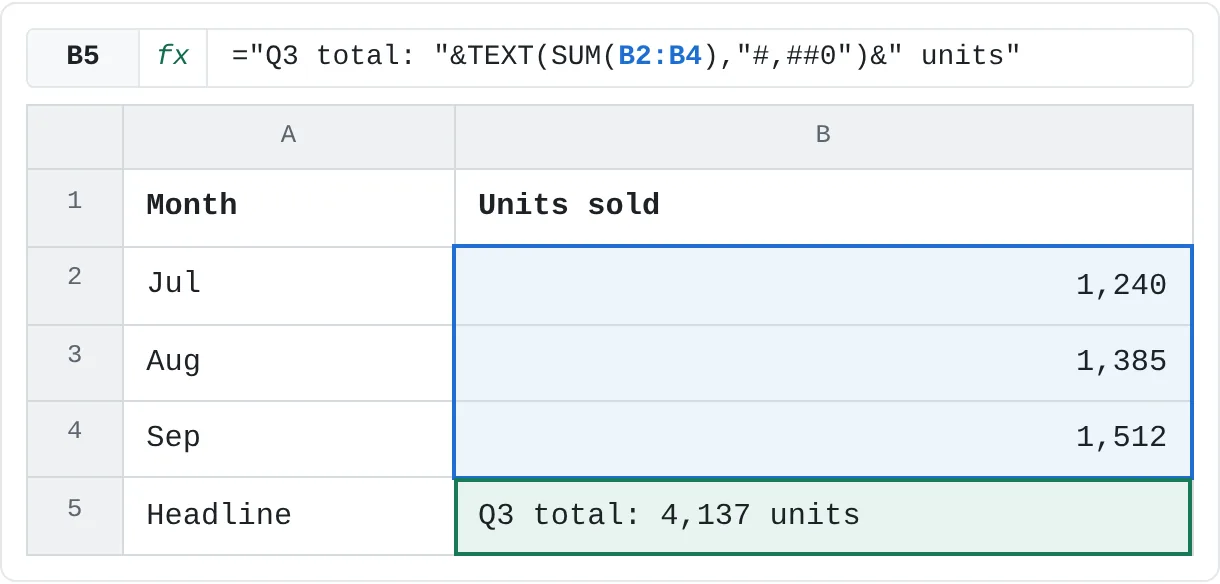
A dashboard needs a headline above the chart. SUM adds the quarter's units, and TEXT formats the total inside the sentence.
| A | B | |
|---|---|---|
| 1 | Month | Units sold |
| 2 | Jul | 1,240 |
| 3 | Aug | 1,385 |
| 4 | Sep | 1,512 |
| 5 | Headline | Q3 total: 4,137 units |
="Q3 total: "&TEXT(SUM(B2:B4),"#,##0")&" units"1,240 + 1,385 + 1,512 is 4,137, so B5 reads Q3 total: 4,137 units. Without TEXT it would say 4137.
Score messages for a class
A teacher wants a short message for each student with their score as a percentage. Divide correct answers by questions and format the result with "0%".
| A | B | C | D | |
|---|---|---|---|---|
| 1 | Student | Correct | Questions | Message |
| 2 | Ana | 52 | 60 | Ana got 87% right |
| 3 | Ben | 45 | 60 | Ben got 75% right |
| 4 | Chloe | 58 | 60 | Chloe got 97% right |
=A2&" got "&TEXT(B2/C2,"0%")&" right"Ana answered 52 of 60, which is 0.8667. The 0% code multiplies by 100 and rounds, so D2 reads Ana got 87% right. Joined without TEXT, it would read "Ana got 0.866666666666667 right".
How much of each budget is used
A household budget shows how much of each category has been spent, as a short note next to the numbers.
| A | B | C | D | |
|---|---|---|---|---|
| 1 | Category | Budget | Spent | Used |
| 2 | Groceries | 500 | 430 | 86% of budget |
| 3 | Dining out | 200 | 236 | 118% of budget |
| 4 | Transport | 150 | 90 | 60% of budget |
=TEXT(C2/B2,"0%")&" of budget"Groceries are at 86% of budget. Dining out has spent 236 of 200, so D3 reads 118% of budget: the note makes the overspend obvious at a glance.
Weekday names for a shift schedule
A shift schedule lists dates, but people think in weekdays. The dddd code returns the full weekday name.
| A | B | C | |
|---|---|---|---|
| 1 | Employee | Shift date | Weekday |
| 2 | Maria | 2026-10-19 | Monday |
| 3 | Daniel | 2026-10-21 | Wednesday |
| 4 | Priya | 2026-10-24 | Saturday |
=TEXT(B2,"dddd")October 19, 2026 is a Monday. Use "ddd" for the short form (Mon), or "dddd, mmmm d" for Monday, October 19.
TEXT or cell formatting?
Both use the same codes, but they do different jobs.
| Format Cells (Ctrl+1) | TEXT function | |
|---|---|---|
| What changes | Only how the cell looks | Creates a new value, as text |
| The number underneath | Stays a number | Gone: the result is text |
| Works in SUM, AVERAGE, charts | Yes | No |
Keeps its look when joined with & | No | Yes |
Use cell formatting whenever a number stays in its own cell. Use TEXT only when the formatted value must become part of text: labels, sentences, chart titles, file names or codes like EMP-00042 (="EMP-"&TEXT(A2,"00000")).
If you need a TEXT result as a number again, VALUE converts it back: =VALUE(C2) turns "48,250.50" into 48250.5. Better still, point your calculations at the original number.
Format codes depend on Excel's language
TEXT reads its format code in the language of your Excel and Windows regional settings. In English Excel, yyyy, mm and dd mean year, month and day; some other language versions use different letters for dates, so a workbook that uses TEXT with date codes can show wrong results when someone opens it with a different language setting.
Korean Excel uses the same yyyy, mm and dd codes, so "yyyy-mm-dd" works there unchanged. In Korean Excel, dddd still returns English weekday names (Thursday); the Korean names come from the code aaaa, which returns 목요일, and aaa, which returns 목. If you share workbooks across languages, prefer cell formatting for dates, or keep the date codes simple.
Common mistakes
- Adding up TEXT results.
=SUM(C2:C4)over cells made by TEXT returns 0, because SUM skips text. Do the math on the original numbers, and use TEXT only for display. - Leaving out the quotes.
=TEXT(B2,#,##0)isn't accepted. The format code is text and must be in double quotes:=TEXT(B2,"#,##0"). - A date that turns into a number.
="Due "&B2shows "Due 46310". Wrap the date:="Due "&TEXT(B2,"mmm d"). - Months and minutes mixed up.
mandmmmean months, except right afterhorhh, where they mean minutes."hh:mm"is a time and"mm/dd"is a month and day. - Using TEXT where a format would do. A column of TEXT results can't be sorted numerically, summed or charted. If the number stands alone in its cell, format the cell instead.
Practice
Practice
Format numbers and dates as text
Use the sheet below. Click a highlighted cell, type the formula in the bar above the sheet and press Enter. The last task joins a formatted date into a short note. Then try it in Excel: take a total from one of your own sheets and build a sentence such as "Spent 1,234.50 by October 15" with TEXT and &.
Try it0 of 4 done
- In C2, show the sales in B2 as a whole number with thousands separators.
- In C3, show the growth rate in B3 as a percentage with one decimal place.
- In C4, show the order date with the full month name, like October 15, 2026.
- In C5, build the note Ships on Thu, Oct 15 from the order date in B4.
Click a dashed cell, type a formula in the bar and press Enter.
| A | B | C | |
|---|---|---|---|
| 1 | Item | Value | As text |
| 2 | Annual sales | 1,234,567.89 | |
| 3 | Growth rate | 0.12 | |
| 4 | Order date | 2026-10-15 | |
| 5 | Shipping note |
Related
Was this guide helpful? Spot a mistake? Send feedback · admin@arumsoft.com