The 20 Most-Used Excel Functions · Tutorial 3 of 20
COUNT and COUNTA in Excel: Count Numbers and Non-Blank Cells
Count the cells that hold numbers with COUNT, count every filled cell with COUNTA, and know which one to use.
- Level
- Beginner
- Time
- 12 min read
- Updated:
- Applies to:
- Excel for Microsoft 365, Excel 2021, Excel 2019, Excel for the web
What you'll learn
- Count the cells that contain numbers with COUNT
- Count every cell that isn't empty with COUNTA
- Count empty cells with COUNTBLANK
- Choose the right counting function for numbers, text and gaps
Before you start
Function Playground
Try these functions in a live sheet
Type formulas in an Excel-style grid and watch each step of the calculation. Free, no sign-up.
COUNT and COUNTA both tell you how many cells are filled in, but they disagree about what "filled" means. COUNT counts only cells that hold numbers. COUNTA counts every cell that isn't empty, whatever is in it. Pick the wrong one and your count is off without any warning, so it's worth knowing exactly what each one sees.
The syntax
=COUNT(value1, [value2], ...)=COUNTA(value1, [value2], ...)- value1 is the first cell or range to count, such as
B2:B9. - value2, … are optional. Separate them with commas (up to 255 arguments in all), and Excel adds up the counts.
=COUNTA1(B2:B92)-COUNT3(B2:B94)COUNTACounts every cell that isn't emptyB2:B9The range to count: the hours columnCOUNTCounts only the cells that hold numbersB2:B9The same range again. The difference is the cells that hold something other than a number
Count the cells that contain numbers
The sheet below is a weekly volunteer log. Most people entered their hours, but a few typed a note instead, and one cell is still empty. Start by counting how many volunteers logged a number of hours, in E2.
Click the cell for the result
Click E2, next to the label "Hours logged".
A B C D E 1 Volunteer Hours Summary Result 2 Ana 4 Hours logged 3 Ben sick Any entry 4 Chloe 6 Volunteers 5 David Notes, not hours 6 Emma 3 7 Felix 0 8 Grace TBD 9 Henry 5 A volunteer log. Column B mixes numbers, two text notes and one empty cell. Type =COUNT( and select the hours
Type
=COUNT(and drag from B2 down to B9. Excel writesB2:B9into the formula and outlines the cells.Press Enter
Excel closes the parenthesis and shows 5: the cells with 4, 6, 3, 0 and 5. The notes "sick" and "TBD" are text, so
COUNTskips them, and it skips David's empty cell too. Felix's 0 is a number, so it counts.=COUNT(B2:B9)A B C D E 1 Volunteer Hours Summary Result 2 Ana 4 Hours logged 5 3 Ben sick Any entry 4 Chloe 6 Volunteers 5 David Notes, not hours 6 Emma 3 7 Felix 0 8 Grace TBD 9 Henry 5 COUNT returns 5. Only the five numbers (green) are counted, including the 0.
COUNT also counts dates and times, because Excel stores them as numbers. It does not count TRUE or FALSE, error values like #N/A, or numbers stored as text.
Count every cell that isn't empty: COUNTA
To count every cell in B2:B9 that has something in it, type this in E3:
=COUNTA(B2:B9)The result is 7: the five numbers plus the two notes. Only David's empty cell is left out.
| A | B | C | D | E | |
|---|---|---|---|---|---|
| 1 | Volunteer | Hours | Summary | Result | |
| 2 | Ana | 4 | Hours logged | 5 | |
| 3 | Ben | sick | Any entry | 7 | |
| 4 | Chloe | 6 | Volunteers | ||
| 5 | David | Notes, not hours | |||
| 6 | Emma | 3 | |||
| 7 | Felix | 0 | |||
| 8 | Grace | TBD | |||
| 9 | Henry | 5 |
COUNTA is the one to use for a list of names, because names are text and COUNT would return 0. In E4, =COUNTA(A2:A9) returns 8, the number of volunteers.
Here is what each function sees:
| What's in the cell | COUNT | COUNTA |
|---|---|---|
| A number, including 0 | Counted | Counted |
| A date or time | Counted | Counted |
| Text, such as "sick" | Ignored | Counted |
| TRUE or FALSE | Ignored | Counted |
| An error value, such as #N/A | Ignored | Counted |
| A formula that returns "" (empty text) | Ignored | Counted |
| Nothing (an empty cell) | Ignored | Ignored |
Because the two functions see different things, you can subtract one from the other. This counts the cells that hold something other than a number, and returns 2:
=COUNTA(B2:B9)-COUNT(B2:B9)Count empty cells with COUNTBLANK
To find out who hasn't filled in anything yet, use COUNTBLANK. It takes one range and returns 1 here, for David's empty cell:
=COUNTBLANK(B2:B9)COUNTBLANK also counts cells with a formula that returns "" (empty text), because they look empty. A cell with 0 is not blank. So for B2:B9, COUNTA plus COUNTBLANK gives 8, the size of the range, as long as no formula there returns "".
Count a whole column
You can give either function a whole column, so new rows are counted as you add them. Headings are text, so COUNT skips them: this returns 5, because the heading "Hours" in B1 is ignored.
=COUNT(B:B)COUNTA counts the heading too. To count the names in column A, subtract 1 for the heading. This returns 8:
=COUNTA(A:A)-1Keep anything else, such as a total or a note under the list, out of a column you count this way.
Which counting function?
Excel has five everyday counting functions. Here is each one on the volunteer log's hours, B2:B9:
| Function | What it counts | Example | Result |
|---|---|---|---|
COUNT | Cells that hold numbers, including dates | =COUNT(B2:B9) | 5 |
COUNTA | Cells that aren't empty | =COUNTA(B2:B9) | 7 |
COUNTBLANK | Empty cells, plus formulas that return "" | =COUNTBLANK(B2:B9) | 1 |
COUNTIF | Cells that meet one condition | =COUNTIF(B2:B9,">=4") | 3 |
COUNTIFS | Rows that meet every one of several conditions | =COUNTIFS(B2:B9,">=4",A2:A9,"<>Ana") | 2 |
The COUNTIF example counts the people with 4 hours or more: Ana, Chloe and Henry. The text notes are skipped because they aren't numbers. The COUNTIFS example adds a second condition on the names, "not Ana", which leaves Chloe and Henry.
Real-world scenarios
Count the orders that have shipped
An order list gets a ship date when an order goes out. One order is on hold, and two haven't shipped yet, so their cells are empty.
| A | B | C | D | E | |
|---|---|---|---|---|---|
| 1 | Order | Shipped | Summary | Result | |
| 2 | A-1041 | 2026-10-05 | Orders | 7 | |
| 3 | A-1042 | 2026-10-05 | Shipped | 4 | |
| 4 | A-1043 | on hold | Not shipped | 3 | |
| 5 | A-1044 | 2026-10-06 | |||
| 6 | A-1045 | ||||
| 7 | A-1046 | 2026-10-07 | |||
| 8 | A-1047 |
=COUNT(B2:B8)It returns 4. Excel stores dates as numbers, so COUNT counts every ship date and skips the "on hold" note and the empty cells. =COUNTA(A2:A8) counts the order numbers, which are text, and returns 7, so 7 − 4 = 3 orders haven't shipped.
Graded and missing essays
A teacher records essay scores as they come in. Two students haven't handed theirs in, and one student was excused.
| A | B | C | D | E | |
|---|---|---|---|---|---|
| 1 | Student | Essay | Summary | Result | |
| 2 | Ana | 88 | Graded | 4 | |
| 3 | Ben | Missing | 2 | ||
| 4 | Chloe | 92 | |||
| 5 | David | 75 | |||
| 6 | Emma | ||||
| 7 | Felix | 81 | |||
| 8 | Grace | excused |
=COUNTBLANK(B2:B8)COUNTBLANK returns 2, the empty cells for Ben and Emma. =COUNT(B2:B8) returns 4, the four scores. Grace's "excused" is text, so it is neither a score nor a blank, which is what the teacher wants: she isn't missing anything.
Count sign-ups for a volunteer event
A community clean-up has 10 spots. People add their names to column A, and two haven't picked a shift yet. The formula covers A2:A11, so names added in the empty rows are counted too.
| A | B | C | D | |
|---|---|---|---|---|
| 1 | Volunteer | Shift | Summary | Result |
| 2 | Jordan Lee | Morning | Signed up | 7 |
| 3 | Priya Shah | Afternoon | Spots left | 3 |
| 4 | Sam Ortiz | Morning | ||
| 5 | Mei Chen | |||
| 6 | Tom Baker | Afternoon | ||
| 7 | Lucia Diaz | Morning | ||
| 8 | Noah Kim | |||
| 9 | ||||
| 10 | ||||
| 11 |
=COUNTA(A2:A11)It returns 7. Names are text, so this needs COUNTA; COUNT would return 0. Count the names, not the shifts: two people left the shift empty, and =COUNTA(B2:B11) would return only 5. To show the spots left, subtract the count from 10: =10-COUNTA(A2:A11) returns 3.
Survey results with COUNTIF and COUNTA
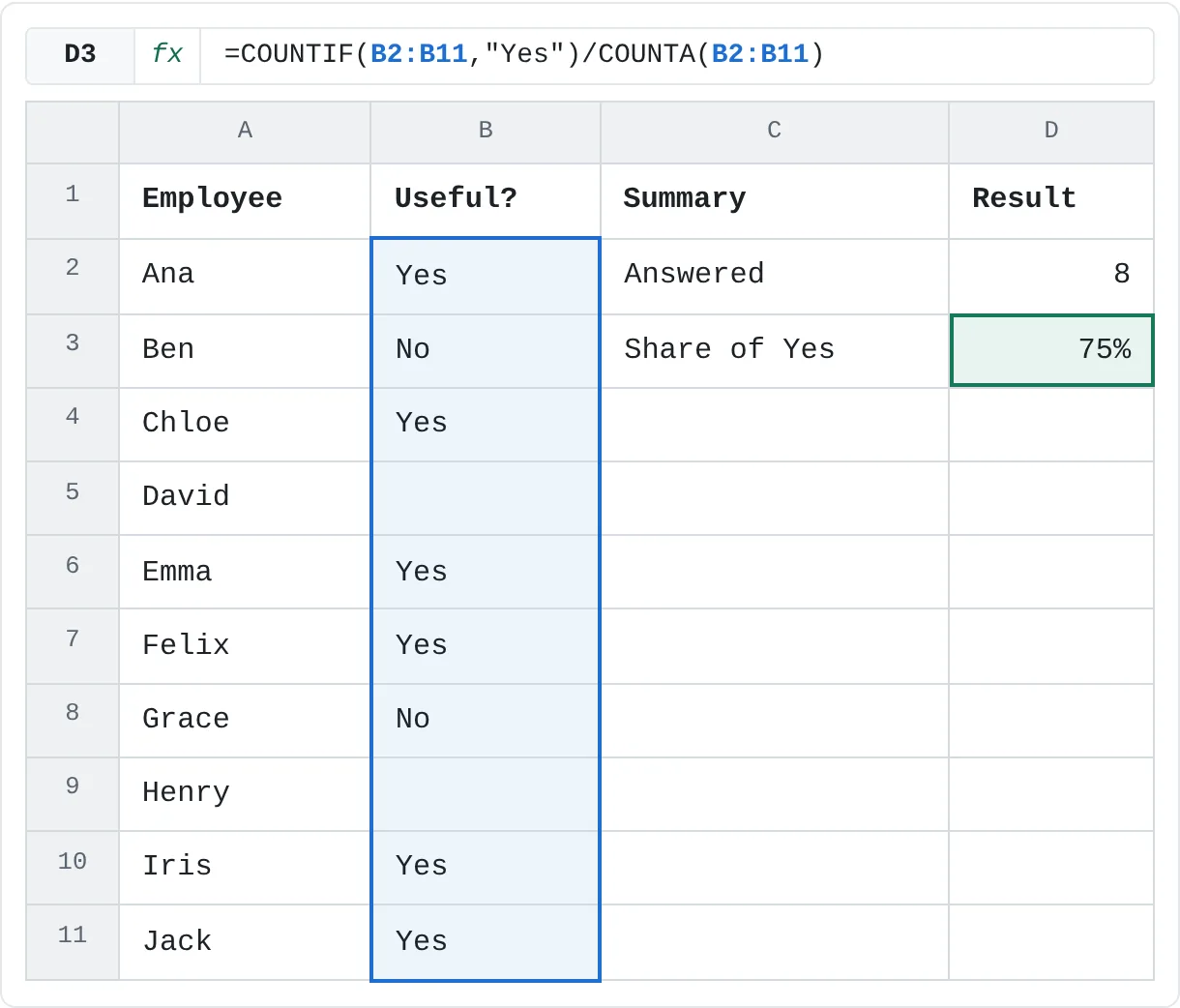
After a training session, HR asked ten employees whether it was useful. Eight answered. What share of the answers were Yes?
| A | B | C | D | |
|---|---|---|---|---|
| 1 | Employee | Useful? | Summary | Result |
| 2 | Ana | Yes | Answered | 8 |
| 3 | Ben | No | Share of Yes | 75% |
| 4 | Chloe | Yes | ||
| 5 | David | |||
| 6 | Emma | Yes | ||
| 7 | Felix | Yes | ||
| 8 | Grace | No | ||
| 9 | Henry | |||
| 10 | Iris | Yes | ||
| 11 | Jack | Yes |
=COUNTIF(B2:B11,"Yes")/COUNTA(B2:B11)COUNTIF counts the Yes answers, 6, and COUNTA counts every answer, 8. Six divided by eight is 0.75, which shows as 75% once the cell has a percentage format. Dividing by COUNTA instead of 10 bases the share on the people who answered; the two empty cells don't count as No.
Mistakes that make a count wrong
- Using COUNT on text.
=COUNT(A2:A9)on a list of names returns 0. Names, product codes and other labels needCOUNTA. - Numbers stored as text. Values aligned to the left or marked with a small green triangle are text, so
COUNTskips them. Select them, click the warning icon and choose Convert to Number. - Cells that only look empty. A space typed into a cell, or a formula such as
=IF(B2>0,B2,"")that returns "", isn't empty.COUNTAcounts those cells. To clear a cell properly, select it and press Delete. - Counting a heading.
COUNTAon a range that includes the heading row counts one too many. Start the range below the heading, or subtract 1. - Wanting a count that matches a condition.
COUNTandCOUNTAcan't count only the "sick" notes or only the people with 5 hours or more. That's whatCOUNTIFandCOUNTIFSare for.
Practice
Practice
Summarize the volunteer log
Use the sheet below. Click a highlighted cell, type a formula in the bar above the sheet and press Enter. Before you press Enter, predict the result: which cells will each function count? Afterwards, try it in Excel itself:
- List ten people and, next to each, the number of times they went to the gym last month. Type "away" for one person and leave another empty.
- Count the people with
COUNTAand the people with a number withCOUNT. - Count the empty cells with
COUNTBLANK, then check thatCOUNTAplusCOUNTBLANKequals the number of people.
Try it0 of 4 done
- In E2, count how many volunteers have a number of hours in B2:B9.
- In E3, count every cell in B2:B9 that isn't empty, numbers and notes alike.
- In E4, count the volunteers by counting the names in column A.
- In E5, find how many cells in B2:B9 hold a note instead of a number.
Click a dashed cell, type a formula in the bar and press Enter.
| A | B | C | D | E | |
|---|---|---|---|---|---|
| 1 | Volunteer | Hours | Summary | Result | |
| 2 | Ana | 4 | Hours logged | ||
| 3 | Ben | sick | Any entry | ||
| 4 | Chloe | 6 | Volunteers | ||
| 5 | David | Notes, not hours | |||
| 6 | Emma | 3 | |||
| 7 | Felix | 0 | |||
| 8 | Grace | TBD | |||
| 9 | Henry | 5 |
Related
Was this guide helpful? Spot a mistake? Send feedback · admin@arumsoft.com