Excel Basics · Tutorial 3 of 12
Number and Date Formats in Excel
Show prices as currency, discounts as percentages and dates as real dates, and control decimal places without changing the stored values.
- Level
- Beginner
- Time
- 9 min read
- Updated:
- Applies to:
- Excel for Microsoft 365, Excel 2021, Excel 2019, Excel for the web
What you'll learn
- Apply the Number, Currency, Accounting and Percentage formats
- Explain the difference between Currency and Accounting
- Enter dates Excel recognizes and change how they display
- Show more or fewer decimal places without changing the stored value
- Fix dates that show as five-digit numbers
Before you start
Example file
Number and Date Formats in Excel.xlsx
Download the workbook used in this tutorial and follow along in Excel.
Excel workbook (.xlsx) · 7 KB
Watch the video
Video · Follow along as the video formats a price list: prices as currency, discounts as percentages and start dates as real dates.
Excel stores a number as a plain number. How that number looks on screen is a separate setting called the number format. The same stored value can read as a price, a percentage or a calendar date, depending only on the format of its cell. Once you see that split between value and display, formats stop being confusing and start being useful.
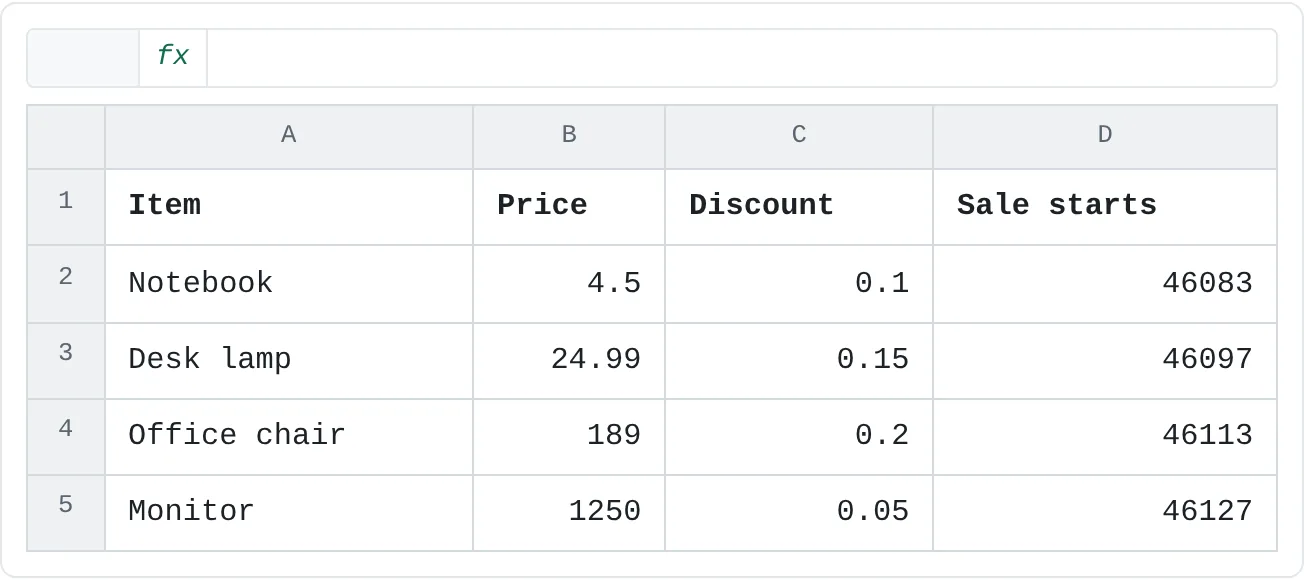
The examples use this small price list. It's typed in, but not formatted yet, so every cell shows its raw value.
| A | B | C | D | |
|---|---|---|---|---|
| 1 | Item | Price | Discount | Sale starts |
| 2 | Notebook | 4.5 | 0.1 | 46083 |
| 3 | Desk lamp | 24.99 | 0.15 | 46097 |
| 4 | Office chair | 189 | 0.2 | 46113 |
| 5 | Monitor | 1250 | 0.05 | 46127 |
Value and display are separate
Click any formatted cell and look at the formula bar: it shows the stored value, while the cell shows the formatted version. Here is the same stored value, 1250, in the formats on the Number Format list:
| Format | 1250 displays as |
|---|---|
| General | 1250 |
| Number | 1250.00 |
| Currency | $1,250.00 |
| Accounting | $ 1,250.00, with the $ at the left edge of the cell |
| Percentage | 125000.00% |
| Short Date | 6/3/1903 |
Every row holds exactly the same value. A formula that uses the cell gets 1250 each time, whatever the cell shows. That's why formatting can't fix a wrong number, and why a wrong format can make a right number look wrong.
New cells start in the General format, which shows a number much as you typed it.
Apply a number format
The format commands are in the Number group on the Home tab.
Select the prices
Select B2:B5.
Open the Number Format list
In Home then Number, click the arrow on the box that says General. The list shows each format with a preview of how your active cell would look.
Choose Currency
Click Currency. The prices now read $4.50, $24.99, $189.00 and $1,250.00. The $ symbol comes from your Windows region settings, so you may see a different currency symbol.
Format the discounts as percentages
Select C2:C5 and click Percent Style (the % button) in the same group, or press Ctrl+Shift+%. 0.1 becomes 10%, 0.15 becomes 15%.
A B C D 1 Item Price Discount Sale starts 2 Notebook $4.50 10% 46083 3 Desk lamp $24.99 15% 46097 4 Office chair $189.00 20% 46113 5 Monitor $1,250.00 5% 46127 Currency in column B and Percentage in column C. Column D still shows serial numbers until you give it a date format. Format the dates
Select D2:D5, open the Number Format list again and choose Short Date. With United States settings, 46083 becomes 3/2/2026, 46097 becomes 3/16/2026, and so on. The stored values didn't change; only their display did.
The Number format shows two decimal places but no thousands separator. For 1,250.00, click Comma Style (the , button) in the Number group, or tick Use 1000 Separator (,) in the Format Cells dialog.
For every option, select the cells and press Ctrl+1 (Cmd+1 on a Mac) to open Format Cells on its Number tab. Pick a Category on the left; the settings on the right change with it: decimal places, symbol, how negative numbers look.
Currency or Accounting?
Both add a currency symbol, thousands separators and two decimal places. They differ in the details:
- Currency puts the symbol right next to the digits: $189.00. In Format Cells you can choose how negative numbers look, for example with a minus sign or in red.
- Accounting lines the symbol up at the left edge of the cell and the digits on the right, so a column of amounts lines up neatly. Negative numbers appear in parentheses, $ (189.00), and zero shows as a dash. Click Accounting Number Format (the $ button in the Number group) to apply it in one step.
Use Currency for prices in a list, and Accounting for financial statements where columns of figures are read top to bottom.
Percentages: the stored value is a fraction
A percentage is a fraction shown times 100. The stored value 0.15 displays as 15%, and formulas use 0.15. To get 15% in a cell you can:
- type
15%with the percent sign, or - type
0.15and apply the Percentage format.
If a cell already holds 15 and you apply Percentage, it shows 1500%, because 15 × 100 = 1500. Change the value to 0.15. Percent Style shows no decimals, so 12.5% displays as 13% until you add a decimal place.
Show more or fewer decimal places
Increase Decimal and Decrease Decimal in the Number group add or remove one decimal place each click. They change the display only: the stored value stays exact.
Select B3 ($24.99) and click Decrease Decimal twice. The cell shows $25, but the formula bar still says 24.99, and a total that includes B3 still uses 24.99. That's why a column of rounded amounts can seem to add up to a total that's off by a cent. If you need the stored value itself rounded, use the ROUND function, for example =ROUND(B3,0).
Dates are numbers too
Excel stores a date as a serial number: a count of days that starts at January 1, 1900, which is day 1. March 2, 2026 is day 46083. The Short Date format turns that number into something you can read.
Because dates are numbers, you can calculate with them. With the formatted list above, this returns 14, the days between the first two sale dates:
=D3-D2If the result shows as a date instead of 14, change that cell's format to General.
Enter dates Excel recognizes
Type a date the way your region writes it, such as 3/2/2026 in the United States, or as 2026-03-02, which Excel recognizes in most regional settings. Excel recognizes it, applies a date format and aligns it to the right. If a date sits on the left of the cell, Excel saw text, not a date, and can't sort or calculate with it. Press Ctrl+; to enter today's date.
Change how a date looks
- Short Date and Long Date are on the Number Format list. Long Date shows March 2, 2026 as Monday, March 2, 2026.
- For other layouts, press Ctrl+1, choose the Date category and pick a type, or choose Custom and type a format code in the Type box:
| Code | March 2, 2026 displays as |
|---|---|
yyyy-mm-dd | 2026-03-02 |
mmm d, yyyy | Mar 2, 2026 |
dddd | Monday |
Common mistakes
- A date shows as a five-digit number. The cell is formatted as General or Number, so you're seeing the serial number (46083). Apply Short Date.
- A number turns into a date. Type
1-2or3/4and Excel may read it as a date (January 2, March 4). For codes like these, format the cells as Text before you type, or start the entry with an apostrophe:'1-2. - 1500% instead of 15%. The cell held 15, not 0.15. Fix the value, not the format.
- Dates typed with periods. An entry like
2026.03.02is stored as text in most regional settings. Retype it with slashes or hyphens. - Expecting decimals to round the value. Decrease Decimal changes what you see, not what Excel calculates with.
Practice
Practice
Format a price list
Type the price list from the top of this page into a new sheet, with the dates as plain numbers (46083, 46097, 46113, 46127) or as dates. Then:
- Format the prices as Currency.
- Format the discounts as Percentage with no decimal places.
- Format the start dates as Short Date, then try Long Date.
- Click B3 and check that the formula bar still shows 24.99 after you remove its decimal places.
- Change one price to Accounting and compare how the $ lines up.
- In an empty cell, type
=D3-D2and make sure it shows a number of days, not a date.
Check your skills
- Can you format a price as Currency and a discount as a Percentage?
- Can you explain the difference between Currency and Accounting?
- Can you enter a date so Excel recognizes it, and change how it displays?
- Can you change how many decimal places a number shows, and explain why the stored value stays the same?
Related
Was this guide helpful? Spot a mistake? Send feedback · admin@arumsoft.com