Excel Project Tracker Template with Task Dashboard and Timeline
A lightweight project tracker for teams and class projects: tasks roll up into project progress, overdue work is flagged automatically, and a monthly timeline shows what runs when.
- Sheets:
- 6
- Works with:
- Excel for Microsoft 365, Excel 2016 or later, Excel for Mac and Excel for the web
- Updated:
What you can do with it
- Keep every task, owner and due date in one list
- Flag overdue tasks automatically
- See each project's average progress and budget variance
- View a simple month-by-month timeline
What's inside
The workbook has 6 sheets. You only type on a few of them; the rest calculate.
| Sheet | What it's for | You enter | Calculated for you |
|---|---|---|---|
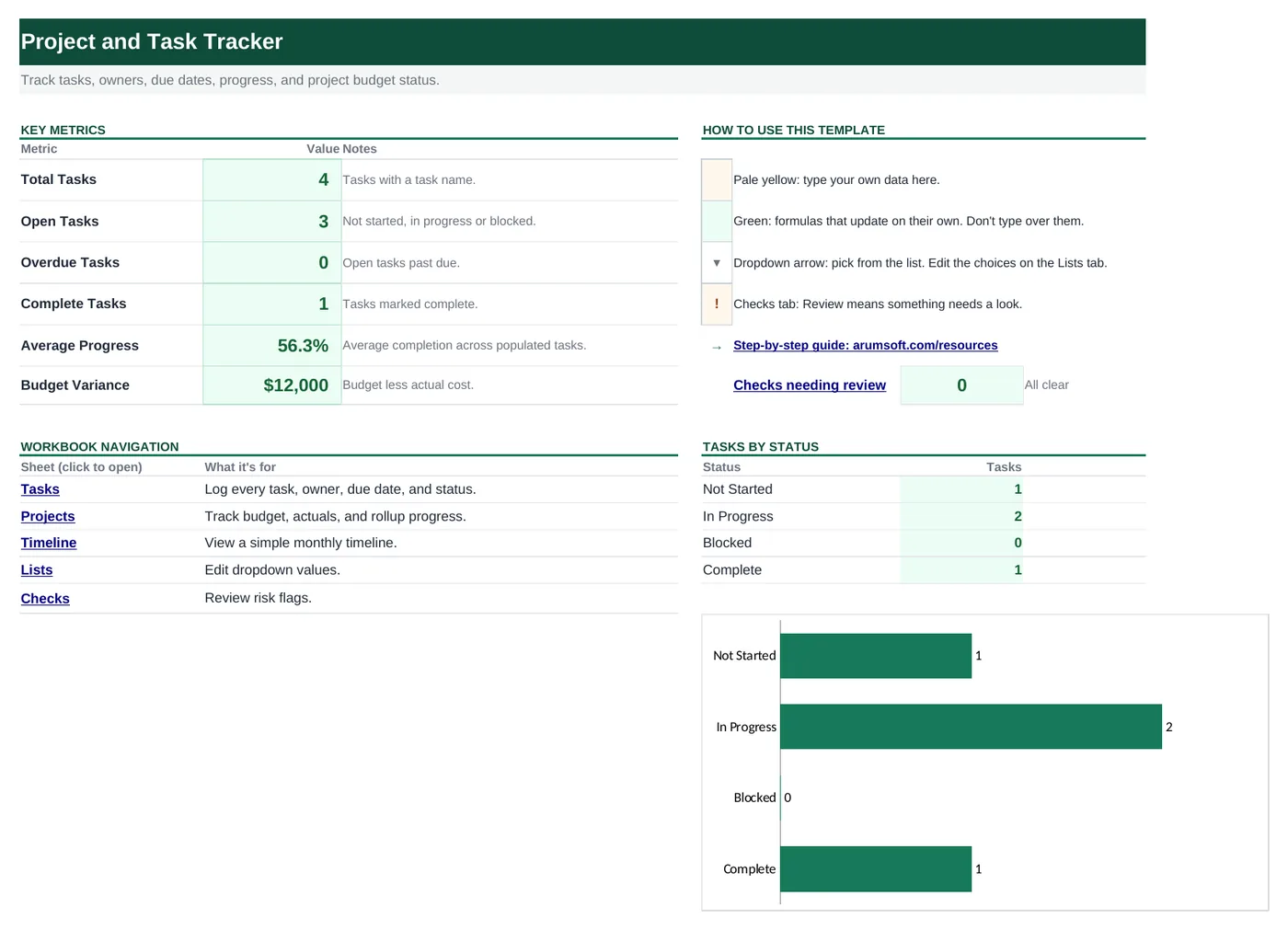
| Start Here | Dashboard with six key numbers | Nothing | Total, open, overdue and complete tasks, average progress, budget variance |
| Tasks | One row per task (room for 80) | Project, task, owner, priority, status, start, due, % complete | Flag (Overdue or OK) |
| Projects | One row per project (room for 30) | Project, sponsor, start, due, budget, actual cost | Variance, progress |
| Timeline | Month-by-month bars for every task | First month (E3) | Task details and a bar for each month |
| Lists | Dropdown choices: priorities, statuses and owners | Your team's names | Nothing |
| Checks | Four risk checks | Nothing | OK or Review for each check |
Before you start
The template works as soon as you open it. Cell colors tell you what each cell is for:
- Open the file. If Excel shows a yellow Protected View bar, click Enable Editing. Files downloaded from the internet always open this way.
- Save your own copy with File› then Save As so you always have the original to start over from.
- Clear the sample data. Replace the sample projects on Projects and the sample tasks on Tasks with your own. Clear contents only (press Delete); don't delete rows, because the Timeline sheet points at the Tasks rows by position.
Step-by-step guide
Work through these in order the first time. After that, you'll mostly repeat the daily or monthly entry steps.
Add your projects
On Projects, add one row per project: Project name, Sponsor (who it's for), Start, Due, Budget and Actual Cost so far.
Variance is budget minus actual cost; a negative number means the project is over budget. Progress is the average % complete of all tasks in that project.
Add tasks
On Tasks, add one row per task:
- Project: pick from the dropdown, which lists the projects on Projects. That's how progress rolls up.
- Task, and an Owner from the dropdown (add your team's names on Lists).
- Priority: High, Medium or Low from the dropdown.
- Status: Not Started, In Progress, Blocked or Complete.
- Start and Due dates.
- % Complete: type
50%or0.5.
The Flag column shows Overdue (in red) when a task isn't Complete and its due date has passed. Otherwise it shows OK.
Update the tracker each week
Once a week, go down the Tasks list and update each Status and % Complete, then update Actual Cost on Projects. The dashboard, flags and timeline update instantly.
Filter and sort the task list
Tasks is an Excel table, so each header has a filter arrow:
- Filter Owner to see one person's work.
- Filter Flag to Overdue for a quick risk list.
- Sort Due from oldest to newest to see what's coming up.
Use the timeline
Timeline lists every task and fills in a green bar under each month the task touches, from its Start date to its Due date.
It shows eight months. To move the window, type the first month you want (the 1st, for example
2027-01-01) in the pale-yellow cellE3. The other months and the column labels follow.Read the dashboard
Start Here shows Total Tasks, Open Tasks (everything not yet Complete, including Blocked), Overdue Tasks, Complete Tasks, Average Progress and total Budget Variance.
A Tasks by status table and chart sit beside the navigation links, so a pile-up of Blocked tasks is easy to see.
Review the Checks sheet
Checks flags overdue tasks, tasks without an owner or a due date, and any project that is over budget.
Set up your team and choices
On Lists, replace the sample names under Owners with your team. The Owner dropdown on Tasks updates right away.
Priorities and statuses live on the same sheet. If you rename a status, update the rows that already use it.
How the formulas work
You don't need to understand the formulas to use the template, but they're a good way to learn. Click any cell in Excel to see its formula in the formula bar.
=IF(B5="", "", IF(E5="Complete", "OK", IF(G5<TODAY(), "Overdue", "OK")))Completed tasks are always OK. Otherwise the due date is compared with TODAY(), so flags update every day.
Learn this: How to Use TODAY and NOW in Excel →=IF(A5="", "", IFERROR(AVERAGEIF(Tasks!$A$5:$A$84, A5, Tasks!$H$5:$H$84), 0))Averages % Complete for the tasks whose Project matches this row.
Learn this: How to Use AVERAGEIF and AVERAGEIFS in Excel →=COUNTIF(Tasks!$E$5:$E$84, "Not Started") + COUNTIF(Tasks!$E$5:$E$84, "In Progress")
+ COUNTIF(Tasks!$E$5:$E$84, "Blocked")Three COUNTIFs added together, one per status that isn't finished.
Learn this: How to Use COUNTIF and COUNTIFS in Excel →=IF(OR($B5="", Tasks!$F5="", Tasks!$G5=""), "",
IF(AND(Tasks!$F5<=EOMONTH(E$3, 0), Tasks!$G5>=E$3), "x", ""))A task overlaps a month when it starts on or before the month's last day (EOMONTH) and ends on or after its first day. Conditional formatting turns every x into a solid green bar. The $ signs keep the row 3 and column references fixed when the formula is copied across and down.
Learn this: Relative, Absolute and Mixed References in Excel →Tips and limits
- Capacity: 80 tasks and 30 projects. To extend, press Ctrl+H, set Within to Workbook and Look in to Formulas, and replace
$84with$484. - Sorting the Tasks table also reorders the timeline, because each timeline row shows whichever task is in the same row on Tasks.
- Keep project names short and consistent. "Website Refresh" and "Website refresh " (with a trailing space) are different names to Excel.
Learn the skills behind this template
Was this guide helpful? Spot a mistake? Send feedback · admin@arumsoft.com