Small Business Bookkeeping Template for Excel: P&L and Invoice Tracker
Bookkeeping for freelancers and small shops without accounting software: one transaction log feeds a monthly P&L, an invoice tracker shows who owes you money, and a dashboard sums up the month.
- Sheets:
- 6
- Works with:
- Excel for Microsoft 365, Excel 2016 or later, Excel for Mac and Excel for the web
- Updated:
Small Business Bookkeeping P&L Invoice Tracker.xlsx
Free to download. No sign-up needed.
What you can do with it
- Record every sale and expense in one place
- See revenue, expenses, net profit and margin for each month of the year
- Track invoices, partial payments and anything overdue
- Separate cost of goods sold (COGS) from operating expenses
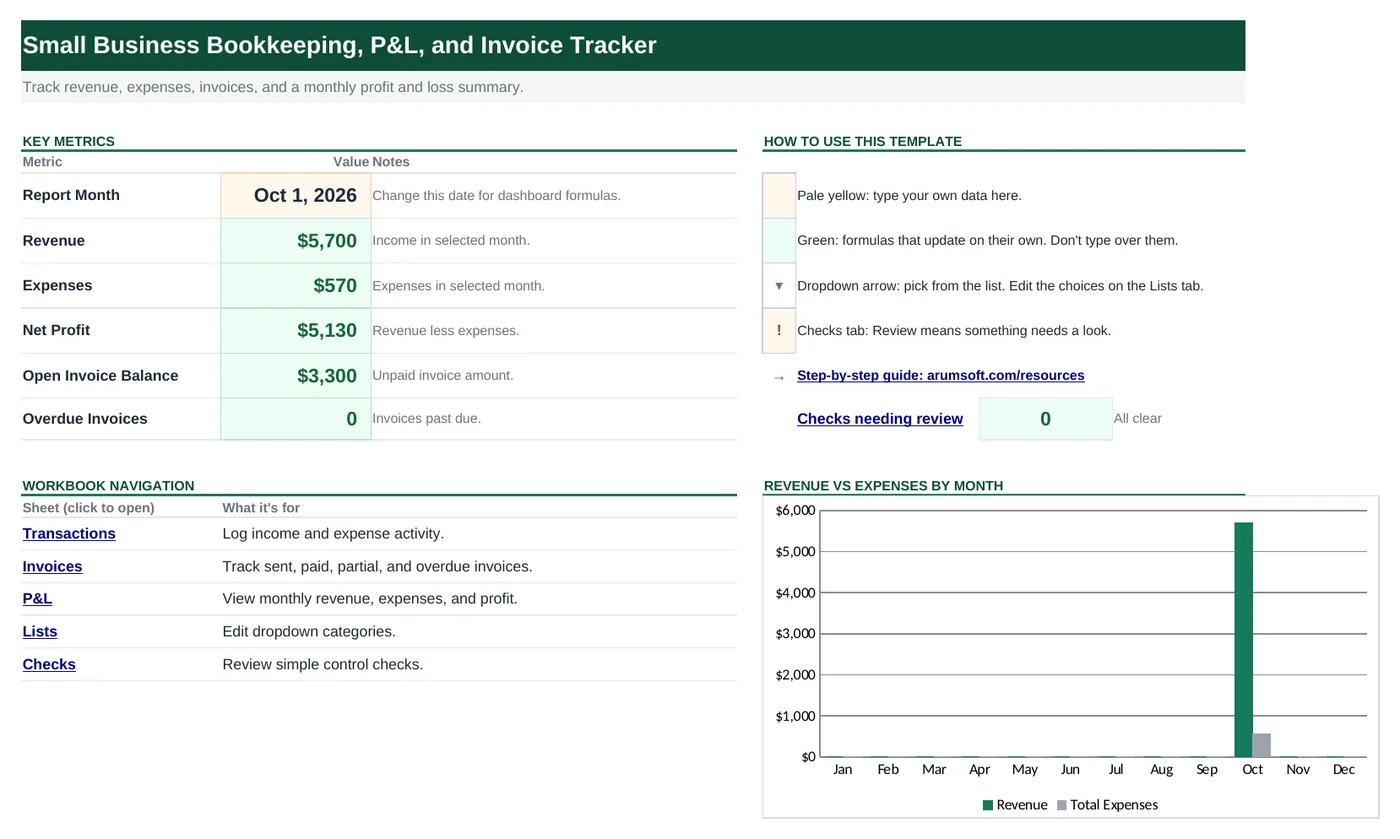
What's inside
The workbook has 6 sheets. You only type on a few of them; the rest calculate.
| Sheet | What it's for | You enter | Calculated for you |
|---|---|---|---|
| Start Here | Dashboard with the report month and five key numbers | Report month (B6) | Revenue, expenses, net profit, open invoice balance, overdue invoices |
| Transactions | One row per business transaction (room for 100) | Date, type, category, vendor or customer, description, invoice #, amount, tax, status | Nothing; it feeds the P&L and dashboard |
| Invoices | Invoices you have sent (room for 50) | Invoice #, date, client, due date, amount, tax, paid | Balance and status (Paid, Open, Overdue) |
| P&L | Profit and loss by month for 12 months | The month in column A | Revenue, COGS, operating expenses, total expenses, net profit, margin % |
| Lists | Dropdown choices for types, categories and statuses | Your own categories | Nothing |
| Checks | Four quick control checks | Nothing | OK or Review for each check |
Before you start
The template works as soon as you open it. Cell colors tell you what each cell is for:
- Open the file. If Excel shows a yellow Protected View bar, click Enable Editing. Files downloaded from the internet always open this way.
- Save your own copy with File› then Save As so you always have the original to start over from.
- Clear the sample data. Clear the sample transactions on Transactions (columns A to I) and the sample invoices on Invoices (columns A to G and J). Leave the green columns alone; they go blank by themselves when a row is empty.
Step-by-step guide
Work through these in order the first time. After that, you'll mostly repeat the daily or monthly entry steps.
Set the report month and your P&L year
On Start Here, type the first day of the month you want summarized in
B6, for example2026-11-01.On P&L, type the first month of your year in
A5(always the 1st, for example2026-01-01). The other 11 months follow automatically.Record income and expenses
On Transactions, add one row per sale, payment received, bill or purchase:
- Date and Type (Income or Expense from the dropdown).
- Category: pick from the dropdown: Sales, Services, COGS, Software, Marketing, Rent, Payroll, Office, Travel or Other.
- Vendor/Customer, Description and, for income from an invoice, the Invoice #.
- Amount: a positive number before tax. Tax goes in its own column and is not counted in the P&L.
- Status: Paid, Open or Pending from the dropdown, for your own reference.
Use COGS for the cost of what you sell
Costs that go directly into the product or service you sell (materials, stock bought for resale, subcontractors) should use Type Expense and Category COGS, spelled exactly like that.
The P&L splits them out so you can see gross cost separately from overhead like software, rent and marketing.
Track your invoices
On Invoices, add a row for each invoice you send: Invoice #, Date, Client, Due Date, Amount and Tax.
When money comes in, type the total received so far in Paid. For a partial payment, type the amount paid; when the rest arrives, update it to the full total.
Balance and Status fill in by themselves:
- Paid when the balance is zero
- Overdue when there is a balance and the due date has passed
- Open when there is a balance but it is not due yet
The Invoices sheet does not feed the P&L. Record the income on Transactions too, using the same Invoice # so you can match them up.
Read the P&L
Each row of P&L is one month:
- Revenue: all Income rows in that month
- COGS: Expense rows with Category COGS
- Operating Expenses: all other expenses
- Total Expenses, Net Profit (revenue minus total expenses) and Margin % (net profit as a share of revenue)
Check the dashboard
Start Here shows Revenue, Expenses and Net Profit for the month in
B6, plus the Open Invoice Balance (everything clients still owe) and the number of Overdue Invoices.Below that, a chart compares revenue with expenses for each month, and every sheet name under Workbook Navigation is a link to that sheet.
Review the Checks sheet
Checks flags four things with OK or Review: a negative month, overdue invoices, invoices without a client, and transactions without a date. Where to Fix points to the right sheet.
Customize your categories
The Type, Category and Status dropdowns read their choices from the Lists sheet.
To add a category such as "Equipment", type it in the next empty cell under Categories on Lists. It shows up in the dropdown right away.
How the formulas work
You don't need to understand the formulas to use the template, but they're a good way to learn. Click any cell in Excel to see its formula in the formula bar.
=SUMIFS(Transactions!$G$5:$G$104, Transactions!$B$5:$B$104, "Income",
       Transactions!$A$5:$A$104, ">="&$B$6,
       Transactions!$A$5:$A$104, "<"&DATE(YEAR($B$6), MONTH($B$6)+1, 1))
Adds the Amount column for Income rows dated from the first of the report month up to, but not including, the first of the next month.
Learn this: How to Use SUMIF and SUMIFS in Excel →=SUMIFS(...all Expense rows in the month...) - C5Total expenses for the month minus the COGS figure in column C, so nothing is counted twice.
Learn this: How to Use SUMIF and SUMIFS in Excel →=IF(A5="", "", MAX(0, E5+F5-G5))Amount plus tax minus what has been paid. MAX(0, ...) stops an overpayment from showing as a negative balance.
Learn this: How to Use MIN and MAX in Excel →=IF(A5="", "", IF(H5=0, "Paid", IF(D5<TODAY(), "Overdue", "Open")))A nested IF: no balance means Paid; otherwise compare the due date with TODAY().
Learn this: How to Use TODAY and NOW in Excel →=IFERROR(F5/B5, 0)Net profit divided by revenue. IFERROR shows 0 instead of #DIV/0! for months with no revenue.
Learn this: How to Use IFERROR in Excel →Tips and limits
- Room for 100 transactions and 50 invoices. To add more, press Ctrl+H, set Within to Workbook and Look in to Formulas, and replace
$104with$1004(and$54with$504for invoices). - Keep receipts and invoices somewhere safe; the spreadsheet is a summary, not proof.
- This is a simple tracker, not accounting or tax software. Ask an accountant how to treat tax, payroll and owner draws for your business.
Learn the skills behind this template
Was this guide helpful? Spot a mistake? Send feedback · admin@arumsoft.com