Excel Inventory Template: Stock, Purchase Order and Sales Tracker
Stock control for a small shop or side business: every purchase, adjustment and sale updates on-hand quantity and inventory value automatically, and low items are marked Reorder.
- Sheets:
- 7
- Works with:
- Excel for Microsoft 365, Excel 2016 or later, Excel for Mac and Excel for the web
- Updated:
What you can do with it
- Know how many of each product you have and what that stock is worth
- See which items have dropped to their reorder point
- Record sales with prices pulled from your product list
- Track purchase orders from Open to Received
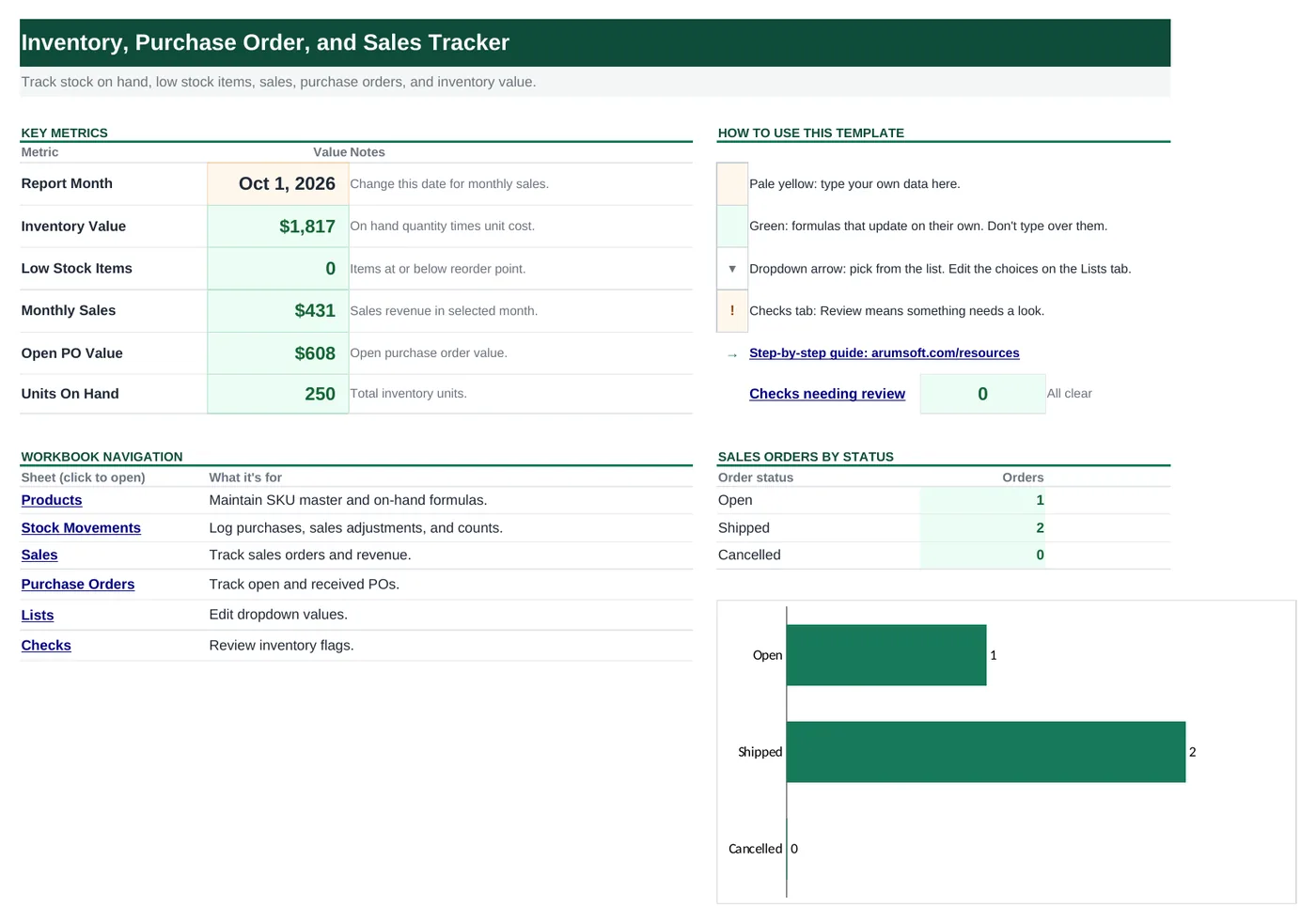
What's inside
The workbook has 7 sheets. You only type on a few of them; the rest calculate.
| Sheet | What it's for | You enter | Calculated for you |
|---|---|---|---|
| Start Here | Dashboard with the report month and five key numbers | Report month (B6) | Inventory value, low stock items, monthly sales, open PO value, units on hand |
| Products | Your product list (room for 50 SKUs) | SKU, product, category, unit cost, price, opening stock, reorder point | On hand, inventory value, status (Reorder or OK) |
| Stock Movements | Purchases received and stock adjustments (room for 100) | Date, SKU, type, quantity, unit cost | Value |
| Sales | Sales orders (room for 100) | Date, order #, SKU, customer, quantity, status | Unit price, revenue |
| Purchase Orders | Orders placed with suppliers (room for 50) | PO #, supplier, SKU, quantity, unit cost, dates, status | Total |
| Lists | Dropdown choices: movement types, statuses, product categories | Your own choices | Nothing |
| Checks | Four inventory checks | Nothing | OK or Review for each check |
Before you start
The template works as soon as you open it. Cell colors tell you what each cell is for:
- Open the file. If Excel shows a yellow Protected View bar, click Enable Editing. Files downloaded from the internet always open this way.
- Save your own copy with File› then Save As so you always have the original to start over from.
- Clear the sample data. Replace the three sample products on Products with your own, then clear the sample rows on Stock Movements, Sales and Purchase Orders. Only clear the pale-yellow cells; the green ones recalculate.
Step-by-step guide
Work through these in order the first time. After that, you'll mostly repeat the daily or monthly entry steps.
Set the report month
On Start Here, type the first day of the month in
B6. It controls Monthly Sales on the dashboard. Stock levels are always current, whatever month you choose.Build your product list
On Products, add one row per item:
- SKU: a short unique code such as
MUG-01. The other sheets pick SKUs from this list with a dropdown. - Product, and a Category from the dropdown (edit the categories on Lists).
- Unit Cost (what you pay) and Price (what you charge).
- Opening Stock: how many you have on the day you start using the template.
- Reorder Point: the quantity at which you want to reorder.
On Hand, Inventory Value and Status then calculate. Status shows Reorder, highlighted in red, as soon as On Hand is at or below the reorder point.
- SKU: a short unique code such as
Log stock coming in and corrections
Use Stock Movements for anything that changes stock other than a sale:
- Purchase: stock received from a supplier. Enter a positive quantity.
- Adjustment: corrections after a count, damage or loss. Use a negative quantity to remove stock (for example
-2) or a positive one to add it.
Fill in Date, pick the SKU and Type from the dropdowns, then enter Quantity and Unit Cost. Value (quantity × cost) calculates.
Record sales
On Sales, add one row per order: Date, Order #, SKU (from the dropdown), Customer and Quantity.
Unit Price is looked up from the Price column on Products, and Revenue is quantity × price.
Set Status to Open, Shipped or Cancelled to keep track of fulfilment.
Manage purchase orders
When you order from a supplier, add a row on Purchase Orders: PO #, supplier, SKU, quantity, unit cost, order date, expected date and Status Open. Total calculates, and all open POs add up to Open PO Value on the dashboard.
When the delivery arrives:
- Change the PO's Status to Received.
- Add a Purchase row on Stock Movements for the quantity received. This is the step that actually adds stock; the PO on its own does not.
Watch for low stock
On Products, filter the Status column to Reorder to see what needs ordering. The Low Stock Items count on Start Here shows how many there are.
Read the dashboard
Start Here shows Inventory Value (on hand × unit cost), Low Stock Items, Monthly Sales, Open PO Value and total Units On Hand.
Next to the navigation links there's a count and chart of sales orders by status, so open orders don't get forgotten.
Review the Checks sheet
Checks looks for low stock, negative stock (usually a missing purchase entry), sales without a SKU, and reorder items that have no open purchase order. Where to Fix tells you which sheet to open.
Customize the dropdowns
Movement types, sales and PO statuses and product categories come from the Lists sheet. Type a new item in the next empty cell of a column and it appears in that dropdown.
The SKU dropdowns on Stock Movements, Sales and Purchase Orders list the SKUs on Products, so a new product is ready to use as soon as you add it.
How the formulas work
You don't need to understand the formulas to use the template, but they're a good way to learn. Click any cell in Excel to see its formula in the formula bar.
=IF(A5="", "", F5
   + SUMIFS('Stock Movements'!$D$5:$D$104, 'Stock Movements'!$B$5:$B$104, A5, 'Stock Movements'!$C$5:$C$104, "Purchase")
   + SUMIFS('Stock Movements'!$D$5:$D$104, 'Stock Movements'!$B$5:$B$104, A5, 'Stock Movements'!$C$5:$C$104, "Adjustment")
   - SUMIFS(Sales!$E$5:$E$104, Sales!$C$5:$C$104, A5, Sales!$H$5:$H$104, "<>Cancelled"))
Opening stock, plus purchases and adjustments for this SKU, minus the quantity sold. The last condition, "<>Cancelled", means "not equal to Cancelled", so cancelled orders are left out.
Learn this: How to Use SUMIF and SUMIFS in Excel →=IF(A5="", "", IF(H5<=G5, "Reorder", "OK"))Compares on-hand quantity with the reorder point.
Learn this: How to Use the IF Function in Excel →=IF(C5="", "", IFERROR(VLOOKUP(C5, Products!$A$5:$E$54, 5, FALSE), 0))Finds the SKU in the first column of the product list and returns the 5th column (Price). FALSE means exact match only. IFERROR returns 0 if the SKU isn't found.
Learn this: How to Use VLOOKUP in Excel →=COUNTIF(Products!$J$5:$J$54, "Reorder")Counts how many products have the status Reorder.
Learn this: How to Use COUNTIF and COUNTIFS in Excel →Tips and limits
- Capacity: 50 products, 100 stock movements, 100 sales and 50 purchase orders. To extend, press Ctrl+H, set Within to Workbook and Look in to Formulas, and replace
$104with$1004(and$54with$504). - Do a physical count now and then. If the count differs from On Hand, add an Adjustment row for the difference rather than changing Opening Stock.
- Change a product's Price on Products and new sales use the new price. Older sales rows also update, so for exact history, type the old price over the green Unit Price cell on those rows.
Learn the skills behind this template
Was this guide helpful? Spot a mistake? Send feedback · admin@arumsoft.com