Intermediate Excel · Tutorial 3 of 12
Logic Formulas in Excel: IF with AND, OR and IFS
Turn business rules into formulas: sort values into tiers with IFS, test several conditions with AND and OR, and catch errors with IFERROR.
- Level
- Intermediate
- Time
- 13 min read
- Updated:
- Applies to:
- Excel for Microsoft 365, Excel 2021, Excel 2019, Excel for the web
What you'll learn
- Write an IF formula that returns one of two outcomes
- Sort a value into three or more tiers with IFS and a TRUE catch-all
- Combine conditions with AND and OR inside IF
- Show a fallback instead of an error with IFERROR, without hiding real problems
Example file
Logic Formulas in Excel - IF with AND, OR and IFS.xlsx
Download the workbook used in this tutorial and follow along in Excel.
Excel workbook (.xlsx) · 7 KB
Function Playground
Try these functions in a live sheet
Type formulas in an Excel-style grid and watch each step of the calculation. Free, no sign-up.
IF answers one yes-or-no question. Real rules usually need more: several tiers, several conditions at once, or a sensible result when the math can't be done. This tutorial shows you how to write those rules with IFS, AND, OR and IFERROR, and how to keep them readable.
The examples use a sales team's goal sheet. Columns E to H hold the rules you'll build; a few cells are still empty.
| A | B | C | D | E | F | G | H | |
|---|---|---|---|---|---|---|---|---|
| 1 | Rep | Sales | Goal | Rate | Status | Tier | Review | Ratio |
| 2 | Ari Lane | 18,400 | 17,500 | 5% | Met Goal | Met | No | 105.1% |
| 3 | Mina Patel | 14,600 | 16,000 | 5% | Below Goal | 91.3% | ||
| 4 | Jon Bell | 22,100 | 20,000 | 6% | Met Goal | Met | No | 110.5% |
| 5 | Lena Ortiz | 9,900 | 12,000 | 4% | Review | Yes | 82.5% | |
| 6 | Dev Singh | 31,500 | 30,000 | 7% | Met Goal | Met | No | 105% |
| 7 | Priya Shah | 0 | 0 | 5% | Met Goal | #DIV/0! | No |
One condition, two outcomes: IF
IF checks a condition and returns one value when it's true and another when it's false.
=IF(logical_test, value_if_true, value_if_false)- logical_test is a comparison that is either TRUE or FALSE, such as
B5>=C5. - value_if_true is what the cell shows when the test is TRUE.
- value_if_false is what it shows when the test is FALSE.
To fill Lena Ortiz's Status, click E5 and type:
=IF(B5>=C5,"Met Goal","Below Goal")Her sales (9,900) are less than her goal (12,000), so the test is FALSE and E5 shows Below Goal. Text results go in double quotes; numbers and cell references don't.
You can build a test with any of these comparison operators:
| Operator | Meaning | Example |
|---|---|---|
= | equal to | D2=0.05 |
<> | not equal to | D2<>0.05 |
> and < | greater than, less than | B2>20000 |
>= and <= | greater than or equal to, less than or equal to | B2>=C2 |
Sort values into tiers with IFS
A Tier column needs three outcomes: Met for 100% of goal or more, Close for 90% or more, and Review for everything else. IFS checks pairs of conditions and results in order and returns the result of the first condition that's TRUE.
=IFS(test1, value1, [test2, value2], ...)Click the Tier cell for Mina Patel
Click F3. Mina sold 14,600 against a goal of 16,000, which is 91% of her goal (
B3/C3is 0.9125).Write the tiers from highest to lowest
Type:
=IFS(B3/C3>=1,"Met",B3/C3>=0.9,"Close",TRUE,"Review")Excel checks
B3/C3>=1first. It's FALSE, so Excel moves toB3/C3>=0.9, which is TRUE, and returns Close. It never looks at the rest.End with TRUE for everything else
The last pair,
TRUE,"Review", is a catch-all: TRUE is always true, so any value that failed the earlier tests lands here. Without it, a value that matches none of the conditions returns#N/A. Lena Ortiz (82.5% of goal) shows Review because of this pair.
Order matters. IFS stops at the first TRUE, so test the strictest condition first. If you put B2/C2>=0.9 first, Ari Lane, at 105%, would be labeled Close, because 1.05 is also at least 0.9.
Before IFS, the same rule needed one IF inside another:
=IF(B3/C3>=1,"Met",IF(B3/C3>=0.9,"Close","Review"))It returns the same result, but every extra tier adds another IF( and another closing parenthesis. Once you're past two outcomes, IFS is easier to read and to check.
Combine conditions with AND and OR
AND and OR take several tests and return a single TRUE or FALSE, which makes them perfect as the test inside IF.
AND(test1, test2, ...)is TRUE only when every test is TRUE.OR(test1, test2, ...)is TRUE when at least one test is TRUE.
AND: both rules must hold. Say a bonus goes to reps who met their goal and sold more than 20,000. In row 4:
=IF(AND(B4>=C4,B4>20000),"Yes","No")Jon Bell sold 22,100 against a goal of 20,000, so both tests are TRUE and the result is Yes. Copied down the list, only Jon Bell and Dev Singh get Yes. Ari Lane also met the goal, but 18,400 isn't more than 20,000.
OR: any one rule is enough. The Review column flags a rep who is below goal or has a commission rate under 5%. Click G3 and type:
=IF(OR(B3<C3,D3<0.05),"Yes","No")Mina Patel is below goal, so the first test alone makes OR TRUE and G3 shows Yes. Her rate is exactly 5%, so the second test is FALSE, but that doesn't matter with OR.
You can also type the rate as a percentage, D3<5%; Excel reads it as 0.05. And NOT flips a result: NOT(B5>=C5) is TRUE when Lena is not at goal.
Show a fallback instead of an error with IFERROR
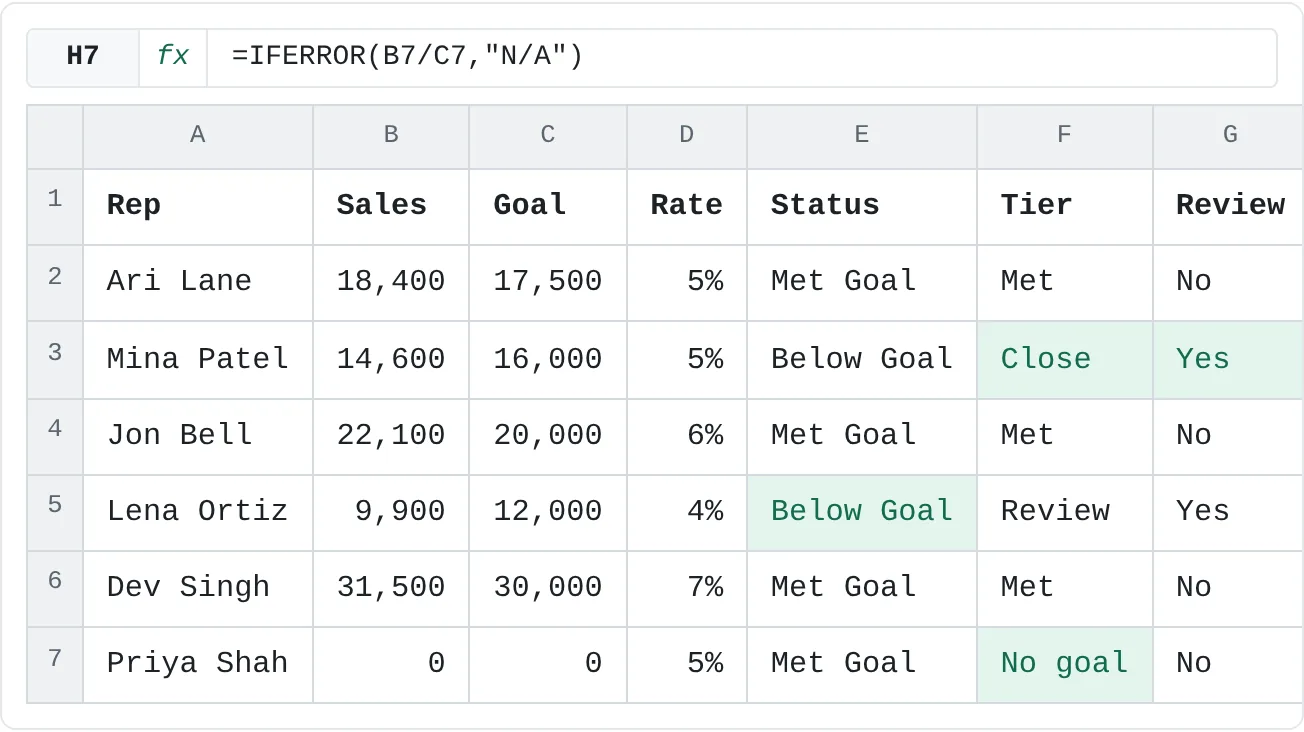
Priya Shah has just joined, so her goal is still 0. Her ratio, B7/C7, divides by zero and shows #DIV/0!. IFERROR catches the error and shows something you choose instead.
=IFERROR(value, value_if_error)Click H7 and type:
=IFERROR(B7/C7,"N/A")H7 shows N/A. In the other rows, the division works and IFERROR passes the ratio through unchanged: H3 still shows Mina's 91.3% (0.9125, formatted as a percentage).
The same goes for whole formulas. Priya's Tier in F7 shows #DIV/0! too, because the IFS divides by her goal. Wrap it:
=IFERROR(IFS(B7/C7>=1,"Met",B7/C7>=0.9,"Close",TRUE,"Review"),"No goal")| A | B | C | D | E | F | G | H | |
|---|---|---|---|---|---|---|---|---|
| 1 | Rep | Sales | Goal | Rate | Status | Tier | Review | Ratio |
| 2 | Ari Lane | 18,400 | 17,500 | 5% | Met Goal | Met | No | 105.1% |
| 3 | Mina Patel | 14,600 | 16,000 | 5% | Below Goal | Close | Yes | 91.3% |
| 4 | Jon Bell | 22,100 | 20,000 | 6% | Met Goal | Met | No | 110.5% |
| 5 | Lena Ortiz | 9,900 | 12,000 | 4% | Below Goal | Review | Yes | 82.5% |
| 6 | Dev Singh | 31,500 | 30,000 | 7% | Met Goal | Met | No | 105% |
| 7 | Priya Shah | 0 | 0 | 5% | Met Goal | No goal | No | N/A |
Keep long rules readable
- Put thresholds in cells. Instead of typing
0.9into every formula, put it in a cell such as K2 and refer to it as$K$2. Changing the rule then means changing one cell. - Use IFS instead of nesting. Two outcomes:
IF. Three or more tiers:IFS. - Break a long formula over several lines. Click in the formula bar and press Alt+Enter to start a new line inside the formula. Excel ignores the line breaks when it calculates.
- Test the edge values. Check a value exactly on each boundary, like a ratio of exactly 1 or 0.9, to confirm
>=and>do what you meant.
Common mistakes
- Numbers in quotes.
B2>="20000"compares a number with text, and Excel always ranks text above numbers, so the test is FALSE for every rep. Write numbers without quotes:B2>=20000. - Text without quotes.
=IF(B5>=C5,Met,Below)returns#NAME?, because Excel looks for names called Met and Below. Put text results in double quotes. - Tiers in the wrong order. In
IFSand nestedIF, the first TRUE wins. Test from the strictest condition down. - No catch-all in IFS. Values that match no condition return
#N/A. End withTRUE,and a result for everything else. - Missing data that passes the test. Priya's Status shows Met Goal, because 0 is greater than or equal to 0. When an empty or zero input means "unknown", check for it first:
=IF(C7=0,"No goal",IF(B7>=C7,"Met Goal","Below Goal")). - Writing a range as two comparisons.
=IF(0.9<=B3/C3<1,...)doesn't work as you'd expect in Excel. UseAND(B3/C3>=0.9,B3/C3<1).
Practice
Practice
Build tiered rules for your own goals
- Open a sheet that tracks progress against a target: sales, grades, savings or fundraising. If you don't have one, type the six reps from this tutorial.
- Add a Status column with
IFthat says whether each row met its target. - Add a Tier column with a three-tier
IFSrule, strictest condition first, ending withTRUE. - Add a Review column that flags a row with
ANDorOR, for example below target or missing a value. - Add a ratio column, wrap it in
IFERROR, and test it by setting one target to 0.
Then complete the four empty cells on the sheet below.
Try it0 of 4 done
- In E5, show Met Goal if Lena's Sales (B5) are at least her Goal (C5), otherwise Below Goal.
- In F3, use IFS to show Met if Mina reached 100% of her goal, Close if she reached 90%, otherwise Review.
- In G3, show Yes if Mina is below goal OR her rate (D3) is under 5%, otherwise No.
- In H7, divide Priya's Sales by her Goal, but show N/A instead of an error, because her goal is still 0.
Click a dashed cell, type a formula in the bar and press Enter.
| A | B | C | D | E | F | G | H | |
|---|---|---|---|---|---|---|---|---|
| 1 | Rep | Sales | Goal | Rate | Status | Tier | Review | Ratio |
| 2 | Ari Lane | 18,400 | 17,500 | 5% | Met Goal | Met | No | 105.1% |
| 3 | Mina Patel | 14,600 | 16,000 | 5% | Below Goal | 91.3% | ||
| 4 | Jon Bell | 22,100 | 20,000 | 6% | Met Goal | Met | No | 110.5% |
| 5 | Lena Ortiz | 9,900 | 12,000 | 4% | Review | Yes | 82.5% | |
| 6 | Dev Singh | 31,500 | 30,000 | 7% | Met Goal | Met | No | 105% |
| 7 | Priya Shah | 0 | 0 | 5% | Met Goal | #DIV/0! | No |
Check your skills
- Can you write an
IFformula that returns one of two outcomes? - Can you write an
IFSformula that sorts a value into three or more tiers, with a catch-all at the end? - Can you combine two conditions with
ANDorORinsideIF? - Can you wrap a formula in
IFERRORso a bad input shows a message instead of an error, and explain when not to?
Related
Was this guide helpful? Spot a mistake? Send feedback · admin@arumsoft.com