Intermediate Excel · Tutorial 4 of 12
Lookup Formulas in Excel: XLOOKUP, VLOOKUP and INDEX/MATCH
Pull a price or category from a reference table with XLOOKUP, read and write VLOOKUP and INDEX/MATCH, and handle values that aren't in the list.
- Level
- Intermediate
- Time
- 14 min read
- Updated:
- Applies to:
- Excel for Microsoft 365, Excel 2024, Excel 2021, Excel for the web. VLOOKUP and INDEX/MATCH also work in Excel 2019 and earlier.
What you'll learn
- Explain what an exact-match lookup does
- Pull a value from a reference table with XLOOKUP
- Read and write VLOOKUP with an exact match, and explain its limits
- Combine INDEX and MATCH with match type 0
- Show a message instead of #N/A when a value isn't in the table
Before you start
Example file
Lookup Formulas in Excel - XLOOKUP, VLOOKUP and INDEX - MATCH.xlsx
Download the workbook used in this tutorial and follow along in Excel.
Excel workbook (.xlsx) · 7 KB
Function Playground
Try these functions in a live sheet
Type formulas in an Excel-style grid and watch each step of the calculation. Free, no sign-up.
A lookup formula finds a value in a reference table and brings back the information next to it, such as the price of a product or the department of an employee. Instead of typing a price into every order, you keep one product list and let the orders read from it. Change a price in the list once and every order that uses it updates.
This tutorial uses a small order sheet. The orders are on the left; the product list they read from is in F1:H5.
| A | B | C | D | E | F | G | H | |
|---|---|---|---|---|---|---|---|---|
| 1 | Product | Price | Category | Product | Category | Price | ||
| 2 | Widget B | Widget A | Hardware | 12 | ||||
| 3 | Power Strip | Electronics | Widget B | Hardware | 18 | |||
| 4 | USB Hub | #N/A | Cable Tie | Accessories | 3 | |||
| 5 | Cable Tie | 3 | Accessories | Power Strip | Electronics | 22 |
How a lookup works
Every lookup does the same two things:
- It searches one column, the lookup column, for a value that matches exactly. Here, that's the Product column F2:F5.
- It returns whatever sits in the same row of another column, such as the Price column H2:H5.
To find the price of Widget B, Excel goes down F2:F5, finds Widget B in the second row of the list (F3) and returns the value in the second row of H2:H5: 18.
"Exact match" means the whole value must be the same, apart from capital letters, which lookups ignore: widget b matches Widget B, but Widget B with a trailing space doesn't.
A reference table works best when:
- Each value in the lookup column appears only once. If Widget B were listed twice, a lookup would return the first one it finds and ignore the other.
- It sits apart from the data that reads from it, with an empty column or row between them, or on its own sheet.
- It holds the only copy of each value. Never type a price into an order "because that's what it costs today". The lookup is what keeps orders up to date.
Look up a value with XLOOKUP
XLOOKUP is the modern lookup function. You tell it what to find, where to find it and what to return.
=XLOOKUP(lookup_value, lookup_array, return_array, [if_not_found])- lookup_value is the value to find, usually a cell such as
A2. - lookup_array is the column to search:
F2:F5. - return_array is the column to return a value from:
H2:H5. It must have the same number of rows as lookup_array. - if_not_found is optional: what to show when there's no match.
XLOOKUP looks for an exact match unless you tell it otherwise, so three arguments are enough for most lookups.
Click the cell for the result
Click B2, the Price cell of the Widget B order.
Type the formula
Type the formula below. The
$signs lock the product list, so the formula still points at F2:F5 and H2:H5 when you copy it down to other orders.=XLOOKUP(A2,$F$2:$F$5,$H$2:$H$5)Press Enter
B2 shows 18, the price of Widget B. Change H3 to 20 and B2 changes with it.
A B C D E F G H 1 Product Price Category Product Category Price 2 Widget B 18 Widget A Hardware 12 3 Power Strip Electronics Widget B Hardware 18 4 USB Hub #N/A Cable Tie Accessories 3 5 Cable Tie 3 Accessories Power Strip Electronics 22 XLOOKUP searches F2:F5 for Widget B, finds it in the second row and returns the second value of H2:H5, 18.
To return the category instead of the price, change only the return array: =XLOOKUP(A3,$F$2:$F$5,$G$2:$G$5) returns Electronics for the Power Strip. XLOOKUP can also return a column to the left of the lookup column, because the two ranges are separate arguments.
Show a message when the value isn't there
The USB Hub isn't in the product list, so a plain lookup returns #N/A, which means "no match found". Fill in the fourth argument to show something clearer. Click B4 and type:
=XLOOKUP(A4,$F$2:$F$5,$H$2:$H$5,"Not found")B4 shows Not found. You can return any text, a number such as 0, or "" to leave the cell looking empty.
A message like this is better than hiding the problem: it tells you the order names a product the list doesn't have yet, so you can add it or fix a typo.
Read and write VLOOKUP
VLOOKUP is the older lookup function. It's in almost every workbook built before XLOOKUP arrived, so you need to be able to read it.
=VLOOKUP(lookup_value, table_array, col_index_num, [range_lookup])- lookup_value is the value to find.
- table_array is the whole reference table, here
F2:H5. VLOOKUP always searches the first column of this range. - col_index_num is the column number to return, counted from the left of table_array: 1 is Product, 2 is Category, 3 is Price.
- range_lookup: type
FALSEfor an exact match. Always fill it in. If you leave it out, VLOOKUP uses approximate match, which on an unsorted list can return the wrong row without any error.
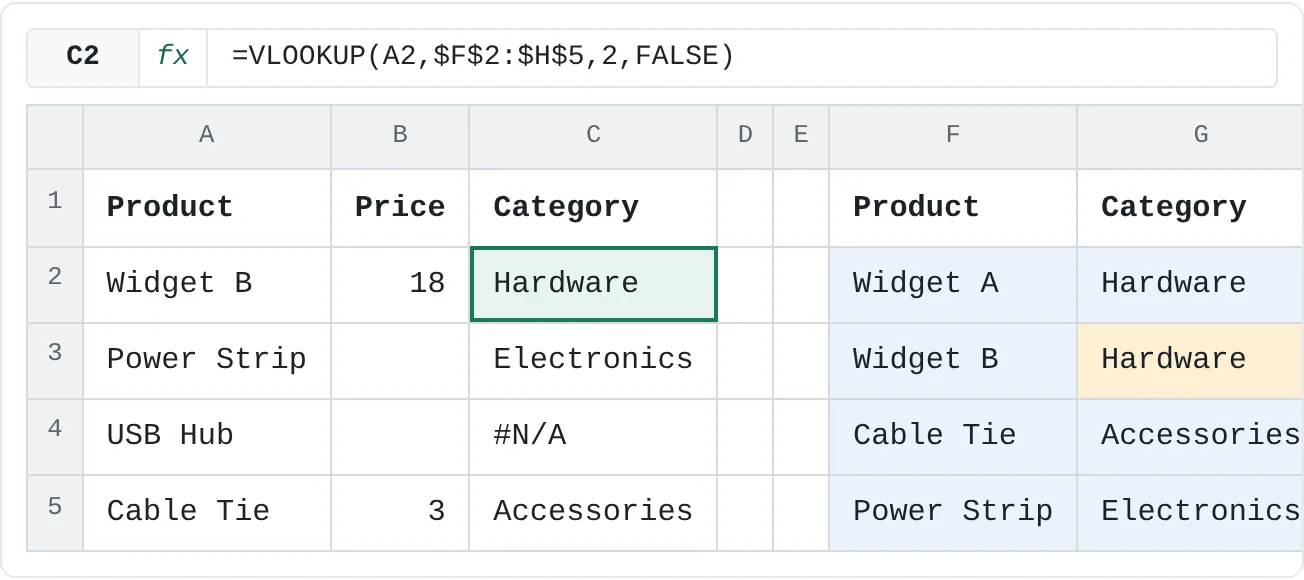
To get Widget B's category, click C2 and type:
=VLOOKUP(A2,$F$2:$H$5,2,FALSE)C2 shows Hardware. Change the 2 to a 3 and the same formula returns the price, 18.
| A | B | C | D | E | F | G | H | |
|---|---|---|---|---|---|---|---|---|
| 1 | Product | Price | Category | Product | Category | Price | ||
| 2 | Widget B | 18 | Hardware | Widget A | Hardware | 12 | ||
| 3 | Power Strip | Electronics | Widget B | Hardware | 18 | |||
| 4 | USB Hub | #N/A | Cable Tie | Accessories | 3 | |||
| 5 | Cable Tie | 3 | Accessories | Power Strip | Electronics | 22 |
VLOOKUP has two limits that XLOOKUP doesn't:
- It only looks to the right. The lookup column must be the first column of table_array. If the price sat to the left of the product name, VLOOKUP couldn't return it.
- The column number is typed in. Insert a column inside the table, say between Category and Price, and the price moves to column 4, but the formula still asks for column 3. It now returns the wrong column, without an error.
To replace #N/A in a VLOOKUP, wrap it in IFNA: =IFNA(VLOOKUP(A4,$F$2:$H$5,3,FALSE),"Not found").
Combine INDEX and MATCH
Before XLOOKUP, experienced users paired two functions to get the same flexibility. They still work in every version of Excel.
MATCH finds the position of a value in a list:
=MATCH(A3,$F$2:$F$5,0)The Power Strip is the 4th item in F2:F5, so this returns 4. The last argument, 0, means exact match. Always type it: without it, MATCH assumes a sorted list and looks for the closest smaller value.
INDEX returns the value at a position in a list: =INDEX($H$2:$H$5,4) returns the 4th price, 22.
Put MATCH inside INDEX and you have a lookup. Click B3 and type:
=INDEX($H$2:$H$5,MATCH(A3,$F$2:$F$5,0))| A | B | C | D | E | F | G | H | |
|---|---|---|---|---|---|---|---|---|
| 1 | Product | Price | Category | Product | Category | Price | ||
| 2 | Widget B | 18 | Hardware | Widget A | Hardware | 12 | ||
| 3 | Power Strip | 22 | Electronics | Widget B | Hardware | 18 | ||
| 4 | USB Hub | #N/A | Cable Tie | Accessories | 3 | |||
| 5 | Cable Tie | 3 | Accessories | Power Strip | Electronics | 22 |
B3 shows 22. Like XLOOKUP, INDEX/MATCH uses two separate ranges, so it can return a column to the left of the lookup column, and inserting a column doesn't break it.
Which one should you use?
| XLOOKUP | VLOOKUP | INDEX/MATCH | |
|---|---|---|---|
| Exact match by default | Yes | No: add FALSE | No: add 0 |
| Return a column to the left | Yes | No | Yes |
| Survives inserted columns | Yes | No | Yes |
| Built-in "not found" message | Yes | Wrap in IFNA | Wrap in IFNA |
| Works in Excel 2019 and earlier | No | Yes | Yes |
Use XLOOKUP when everyone who opens the file has Microsoft 365 or Excel 2021 or later. Use INDEX/MATCH when the file must work in older versions. Recognize VLOOKUP so you can read and fix existing workbooks.
| A | B | C | D | E | F | G | H | |
|---|---|---|---|---|---|---|---|---|
| 1 | Product | Price | Category | Product | Category | Price | ||
| 2 | Widget B | 18 | Hardware | Widget A | Hardware | 12 | ||
| 3 | Power Strip | 22 | Electronics | Widget B | Hardware | 18 | ||
| 4 | USB Hub | Not found | #N/A | Cable Tie | Accessories | 3 | ||
| 5 | Cable Tie | 3 | Accessories | Power Strip | Electronics | 22 |
Why does a lookup return #N/A?
- The value really isn't in the list. Check the spelling, then add the missing item or use the not-found argument.
- Extra spaces.
Widget Bwith a trailing space doesn't matchWidget B. Clean the values withTRIM, or retype them. - Numbers stored as text. A product code stored as the number 1001 doesn't match the text "1001". Make both columns the same type, for example with Convert to Number.
- The ranges moved when you copied the formula. Without
$signs,F2:F5becomesF3:F6in the next row, and items at the top of the list drop out of the search. Lock the reference table:$F$2:$F$5.
Common mistakes
- Leaving out FALSE or 0.
VLOOKUPwithoutFALSEandMATCHwithout0assume a sorted list and can return a near match instead of an error. For exact lookups, always type them. - Counting the column number from column A. In
VLOOKUP, col_index_num counts from the first column of table_array. InF2:H5, Price is column 3, not column 8. - Return and lookup ranges of different sizes.
=XLOOKUP(A2,F2:F5,H2:H6)returns#VALUE!. Make both ranges cover the same rows. - Hiding every problem with IFERROR.
IFERRORaround a lookup also hides#REF!and#NAME?from broken formulas. Prefer XLOOKUP's fourth argument orIFNA, which only catch "not found".
Practice
Practice
Pull fields from your own reference table
- Build a reference table of your own: products and prices, employees and departments, or course codes and titles. Make sure each value in the lookup column appears only once.
- Next to it, start a second table that lists some of those values, plus one that isn't in the reference table.
- Use
XLOOKUPto pull two different fields into the second table, with the reference ranges locked by$, and copy the formulas down. - Add a fourth argument so the missing value shows a clear message instead of
#N/A. - Rewrite one of the lookups with
INDEXandMATCH, then once withVLOOKUPandFALSE, and check that all three give the same answer.
Then fill in the four empty cells on the sheet below.
Try it0 of 4 done
- In B2, use XLOOKUP to find Widget B in the product list (F2:F5) and return its price from H2:H5.
- In C2, use VLOOKUP with an exact match to return Widget B's category, the 2nd column of F2:H5.
- In B3, return the Power Strip's price with INDEX and MATCH, using match type 0.
- In B4, look up the USB Hub's price, which isn't in the list, and show Not found instead of #N/A.
Click a dashed cell, type a formula in the bar and press Enter.
| A | B | C | D | E | F | G | H | |
|---|---|---|---|---|---|---|---|---|
| 1 | Product | Price | Category | Product | Category | Price | ||
| 2 | Widget B | Widget A | Hardware | 12 | ||||
| 3 | Power Strip | Electronics | Widget B | Hardware | 18 | |||
| 4 | USB Hub | #N/A | Cable Tie | Accessories | 3 | |||
| 5 | Cable Tie | 3 | Accessories | Power Strip | Electronics | 22 |
Check your skills
- Can you explain what "exact match" means when you look up a value in a table?
- Can you write an
XLOOKUPthat pulls a price from a separate reference table? - Can you read a
VLOOKUPformula, and explain whyXLOOKUPorINDEX/MATCHis safer when columns get inserted? - Can you handle a lookup value that isn't in the table without showing
#N/A?
Related
Was this guide helpful? Spot a mistake? Send feedback · admin@arumsoft.com