Excel Basics · Tutorial 6 of 12
Copying Formulas and Cell References in Excel
Write a formula once and copy it down a whole column with the fill handle, and understand how Excel adjusts each copy's cell references.
- Level
- Beginner
- Time
- 9 min read
- Updated:
- Applies to:
- Excel for Microsoft 365, Excel 2021, Excel 2019, Excel for the web
What you'll learn
- Copy a formula down a column with the fill handle, a double-click or Ctrl+D
- Explain how a relative reference such as B2 changes when a formula is copied
- Copy and paste a formula and predict its new references
- Recognize when a reference must stay fixed and needs $ signs
Before you start
Example file
Copying Formulas and Cell References in Excel.xlsx
Download the workbook used in this tutorial and follow along in Excel.
Excel workbook (.xlsx) · 7 KB
Watch the video
Video · Follow along as the video writes a formula once, copies it down and across, and shows how each reference changes.
Most tables need the same calculation on every row: price times quantity, budget minus actual, points divided by the maximum. You write the formula once, in the first row, and copy it down. Excel adjusts the cell references in each copy so that every row works with its own numbers. Once you know how that adjustment works, you can fill a column of hundreds of rows with confidence, and spot the cases where you need to stop it.
The examples use a small order list. Each row has a price and a quantity, and the Total column is still empty.
| A | B | C | D | |
|---|---|---|---|---|
| 1 | Item | Price | Qty | Total |
| 2 | Mug | 9 | 4 | |
| 3 | Notebook | 4 | 6 | |
| 4 | Folder | 2 | 10 | |
| 5 | Stapler | 12 | 2 |
Copy a formula down with the fill handle
Write the formula for the first row
Click D2, type the formula below and press Enter. D2 shows 36 (9 × 4).
=B2*C2Find the fill handle
Click D2 again. The small square at the bottom-right corner of the selected cell is the fill handle. When you point at it, the pointer changes to a thin black cross.
Drag it down to the last row
Hold the mouse button down on the fill handle, drag down to D5 and let go. D3, D4 and D5 show 24, 20 and 24: each row's price times its own quantity.
A B C D 1 Item Price Qty Total 2 Mug 9 4 36 3 Notebook 4 6 24 4 Folder 2 10 20 5 Stapler 12 2 24 One formula in D2, filled down to D5. Every row now has its own total.
Two faster ways do the same job:
- Double-click the fill handle. Excel fills the formula down as far as the data in the column next to it goes, here to row 5. On a list with hundreds of rows, this saves a lot of dragging.
- Fill Down with the keyboard. Select D2:D5, the formula and the empty cells under it, and press Ctrl+D. Excel copies the top cell into the rest of the selection. Ctrl+R does the same to the right, copying the leftmost cell across.
The fill handle works sideways too: drag it to the right to copy a formula along a row.
What changes when you copy
Click D3 and look at the formula bar. It shows =B3*C3, a formula nobody typed. That's because a plain reference such as B2 is a relative reference. Excel doesn't really remember "B2"; it remembers where B2 is compared with the formula cell: "two columns to my left, on my row". When the formula is copied one row down, the cells it reads move one row down with it.
| Cell | Formula | Result |
|---|---|---|
| D2 | =B2*C2 | 36 |
| D3 | =B3*C3 | 24 |
| D4 | =B4*C4 | 20 |
| D5 | =B5*C5 | 24 |
Same shape, new row. To see every formula on the sheet instead of its result, press Ctrl+` (the key above Tab), or go to Formulas then Formula Auditing then Show Formulas. Press it again to switch back.
| A | B | C | D | |
|---|---|---|---|---|
| 1 | Item | Price | Qty | Total |
| 2 | Mug | 9 | 4 | =B2*C2 |
| 3 | Notebook | 4 | 6 | =B3*C3 |
| 4 | Folder | 2 | 10 | =B4*C4 |
| 5 | Stapler | 12 | 2 | =B5*C5 |
The rule is simple:
- Copy down or up: row numbers change by the number of rows you moved. Column letters stay the same.
- Copy right or left: column letters change by the number of columns you moved. Row numbers stay the same.
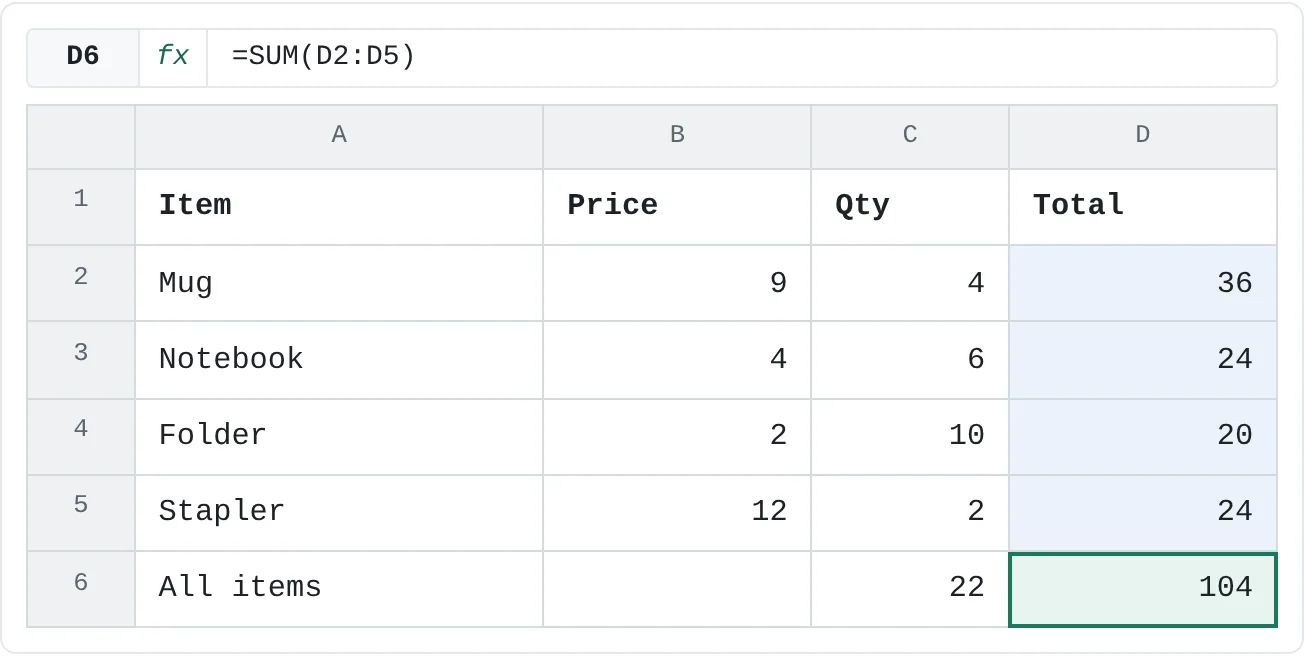
Here's the second rule in action. Click C6 and enter =SUM(C2:C5) to total the quantities: 22. Then drag the fill handle from C6 one cell to the right. The copy in D6 reads =SUM(D2:D5) and totals the order: 104.
| A | B | C | D | |
|---|---|---|---|---|
| 1 | Item | Price | Qty | Total |
| 2 | Mug | 9 | 4 | 36 |
| 3 | Notebook | 4 | 6 | 24 |
| 4 | Folder | 2 | 10 | 20 |
| 5 | Stapler | 12 | 2 | 24 |
| 6 | All items | 22 | 104 |
Copy and paste a formula
Ctrl+C and Ctrl+V work on formulas the same way they work on plain values, and references shift by the same rule: by however many rows and columns lie between the original cell and the place you paste. Copy D2 and paste it into D5, and the pasted formula is =B5*C5. You can also paste into several cells at once: copy D2, select D3:D5 and press Ctrl+V.
The shift happens wherever you paste, which can surprise you. Paste D2's formula into F2, two columns to the right, and it becomes =D2*E2: 36 times an empty cell. Excel treats an empty cell as 0 in a calculation, so the result is 0.
Moving is different from copying. If you cut a formula (Ctrl+X) and paste it, or drag the cell by its border, the formula keeps its references exactly as they were. =B2*C2 moved to F2 still reads =B2*C2.
To paste only a formula's result, not the formula, click the arrow under Paste on the Home tab and choose Values.
When a reference shouldn't move
Sometimes every row needs the same cell. Suppose a 10% discount is typed once in F1, and the total should take the discount off. In D2 you write:
=B2*C2*(1-F1)D2 shows 32.4, which is correct. But copied down to D3, the formula becomes =B3*C3*(1-F2). F2 is empty, so row 3 gets no discount and shows 24 instead of 21.6. There's no error message; the number is just wrong.
The fix is to lock the reference with dollar signs. Right after you type F1, press F4 and Excel changes it to $F$1:
=B2*C2*(1-$F$1)A reference with $ signs is an absolute reference. It stays on F1 wherever you copy it, while B2 and C2 keep moving with each row. Relative, absolute and mixed references get a full tutorial of their own later on; for now, remember to ask "should this reference move when I copy?" before you fill a column.
Common mistakes
- Typing the formula into every row. It's slower, and a typo in one row is hard to spot. Write the first row, check it, then copy it.
- A shared cell that slides away. If a formula uses one cell that every row needs, such as a rate or a target, copies point at the empty cells below it. Lock it with
$. - Double-clicking fills too few rows. A double-click on the fill handle stops at the first blank cell in the column next to it. Check the last row of your data, and drag or use Ctrl+D if the fill stopped early.
- Every copy shows the same answer. If the copies show the first row's result even though the formulas look right, the workbook is set to calculate manually. Go to Formulas then Calculation then Calculation Options and choose Automatic.
- Dragging the border instead of the fill handle. When the pointer shows a four-headed arrow, dragging moves the cell instead of copying it. Press Ctrl+Z and grab the small square in the corner instead.
Practice
Practice
Fill a real table
- In a new sheet, build a Price × Quantity table with at least six rows: an item name, a price and a quantity in each row.
- Write the Total formula once, in the first row.
- Copy it down every remaining row with the fill handle.
- Click the last total and check the formula bar: does it point at the price and quantity on its own row?
- Work out one total in your head or on a calculator and compare it with Excel's answer.
- Under the Qty column, add a
SUM, then copy it one cell to the right to total the Total column.
Then try the formulas in the sheet below. Click a highlighted cell, type the formula and press Enter.
Try it0 of 3 done
- In D2, multiply the Mug's price in B2 by its quantity in C2.
- In D4, type the formula Excel would create if you copied D2 two rows down.
- In C6, add up all the quantities in C2:C5 with SUM.
Click a dashed cell, type a formula in the bar and press Enter.
| A | B | C | D | |
|---|---|---|---|---|
| 1 | Item | Price | Qty | Total |
| 2 | Mug | 9 | 4 | |
| 3 | Notebook | 4 | 6 | |
| 4 | Folder | 2 | 10 | |
| 5 | Stapler | 12 | 2 | |
| 6 | All items |
Check your skills
- Can you use the fill handle to copy a formula down a column?
- Can you copy and paste a formula into a new cell and predict which cells it will use?
- Can you explain what changes in
=A2*B2when it's copied to the row below? - Can you tell when a reference needs
$signs so it stays on the same cell?
Related
Was this guide helpful? Spot a mistake? Send feedback · admin@arumsoft.com