Excel Budget Template: Personal Budget, Bills and Debt Tracker
A monthly money workbook: record transactions once and the template fills in your budget-vs-actual table, bill due dates, debt payoff estimates and a one-page dashboard.
- Sheets:
- 7
- Works with:
- Excel for Microsoft 365, Excel 2016 or later, Excel for Mac and Excel for the web
- Updated:
What you can do with it
- See income, expenses and net cash flow for any month
- Set a budget per category and spot overspending (shown in red)
- Keep a list of recurring bills with this month's due dates and paid status
- Estimate how long each debt will take to pay off, and what an extra payment saves
What's inside
The workbook has 7 sheets. You only type on a few of them; the rest calculate.
| Sheet | What it's for | You enter | Calculated for you |
|---|---|---|---|
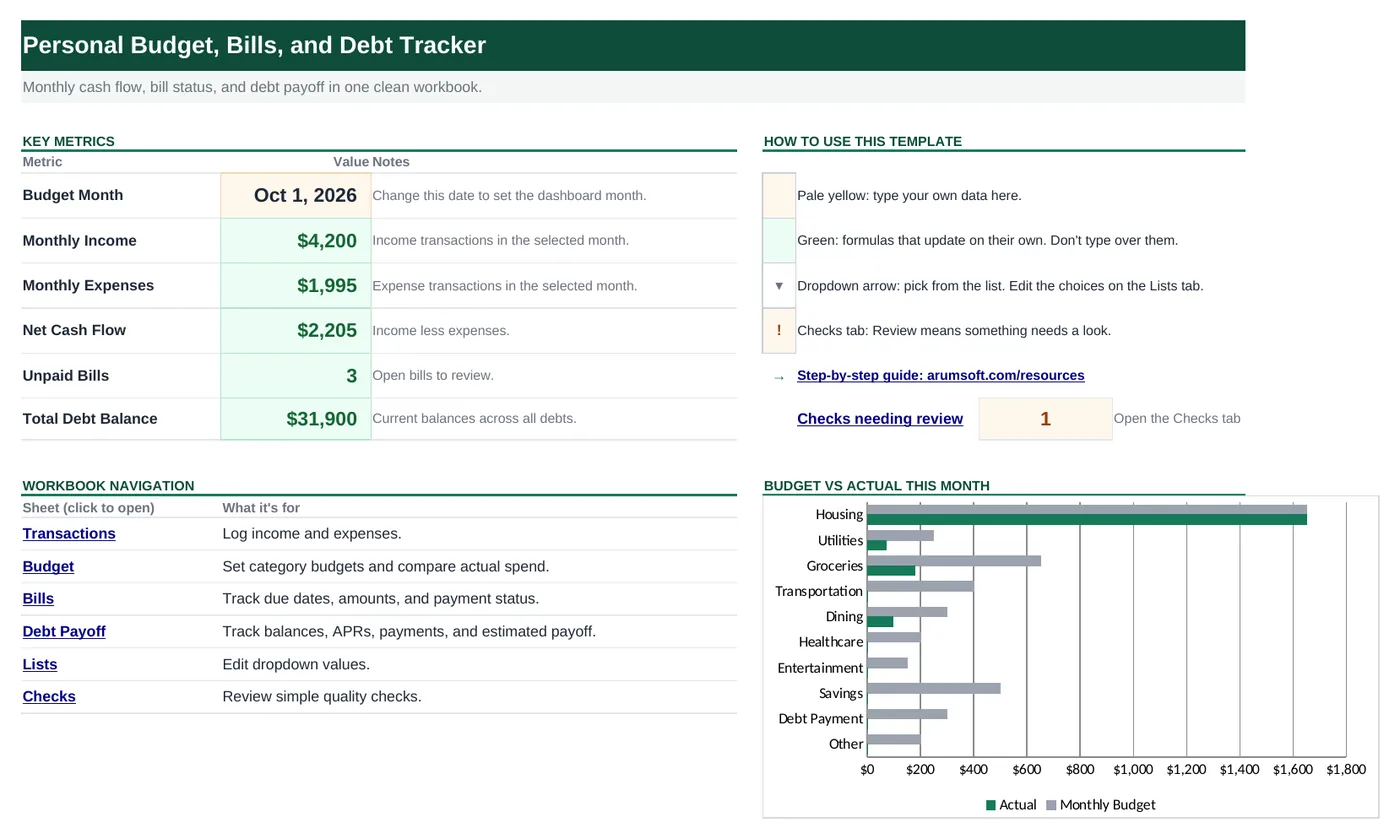
| Start Here | Dashboard with the month selector and five key numbers | Budget month (B6) | Income, expenses, net cash flow, unpaid bills, total debt |
| Transactions | One row per income or expense (room for 100) | Date, description, category, type, amount, account | Nothing; it feeds the other sheets |
| Budget | Monthly target for 10 spending categories | Monthly budget per category | Actual, variance, used % |
| Bills | Recurring bills (room for 50) | Bill, category, due day, amount, auto pay, status | Next due date |
| Debt Payoff | Balances and payoff estimates (room for 30) | Debt, balance, APR, minimum and extra payment | Total payment, estimated months |
| Lists | Dropdown choices for the whole workbook | Your own categories and choices | Nothing |
| Checks | Four quick health checks | Nothing | OK or Review for each check |
Before you start
The template works as soon as you open it. Cell colors tell you what each cell is for:
- Open the file. If Excel shows a yellow Protected View bar, click Enable Editing. Files downloaded from the internet always open this way.
- Save your own copy with File› then Save As so you always have the original to start over from.
- Clear the sample data. Sample rows are filled in so you can see how it works. On Transactions clear the sample entries in columns A to G. On Bills and Debt Payoff clear or overwrite the sample bills and debts. On Budget, keep the category names and just type your own amounts in column B.
Step-by-step guide
Work through these in order the first time. After that, you'll mostly repeat the daily or monthly entry steps.
Set the budget month
Go to Start Here and type the first day of the month you want to see in cell
B6, for example2026-11-01.Everything that is monthly follows this one cell: income and expenses on the dashboard, the Actual column on Budget, and the Next Due Date column on Bills.
Record your transactions
On Transactions, add one row for each paycheck, purchase or payment:
- Date: the day the money came in or went out.
- Description: anything that helps you recognize it later, such as "Rent" or "Trader Joe's".
- Category: pick from the dropdown (Housing, Groceries, Paycheck and so on).
- Type: pick Income or Expense.
- Amount: always a positive number. The Type column decides whether it is added or subtracted.
- Account and Notes are optional, for example Checking or Credit Card.
Set your monthly budget
On Budget, type how much you plan to spend in each category in the Monthly Budget column.
The green columns then fill in for the month in
B6:- Actual: total expenses in that category for the month.
- Variance: budget minus actual. A negative number, shown in red brackets, means you overspent.
- Used %: how much of the budget is gone. Over 100% means over budget.
Track your bills
On Bills, list each recurring bill once: name, category, Due Day (the day of the month, 1 to 31), amount, whether it is on Auto Pay and its Status.
Next Due Date is calculated from the budget month and the due day, so it always shows this month's date.
When you pay a bill, change its Status to Paid. The Unpaid Bills count on Start Here goes down.
At the start of each new month, set every Status back to Unpaid and change
B6to the new month.Plan your debt payoff
On Debt Payoff, add each loan or card: current Balance, APR as a percentage (type
22.9%), the Minimum Payment and any Extra Payment you plan to add.Total Payment adds the two payments. Est. Months estimates how many monthly payments are left at that amount, including interest.
Try raising Extra Payment by $50 and watch Est. Months drop. That is the quickest way to see what paying a little more is worth.
If Est. Months shows Review, the payment does not cover the monthly interest, so the balance would never go down. Increase the payment.
Update the balances from your statements once a month.
Read the dashboard
Back on Start Here, the Key Metrics table shows the month at a glance: Monthly Income, Monthly Expenses, Net Cash Flow (income minus expenses), Unpaid Bills and Total Debt Balance.
The Budget vs actual chart compares each category with its target, Checks needing review counts anything that needs a look, and every sheet name under Workbook Navigation is a link that jumps straight to it.
Review the Checks sheet
Checks tests four things and shows OK (green) or Review (amber):
- Net cash flow is not negative
- No bills are unpaid
- Every debt payment covers at least the interest
- Budget amounts are filled in
When a check says Review, the Where to Fix column tells you which sheet to look at.
Change the dropdown choices
Every dropdown reads its choices from the Lists sheet, so that's the only place you need to edit.
To add a category such as "Pets":
- On Lists, type
Petsin the next empty cell under Categories. It appears in the Category dropdowns on Transactions and Bills right away. - To budget for it, add a Pets row to the Budget sheet and copy the formulas from the row above.
- On Lists, type
How the formulas work
You don't need to understand the formulas to use the template, but they're a good way to learn. Click any cell in Excel to see its formula in the formula bar.
=SUMIFS(Transactions!$E$5:$E$104, Transactions!$D$5:$D$104, "Income",
       Transactions!$A$5:$A$104, ">="&$B$6,
       Transactions!$A$5:$A$104, "<"&DATE(YEAR($B$6), MONTH($B$6)+1, 1))
Adds the Amount column where Type is Income and the date is on or after the first of the month in B6 and before the first of the next month. Monthly Expenses is the same formula with "Expense".
Learn this: How to Use SUMIF and SUMIFS in Excel →=SUMIFS(Transactions!$E$5:$E$104, Transactions!$C$5:$C$104, A5,
Transactions!$D$5:$D$104, "Expense", ...same month test...)The same idea with one more condition: the Category must match the name in column A.
Learn this: How to Use SUMIF and SUMIFS in Excel →=IF(A5="", "", DATE(YEAR('Start Here'!$B$6), MONTH('Start Here'!$B$6),
MIN(C5, DAY(EOMONTH('Start Here'!$B$6, 0)))))Builds a date from the year and month in B6 and the due day in column C. EOMONTH finds the last day of the month, and MIN stops a due day of 31 from spilling into the next month. IF leaves the cell blank on empty rows.
Learn this: Text and Date Functions in Excel →=IF(A5="", "", IFERROR(ROUNDUP(NPER(C5/12, -F5, B5), 0), "Review"))NPER returns how many payments it takes to pay off a balance at a given rate. APR is divided by 12 for a monthly rate, the payment is negative because it is money going out, and ROUNDUP turns 31.2 into 32 months. IFERROR shows Review when the payment can never pay off the debt.
Learn this: How to Use IFERROR in Excel →=IF('Start Here'!$B$9>=0, "OK", "Review")A simple IF test. Conditional formatting turns OK green and Review amber.
Learn this: How to Use the IF Function in Excel →Tips and limits
- The formulas look at rows 5 to 104 of Transactions, which is room for 100 entries. When you run out, save a copy for the new quarter or year and clear the old rows, or widen the ranges: press Ctrl+H, set Within to Workbook and Look in to Formulas, and replace
$104with$1004. - Clear cell contents with Delete instead of deleting whole rows, so the formulas keep their ranges.
- Don't type over the green cells. If you overwrite one by accident, press Ctrl+Z, or copy the formula from the cell above.
- Amounts are estimates for your own planning, not financial advice. Debt payoff months assume the APR and payment stay the same.
Learn the skills behind this template
Was this guide helpful? Spot a mistake? Send feedback · admin@arumsoft.com