Excel Basics · Tutorial 10 of 12
How to Write IF Statements in Excel
Turn a comparison into a clear answer with IF, then count and total the rows that meet a condition with COUNTIF and SUMIF.
- Level
- Beginner
- Time
- 11 min read
- Updated:
- Applies to:
- Excel for Microsoft 365, Excel 2021, Excel 2019, Excel for the web
What you'll learn
- Write an IF formula that shows one result when a condition is true and another when it's false
- Use comparison operators such as >= and <> in a condition
- Count the cells that meet a condition with COUNTIF
- Total only the rows that meet a condition with SUMIF
Before you start
Example file
How to Write IF Statements in Excel.xlsx
Download the workbook used in this tutorial and follow along in Excel.
Excel workbook (.xlsx) · 7 KB
Function Playground
Try IF in a live sheet
Type formulas in an Excel-style grid and watch each step of the calculation. Free, no sign-up.
IF lets a formula make a decision. It asks a yes-or-no question, such as "is this score 70 or more?", and shows one answer for yes and another for no. Once you have a column of answers, COUNTIF and SUMIF tell you how many rows got each answer and what they add up to.
The examples use this score sheet. Each student's score is in column B, the passing line (70) in column C, and the result goes in column D.
| A | B | C | D | |
|---|---|---|---|---|
| 1 | Student | Score | Passing Line | Result |
| 2 | Ravi | 82 | 70 | |
| 3 | Elena | 58 | 70 | |
| 4 | Owen | 91 | 70 | |
| 5 | Talia | 64 | 70 | |
| 6 | Mina | 77 | 70 |
How IF works
=IF(logical_test, value_if_true, value_if_false)- logical_test is the question: a comparison that is either TRUE or FALSE, such as
B2>=70. - value_if_true is what the cell shows when the answer is TRUE.
- value_if_false is what it shows when the answer is FALSE.
Text answers go in straight double quotes ("Pass"). Numbers, cell references and calculations don't.
A comparison uses one of these operators:
| Operator | Meaning | Example | TRUE when… |
|---|---|---|---|
= | equal to | D2="Pass" | D2 says Pass |
<> | not equal to | D2<>"Pass" | D2 says anything else |
> | greater than | B2>90 | the score is above 90 |
< | less than | B2<70 | the score is below 70 |
>= | greater than or equal to | B2>=70 | the score is 70 or more |
<= | less than or equal to | B2<=50 | the score is 50 or less |
Write a Pass/Fail formula
Click the first result cell
Click D2, next to Ravi's score.
Type the formula
Type the formula below. It reads: "If the score in B2 is greater than or equal to the passing line in C2, show Pass, otherwise show Fail."
=IF(B2>=C2,"Pass","Fail")Press Enter
Ravi scored 82, which is at least 70, so D2 shows Pass.
Copy the formula down
Click D2 again and double-click the fill handle, the small square at the bottom-right corner of the cell. Excel copies the formula to D6 and adjusts the row numbers as it goes, so D3 checks B3 against C3, and so on.
A B C D 1 Student Score Passing Line Result 2 Ravi 82 70 Pass 3 Elena 58 70 Fail 4 Owen 91 70 Pass 5 Talia 64 70 Fail 6 Mina 77 70 Pass Ravi, Owen and Mina pass. Elena (58) and Talia (64) are below the line.
You could also write the passing line straight into the formula: =IF(B2>=70,"Pass","Fail"). Keeping it in a cell has one advantage: if the line changes to 75, you change C2:C6 and every result updates, with no formulas to edit.
Return a number, a calculation or a blank
IF can show anything a formula can produce, not only text.
To show 0 for everyone who passed, and for everyone else how many points they are short of the line:
=IF(B2>=C2,0,C2-B2)Copied down, this gives 0 for Ravi, 12 for Elena (70 − 58), 0 for Owen, 6 for Talia (70 − 64) and 0 for Mina.
To flag only the top scores and leave every other cell empty, use two double quotes with nothing between them ("") as the false result:
=IF(B2>=90,"Excellent","")Only Owen (91) gets Excellent; the other four cells look blank.
Count matching cells with COUNTIF
Once column D is filled in, you can count the passes without adding another column.
=COUNTIF(range, criteria)- range is the cells to check.
- criteria is what to look for, in double quotes when it's text or a comparison.
=COUNTIF(D2:D6,"Pass")That returns 3: Ravi, Owen and Mina. The match ignores capitals, so "pass" works too.
The criteria can also be a comparison, written as text in quotes. This counts the scores of 80 or more and returns 2 (Ravi's 82 and Owen's 91):
=COUNTIF(B2:B6,">=80")To compare with a cell instead of a typed number, join the operator to the cell with &. This counts the scores at or above the passing line in C2 and returns 3:
=COUNTIF(B2:B6,">="&C2)Total matching rows with SUMIF
SUMIF adds numbers, but only in the rows that meet a condition.
=SUMIF(range, criteria, [sum_range])- range is the cells to check against the criteria.
- criteria is the condition, written the same way as in
COUNTIF. - sum_range is the cells to add, in the same rows. If you leave it out, Excel adds the cells in range itself.
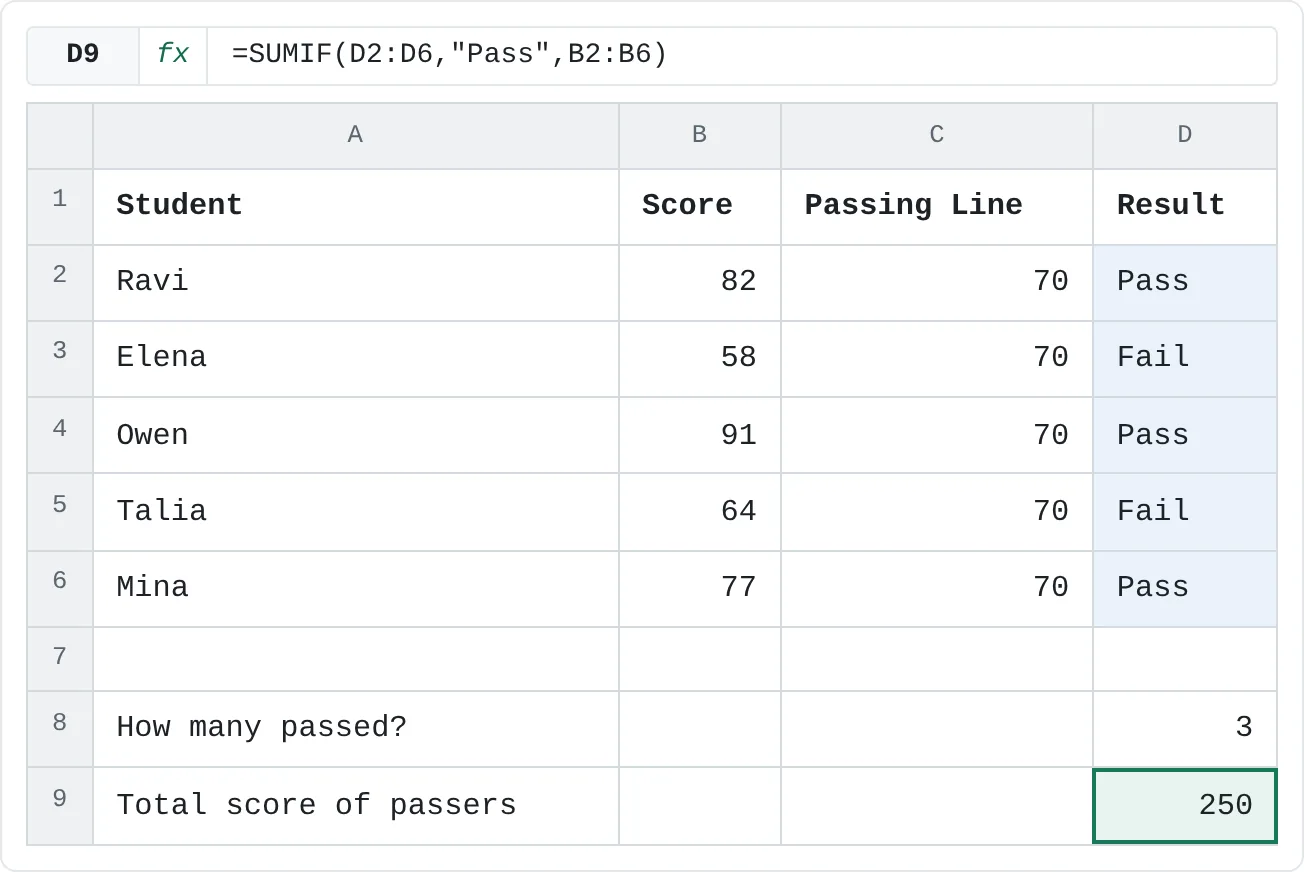
To add up the scores of only the students who passed:
=SUMIF(D2:D6,"Pass",B2:B6)Excel checks D2:D6 for Pass and adds the matching scores from B2:B6: 82 + 91 + 77 = 250. Divide by the COUNTIF result and you have the passers' average: 250 / 3 = 83.33.
| A | B | C | D | |
|---|---|---|---|---|
| 1 | Student | Score | Passing Line | Result |
| 2 | Ravi | 82 | 70 | Pass |
| 3 | Elena | 58 | 70 | Fail |
| 4 | Owen | 91 | 70 | Pass |
| 5 | Talia | 64 | 70 | Fail |
| 6 | Mina | 77 | 70 | Pass |
| 7 | ||||
| 8 | How many passed? | 3 | ||
| 9 | Total score of passers | 250 |
Without sum_range, the range and the numbers are the same cells: =SUMIF(B2:B6,">=80") adds the scores of 80 or more and returns 173 (82 + 91).
Common mistakes
- Text without quotes.
=IF(B2>=70,Pass,Fail)returns #NAME?, because Excel looks for something called Pass. Put text results in double quotes. - Numbers in quotes.
=IF(B2>="70","Pass","Fail")compares a number with text, and Excel always treats text as larger than any number, so everyone fails. Write70without quotes insideIF. (InCOUNTIFandSUMIFcriteria, the quotes are correct.) - Curly quotes. Formulas copied from a word processor may contain curly quotes (“ ”), which Excel doesn't accept. Retype them as straight quotes.
- A stray space. A cell containing
Passwith a trailing space doesn't match"Pass", soCOUNTIFcomes out too low. Clean the data first. - Arguments in the wrong order in SUMIF. The cells to check come first and the cells to add come last. Swapping them returns 0.
Practice
Practice
Grade a class
Use the sheet below first: fill in Mina's result, then count and total the passes. Afterwards, build the same thing in Excel for a class of your own:
- List at least eight students and their scores, with the passing line in a column next to them.
- Use
IFto mark each student Pass or Fail, and copy it down. - In a cell below the list, count the passes with
COUNTIF. - In another cell, total the passers' scores with
SUMIF. - Change the passing line to 75 and watch every result update.
Try it0 of 3 done
- In D6, show Pass if Mina's score in B6 is at least the passing line in C6, otherwise Fail.
- In D8, count how many students passed.
- In D9, add up the scores of only the students who passed.
Click a dashed cell, type a formula in the bar and press Enter.
| A | B | C | D | |
|---|---|---|---|---|
| 1 | Student | Score | Passing Line | Result |
| 2 | Ravi | 82 | 70 | Pass |
| 3 | Elena | 58 | 70 | Fail |
| 4 | Owen | 91 | 70 | Pass |
| 5 | Talia | 64 | 70 | Fail |
| 6 | Mina | 77 | 70 | |
| 7 | ||||
| 8 | How many passed? | |||
| 9 | Total score of passers |
Check your skills
- Can you write an
IFformula that returns "Pass" or "Fail" based on a score? - Can you choose between
>and>=so the boundary value lands on the right side? - Can you count how many rows meet a condition with
COUNTIF? - Can you total only the rows that meet a condition with
SUMIF?
Related
Was this guide helpful? Spot a mistake? Send feedback · admin@arumsoft.com