Excel Basics · Tutorial 5 of 12
Essential Excel Functions: SUM, AVERAGE, COUNT, MIN and MAX
Summarize any column of numbers with five functions: total it, average it, count it and find its lowest and highest values.
- Level
- Beginner
- Time
- 10 min read
- Updated:
- Applies to:
- Excel for Microsoft 365, Excel 2021, Excel 2019, Excel for the web
What you'll learn
- Write a function with a range such as B2:B6
- Total and average a column with SUM and AVERAGE
- Find the lowest and highest values with MIN and MAX
- Count the cells that hold numbers with COUNT
- Insert any of these functions from the AutoSum menu
Before you start
Example file
Essential Excel Functions - SUM, AVERAGE, COUNT, MIN and MAX.xlsx
Download the workbook used in this tutorial and follow along in Excel.
Excel workbook (.xlsx) · 7 KB
Watch the video
Video · Follow along as the video summarizes a column of numbers with SUM, AVERAGE, MIN, MAX and COUNT.
Function Playground
Try these functions in a live sheet
Type formulas in an Excel-style grid and watch each step of the calculation. Free, no sign-up.
A function is a formula someone has already written for you. Instead of adding a column cell by cell, you give the function a range and Excel does the work. Five functions cover most everyday summaries: SUM, AVERAGE, MIN, MAX and COUNT. Together they tell you the total, the typical value, the extremes and how many entries you actually have.
The examples use a reading tracker. Eli hasn't logged any pages yet, so B6 is empty; you'll see how each function treats that empty cell.
| A | B | |
|---|---|---|
| 1 | Reader | Pages read |
| 2 | Avery | 150 |
| 3 | Ben | 90 |
| 4 | Chloe | 120 |
| 5 | Dev | 65 |
| 6 | Eli | |
| 7 | Total | |
| 8 | Average | |
| 9 | Readers with pages | |
| 10 | Highest − lowest |
How a function is built
Every function follows the same pattern:
=SUM(B2:B6)=starts the formula, as always.SUMis the function's name. Capitals don't matter; Excel converts them for you.- The parentheses hold the arguments, the values the function works on. Here it's one range.
B2:B6is a range: every cell from B2 down to B6, five cells in all. The colon means "through".
=SUM(B2:B6) and =B2+B3+B4+B5+B6 give the same answer, but the function is shorter, is easier to check, and if you insert a row inside the range later, the range grows to include it.
As you type =AV, Excel lists the functions whose names start with those letters. Press Tab to accept the highlighted one; Excel fills in the name and the opening parenthesis.
Total and average a column
Total the pages with SUM
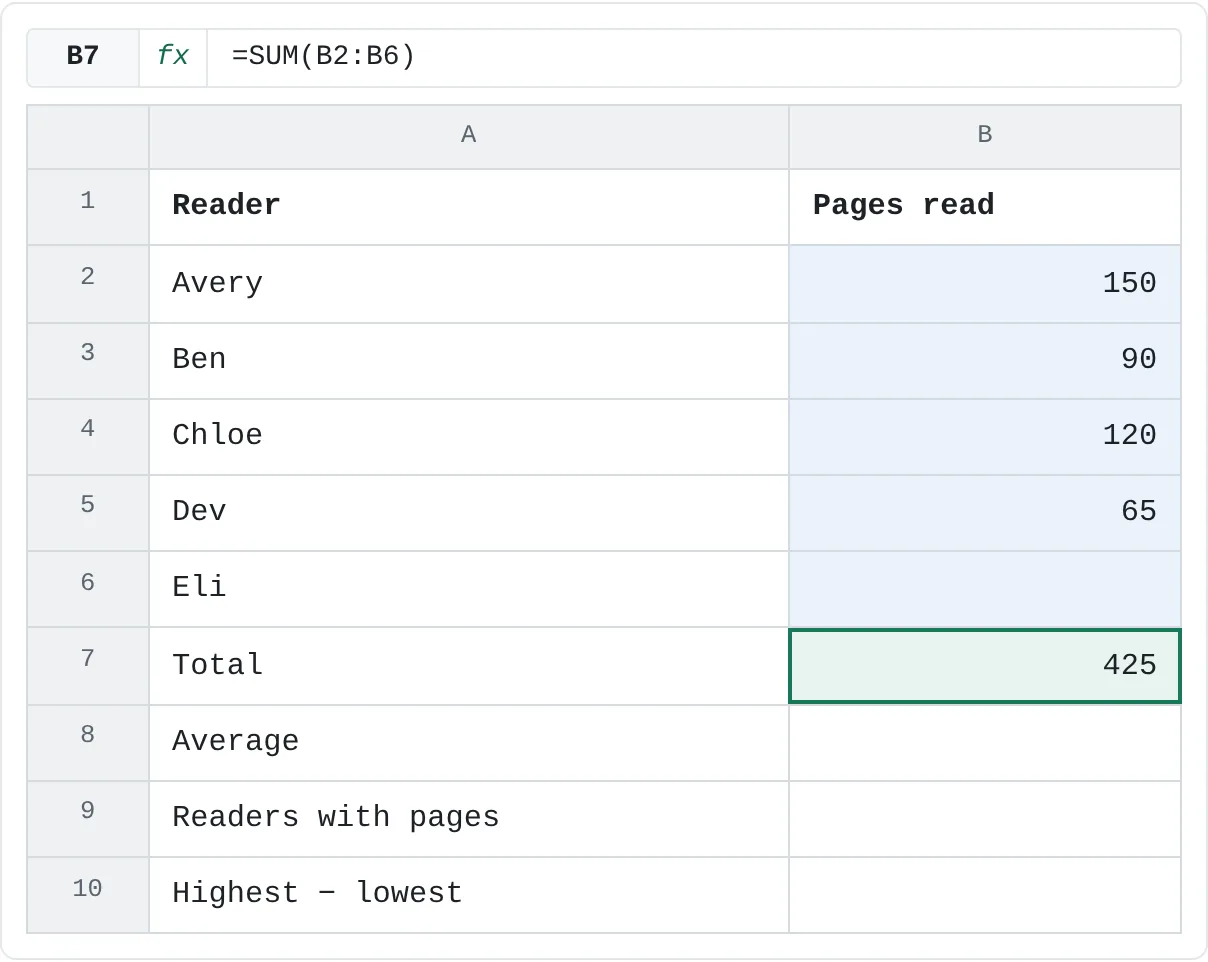
Click B7, type
=SUM(, select B2:B6 and press Enter. The result is 425.A B 1 Reader Pages read 2 Avery 150 3 Ben 90 4 Chloe 120 5 Dev 65 6 Eli 7 Total 425 8 Average 9 Readers with pages 10 Highest − lowest SUM adds every number in B2:B6. The empty cell adds nothing. Find the average with AVERAGE
Click B8 and enter the formula below. The result is 106.25.
=AVERAGE(B2:B6)
Look at how AVERAGE got 106.25. It added the four numbers (425) and divided by 4, not 5, because it skips empty cells. That's usually what you want: Eli hasn't reported yet, so he shouldn't pull the average down.
A zero is different. If B6 held 0, AVERAGE would divide by 5 and return 85. Leave a cell empty when a value is missing, and type 0 only when the value really is zero.
Find the lowest and highest values
MIN returns the smallest number in a range and MAX the largest:
=MIN(B2:B6)=MAX(B2:B6)Like AVERAGE, both skip empty cells. With a 0 in B6, MIN would return 0.
You can combine functions with ordinary arithmetic. The gap between the most and the fewest pages read is:
=MAX(B2:B6)-MIN(B2:B6)MIN and MAX give you the value, not the name next to it. Finding who read 150 pages is a job for a lookup function, which comes later.
Count your entries
COUNT tells you how many cells in a range hold a number. It doesn't add anything up.
=COUNT(B2:B6)The result is 4: the empty cell isn't counted. COUNT skips text too, so =COUNT(A2:A6) returns 0, because the names are text. To count every cell that isn't empty, numbers and text alike, use COUNTA. =COUNTA(A2:A6) returns 5, one for each reader.
Comparing the two tells you something useful: 5 readers, 4 entries, so one person still has to report.
| A | B | |
|---|---|---|
| 1 | Reader | Pages read |
| 2 | Avery | 150 |
| 3 | Ben | 90 |
| 4 | Chloe | 120 |
| 5 | Dev | 65 |
| 6 | Eli | |
| 7 | Total | 425 |
| 8 | Average | 106.25 |
| 9 | Readers with pages | 4 |
| 10 | Highest − lowest | 85 |
Insert a function from the AutoSum menu
You don't have to type these functions. Click the cell for the result, then go to Home then Editing and click the arrow next to AutoSum (the Σ button). The menu lists Sum, Average, Count Numbers, Max and Min. Pick one and Excel writes the formula with a range it guesses from the numbers nearby. The same menu is in Formulas then Function Library.
Check the outlined range before you press Enter. AutoSum guesses from the cells around the result, and it stops at blank cells, so in a list with gaps it can select too little. Drag over the right cells to correct it.
Common mistakes
- Typing 0 for a missing value.
AVERAGE,MINandCOUNTall treat 0 as a real number. Leave the cell empty instead. - Numbers stored as text. If a number sits on the left of its cell or shows a small green triangle, Excel sees text. All five functions skip it, so the results come out wrong. Convert it to a number first.
- Including the result cell in the range.
=SUM(B2:B7)typed in B7 refers to itself and causes a circular reference warning. Keep the summary outside the range. - A misspelled function name.
=AVERGE(B2:B6)returns#NAME?. Pick the name from the list Excel shows while you type. - AVERAGE of no numbers. If a range has no numbers at all,
AVERAGEreturns#DIV/0!, because it would have to divide by zero.
Practice
Practice
Summarize a real column
Pick any column of numbers you have in Excel: grades, expenses, sales, steps walked. Under it, add labels and formulas for:
- The total, with
SUM. - The average, with
AVERAGE. - The lowest and highest values, with
MINandMAX. - How many entries there are, with
COUNT. - Then delete one value and watch which results change.
Afterwards, complete the reading tracker below. Click a highlighted cell, type the formula and press Enter.
Try it0 of 4 done
- In B7, add up the pages in B2:B6 with SUM.
- In B8, find the average number of pages in B2:B6.
- In B9, count how many cells in B2:B6 hold a number.
- In B10, subtract the lowest number of pages from the highest.
Click a dashed cell, type a formula in the bar and press Enter.
| A | B | |
|---|---|---|
| 1 | Reader | Pages read |
| 2 | Avery | 150 |
| 3 | Ben | 90 |
| 4 | Chloe | 120 |
| 5 | Dev | 65 |
| 6 | Eli | |
| 7 | Total | |
| 8 | Average | |
| 9 | Readers with pages | |
| 10 | Highest − lowest |
Check your skills
- Can you total a column with
SUM? - Can you find the average with
AVERAGE, and explain why an empty cell and a 0 give different results? - Can you find the smallest and largest values with
MINandMAX? - Can you count how many cells hold a number with
COUNT?
Related
Was this guide helpful? Spot a mistake? Send feedback · admin@arumsoft.com