Excel Timesheet Template with Employee Schedule and PTO Tracker
For small teams: a timesheet that splits regular and overtime hours, a shift schedule, a PTO request log with approvals, and a roster that keeps each person's remaining time off.
- Sheets:
- 6
- Works with:
- Excel for Microsoft 365, Excel 2016 or later, Excel for Mac and Excel for the web
- Updated:
What you can do with it
- Turn start and end times into regular, overtime and total hours
- Plan who works when, and record call-outs and cover
- Approve or deny time-off requests
- See each employee's PTO allowance, used and remaining
What's inside
The workbook has 6 sheets. You only type on a few of them; the rest calculate.
| Sheet | What it's for | You enter | Calculated for you |
|---|---|---|---|
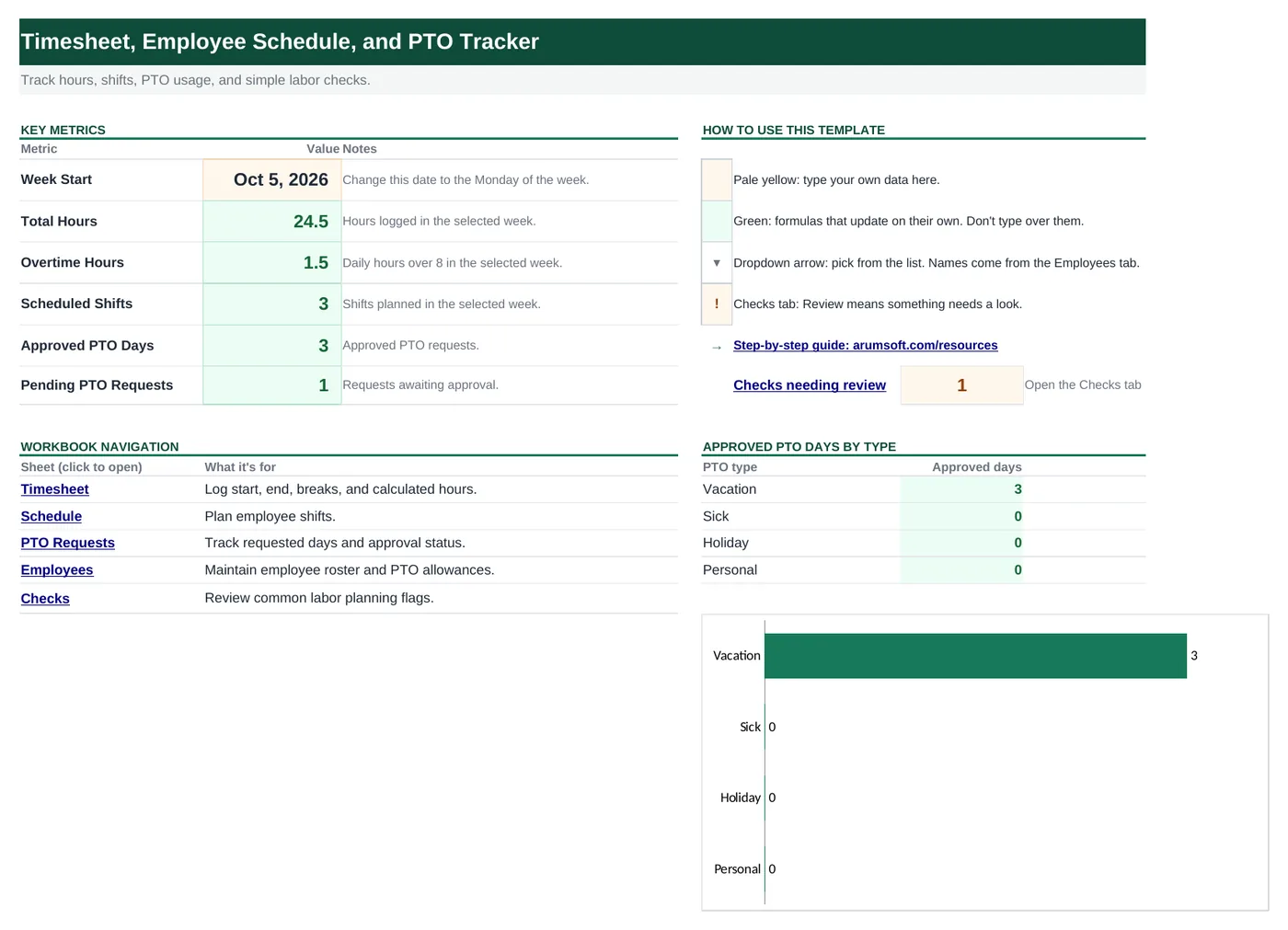
| Start Here | Dashboard for the selected week | Week start (B6) | Hours, overtime and shifts for that week; approved PTO days, pending requests |
| Timesheet | One row per employee per workday (room for 100) | Date, employee, start, end, break hours, department | Regular, overtime and total hours |
| Schedule | Planned shifts (room for 80) | Week start, date, employee, shift times, role, status | Nothing |
| PTO Requests | Time-off requests (room for 50) | Employee, start date, end date, type, status | Days |
| Employees | Team roster (room for 40) | Employee, role, department, manager, PTO allowance | PTO used, PTO remaining |
| Checks | Four labor checks | Nothing | OK or Review for each check |
Before you start
The template works as soon as you open it. Cell colors tell you what each cell is for:
- Open the file. If Excel shows a yellow Protected View bar, click Enable Editing. Files downloaded from the internet always open this way.
- Save your own copy with File› then Save As so you always have the original to start over from.
- Clear the sample data. Replace the three sample employees on Employees with your team, then clear the sample rows on Timesheet, Schedule and PTO Requests.
Step-by-step guide
Work through these in order the first time. After that, you'll mostly repeat the daily or monthly entry steps.
Set up the employee roster
On Employees, add each person: Employee name, Role, Department, Manager and their yearly PTO Allowance in days.
PTO Used adds up their approved requests and PTO Remaining is allowance minus used.
The Employee columns on Timesheet, Schedule and PTO Requests are dropdowns that list the names on this sheet, so add new people here first.
Set the week
On Start Here, type the Monday of the week you want to see in
B6.Total Hours, Overtime Hours and Scheduled Shifts count only the seven days starting on that date, so you can keep several weeks in one file and flip between them.
Log hours on the timesheet
On Timesheet, add one row per person per day:
- Date, and the Employee from the dropdown.
- Start Time and End Time: type
9:00 AMand5:30 PM, or9:00and17:30. - Break Hours in decimals:
0.5for 30 minutes,0.75for 45. - Department and Notes are optional.
Regular Hours counts up to 8 hours a day, OT Hours is anything over 8, and Total Hours adds them.
Plan the schedule
On Schedule, add one row per shift: Week Start, Date, Employee (from the dropdown), Shift Start, Shift End, Role and Status.
Status options: Scheduled, Confirmed (the employee acknowledged it), Call Out (they can't come) and Covered.
When someone calls out, change their row to Call Out and add a row for the person covering with status Covered.
Handle time-off requests
On PTO Requests, add each request: Employee, Start Date, End Date, Type (Vacation, Sick, Holiday, Personal) and Status Pending.
Days is the number of calendar days from start to end, including both.
When you decide, change Status to Approved or Denied. Only approved days count toward PTO Used on Employees.
Read the dashboard
Start Here shows Total Hours, Overtime Hours and Scheduled Shifts for the selected week, plus Approved PTO Days and Pending PTO Requests for the year.
A small table and chart break approved PTO down by type, and every sheet name under Workbook Navigation is a link to that sheet.
Review the Checks sheet
Checks flags pending requests, any negative PTO balance, more than 10 overtime hours in the selected week, and scheduled shifts with no employee.
Move on to the next week
Change
B6on Start Here to the next Monday and keep adding rows. Earlier weeks stay in the file.When the timesheet fills up (100 rows), start a fresh copy:
- Use File› then Save As to save a copy, for example
Timesheet 2026-Q4. - In the copy, clear the pale-yellow cells on Timesheet and Schedule.
- Keep Employees and PTO Requests as they are, so PTO balances carry across the year.
- Use File› then Save As to save a copy, for example
How the formulas work
You don't need to understand the formulas to use the template, but they're a good way to learn. Click any cell in Excel to see its formula in the formula bar.
=IF(B5="", "", MIN(8, MAX(0, MOD(D5-C5, 1)*24 - E5)))Excel stores times as fractions of a day, so end minus start, times 24, gives hours. MOD(..., 1) handles shifts that pass midnight by wrapping a negative difference around to the next day. The break is subtracted, MAX(0, ...) stops negatives, and MIN(8, ...) caps regular time at 8 hours.
Learn this: How to Use MIN and MAX in Excel →=IF(B5="", "", MAX(0, MOD(D5-C5, 1)*24 - E5 - 8))Whatever is left after the first 8 hours.
Learn this: How to Use MIN and MAX in Excel →=IF(A5="", "", C5-B5+1)Dates are numbers, so end minus start plus one gives the days in the request.
Learn this: Text and Date Functions in Excel →=IF(A5="", "", SUMIFS('PTO Requests'!$D$5:$D$54, 'PTO Requests'!$A$5:$A$54, A5,
'PTO Requests'!$F$5:$F$54, "Approved"))Adds the Days column for this employee's approved requests only.
Learn this: How to Use SUMIF and SUMIFS in Excel →Tips and limits
- Overtime here means hours over 8 in a day. Overtime rules differ by country and state (some use 40 hours a week), so check the rules that apply to you before using it for payroll.
- Capacity: 100 timesheet rows, 80 shifts, 50 PTO requests and 40 employees. To extend, press Ctrl+H, set Within to Workbook and Look in to Formulas, and replace
$104with$1004. - If times show as decimals like 0.375, select the cells and choose Home› then Number Format› then Time.
Learn the skills behind this template
Was this guide helpful? Spot a mistake? Send feedback · admin@arumsoft.com