Advanced Excel · Tutorial 10 of 12
Error Checking and Controls in Excel
Trace and evaluate suspicious formulas, add reconciliation checks and an error summary, handle filtered rows correctly and protect a report before you send it.
- Level
- Advanced
- Time
- 14 min read
- Updated:
- Applies to:
- Excel for Microsoft 365, Excel 2021, Excel 2019
What you'll learn
- Trace a number back to its source and step through its formula
- Use Excel's error checking and the Watch Window to find problems
- Add a reconciliation check that compares a detail total with a summary total
- Total filtered lists correctly with SUBTOTAL
- Build an error summary and protect the finished report
Example file
Error Checking and Controls in Excel.xlsx
Download the workbook used in this tutorial and follow along in Excel.
Excel workbook (.xlsx) · 7 KB
Before a workbook goes to someone else, it should be able to show that it's right: a check that says the totals agree, a trail from any number back to its source, and a flag that catches a typo before the reader does. This tutorial adds those controls to a small expense report, using Excel's auditing tools and a few formulas.
The example has four expense categories and a Summary Total that someone typed by hand. The four amounts add up to 12,550, but the Summary Total says 12,300.
| A | B | C | D | E | |
|---|---|---|---|---|---|
| 1 | Category | Amount | Check | Result | |
| 2 | Marketing | 4,200 | Difference | ||
| 3 | Travel | 3,800 | Totals match | ||
| 4 | Software | 2,950 | No negative amounts | ||
| 5 | Office | 1,600 | Failed checks | ||
| 6 | Summary Total | 12,300 |
Find where a number comes from
When a number looks wrong, first find out what it's made of. Select the cell and click Formulas then Formula Auditing then Trace Precedents. Blue arrows point from the cells it reads to the cell itself. Trace Dependents in the same group does the opposite: it shows which formulas read the selected cell.
Try it on B6. No arrows appear, because B6 holds a typed number, not a formula. That alone is a finding: a total with no precedents was typed by hand and won't change when an amount does. Click Remove Arrows when you're done.
A few more ways in:
- Ctrl+[ selects the cells the active formula refers to, even on another sheet.
- Ctrl+` shows formulas instead of results across the whole sheet. Press it again to switch back.
- A black dashed arrow with a small sheet icon means the formula reads another sheet. Double-click the arrow to open the Go To dialog, then pick the reference and click OK to go there.
The intermediate auditing tutorial covers these tools in more detail. Here, the goal is a habit: trace the cell you trust least before you send the file.
Step through a formula with Evaluate Formula
Tracing tells you which cells a formula uses. Evaluate Formula shows how it combines them. Suppose E3 holds this check (you'll build it below):
=IF(SUM(B2:B5)=B6,"OK","Mismatch")Click E3, then Formulas then Formula Auditing then Evaluate Formula. Each click on Evaluate replaces the underlined part with its value. Keep clicking and you'll see the formula become IF(12550=12300,"OK","Mismatch"), then IF(FALSE,"OK","Mismatch"), and finally "Mismatch". You've watched exactly where the difference comes from instead of guessing.
Let Excel point out problems
Excel checks formulas in the background and marks suspicious cells with a small green triangle in the top-left corner. Select the cell and click the warning icon that appears next to it to see the reason, such as Number Stored as Text or Inconsistent Formula, and to fix or ignore it.
To go through every flagged cell on a sheet in turn, click Formulas then Formula Auditing then Error Checking. The Error Checking dialog shows each problem with buttons such as Show Calculation Steps, Ignore Error and Edit in Formula Bar; Next moves to the following one. For a cell that shows an error value such as #N/A, click the arrow next to Error Checking and choose Trace Error to draw arrows to the cells that cause it.
If you never see green triangles, background checking may be off. Turn it on in File then Options then Formulas under Error checking, and look at the Error checking rules list there. Rules such as Formulas inconsistent with other formulas in the region catch the classic typed-over cell in a column of formulas.
Add a reconciliation check
A reconciliation check compares two totals that should agree, such as the sum of the detail rows and a summary figure from somewhere else, and says so in a visible cell. Put the checks in their own small block, labeled, next to the numbers they test.
Show the difference
In E2, subtract the summary from the detail total. The result is 250.
=SUM(B2:B5)-B6Showing the difference, not only a yes or no, tells the reader how far off the totals are and which way.
Turn it into a pass or fail
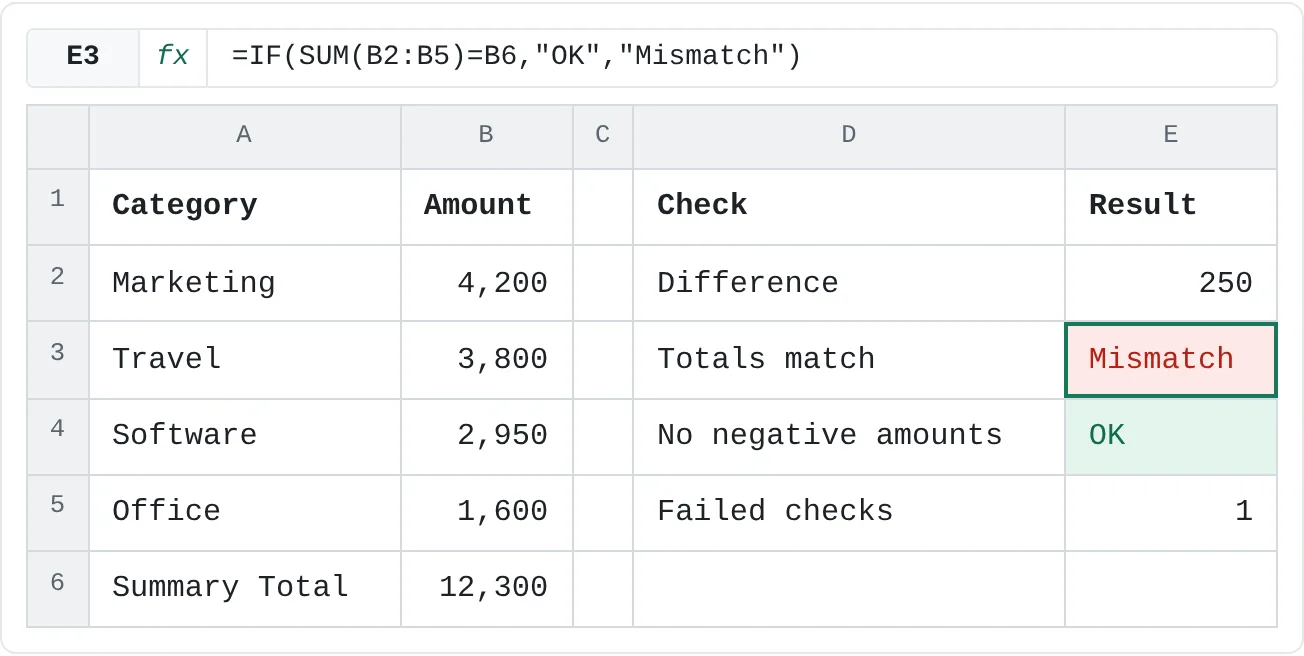
In E3, return OK when the totals agree and Mismatch when they don't. The result is Mismatch.
=IF(SUM(B2:B5)=B6,"OK","Mismatch")Make a failure impossible to miss
Select E3:E4 and choose Home then Styles then Conditional Formatting then Highlight Cells Rules then Equal To. Type
Mismatch, pick Light Red Fill with Dark Red Text and click OK.
| A | B | C | D | E | |
|---|---|---|---|---|---|
| 1 | Category | Amount | Check | Result | |
| 2 | Marketing | 4,200 | Difference | 250 | |
| 3 | Travel | 3,800 | Totals match | Mismatch | |
| 4 | Software | 2,950 | No negative amounts | OK | |
| 5 | Office | 1,600 | Failed checks | 1 | |
| 6 | Summary Total | 12,300 |
The fix is to replace the typed 12,300 in B6 with =SUM(B2:B5), or, if B6 must be a figure from another system, to find out which side is wrong. The check doesn't fix anything; it makes sure someone looks.
Amounts with cents can differ by a tiny fraction after many additions, so an exact = can report Mismatch for totals that look identical. Compare the rounded difference instead: =IF(ROUND(SUM(B2:B5)-B6,2)=0,"OK","Mismatch").
Watch out for hidden and filtered rows
SUM adds every cell in its range, including rows hidden by a filter or hidden by hand. That's a classic source of a total that looks wrong: filter the list to Marketing and Travel and the visible amounts are 4,200 and 3,800, but =SUM(B2:B5) still shows 12,550.
SUBTOTAL can leave hidden rows out. Its first argument picks the calculation and what to ignore:
| Formula | Rows hidden by a filter | Rows hidden by hand | Result with the filter above |
|---|---|---|---|
=SUM(B2:B5) | Included | Included | 12,550 |
=SUBTOTAL(9,B2:B5) | Left out | Included | 8,000 |
=SUBTOTAL(109,B2:B5) | Left out | Left out | 8,000 |
9 and 109 both mean sum; 1 and 101 mean average, 3 and 103 count non-blank cells. The Total Row of an Excel Table uses the 100-series versions, so it always matches what's on screen. SUBTOTAL also skips other SUBTOTAL results inside its range, so subtotals aren't counted twice.
Decide which one a total needs. A total shown under a list people filter should use SUBTOTAL, so it matches what they see. A reconciliation against a source total should use SUM, so a filter someone left on doesn't make the check fail. Label each so the reader knows which they're looking at.
Build an error summary
A reviewer shouldn't have to inspect every formula. Give them one place that counts the problems: failed checks and error values together.
Count the failed checks with COUNTIF. In E5, this returns 1:
=COUNTIF(E3:E4,"Mismatch")Count error values such as #REF!, #N/A and #DIV/0! anywhere in a calculation range with ISERROR inside SUMPRODUCT. The -- turns each TRUE or FALSE into 1 or 0 so they can be added:
=SUMPRODUCT(--ISERROR(B2:H200))Use ISNA instead of ISERROR to count only #N/A, which usually means a lookup didn't find its value. Put the error count outside the range it checks, or it refers to itself and becomes a circular reference.
Finish with one status cell at the top of the sheet, for example =IF(AND(E5=0,G2=0),"Ready to send","Check the errors") if G2 holds the error count. A reviewer reads that one cell first.
Protect the finished output
Once the report checks out, stop anyone from typing over its formulas by accident. Every cell is Locked by default, but locking only takes effect when the sheet is protected.
Unlock the input cells
Select only the cells people should still type into, such as B2:B5. Press Ctrl+1, open the Protection tab, clear Locked and click OK. Tick Hidden on formula cells if you don't want their formulas shown in the formula bar.
Protect the sheet
Click Review then Protect then Protect Sheet. Add a password if you want one, and tick any extra actions people still need, such as Use AutoFilter for a list they filter. Click OK.
Formulas, checks and totals are now read-only, and the inputs stay open. Sheet protection prevents accidents; it isn't security against someone determined to get around it.
Common mistakes
- A typed total next to a formula total. A typed number never updates. Reconcile it or replace it with a formula.
- Checks nobody looks at. A check on a hidden sheet is as good as none. Put the summary status where the reader looks first, and highlight failures.
- Exact comparisons on amounts with cents. Round the difference before you compare.
- SUM under a filtered list. It includes the hidden rows. Use
SUBTOTAL(9,…)orSUBTOTAL(109,…)when the total should match what's visible. - IFERROR around everything. It hides the very problems your checks are meant to catch.
- Protecting the sheet before unlocking the inputs. People can't type their numbers in. Click Review then Protect then Unprotect Sheet, unlock the inputs and protect again.
Practice
Practice
Audit a report before you send it
- Take a report you're about to send and find one summary figure that should equal the sum of detail rows.
- Add a check block: the difference and an OK/Mismatch check, with failures highlighted in red.
- Use Trace Precedents on the cell you trust least and follow it back to its source.
- Add an error count over the calculation area with
SUMPRODUCTandISERROR, and one status cell at the top. - If the report has a filtered list, check whether its totals use
SUMorSUBTOTALand whether that's what you want. - Fix what the checks find, unlock the inputs and protect the sheet.
Try the check block on the expense data. The Summary Total in B6 was typed by hand.
Try it0 of 4 done
- In E2, subtract the typed Summary Total in B6 from the sum of the four amounts.
- In E3, show OK if the four amounts add up to the Summary Total in B6, otherwise Mismatch.
- In E4, show OK if none of the amounts in B2:B5 is negative, otherwise Mismatch.
- In E5, count how many of the checks in E3:E4 say Mismatch.
Click a dashed cell, type a formula in the bar and press Enter.
| A | B | C | D | E | |
|---|---|---|---|---|---|
| 1 | Category | Amount | Check | Result | |
| 2 | Marketing | 4,200 | Difference | ||
| 3 | Travel | 3,800 | Totals match | ||
| 4 | Software | 2,950 | No negative amounts | ||
| 5 | Office | 1,600 | Failed checks | ||
| 6 | Summary Total | 12,300 |
Check your skills
- Can you trace which cells a formula depends on, and which formulas depend on a cell?
- Can you step through a formula's calculation with Evaluate Formula?
- Can you add a reconciliation check comparing a detail total with a summary total?
- Can you explain when a total should use SUBTOTAL instead of SUM?
- Can you build an error summary that flags problems instead of hiding them?
Related
Was this guide helpful? Spot a mistake? Send feedback · admin@arumsoft.com