Advanced Excel · Tutorial 4 of 12
Advanced Lookups in Excel: Multiple Criteria and Approximate Match
Look up a value that depends on two columns, read a row-and-column grid, and place numbers into tiers with approximate match.
- Level
- Advanced
- Time
- 16 min read
- Updated:
- Applies to:
- Excel for Microsoft 365, Excel 2024, Excel 2021, Excel for the web. Helper-key lookups with INDEX/MATCH or VLOOKUP and approximate match also work in Excel 2019 and earlier.
What you'll learn
- Look up a value that matches on two columns, with a helper key or inside one formula
- Rebuild a multi-criteria lookup with INDEX and MATCH
- Return a value from a grid by matching a row and a column
- Place a number into a tier or band with approximate match
- Find a value's position with XMATCH
Example file
Advanced Lookups in Excel - Multiple Criteria and Approximate Match.xlsx
Download the workbook used in this tutorial and follow along in Excel.
Excel workbook (.xlsx) · 7 KB
Function Playground
Try these functions in a live sheet
Type formulas in an Excel-style grid and watch each step of the calculation. Free, no sign-up.
A plain lookup finds a value by one column: the price of a product, the department of an employee. Real rate tables are rarely that simple. A commission rate might depend on the region and the band, and a bonus tier depends on which range a sales figure falls into, not on an exact value. You'll learn the patterns for both: lookups on several criteria, lookups in a row-and-column grid, and approximate matches for tiers.
The examples use a sales team. Each rep has a region and a band, and the commission rate for every region and band combination sits in a rate table in F1:H7:
| A | B | C | D | E | F | G | H | |
|---|---|---|---|---|---|---|---|---|
| 1 | Rep | Region | Band | Rate | Region | Band | Rate | |
| 2 | Ari Lane | East | B | East | A | 4% | ||
| 3 | Mina Patel | West | A | West | B | 7% | ||
| 4 | Jon Bell | Central | B | Central | A | 3% | ||
| 5 | Lena Ortiz | East | A | East | B | 6% | ||
| 6 | Dev Singh | West | B | West | A | 5% | ||
| 7 | Central | B | 5% |
A normal XLOOKUP on the region alone fails here. Ari is in East, band B, but the first East row in the table is East A, so =XLOOKUP(B2,$F$2:$F$7,$H$2:$H$7) returns 4% instead of 6%. The lookup has to match both columns at once.
Match two columns with a helper key
The oldest and most portable approach is to join the criteria into one key on both sides of the lookup.
Add a key column to the rate table
Click E2, to the left of the rate table, and type:
=F2&"-"&G2The
&operator joins text, so E2 shows East-A. Fill the formula down to E7, and typeKeyin E1.Build the same key in the lookup
Click D2 and join the rep's region and band the same way, then look that key up in the new column:
=XLOOKUP(B2&"-"&C2,$E$2:$E$7,$H$2:$H$7)B2&"-"&C2becomes East-B, which is in E5, so D2 shows 6%.A B C D E F G H 1 Rep Region Band Rate Key Region Band Rate 2 Ari Lane East B 6% East-A East A 4% 3 Mina Patel West A West-B West B 7% 4 Jon Bell Central B Central-A Central A 3% 5 Lena Ortiz East A East-B East B 6% 6 Dev Singh West B West-A West A 5% 7 Central-B Central B 5% The helper column E joins Region and Band. The lookup builds the same key, East-B, and finds it in E5. Fill it down
Copy D2 down to D6. The
$signs keep the table fixed whileB2andC2move with each row: Mina gets 5%, Jon 5%, Lena 4% and Dev 7%.
Two details matter. First, use a separator such as -. Without one, different pairs can produce the same key: "AB"&"C" and "A"&"BC" are both ABC. Second, build both keys exactly the same way, in the same order and with the same separator.
Because the key column is the first column of E:H, the helper key also works with VLOOKUP in any version of Excel: =VLOOKUP(B2&"-"&C2,$E$2:$H$7,4,FALSE).
Skip the helper column
In Microsoft 365, Excel 2024 and Excel 2021, a formula can work on whole ranges at once, so you can build the keys inside the lookup and leave the table untouched.
Join the columns inside the formula. $F$2:$F$7&"-"&$G$2:$G$7 produces all six keys in memory, and XLOOKUP searches them:
=XLOOKUP(B2&"-"&C2,$F$2:$F$7&"-"&$G$2:$G$7,$H$2:$H$7)D2 shows 6%, exactly as before, with no extra column.
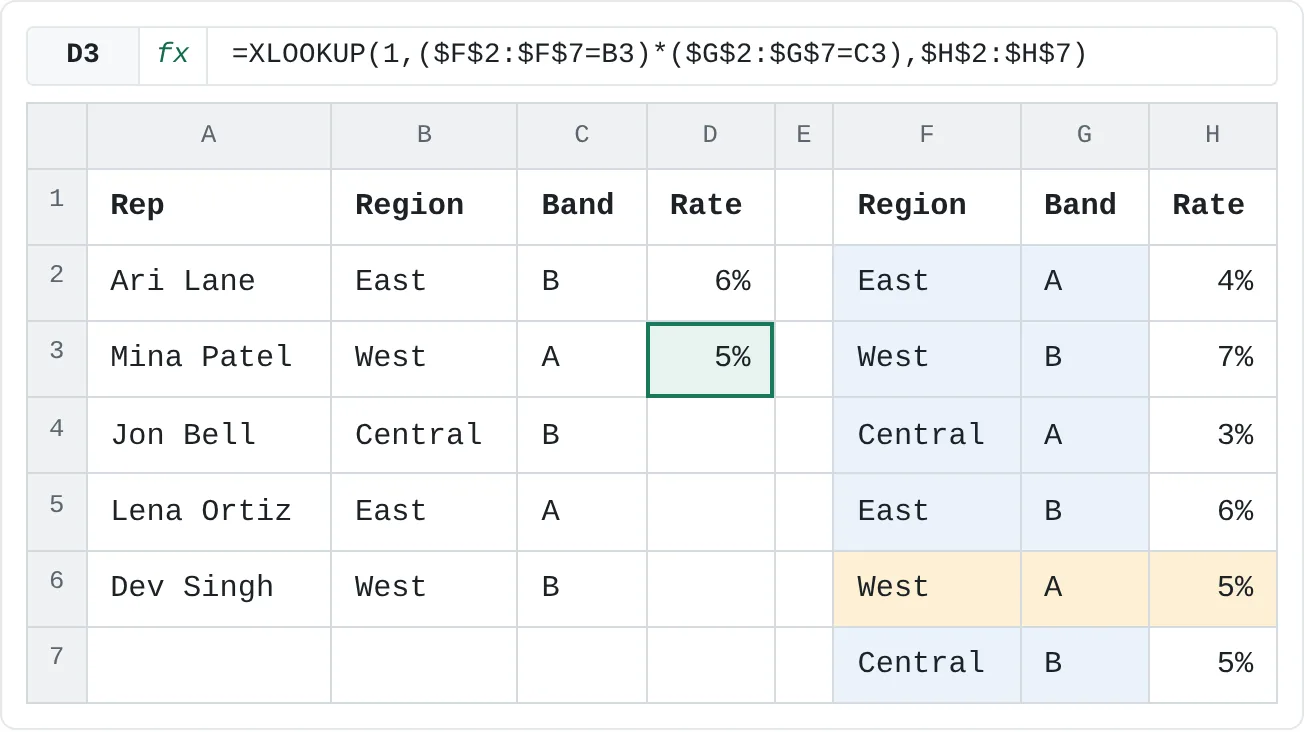
Multiply the conditions. This version scales best to three or more criteria. Click D3 and type:
=XLOOKUP(1,($F$2:$F$7=B3)*($G$2:$G$7=C3),$H$2:$H$7)Here's how it works for Mina (West, band A):
$F$2:$F$7=B3tests every region against West and returns TRUE or FALSE for each row: FALSE, TRUE, FALSE, FALSE, TRUE, FALSE.$G$2:$G$7=C3tests every band against A: TRUE, FALSE, TRUE, FALSE, TRUE, FALSE.- Multiplying turns TRUE into 1 and FALSE into 0, so the product is 1 only where both are true: 0, 0, 0, 0, 1, 0.
- XLOOKUP looks for the
1, finds it in the 5th row and returns the 5th rate, 5%.
| A | B | C | D | E | F | G | H | |
|---|---|---|---|---|---|---|---|---|
| 1 | Rep | Region | Band | Rate | Region | Band | Rate | |
| 2 | Ari Lane | East | B | 6% | East | A | 4% | |
| 3 | Mina Patel | West | A | 5% | West | B | 7% | |
| 4 | Jon Bell | Central | B | Central | A | 3% | ||
| 5 | Lena Ortiz | East | A | East | B | 6% | ||
| 6 | Dev Singh | West | B | West | A | 5% | ||
| 7 | Central | B | 5% |
To add a third condition, multiply by another test. If the table had a third criterion in column I and the rep's value for it were in J3, you'd add *($I$2:$I$7=J3). If no row matches every condition, the result is #N/A. Add a fourth argument to show a message instead: =XLOOKUP(1,($F$2:$F$7=B3)*($G$2:$G$7=C3),$H$2:$H$7,"No rate").
Rebuild the lookup with INDEX and MATCH
INDEX and MATCH do the same job in two steps, and you'll find them in many older workbooks. MATCH returns the position of a value in a list; INDEX returns the value at a position.
For Jon (Central, band B), click D4 and type:
=INDEX($H$2:$H$7,MATCH(B4&"-"&C4,$F$2:$F$7&"-"&$G$2:$G$7,0))MATCH finds Central-B in position 6, and INDEX returns the 6th rate, 5%. The 0 at the end of MATCH means exact match. Always type it: MATCH's default is approximate match, covered below.
The multiplied conditions work here too: =INDEX($H$2:$H$7,MATCH(1,($F$2:$F$7=B4)*($G$2:$G$7=C4),0)).
XMATCH is the modern version of MATCH. It does exact match by default, so =XMATCH("West",$F$2:$F$7) returns 2, the position of the first West row. INDEX with XMATCH works the same way as INDEX with MATCH.
Look up a row and a column in a grid
Rate tables are often laid out as a grid instead of a list: regions down the side, bands across the top. To read one, match the row and the column separately.
| A | B | C | D | E | F | G | |
|---|---|---|---|---|---|---|---|
| 1 | Region | A | B | Region | Band | Rate | |
| 2 | East | 4% | 6% | Central | B | ||
| 3 | West | 5% | 7% | East | A | ||
| 4 | Central | 3% | 5% |
With INDEX, give it the whole grid, then a row number and a column number, each found by its own MATCH. Click G2 and type:
=INDEX($B$2:$C$4,MATCH(E2,$A$2:$A$4,0),MATCH(F2,$B$1:$C$1,0))Central is row 3 of the grid and B is column 2, so G2 shows 5%, the value in C4.
With XLOOKUP, put one lookup inside another. The inner XLOOKUP searches the band headers and returns that band's whole column; the outer one searches the regions and picks the right row from that column. Click G3 and type:
=XLOOKUP(E3,$A$2:$A$4,XLOOKUP(F3,$B$1:$C$1,$B$2:$C$4))G3 shows 4% for East and band A.
| A | B | C | D | E | F | G | |
|---|---|---|---|---|---|---|---|
| 1 | Region | A | B | Region | Band | Rate | |
| 2 | East | 4% | 6% | Central | B | 5% | |
| 3 | West | 5% | 7% | East | A | 4% | |
| 4 | Central | 3% | 5% |
Place a number into a tier with approximate match
A tier table lists the lowest value of each band. To place a number, you want the last threshold the number still reaches, not an exact match.
| Min Sales | Tier |
|---|---|
| 0 | Bronze |
| 15,000 | Silver |
| 25,000 | Gold |
Anything from 0 up to 14,999.99 is Bronze, 15,000 up to 24,999.99 is Silver, and 25,000 or more is Gold. In the practice sheet, this table sits in F1:G4 and the reps' sales are in column B.
XLOOKUP with match mode -1 means "exact match, or else the next smaller item". For Ari's 18,400 in B2:
=XLOOKUP(B2,$F$2:$F$4,$G$2:$G$4,,-1)There's no 18,400 in the list, so XLOOKUP takes the next smaller threshold, 15,000, and returns Silver. The two commas leave the fourth argument, if_not_found, empty. XLOOKUP's match modes don't need the thresholds sorted.
MATCH with match type 1 finds the largest value that is less than or equal to the lookup value. The thresholds must be sorted smallest to largest:
=INDEX($G$2:$G$4,MATCH(B3,$F$2:$F$4,1))Mina's 14,600 hasn't reached 15,000, so this returns Bronze.
VLOOKUP with TRUE does the same in one function, also on a sorted list: =VLOOKUP(B6,$F$2:$G$4,2,TRUE) returns Gold for Dev's 31,500.
| A | B | C | D | E | F | G | |
|---|---|---|---|---|---|---|---|
| 1 | Rep | Sales | Tier | Level | Min Sales | Tier | |
| 2 | Ari Lane | 18,400 | Silver | 0 | Bronze | ||
| 3 | Mina Patel | 14,600 | Bronze | 15,000 | Silver | ||
| 4 | Jon Bell | 22,100 | 25,000 | Gold | |||
| 5 | Lena Ortiz | 9,900 | |||||
| 6 | Dev Singh | 31,500 | Gold | 3 |
To get the tier's number instead of its name, use XMATCH with the same match mode: =XMATCH(B6,$F$2:$F$4,-1) returns 3 for Dev, because Gold is the 3rd threshold. That number is handy for a formula that steps up a bonus per tier.
A few rules for tier tables:
- Start at the lowest possible value. A number below the first threshold has nowhere to go and returns
#N/A. Starting at 0 covers every non-negative sales figure. - A value exactly on a threshold belongs to that tier. 15,000 is Silver, not Bronze.
- Sort ascending for MATCH and VLOOKUP. On an unsorted list they return a wrong tier with no error.
Common mistakes
- Looking up one criterion when the table needs two. The first East row is returned for every East rep, whatever the band. If a column holds repeated values, the lookup needs another criterion.
- Building the two keys differently.
B2&"-"&C2never matches a key built asG2&"-"&F2orF2&G2. Use the same order and separator on both sides. - Leaving out the match type.
MATCHwithout0andVLOOKUPwithoutFALSEuse approximate match. On an unsorted list they return plausible but wrong values. - Using exact match for tiers.
=XLOOKUP(B2,$F$2:$F$4,$G$2:$G$4)returns#N/Afor 18,400 because that value isn't in the list. Tier lookups need match mode -1, match type 1 or TRUE. - Forgetting the $ signs. When you fill the lookup down, an unlocked table range shifts by a row each time and drops the first rows out of the search.
Practice
Practice
Build your own rate matrix
- Pick a two-dimensional rate table you use or can imagine: shipping cost by weight band and zone, a price by product and customer type, or a tax rate by state and category.
- Lay it out as a list with one row per combination, and add a few rows of transactions that need a rate.
- Look up the rate with a helper key column, then again with
XLOOKUPand the multiplied conditions, and check that both agree. - Rewrite one lookup with
INDEXandMATCH. - Turn the same rates into a grid and read it with
INDEXand twoMATCHfunctions. - Add a tier table, such as discount levels by order size, and place each transaction in a tier with approximate match.
Then try both practice sheets below: first the multi-criteria rates, then the tiers.
Try it0 of 3 done
- In D2, find Ari's rate with XLOOKUP by joining Region and Band into one key on both sides: B2&"-"&C2 against F2:F7&"-"&G2:G7.
- In D3, find Mina's rate by multiplying two tests, (F2:F7=B3)*(G2:G7=C3), and looking up 1 with XLOOKUP.
- In D4, find Jon's rate again with INDEX and MATCH, matching the joined key exactly (match type 0).
Click a dashed cell, type a formula in the bar and press Enter.
| A | B | C | D | E | F | G | H | |
|---|---|---|---|---|---|---|---|---|
| 1 | Rep | Region | Band | Rate | Region | Band | Rate | |
| 2 | Ari Lane | East | B | East | A | 4% | ||
| 3 | Mina Patel | West | A | West | B | 7% | ||
| 4 | Jon Bell | Central | B | Central | A | 3% | ||
| 5 | Lena Ortiz | East | A | East | B | 6% | ||
| 6 | Dev Singh | West | B | West | A | 5% | ||
| 7 | Central | B | 5% |
Try it0 of 4 done
- In C2, find Ari's tier with XLOOKUP, using match mode -1 (exact match or the next smaller threshold).
- In C3, find Mina's tier with INDEX and MATCH, using match type 1 on the sorted thresholds.
- In C6, find Dev's tier with VLOOKUP and approximate match (TRUE).
- In D6, return the position of Dev's tier (1 for Bronze, 3 for Gold) with XMATCH and match mode -1.
Click a dashed cell, type a formula in the bar and press Enter.
| A | B | C | D | E | F | G | |
|---|---|---|---|---|---|---|---|
| 1 | Rep | Sales | Tier | Level | Min Sales | Tier | |
| 2 | Ari Lane | 18,400 | 0 | Bronze | |||
| 3 | Mina Patel | 14,600 | 15,000 | Silver | |||
| 4 | Jon Bell | 22,100 | 25,000 | Gold | |||
| 5 | Lena Ortiz | 9,900 | |||||
| 6 | Dev Singh | 31,500 |
Check your skills
- Can you look up a value by matching two columns at once, with and without a helper column?
- Can you rebuild that lookup with
INDEXandMATCH? - Can you find a value's position in a list with
XMATCH? - Can you return a value from a grid by matching both a row and a column?
- Can you return a tier name for a number that falls between two thresholds?
Related
Was this guide helpful? Spot a mistake? Send feedback · admin@arumsoft.com