Everyday Excel Skills · Tutorial 6 of 14
Quick Totals from the Excel Status Bar
Get the sum, average, count, minimum and maximum of any selection from the status bar, without writing a formula, and copy the result in one click.
- Level
- Beginner
- Time
- 7 min read
- Updated:
- Applies to:
- Excel for Microsoft 365, Excel 2021, Excel 2019, Excel for the web
What you'll learn
- Read the sum, average and count of a selection on the status bar
- Add Minimum, Maximum and Numerical Count to the status bar
- Total cells that aren't next to each other with Ctrl+click
- Copy a status bar value or turn it into a formula with AutoSum
Before you start
The status bar is the thin strip along the bottom of the Excel window. Select two or more cells with numbers, and it shows their Average, Count and Sum straight away, with no formula and nothing typed on the sheet. It's the fastest way to check a total, sanity-check an import or answer "how much was that?" in the middle of other work.
Where to find it
The status bar sits below the sheet tabs. The quick totals appear on its right-hand side, to the left of the view buttons and the zoom slider, as soon as you select more than one filled cell. There's no command to open: you only choose which totals it shows.
- Choose the totals: right-click anywhere on the status bar. The Customize Status Bar menu lists every item it can show; click one to turn it on or off.
- Make it permanent: when you need the number on the sheet, use AutoSum, which writes the formula for you.
Read a quick total
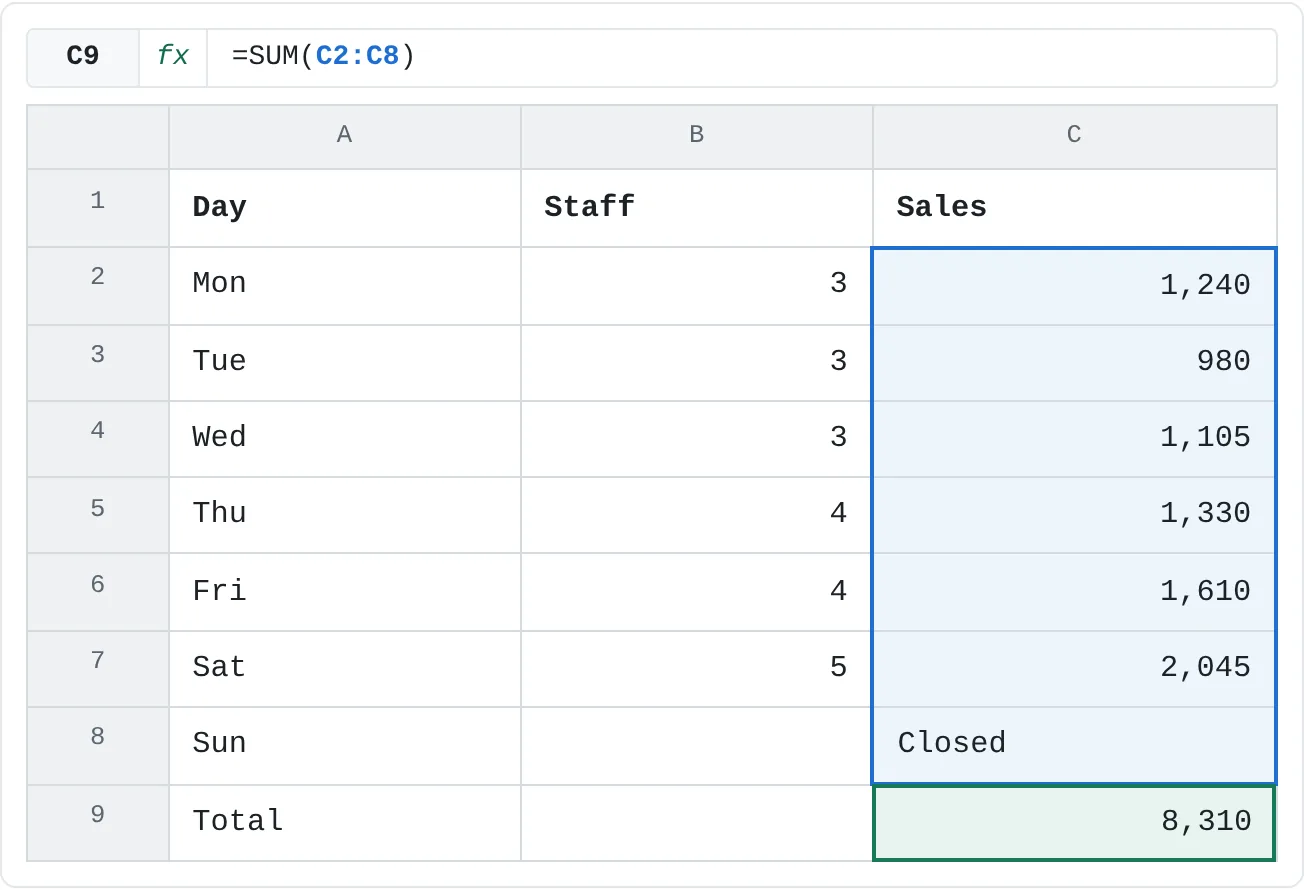
The sheet below is a week of sales for a small shop. It was closed on Sunday, so C8 holds text instead of a number.
Select the cells
Drag over C2:C8, the seven Sales cells.
A B C 1 Day Staff Sales 2 Mon 3 1,240 3 Tue 3 980 4 Wed 3 1,105 5 Thu 4 1,330 6 Fri 4 1,610 7 Sat 5 2,045 8 Sun Closed C2:C8 selected. The status bar shows Average: 1,385, Count: 7 and Sum: 8,310. Read the status bar
At the bottom right you'll see Average: 1,385, Count: 7 and Sum: 8,310.
- Sum adds the six numbers: 1,240 + 980 + 1,105 + 1,330 + 1,610 + 2,045 = 8,310.
- Average divides that sum by the number of numeric cells, 6, not 7: 8,310 / 6 = 1,385. Text such as "Closed" is ignored, like the
AVERAGEfunction does. - Count counts every cell that isn't empty, text included, so it's 7. It works like
COUNTA, not likeCOUNT.
Change the selection
Select C2:C6, Monday to Friday, and the status bar updates at once: Sum: 6,265, Average: 1,253, Count: 5.
Add Minimum, Maximum and Numerical Count
Right-click the status bar to open Customize Status Bar. The totals sit together near the bottom of the menu; a tick shows which ones are on. Average, Count and Sum are on by default.
Turn on Numerical Count, Minimum and Maximum. With C2:C8 selected again, the status bar now also shows Numerical Count: 6 (only the numbers), Min: 980 (Tuesday) and Max: 2,045 (Saturday).
| Status bar item | What it shows | Same result as |
|---|---|---|
| Average | The average of the numbers | AVERAGE |
| Count | Cells that aren't empty | COUNTA |
| Numerical Count | Cells that contain numbers | COUNT |
| Minimum | The smallest number | MIN |
| Maximum | The largest number | MAX |
| Sum | All the numbers added up | SUM |
The same menu controls other status bar items, such as the view buttons and the zoom slider. Your choices stay set the next time you open Excel.
Copy a total or make it a formula
A status bar total disappears as soon as you click somewhere else. Two ways to keep it:
- Copy it. In current versions of Excel for Microsoft 365 on Windows, click the value on the status bar, for example Sum: 8,310. The number is copied to the clipboard; click a cell or an email and paste it with Ctrl+V. What you paste is the number, not a formula, so it won't update if the data changes.
- Write a formula. Click C9 and press Alt+= (AutoSum). Check the range Excel suggests; if it isn't C2:C8, drag over C2:C8 so the formula reads
=SUM(C2:C8), then press Enter.
| A | B | C | |
|---|---|---|---|
| 1 | Day | Staff | Sales |
| 2 | Mon | 3 | 1,240 |
| 3 | Tue | 3 | 980 |
| 4 | Wed | 3 | 1,105 |
| 5 | Thu | 4 | 1,330 |
| 6 | Fri | 4 | 1,610 |
| 7 | Sat | 5 | 2,045 |
| 8 | Sun | Closed | |
| 9 | Total | 8,310 |
Real-world scenarios
Total one category in an expense report
Before you submit an expense report, you want the travel total. Filter the Category column to Travel, then select the amounts.
| A | B | C | |
|---|---|---|---|
| 1 | Date | Category | Amount |
| 2 | 2026-09-01 | Travel | 180 |
| 3 | 2026-09-02 | Meals | 42 |
| 4 | 2026-09-03 | Travel | 95 |
| 5 | 2026-09-04 | Supplies | 64 |
| 6 | 2026-09-05 | Travel | 210 |
| 7 | 2026-09-08 | Meals | 38 |
The status bar adds only the rows you can see: 180 + 95 + 210 = 485, with Count: 3. Clear the filter and the same selection shows the full total, 629. If you need the filtered total on the sheet, use =SUBTOTAL(9,C2:C7), which also ignores rows hidden by a filter.
Your average after five tests
A student keeps their test scores in a sheet and wants to know where they stand before the final.
| A | B | |
|---|---|---|
| 1 | Test | Score |
| 2 | Unit 1 | 78 |
| 3 | Unit 2 | 85 |
| 4 | Unit 3 | 91 |
| 5 | Unit 4 | 88 |
| 6 | Unit 5 | 73 |
Select B2:B6. With Minimum and Maximum turned on, the status bar shows Average: 83 (415 / 5), Min: 73 and Max: 91. Type a sixth score below and select B2:B7 to see how one more test would change the average.
Bills due before payday
Payday is the 15th, and rent is already paid. Which other bills are due before then, and how much do they come to?
| A | B | C | |
|---|---|---|---|
| 1 | Bill | Due day | Amount |
| 2 | Rent | 1 | 950 |
| 3 | Power | 12 | 72 |
| 4 | Internet | 20 | 45 |
| 5 | Phone | 14 | 38 |
| 6 | Insurance | 25 | 110 |
| 7 | Streaming | 9 | 15 |
Click C3, then hold Ctrl and click C5 and C7. The status bar adds all three, even though they aren't next to each other: Sum: 125 (72 + 38 + 15), Count: 3. Click a cell without holding Ctrl when you want to start a new selection.
Tips and shortcuts
- The left end of the status bar shows the cell mode: Ready while you move around, Enter or Edit while you type in a cell. If a command seems greyed out, check that you aren't still in Enter or Edit mode; press Enter or Esc.
- Select a whole column by clicking its letter: the status bar totals every number in it. If the column has a total row, it will be counted twice.
- Dates are numbers to Excel, so selecting dates shows a Sum and Average too. Ignore them unless you want them.
Common mistakes
- Selecting the total along with the data. With C9 holding
=SUM(C2:C8), selecting C2:C9 shows Sum: 16,620, double the real total. Select only the data cells. - Reading Count as "how many numbers". Count includes text and other non-empty cells. Turn on Numerical Count when you need only the numbers.
- Numbers stored as text. Values imported as text (often left-aligned with a green triangle) are counted by Count but left out of Sum and Average. If the sum looks too low, compare Count with Numerical Count.
- No totals at all. You need at least two filled cells selected, and the totals you want must be ticked in Customize Status Bar.
Practice
Practice
Answer questions with the status bar only
Type the week of sales from this page into a new sheet, including "Closed" for Sunday. Don't write any formulas until step 5.
- Select C2:C8. Write down the Sum, Average and Count.
- Turn on Numerical Count, Minimum and Maximum. Why is Numerical Count one less than Count?
- What did Thursday, Friday and Saturday bring in together? Select those three cells.
- Use Ctrl+click to total Monday and Saturday only.
- Click the Sum value to copy it (Excel for Windows), paste it in E2, then put a real total in C9 with Alt+=. Change Monday's sales and see which of the two updates.
Related
Was this guide helpful? Spot a mistake? Send feedback · admin@arumsoft.com