Excel Basics · Tutorial 12 of 12
Excel Navigation and Keyboard Shortcuts
Jump to the edges of your data, select whole columns of numbers, insert totals and run everyday commands from the keyboard.
- Level
- Beginner
- Time
- 10 min read
- Updated:
- Applies to:
- Excel for Microsoft 365, Excel 2021, Excel 2019
What you'll learn
- Jump to the edges of a block of data with Ctrl+Arrow, Ctrl+Home and Ctrl+End
- Select a column of data or a whole list without dragging
- Insert a total with Alt+=
- Copy, paste, undo, save and find with the keyboard
- Reach ribbon commands with the Alt key
Before you start
Example file
Excel Navigation and Keyboard Shortcuts.xlsx
Download the workbook used in this tutorial and follow along in Excel.
Excel workbook (.xlsx) · 7 KB
You don't need to memorize shortcuts before you start. They're worth picking up one at a time, while you do ordinary work, and the ones in this guide are the ones that pay off fastest: jumping to the end of a long list, selecting a column of numbers without dragging, and adding a total in one keystroke. Keep this page as a reference and come back for the next one when you're ready.
The examples use a monthly budget with six categories. The totals in row 8 are still empty.
| A | B | C | |
|---|---|---|---|
| 1 | Category | Budget | Actual |
| 2 | Rent | 900 | 900 |
| 3 | Groceries | 340 | 372 |
| 4 | Utilities | 110 | 96 |
| 5 | Transit | 75 | 64 |
| 6 | Phone | 45 | 45 |
| 7 | Eating out | 120 | 158 |
| 8 | Total |
Jump around a sheet
Arrow keys move one cell at a time. Hold Ctrl as well and you jump to the edge of the current block of data instead.
Start at the top of a column
Click B1, the Budget heading.
Press Ctrl+Down Arrow
Excel jumps to B7, the last number in the column, because B8 below it is empty. In a list of 5,000 rows, this one keystroke replaces a lot of scrolling.
A B C 1 Category Budget Actual 2 Rent 900 900 3 Groceries 340 372 4 Utilities 110 96 5 Transit 75 64 6 Phone 45 45 7 Eating out 120 158 8 Total Ctrl+Down Arrow from B1 stops at B7, the last filled cell before an empty one. Press it again
From B7, the next cell down is empty, so Ctrl+Down jumps to the next filled cell below. Here there is none, so you land on the very last row of the sheet, row 1,048,576. Press Ctrl+Up to come back.
The same works in every direction: Ctrl+Right jumps to the last filled cell in the row, Ctrl+Left back to the first. Three more jumps are worth knowing:
- Ctrl+Home goes to A1 from anywhere.
- Ctrl+End goes to the last used cell: the bottom row Excel considers used, in the rightmost column it considers used. On this sheet that's C8, even though C8 is empty, because row 8 and column C both contain something. It's the quickest way to see how big a sheet really is.
- F5 or Ctrl+G opens the Go To dialog. Type an address such as
C250in the Reference box and press Enter. Typing the address in the Name Box, left of the formula bar, does the same.
To move between sheets, press Ctrl+Page Down for the next sheet and Ctrl+Page Up for the previous one.
Select data without dragging
Add Shift to any movement key and Excel selects everything between where you started and where you end up.
- Shift+Arrow extends the selection one cell at a time.
- Ctrl+Shift+Arrow extends it to the edge of the data. Click B2 and press Ctrl+Shift+Down: Excel selects B2:B7, every budget amount and nothing else.
- Ctrl+A inside a block of data selects the whole block, here A1:C8. Press it a second time to select the entire sheet.
- Ctrl+Space selects the entire column of the active cell, and Shift+Space the entire row.
| A | B | C | |
|---|---|---|---|
| 1 | Category | Budget | Actual |
| 2 | Rent | 900 | 900 |
| 3 | Groceries | 340 | 372 |
| 4 | Utilities | 110 | 96 |
| 5 | Transit | 75 | 64 |
| 6 | Phone | 45 | 45 |
| 7 | Eating out | 120 | 158 |
| 8 | Total |
With B2:B7 selected, look at the status bar at the bottom of the window. It shows Average 265, Count 6 and Sum 1,590 without a single formula.
Total a column with Alt+=
Alt+= is AutoSum: it writes a SUM formula for you and guesses the range from the numbers above (or to the left of) the cell.
Click the empty total cell
Click B8, directly under the budget amounts.
Press Alt+=
Hold Alt and press =. Excel writes
=SUM(B2:B7)and outlines the range it chose.Check the range and press Enter
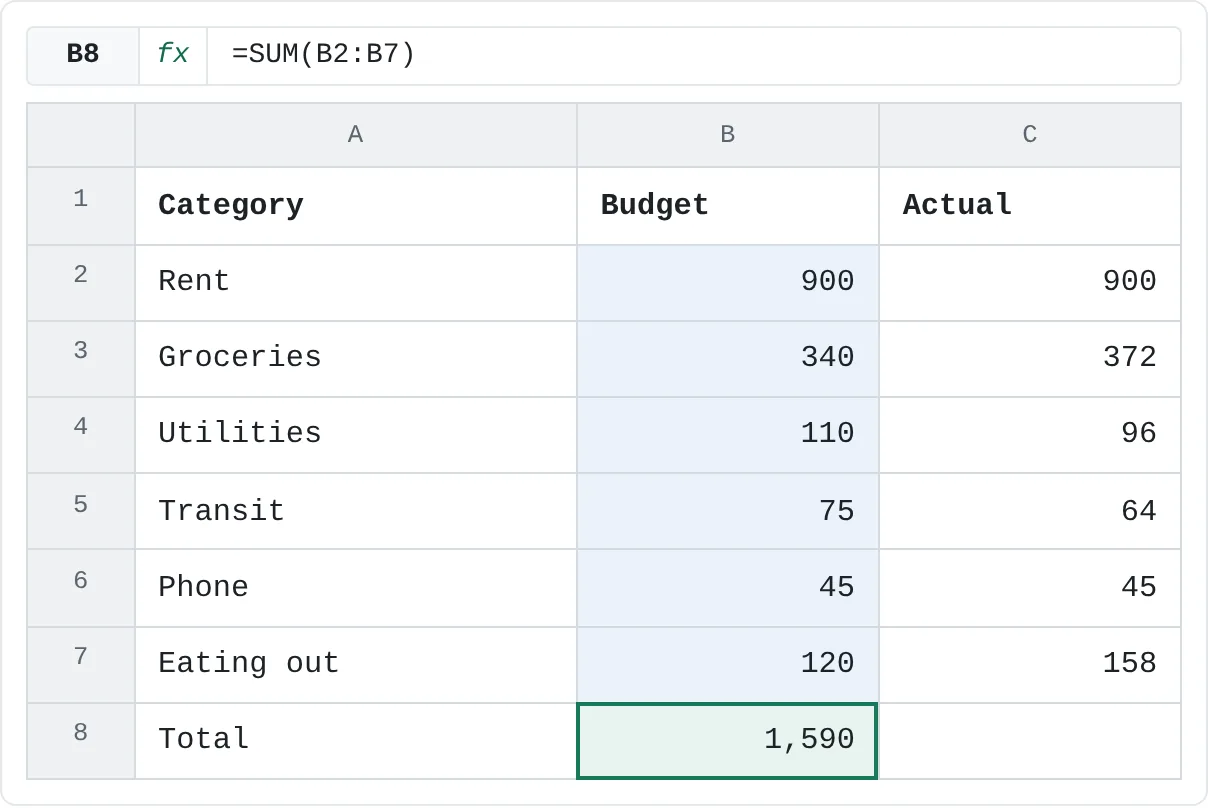
The outline covers B2:B7, which is right, so press Enter. B8 shows 1,590.
A B C 1 Category Budget Actual 2 Rent 900 900 3 Groceries 340 372 4 Utilities 110 96 5 Transit 75 64 6 Phone 45 45 7 Eating out 120 158 8 Total 1,590 Alt+= in B8 writes =SUM(B2:B7). The budget total is 1,590.
To total both columns in one step, select B8:C8 and press Alt+=. Excel puts a SUM in each cell at once: 1,590 for Budget and 1,635 for Actual. AutoSum stops at the first blank cell or heading above, so always check the outline before you press Enter.
Shortcuts worth learning first
| Shortcut | What it does |
|---|---|
| Ctrl+C / Ctrl+X / Ctrl+V | Copy / cut (move) / paste the selected cells |
| Ctrl+Z / Ctrl+Y | Undo / redo |
| Ctrl+S | Save the workbook |
| F12 | Save As |
| Ctrl+F / Ctrl+H | Find / Find and Replace |
| F2 | Edit the selected cell in place instead of typing over it |
| Ctrl+D | Fill down: copy the top cell of a selection into the cells below |
| Ctrl+1 | Open the Format Cells dialog |
| Ctrl+; | Enter today's date |
| Ctrl+T | Turn a list into an Excel table |
| Ctrl+Shift+L | Turn filter arrows on or off |
| Alt+= | AutoSum |
Two habits help while you type data: Enter confirms and moves down, Tab confirms and moves right, and adding Shift to either moves the other way. Esc cancels what you've typed before you confirm it.
Reach any ribbon command with the keyboard
Press and release Alt. Small letters appear over every ribbon tab. Press a tab's letter to open it, and new letters appear over each of its commands; press one to run that command. Press Esc to back out a level. You don't need to learn the letters in advance, because Excel shows them every time, and after a few uses the sequences for your favorite commands become automatic.
If you don't know where a command is, type its name in the Search box at the top of the Excel window, for example freeze, and pick it from the results. In Excel 2019, the same box is on the ribbon and is labeled Tell me what you want to do.
Common mistakes
- Ctrl+Arrow stops halfway down a list. It jumps to the edge of a block, so a blank cell in the column stops it there. That's also a quick way to find gaps: if Ctrl+Down stops early, there's an empty cell below.
- Ctrl+End lands far below your data. Excel still counts cells that once held data or formatting as used. Delete the unused rows and columns, then save the workbook; Ctrl+End then goes to the real end.
- Typing over a cell you meant to edit. Typing into a selected cell replaces its contents, formula and all. Press F2 first to edit, or Ctrl+Z if it already happened. On some laptops F2 needs Fn+F2.
- Arrow keys scroll the sheet but the selection doesn't move. Scroll Lock is on, and the status bar says Scroll Lock. Press the Scroll Lock key (often labeled ScrLk) to turn it off. If your keyboard doesn't have one, use the Windows On-Screen Keyboard.
- Ctrl+A selects the whole sheet. If the active cell is empty and outside your data, Ctrl+A selects every cell on the sheet. Click a cell inside the list first.
Practice
Practice
Build a personal monthly budget
This one exercise uses almost everything from the beginner tutorials. Work through it on your own, start to finish, using the keyboard wherever you can:
- Enter at least five categories, a budgeted amount and your actual spending for each.
- Make the headings bold (Ctrl+B).
- Format the amounts as currency (Ctrl+1).
- In a new column, calculate Budget − Actual for the first category.
- Copy that formula down the whole column.
- Total the Budget and Actual columns with Alt+=.
- Find your average actual spending with
AVERAGE. - Sort the categories by actual spending, largest first.
- Create a chart from the categories and their actual spending.
Check your skills
- Can you copy and paste a cell using only the keyboard?
- Can you undo a change, then jump to the last cell of your data with Ctrl+End?
- Can you select a whole list with Ctrl+A and a column of numbers with Ctrl+Shift+Down Arrow?
- Can you total a column with Alt+=?
Related
Was this guide helpful? Spot a mistake? Send feedback · admin@arumsoft.com