Everyday Excel Skills · Tutorial 7 of 14
How to Freeze Panes in Excel
Keep headings and labels on screen while you scroll: freeze the top row, the first column, or any rows and columns, and unfreeze them again.
- Level
- Beginner
- Time
- 8 min read
- Updated:
- Applies to:
- Excel for Microsoft 365, Excel 2021, Excel 2019, Excel for the web
What you'll learn
- Freeze the top row or the first column of a sheet
- Freeze several rows and columns at once by choosing the right cell
- Unfreeze panes and fix a freeze that went wrong
- Choose between Freeze Panes, Split and Print Titles
Before you start
In a long list, the headings scroll out of sight after a screenful of rows, and you're left guessing which column is Amount and which is Qty. Freeze Panes pins rows at the top of the window, columns at the left, or both, so they stay in view while the rest of the sheet scrolls. It only changes what you see on screen: nothing in your data moves. On the ribbon it's View then Window then Freeze Panes.
Where to find it
- Ribbon: go to the View tab, click Freeze Panes in the Window group and pick one of the three choices.
- Keyboard: there's no Ctrl shortcut, but you can use the ribbon's key tips. Press and release Alt, then W, F and one more letter: F for Freeze Panes, R for Freeze Top Row, C for Freeze First Column.
- Search: type
freezein the Search box at the top of the Excel window.
There's no right-click command for freezing.
Freeze the top row
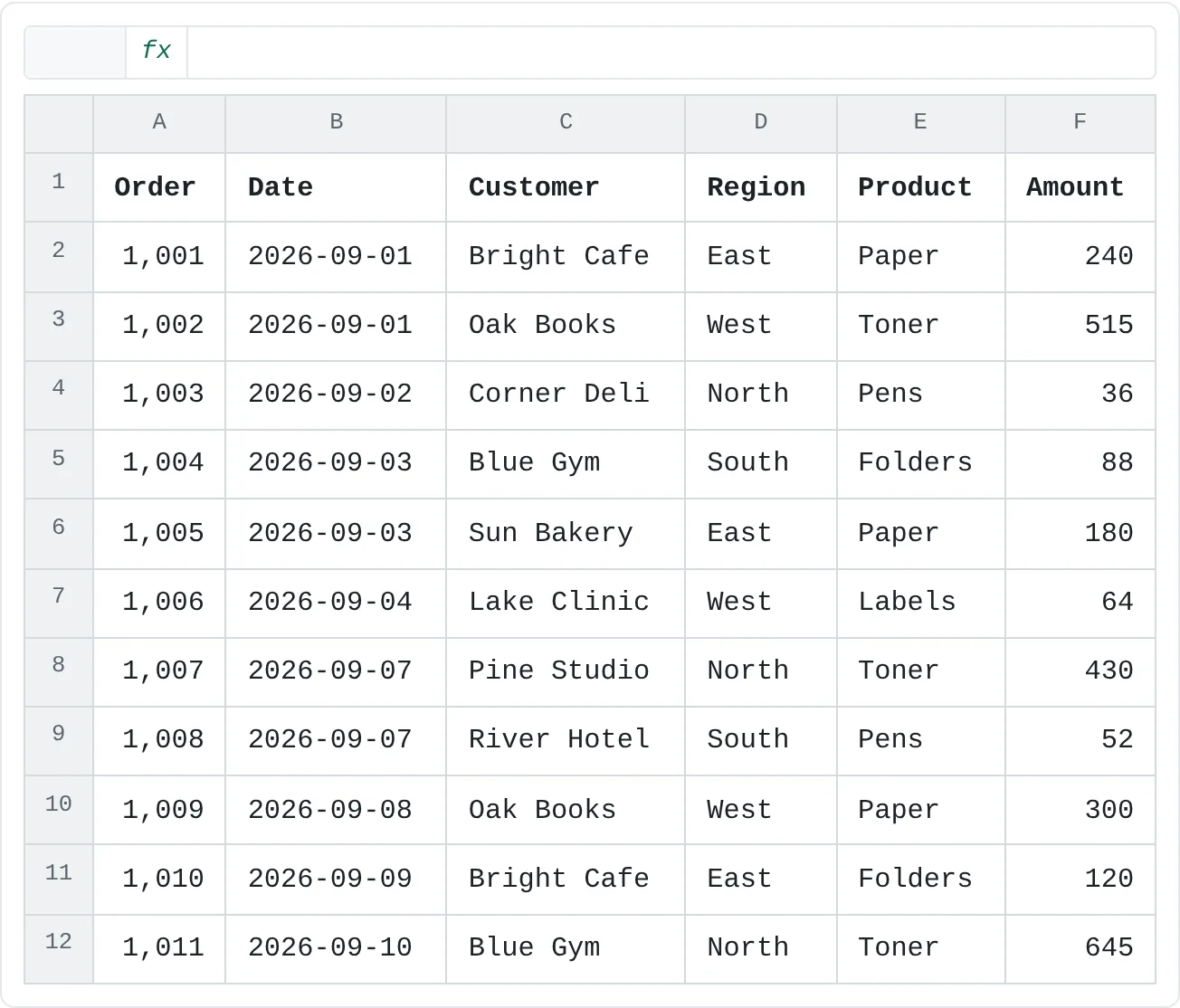
This order list has its headings in row 1. In a real list with hundreds of orders, they vanish as soon as you scroll down.
| A | B | C | D | E | F | |
|---|---|---|---|---|---|---|
| 1 | Order | Date | Customer | Region | Product | Amount |
| 2 | 1,001 | 2026-09-01 | Bright Cafe | East | Paper | 240 |
| 3 | 1,002 | 2026-09-01 | Oak Books | West | Toner | 515 |
| 4 | 1,003 | 2026-09-02 | Corner Deli | North | Pens | 36 |
| 5 | 1,004 | 2026-09-03 | Blue Gym | South | Folders | 88 |
| 6 | 1,005 | 2026-09-03 | Sun Bakery | East | Paper | 180 |
| 7 | 1,006 | 2026-09-04 | Lake Clinic | West | Labels | 64 |
| 8 | 1,007 | 2026-09-07 | Pine Studio | North | Toner | 430 |
| 9 | 1,008 | 2026-09-07 | River Hotel | South | Pens | 52 |
| 10 | 1,009 | 2026-09-08 | Oak Books | West | Paper | 300 |
| 11 | 1,010 | 2026-09-09 | Bright Cafe | East | Folders | 120 |
| 12 | 1,011 | 2026-09-10 | Blue Gym | North | Toner | 645 |
Scroll to the top
Press Ctrl+Home so that row 1 is the first row in the window. Freeze Top Row freezes whichever row is at the top of the window at the moment, so this matters.
Freeze the top row
Go to View then Window then Freeze Panes and choose Freeze Top Row. It doesn't matter which cell is selected.
Scroll down to check
A thin dark line appears under row 1. Scroll down: the orders move up under row 1, but the headings stay where they are.
A B C D E F 1 Order Date Customer Region Product Amount 2 1,001 2026-09-01 Bright Cafe East Paper 240 3 1,002 2026-09-01 Oak Books West Toner 515 4 1,003 2026-09-02 Corner Deli North Pens 36 5 1,004 2026-09-03 Blue Gym South Folders 88 6 1,005 2026-09-03 Sun Bakery East Paper 180 7 1,006 2026-09-04 Lake Clinic West Labels 64 8 1,007 2026-09-07 Pine Studio North Toner 430 9 1,008 2026-09-07 River Hotel South Pens 52 10 1,009 2026-09-08 Oak Books West Paper 300 11 1,010 2026-09-09 Bright Cafe East Folders 120 12 1,011 2026-09-10 Blue Gym North Toner 645 After Freeze Top Row, row 1 (amber) stays at the top of the window while the orders below it scroll.
Freeze the first column
On a wide sheet the problem is sideways: scroll right to see Saturday and Sunday and the names in column A disappear. Choose View then Window then Freeze Panes, then Freeze First Column. As with the top row, scroll all the way left first, because Excel freezes the leftmost column in the window.
| A | B | C | D | E | F | G | H | |
|---|---|---|---|---|---|---|---|---|
| 1 | Name | Mon | Tue | Wed | Thu | Fri | Sat | Sun |
| 2 | Priya | 8 | 8 | 7 | 8 | 6 | 0 | 0 |
| 3 | Marcus | 6 | 6 | 6 | 6 | 6 | 4 | 0 |
| 4 | Lena | 8 | 9 | 8 | 8 | 8 | 0 | 0 |
| 5 | Omar | 0 | 5 | 5 | 5 | 5 | 8 | 4 |
| 6 | Grace | 7 | 7 | 7 | 7 | 7 | 0 | 0 |
| 7 | Tom | 4 | 4 | 0 | 4 | 4 | 6 | 6 |
Freeze Top Row and Freeze First Column don't add up: choosing one replaces the other. To keep both the headings and the names in view, use Freeze Panes at a cell, below.
Freeze rows and columns at the same time
The first choice in the menu, Freeze Panes, freezes at the selected cell: every row above it and every column to its left stay put.
Select the cell below and to the right
To keep row 1 and column A on screen, scroll to the top left and click B2.
Freeze the panes
Choose View then Window then Freeze Panes and click Freeze Panes.
A B C D E F G H 1 Name Mon Tue Wed Thu Fri Sat Sun 2 Priya 8 8 7 8 6 0 0 3 Marcus 6 6 6 6 6 4 0 4 Lena 8 9 8 8 8 0 0 5 Omar 0 5 5 5 5 8 4 6 Grace 7 7 7 7 7 0 0 7 Tom 4 4 0 4 4 6 6 With B2 selected, Freeze Panes keeps row 1 (the days) and column A (the names) in view. Only the hours scroll. Scroll in both directions
Scroll down and to the right. The days stay at the top and the names stay at the left, so every number still has its labels.
The cell you select decides what freezes:
| To keep this in view | Select | Then choose |
|---|---|---|
| Row 1 | Any cell | Freeze Top Row |
| Column A | Any cell | Freeze First Column |
| Rows 1 to 3 | A4, or the whole of row 4 | Freeze Panes |
| Columns A and B | C1, or the whole of column C | Freeze Panes |
| Row 1 and column A | B2 | Freeze Panes |
| Rows 1 to 3 and columns A and B | C4 | Freeze Panes |
Each sheet has its own frozen panes, and Excel saves them with the workbook.
Unfreeze panes
Once a sheet has frozen panes, the first choice in the menu changes to Unfreeze Panes. Click it to remove any kind of freeze: top row, first column or panes.
To move a freeze to a different cell, unfreeze first, select the new cell and freeze again.
Why doesn't anything look different?
Freezing doesn't move anything, so near the top of a sheet it can look as if nothing happened:
- You haven't scrolled yet. The only sign of a freeze is a thin line under the frozen rows or to the right of the frozen columns. Scroll down or right to see the effect.
- You selected a cell in row 1 or column A. Freeze Panes at B1 freezes column A only, with no rows. At A2 it freezes row 1 only. Pick the cell below and to the right of what you want to keep.
- The sheet was scrolled when you froze it. Excel freezes what's in the window. If row 15 was at the top, rows 1 to 14 are now out of reach above the frozen part, and you can't scroll back to them. Unfreeze, press Ctrl+Home, and freeze again.
- The frozen part fills the window. Freeze at row 30 on a laptop screen and there's no room left to scroll, so the sheet seems stuck. Unfreeze and choose a cell nearer the top.
Freeze Panes, Split or Print Titles?
Three features sound alike but do different jobs:
| Feature | Where | What it does |
|---|---|---|
| Freeze Panes | View then Window then Freeze Panes | Keeps rows at the top and columns at the left on screen while the rest scrolls |
| Split | View then Window then Split | Divides the window into two or four panes that each scroll on their own, so you can look at row 5 and row 500 together |
| Print Titles | Page Layout then Page Setup then Print Titles | Repeats rows (or columns) on every printed page |
A sheet is either split or frozen, never both. Freeze Panes doesn't affect printing at all: to put the headings at the top of every printed page, set Rows to repeat at top in Print Titles.
Real-world scenarios
A report with a title above the headings
A monthly report has a title in row 1, a date in row 2 and the headings in row 3. Freeze Top Row would keep only the title. Instead, click A4 and choose Freeze Panes.
| A | B | C | D | E | |
|---|---|---|---|---|---|
| 1 | Q3 order report | ||||
| 2 | Updated 2026-10-01 | ||||
| 3 | Order | Date | Customer | Rep | Amount |
| 4 | 2,041 | 2026-07-02 | Bright Cafe | Priya | 320 |
| 5 | 2,042 | 2026-07-05 | Oak Books | Marcus | 145 |
| 6 | 2,043 | 2026-07-09 | Corner Deli | Priya | 610 |
| 7 | 2,044 | 2026-07-14 | Blue Gym | Lena | 90 |
| 8 | 2,045 | 2026-07-20 | Sun Bakery | Marcus | 275 |
| 9 | 2,046 | 2026-07-28 | Lake Clinic | Lena | 410 |
| 10 | 2,047 | 2026-08-03 | Pine Studio | Priya | 180 |
Rows 1 to 3 stay on screen while the orders scroll, so anyone reading the report always sees what it is and which column is which.
A grade book with ID and name
A teacher's grade book has the student ID in column A and the name in column B, with one column per assignment. To keep both on screen while scrolling right, and the assignment names while scrolling down, click C2 and choose Freeze Panes.
| A | B | C | D | E | F | G | H | |
|---|---|---|---|---|---|---|---|---|
| 1 | ID | Student | Quiz 1 | Quiz 2 | Essay | Lab | Midterm | Project |
| 2 | S-01 | Ana | 18 | 16 | 42 | 27 | 88 | 90 |
| 3 | S-02 | Ben | 15 | 17 | 38 | 25 | 74 | 82 |
| 4 | S-03 | Chloe | 20 | 19 | 47 | 29 | 95 | 93 |
| 5 | S-04 | Daniel | 12 | 14 | 35 | 22 | 68 | 75 |
| 6 | S-05 | Emma | 17 | 18 | 44 | 28 | 91 | 86 |
| 7 | S-06 | Felix | 16 | 13 | 40 | 24 | 79 | 88 |
Now the Project column, far to the right in a full-year grade book, still lines up with Ana's or Daniel's name.
A budget with months across
A household budget lists categories down column A and adds a column every month. By summer, the categories are off screen when you look at July. Scroll all the way left and choose Freeze First Column.
| A | B | C | D | E | F | G | H | |
|---|---|---|---|---|---|---|---|---|
| 1 | Category | Jan | Feb | Mar | Apr | May | Jun | Jul |
| 2 | Rent | 900 | 900 | 900 | 900 | 900 | 900 | 900 |
| 3 | Groceries | 340 | 365 | 350 | 372 | 338 | 360 | 381 |
| 4 | Transport | 120 | 115 | 130 | 95 | 120 | 125 | 110 |
| 5 | Phone | 45 | 45 | 45 | 45 | 45 | 45 | 45 |
| 6 | Fun | 150 | 90 | 175 | 140 | 160 | 210 | 185 |
| 7 | Savings | 200 | 200 | 250 | 200 | 200 | 150 | 200 |
The sheet has only seven rows, so there's no need to freeze row 1 as well. If you add more categories later, unfreeze and freeze at B2 instead.
Common mistakes
- Freezing at the wrong cell. Select D10 and you freeze nine rows and three columns. Unfreeze, select the cell just below and right of the area you want, and freeze again.
- Freezing while scrolled down. Rows above the window at the moment you freeze can't be reached until you unfreeze. Press Ctrl+Home before freezing.
- Trying to combine Freeze Top Row and Freeze First Column. The second one replaces the first. Use Freeze Panes at B2.
- Freeze Panes is grayed out. You're probably editing a cell (press Enter or Esc first) or in Page Layout view (switch to View then Workbook Views then Normal).
- Expecting frozen rows to print on every page. Freezing is for the screen only. Use Print Titles for paper.
Practice
Practice
Freeze, check and unfreeze
Type the hours table from this page (names in column A, Mon to Sun in B1:H1), then copy rows 2 to 7 and paste them below a few times so the list is longer than your screen. Then:
- Choose Freeze Top Row and scroll down. Check that the days stay in view.
- Choose Freeze First Column, scroll right, and notice that row 1 is no longer frozen.
- Unfreeze, press Ctrl+Home, select B2 and choose Freeze Panes. Scroll down and right.
- Unfreeze, scroll down so that row 10 is at the top, select B12 and freeze. Try to scroll back to row 1, then unfreeze to fix it.
- Open Page Layout then Page Setup then Print Titles and set row 1 to repeat at the top. Check page 2 in the print preview (Ctrl+P).
Related
Was this guide helpful? Spot a mistake? Send feedback · admin@arumsoft.com