Excel Basics · Tutorial 1 of 12
Excel Basics: Workbooks, Cells and Ranges
Learn what workbooks, worksheets, cells and ranges are, then select, enter, edit and save data with confidence.
- Level
- Beginner
- Time
- 10 min read
- Updated:
- Applies to:
- Excel for Microsoft 365, Excel 2021, Excel 2019, Excel for the web
What you'll learn
- Tell a workbook, a worksheet, a cell and a range apart
- Select a single cell, a range, a whole row or a whole column
- Enter data and edit a cell without retyping it
- Undo and redo changes, and add, delete and rename rows and sheets
- Choose between Save and Save As
Before you start
None — this is a good first tutorial.
Example file
Excel Basics - Workbooks, Cells and Ranges.xlsx
Download the workbook used in this tutorial and follow along in Excel.
Excel workbook (.xlsx) · 6 KB
Watch the video
Video · 10:33 · Follow along in a blank Excel workbook as the video builds the employee roster step by step.
Everything you'll do in Excel rests on a few basic moves: knowing what you're looking at, selecting the right cells, typing and fixing data, and saving your work safely. This guide walks through each one with a small employee list, so a blank grid stops feeling unfamiliar.
Workbooks, worksheets and the parts of the screen
An Excel file is called a workbook. Each workbook holds one or more worksheets (or just "sheets"): the grids where your data lives. A new blank workbook starts with one sheet, named Sheet1. Its tab sits at the bottom-left of the window, and you can add as many more as you need.
On a worksheet:
- Columns run top to bottom and are labeled with letters across the top: A, B, C … all the way to XFD.
- Rows run left to right and are numbered down the left side: 1, 2, 3 … up to 1,048,576.
- A cell is the box where a column and a row meet.
A few parts of the window you'll use constantly:
| Part | Where it is | What it does |
|---|---|---|
| Ribbon | Across the top | Tabs (Home, Insert, Formulas, Data …) full of commands |
| Name Box | Left end of the bar above the grid | Shows the address of the selected cell |
| Formula bar | Right of the Name Box | Shows what's really in the selected cell, including formulas |
| Sheet tabs | Bottom-left | Switch between the worksheets in the workbook |
| Status bar | Very bottom | Shows quick information, such as the sum of selected numbers |
Cells, addresses and ranges
Every cell has an address: its column letter followed by its row number, with no space. B3 is the cell in column B, row 3. The column always comes first.
A range is a rectangular block of cells. You write it as the top-left cell, a colon, and the bottom-right cell. A2:C4 means every cell from A2 to C4: three columns by three rows, nine cells in all.
| A | B | C | |
|---|---|---|---|
| 1 | Name | Department | Start Date |
| 2 | Maria Chen | Sales | 2024-03-04 |
| 3 | Diego Ruiz | Support | 2023-11-13 |
| 4 | Priya Nair | Engineering | 2025-01-20 |
| 5 |
You'll type addresses and ranges inside formulas all the time, for example =SUM(B2:B10). Getting comfortable reading them now pays off in every later topic.
Select cells, ranges, rows and columns
Before Excel can do anything to a cell, you select it. The selected cell has a thick green border and is called the active cell.
- One cell: click it. Or move to it with the arrow keys.
- A range: drag from one corner to the opposite corner. Or click the first cell, hold Shift and click the last one. Shift+Arrow also extends the selection one cell at a time.
- A whole column or row: click its letter at the top or its number on the left.
- Cells that aren't next to each other: select the first cell or range, then hold Ctrl and select the others.
- Everything: click the small triangle where the row numbers and column letters meet, or press Ctrl+A. Inside a block of data, the first Ctrl+A selects just that block and a second press selects the whole sheet.
| A | B | C | |
|---|---|---|---|
| 1 | Name | Department | Start Date |
| 2 | Maria Chen | Sales | 2024-03-04 |
| 3 | Diego Ruiz | Support | 2023-11-13 |
| 4 | Priya Nair | Engineering | 2025-01-20 |
| 5 |
Enter and edit data
Type into a cell
Click an empty cell and type. Press Enter to confirm and move down one cell, or Tab to confirm and move right. Press Esc instead if you change your mind before confirming.
Replace what's in a cell
Select a cell that already holds something and start typing. Whatever you type replaces the old content completely.
Edit part of a cell
To fix a typo without retyping everything, double-click the cell, or select it and press F2. A text cursor appears inside the cell. Move it with the arrow keys, make your change and press Enter. You can also click in the formula bar and edit there.
Delete or Backspace?
- Delete clears the contents of every selected cell at once. The cell's formatting (bold, colors, number format) stays.
- Backspace clears only the active cell and leaves you in edit mode, ready to type something new.
- To remove contents and formatting together, use Home then Editing then Clear then Clear All.
Undo, redo, and change rows and sheets
Made a mistake? Press Ctrl+Z to undo the last action. Press it again to go further back: Excel remembers many steps, not just one. Press Ctrl+Y to redo what you undid. The Undo and Redo buttons are also at the left end of the Home tab.
To change the shape of your list:
- Add a row: right-click a row number and choose Insert. A blank row appears above it.
- Delete a row: right-click its row number and choose Delete. The rows below move up. (Pressing Delete only empties the cells; the row itself stays.)
- Add a sheet: click the + button to the right of the sheet tabs.
- Rename a sheet: double-click its tab (or right-click it and choose Rename), type a new name and press Enter. Formulas that refer to that sheet update to the new name automatically.
- Switch sheets: click a tab, or press Ctrl+Page Down and Ctrl+Page Up.
| A | B | C | |
|---|---|---|---|
| 1 | Name | Department | Start Date |
| 2 | Maria Chen | Sales | 2024-03-04 |
| 3 | Diego Ruiz | Support | 2023-11-13 |
| 4 | Priya Nair | Engineering | 2025-01-20 |
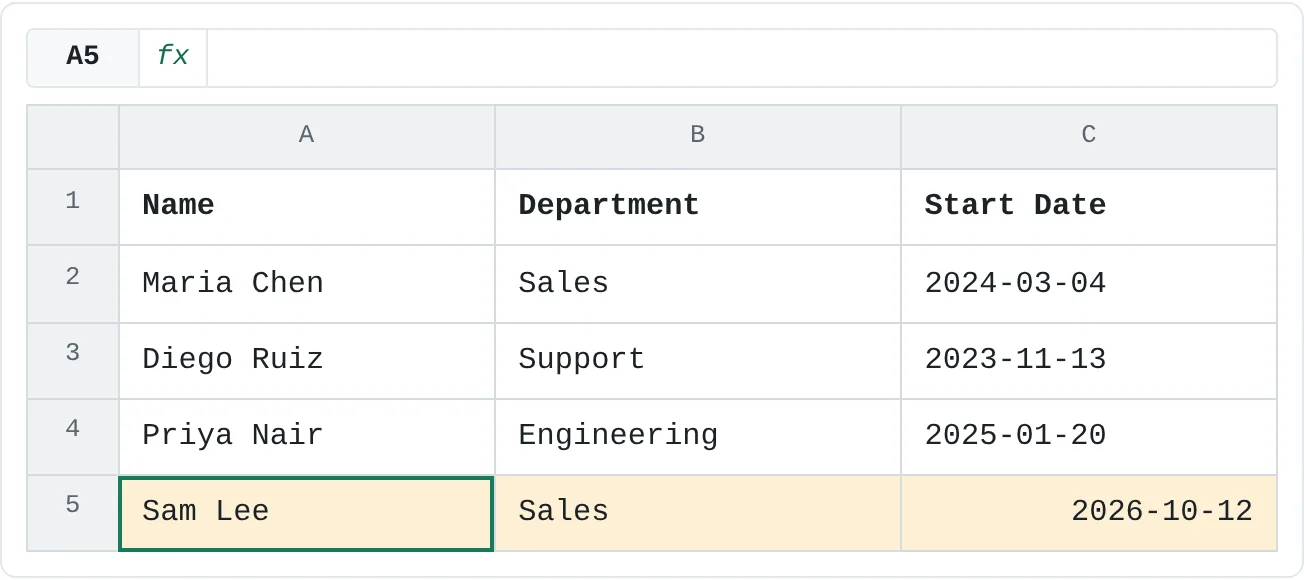
| 5 | Sam Lee | Sales | 2026-10-12 |
Save or Save As?
- Save (Ctrl+S) writes your changes into the same file, replacing the previous version.
- Save As (File then Save As, or F12) saves a new file with a name and location you choose. The original file stays as it was.
Use Save As before a risky edit, or when you want to keep the old version. The first time you save a new workbook, Excel asks for a name and a location either way. Excel workbooks are saved as .xlsx files by default.
Common mistakes
- Typing over a cell you meant to edit. Typing into a selected cell replaces everything in it. Press Esc before confirming, or Ctrl+Z after, then use F2 to edit instead.
- Mixing up the address order. Column first, then row: B3, never 3B.
- Deleting a row with the Delete key. That only clears the cells and leaves an empty row in your list. Right-click the row number and choose Delete to remove the row itself.
- Saving over the only good copy. If you're about to try something you might regret, use Save As (or Save a Copy) first.
Practice
Practice
Build your own roster
Open a blank workbook in Excel and try this:
- In row 1, type the headings Name, Department and Start Date in A1, B1 and C1.
- Add three employees in rows 2 to 4. Use Tab to move across and Enter to move down.
- Change one employee's name with F2 instead of retyping it.
- Add a fourth employee as a new row, then delete a row you no longer need.
- Undo the delete with Ctrl+Z, then redo it with Ctrl+Y.
- Rename the Sheet1 tab to Roster, then use Save As to save the workbook under a new name.
Check your skills
- Can you explain the difference between a workbook and a worksheet?
- Can you select a single cell, then a range of six cells, in one go?
- Can you edit a cell's value without retyping the whole thing?
- Can you undo a change and then redo it?
- Can you explain what Save As does differently from Save?
Related
Was this guide helpful? Spot a mistake? Send feedback · admin@arumsoft.com