Everyday Excel Skills · Tutorial 14 of 14
How to Save Excel as PDF or CSV
Turn a sheet into a PDF that looks right for anyone, or a CSV file that other apps can import, and know what each format keeps and loses.
- Level
- Beginner
- Time
- 10 min read
- Updated:
- Applies to:
- Excel for Microsoft 365, Excel 2024, Excel 2021, Excel 2019
What you'll learn
- Save a sheet, a selection or a whole workbook as a PDF
- Use page setup to control how the PDF looks
- Save the active sheet as a CSV file in the right encoding
- Explain what a CSV keeps and what it loses
- Avoid losing leading zeros and long numbers when a CSV is reopened
Before you start
An Excel workbook isn't always the right thing to send. A PDF is a fixed picture of your sheet: it looks the same on any phone or computer, and nobody can change the numbers by accident. A CSV file is the opposite: plain text with commas between the values, which almost every app, bank, school system and database can import. Both start from Save As, which F12 opens directly.
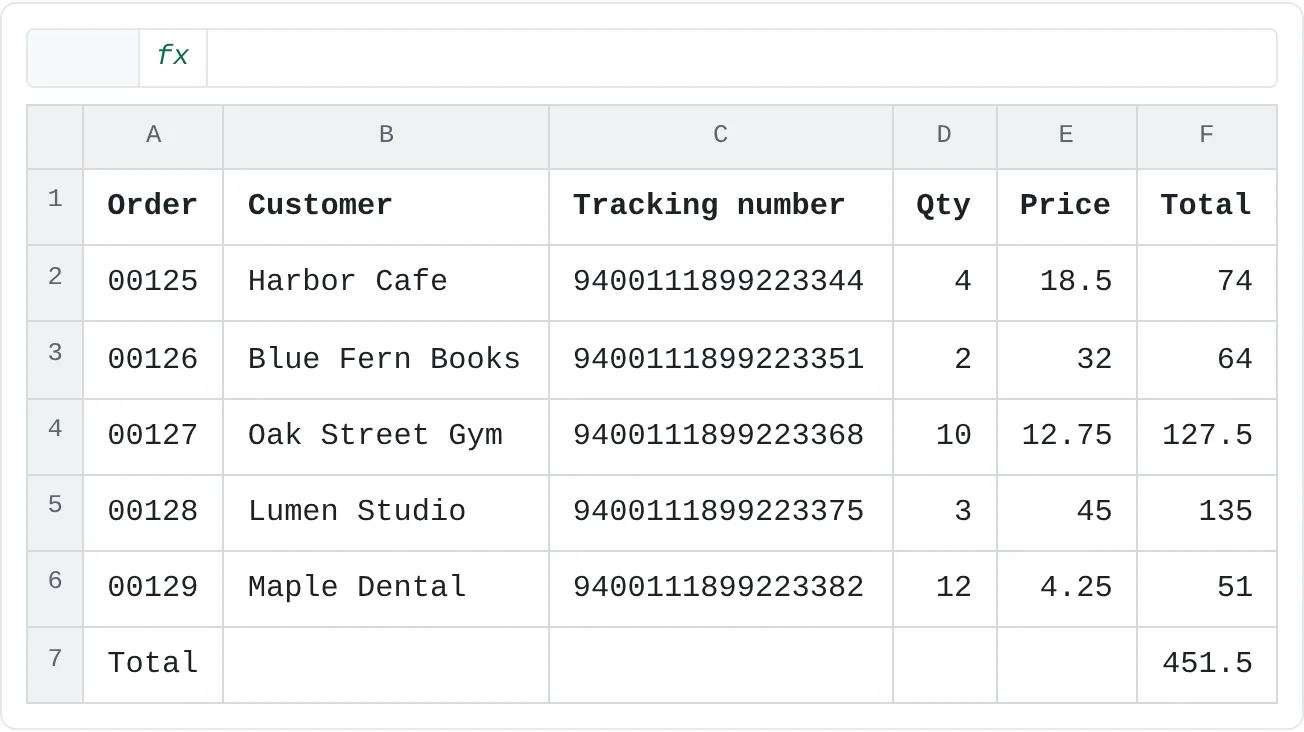
The examples use this order list. Column F holds formulas, and the order and tracking numbers are stored as text so that the leading zeros and long digits stay as typed.
| A | B | C | D | E | F | |
|---|---|---|---|---|---|---|
| 1 | Order | Customer | Tracking number | Qty | Price | Total |
| 2 | 00125 | Harbor Cafe | 9400111899223344 | 4 | 18.5 | 74 |
| 3 | 00126 | Blue Fern Books | 9400111899223351 | 2 | 32 | 64 |
| 4 | 00127 | Oak Street Gym | 9400111899223368 | 10 | 12.75 | 127.5 |
| 5 | 00128 | Lumen Studio | 9400111899223375 | 3 | 45 | 135 |
| 6 | 00129 | Maple Dental | 9400111899223382 | 12 | 4.25 | 51 |
| 7 | Total | 451.5 |
Where to find it
There are three ways in, and they all end in the same place:
- Save As: press F12, or go to File › Save As › Browse, and pick a format in the Save as type list.
- Export: File › Export › Create PDF/XPS Document for a PDF, or Change File Type for CSV and other formats.
- Print: Ctrl+P, then choose Microsoft Print to PDF as the printer.
When AutoSave is on, the File menu shows Save a Copy instead of Save As. It works the same way for PDF and CSV.
Which format do you need?
| CSV | Excel workbook (.xlsx) | ||
|---|---|---|---|
| Best for | Sending a finished report to read or print | Moving data into another app or system | Working on the data |
| Keeps formatting | Yes, exactly as printed | No | Yes |
| Keeps formulas | No, only what's shown | No, only values | Yes |
| Sheets | One, several or all | Only the active sheet | All |
| Can be edited | Not easily | Yes, as plain text | Yes |
Always keep your .xlsx file. A PDF or CSV is a copy you send out, not a replacement for the workbook.
Save a sheet as PDF
Set up the page first
A PDF is a printout saved to a file, so it uses the sheet's page setup. Press Ctrl+P to check the preview: if a column spills onto a second page in the preview, it will in the PDF too. Fix it with orientation, scaling or a print area first.
Open Save As and choose PDF
Press F12. Type a file name, then open Save as type and choose PDF (*.pdf). The bottom of the dialog changes to show the PDF choices.
The Save As dialog with PDF chosen. Standard gives the best quality; Minimum size makes a smaller file for email. Choose what to publish
Click Options.... Under Publish what, choose Active sheet(s) (the default), Entire workbook or Selection. Click OK.
The Options dialog. Publish what decides which sheets go into the PDF; Page range can limit it to some pages. Save
Click Save. With Open file after publishing ticked, the PDF opens in your PDF viewer so you can check it straight away.
File › Export › Create PDF/XPS Document opens the same choices in a dialog called Publish as PDF or XPS, with a Publish button instead of Save.
Whole workbook, active sheet or selection
| Publish what | What goes into the PDF |
|---|---|
| Active sheet(s) | The sheet you're on. To include a few sheets, select their tabs with Ctrl+click before you save. |
| Entire workbook | Every visible sheet, each starting on a new page. Hidden sheets are left out. |
| Selection | Only the cells you selected before opening Save As. |
Ignore print areas prints whole sheets even where a print area is set.
Page setup decides how the PDF looks
Everything from Page Layout then Page Setup carries into the PDF: the print area, orientation, margins, Fit All Columns on One Page, rows repeated with Print Titles, and headers and footers such as Page 1 of 3. Gridlines appear only if you tick Print under Gridlines in Page Layout then Sheet Options. The guide to printing and page setup covers each one.
The alternative: print to PDF
Press Ctrl+P, choose Microsoft Print to PDF in the Printer list and click Print. Windows asks for a file name. This works in any program on Windows 10 and 11, but it behaves exactly like printing on paper: there are no PDF options, and links in cells don't stay clickable. Excel's own PDF export is usually the better choice.
Save a sheet as CSV
Go to the sheet you want
A CSV file holds one sheet, so click the tab of the sheet to save. Save your workbook as
.xlsxfirst, so you keep a copy with all the formulas and formatting.Choose a CSV type
Press F12, then in Save as type choose CSV UTF-8 (Comma delimited) (*.csv). There's also CSV (Comma delimited) (*.csv); the difference is explained below.
Choose CSV UTF-8 unless the system you're sending the file to asks for something else. Save and read the warning
Click Save. Excel saves only the active sheet, and depending on your version it may tell you so first. A yellow bar then appears above the sheet: POSSIBLE DATA LOSS, explaining that some features might be lost in the comma-delimited format. It's a reminder, not an error. The CSV file is fine.
Close the CSV and go back to the workbook
The window now shows the
.csvfile, not your workbook. Close it, and open the.xlsxagain to keep working. Changes you make in the CSV window, such as new formulas or colors, won't survive in the CSV.
What a CSV keeps and what it loses
Open the CSV in Notepad and you'll see exactly what was saved:
Order,Customer,Tracking number,Qty,Price,Total
00125,Harbor Cafe,9400111899223344,4,18.5,74
00126,Blue Fern Books,9400111899223351,2,32,64
00127,Oak Street Gym,9400111899223368,10,12.75,127.5
00128,Lumen Studio,9400111899223375,3,45,135
00129,Maple Dental,9400111899223382,12,4.25,51
Total,,,,,451.5
- Kept: each cell's value, written as it appears in the cell. The formula
=D2*E2became74, and a price formatted to show18.50would be saved as18.50. - Lost: formulas, fonts, colors, borders, column widths, merged cells, conditional formatting, comments, charts, pictures and every other sheet.
- Quotes: a value that contains a comma, such as
Smith, J., is saved inside double quotes so it stays in one column.
In countries that use a comma as the decimal mark, Excel separates the values with semicolons instead of commas.
CSV UTF-8 or plain CSV?
CSV UTF-8 stores every character correctly: Korean, Chinese, accents such as é and ñ, and symbols such as €. Plain CSV (Comma delimited) uses your computer's older regional encoding. On an English-language PC, Korean names turn into question marks. Use CSV UTF-8 unless the receiving system's instructions name a different one.
Reopening a CSV: leading zeros and long numbers
The CSV above is correct. The trouble starts when you double-click it to open it in Excel again: Excel converts anything that looks like a number.
| A | B | C | D | E | F | |
|---|---|---|---|---|---|---|
| 1 | Order | Customer | Tracking number | Qty | Price | Total |
| 2 | 125 | Harbor Cafe | 9.40011E+15 | 4 | 18.5 | 74 |
| 3 | 126 | Blue Fern Books | 9.40011E+15 | 2 | 32 | 64 |
| 4 | 127 | Oak Street Gym | 9.40011E+15 | 10 | 12.75 | 127.5 |
| 5 | 128 | Lumen Studio | 9.40011E+15 | 3 | 45 | 135 |
| 6 | 129 | Maple Dental | 9.40011E+15 | 12 | 4.25 | 51 |
| 7 | Total | 451.5 |
- Leading zeros disappear:
00125becomes the number 125. The same happens to ZIP codes, phone numbers and student IDs. - Long numbers are cut: Excel keeps only 15 significant digits, so
9400111899223344is stored as 9400111899223340 and shown in scientific notation. - Saving again makes it permanent: if you now save the CSV, it contains
125and9.40011E+15, and the original values are gone from the file.
To open a CSV safely, start from a blank workbook and use Data then Get & Transform Data then From Text/CSV, then set those columns to text, as the guide to importing and cleaning data shows. In current Microsoft 365, File › Options › Data also has Automatic Data Conversion settings where you can stop Excel removing leading zeros and shortening long numbers.
Real-world scenarios
Send a quote without the internal margin
A small design studio prices a job in Excel. Column E holds the studio's margin, which the client must not see.
| A | B | C | D | E | |
|---|---|---|---|---|---|
| 1 | Item | Qty | Unit price | Amount | Margin (internal) |
| 2 | Logo design | 1 | 450 | 450 | 40% |
| 3 | Business cards (500) | 2 | 85 | 170 | 35% |
| 4 | Flyers (1000) | 1 | 220 | 220 | 30% |
| 5 | Delivery | 1 | 25 | 25 | 10% |
| 6 | Total | 865 |
Set A1:D6 as the print area, then press F12 and save as PDF. The client gets a clean one-page quote that opens on any phone, and the margin column never leaves the office.
Upload marks to the school system
A teacher's mark sheet has student IDs with leading zeros and names written in several languages. The school's system asks for a CSV file.
| A | B | C | |
|---|---|---|---|
| 1 | Student ID | Name | Score |
| 2 | 0412 | Ana García | 88 |
| 3 | 0413 | 김민준 | 92 |
| 4 | 0414 | Chloé Dubois | 79 |
| 5 | 0415 | Nguyễn Thảo | 85 |
| 6 | 0416 | Liam O'Brien | 90 |
Saving as CSV UTF-8 keeps 김민준 and Nguyễn Thảo intact, and the IDs are written as 0412 because they're text in the sheet. The teacher uploads that file directly. Opening it in Excel to check it, then saving, would turn the IDs into 412.
Share the whole trip planner
Two friends plan a trip in one workbook with a Budget sheet and a Packing sheet, and want to send everything to the rest of the group.
| A | B | C | |
|---|---|---|---|
| 1 | Item | Cost | Paid by |
| 2 | Flights | 640 | Sam |
| 3 | Cabin (3 nights) | 420 | Jo |
| 4 | Car rental | 180 | Sam |
| 5 | Groceries | 95 | Jo |
| 6 | Total | 1,335 |
Press F12, choose PDF, click Options... and choose Entire workbook. One PDF holds both sheets, each starting on its own page, ready to send in a group chat.
Common mistakes
- Only the first sheet appears in the PDF. The default is Active sheet(s). Choose Entire workbook in Options..., or select several sheet tabs first.
- Half a table in the PDF. An old print area is still set, or a column spills onto another page. Check Ctrl+P before saving, or tick Ignore print areas.
- Expecting a CSV to keep every sheet. A CSV holds only the active sheet. Save each sheet as its own CSV file.
- Working on in the CSV. Formulas and formatting you add in the CSV window are lost when it's saved. Go back to the
.xlsx. - Question marks instead of Korean or accented letters. The file was saved as plain CSV. Save it again as CSV UTF-8.
- Lost leading zeros or digits. The CSV was opened by double-clicking and then saved. Import it with From Text/CSV instead, and never resave a CSV you only meant to check.
Practice
Practice
Export one list two ways
- Type the order list from the top of this page into a new workbook. Type the order and tracking numbers with an apostrophe first (
'00125) so Excel stores them as text, and put=D2*E2in F2 and fill it down. Save it as an.xlsxfile. - Set the page to Landscape, then press F12 and save the sheet as a PDF. Open the PDF and check that every column fits.
- Add a second sheet with any data, then save a PDF of the Entire workbook with Options.... Check that it has two pages.
- Go back to the order sheet and save it as CSV UTF-8. Read the yellow bar, then close the file.
- Open the CSV in Notepad and find the
00125and the totals without formulas. - Now open the CSV in Excel by double-clicking it, and see what happened to the order and tracking numbers. Close it without saving.
Related
Was this guide helpful? Spot a mistake? Send feedback · admin@arumsoft.com