Everyday Excel Skills · Tutorial 10 of 14
How to Split Data with Text to Columns in Excel
Split one column into several at a comma, a dash or a fixed position, keep leading zeros, and turn text dates into real dates with Text to Columns.
- Level
- Beginner
- Time
- 9 min read
- Updated:
- Applies to:
- Excel for Microsoft 365, Excel 2021, Excel 2019, Excel 2016
What you'll learn
- Split a column at a delimiter such as a comma or a dash
- Split codes of a fixed length at set positions
- Keep leading zeros by setting a column to Text
- Turn dates stored as text into real dates
Before you start
Text to Columns takes one column and splits each cell into several columns. Use it when data arrives squeezed together: comma-separated lines pasted from an email, product codes like TS-BLU-0042, or IDs where the first four characters are a year. A short wizard asks how to split, what type each new column should be, and where to put the result.
Where to find it
Select the cells you want to split (one column only), then go to Data then Data Tools then Text to Columns. From the keyboard, press Alt, then A, then E. There's no right-click command. The Convert Text to Columns Wizard opens and takes you through three steps.
Split at a comma
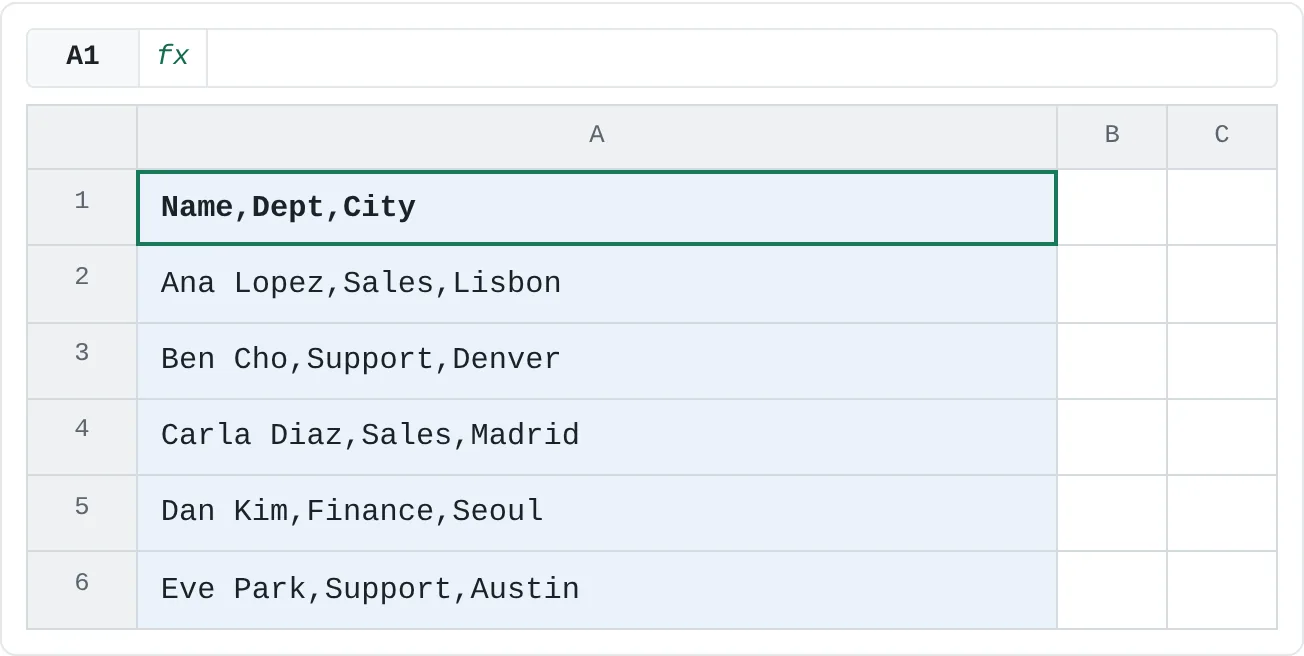
Someone emailed you a list, and when you pasted it, each line landed in a single cell of column A.
| A | B | C | |
|---|---|---|---|
| 1 | Name,Dept,City | ||
| 2 | Ana Lopez,Sales,Lisbon | ||
| 3 | Ben Cho,Support,Denver | ||
| 4 | Carla Diaz,Sales,Madrid | ||
| 5 | Dan Kim,Finance,Seoul | ||
| 6 | Eve Park,Support,Austin |
Make room on the right
Text to Columns writes the extra pieces into the columns to the right of the one you split, and it replaces whatever is there. Here, columns B and C are empty. If they weren't, you'd insert two empty columns first (right-click the column B heading and choose Insert).
Select the column and open the wizard
Select A1:A6, or click the column A heading, and go to Data then Data Tools then Text to Columns.
Step 1: choose Delimited
Choose Delimited, because a character (the comma) separates the pieces. Click Next.
Step 1: Delimited for data separated by a character; Fixed width for data where each piece is a set number of characters. Step 2: tick Comma
Under Delimiters, untick Tab and tick Comma. The Data preview at the bottom of the wizard now shows three columns. Click Next.
Step 2: tick the character that separates your data. Other takes any single character, such as a dash. Step 3: check the format and destination
Each column's format is General, which turns numbers into numbers and leaves text as text. Destination shows
=$A$1, the first cell you selected, so the result starts there. Click Finish.Step 3: pick a format for each column in Data preview, and where the result should start. Check the result
Names stay in column A, departments go to B and cities to C. The heading line was split too, so the columns already have headings.
A B C 1 Name Dept City 2 Ana Lopez Sales Lisbon 3 Ben Cho Support Denver 4 Carla Diaz Sales Madrid 5 Dan Kim Finance Seoul 6 Eve Park Support Austin After Finish: Name, Dept and City in three columns.
Delimiter options in step 2
| Option | What it does |
|---|---|
| Tab, Semicolon, Comma, Space | Split wherever that character appears. You can tick several at once. |
| Other | Split at a character you type in the box, such as -, / or ;. Only one character at a time. |
| Treat consecutive delimiters as one | Two delimiters in a row (such as ", " or a double space) count as one break, so you don't get empty columns. |
| Text qualifier | Text inside these quotation marks isn't split, so "Lopez, Ana",Sales keeps "Lopez, Ana" together. |
The delimiter itself is removed: the commas don't appear in the new columns.
Split at fixed positions
When every value has the same layout, such as an ID where characters 1 to 4 are a year, choose Fixed width in step 1 instead. In step 2, Excel shows the data with a ruler:
- Click in the Data preview to add a break line.
- Drag a line to move it.
- Double-click a line to remove it.
Excel sometimes suggests break lines by itself; check them before you click Next.
Keep leading zeros and fix dates in step 3
Step 3 decides what each new column becomes. Click a column in the Data preview, then choose its format:
- General converts numbers and dates and leaves everything else as text. It's the default, and it drops leading zeros:
0042becomes 42. - Text keeps exactly what's there, so
0042stays0042. Use it for codes, ZIP codes and phone numbers. - Date converts text to real dates. Pick the order the text uses, such as DMY for day/month/year.
- Do not import column (skip) leaves that piece out of the result.
To keep the original column, change Destination to an empty cell, such as the first cell of the next column. The split pieces start there instead.
Real-world scenarios
Product codes with leading zeros
Each SKU packs a product type, a colour and a four-digit number into one code, joined by dashes. You need them in separate columns to filter by colour, and the numbers must keep their zeros.
| A | B | C | D | |
|---|---|---|---|---|
| 1 | SKU | Type | Color | Number |
| 2 | TS-BLU-0042 | TS | BLU | 0042 |
| 3 | TS-RED-0107 | TS | RED | 0107 |
| 4 | HD-BLK-0009 | HD | BLK | 0009 |
| 5 | CP-WHT-0315 | CP | WHT | 0315 |
| 6 | HD-GRY-0021 | HD | GRY | 0021 |
Select A2:A6 and choose Delimited. In step 2, tick Other and type -. In step 3, click the third column in the preview and choose Text, then set Destination to $B$2 so the original codes stay in column A.
Year, class and number from a student ID
Student IDs follow a fixed pattern: four digits for the year the student started, a letter for the class, then a three-digit number.
| A | B | C | D | |
|---|---|---|---|---|
| 1 | Student ID | Year | Class | No. |
| 2 | 2026A017 | 2026 | A | 017 |
| 3 | 2026B004 | 2026 | B | 004 |
| 4 | 2025A112 | 2025 | A | 112 |
| 5 | 2026C058 | 2026 | C | 058 |
| 6 | 2025B230 | 2025 | B | 230 |
Select A2:A6, choose Fixed width, and in step 2 click in the preview after 2026 and again after the letter. In step 3, set the last column to Text and Destination to $B$2. Now you can sort by year or count the students in each class.
Dates from a foreign bank
A card statement from a trip abroad writes dates as day/month/year, and the file brings them in as text. Sorting by date and totals by month don't work until they're real dates.
| A | B | C | D | |
|---|---|---|---|---|
| 1 | Date (text) | Date | Description | Amount |
| 2 | 04/03/2026 | 2026-03-04 | Groceries | 54 |
| 3 | 15/03/2026 | 2026-03-15 | Train ticket | 38 |
| 4 | 28/03/2026 | 2026-03-28 | Phone bill | 45 |
| 5 | 02/04/2026 | 2026-04-02 | Cinema | 24 |
| 6 | 11/04/2026 | 2026-04-11 | Pharmacy | 17 |
Select A2:A6, click Next twice (no delimiters are needed), and in step 3 choose Date and DMY from the list next to it. Set Destination to $B$2 and click Finish. 15/03/2026 becomes 15 March 2026. Choosing DMY is what makes this work: read as month/day/year, 04/03/2026 would become 3 April instead of 4 March, and 15/03/2026 couldn't be read as a date at all.
Text to Columns or something else?
| Tool | Result | Updates when the source changes | Available in |
|---|---|---|---|
| Text to Columns | Fixed values | No | Every desktop version |
| Flash Fill (Ctrl+E) | Fixed values, from an example you type | No | Excel 2013 and later |
=TEXTSPLIT(A2,",") | A formula that spills into several cells | Yes | Microsoft 365, Excel 2024 |
| Power Query, Split Column | A query you refresh | Yes, on refresh | Excel 2016 and later |
Text to Columns is the quickest for a one-off clean-up. For data you'll import again every week, a formula or Power Query saves you repeating the steps.
Common mistakes
- Overwriting the next column. The pieces go into the columns to the right. If they hold data, Excel asks whether to replace it. Click Cancel and insert empty columns, or set a different Destination.
- Selecting more than one column. Text to Columns works on one column at a time; Excel shows a message if your selection is wider. Select one column, as many rows as you like.
- Losing leading zeros. With General,
0042becomes 42 and07024becomes 7024. Set those columns to Text in step 3. - Splitting on spaces in names. "Mary Ann Lee" splits into three columns, not two. Check the preview, or split at a different character.
- Pasted text splitting by itself afterwards. Excel remembers your delimiter settings until you close it, so text you paste from another program may be split into columns automatically. Run the wizard once with no delimiters ticked, or restart Excel.
Practice
Practice
Split three kinds of data
- Type the six comma-separated lines from this page into A1:A6 of a new sheet and split them at the comma.
- Type the five SKUs into a new column. Split them at
-into the columns to their right, keeping the numbers' leading zeros. - Type
15/03/2026and04/03/2026as text (start each with an apostrophe,'15/03/2026), then convert them to real dates with Date: DMY. Format the results to show the month name to check that both are in March.
Related
Was this guide helpful? Spot a mistake? Send feedback · admin@arumsoft.com