Everyday Excel Skills · Tutorial 4 of 14
Paste Special in Excel: Paste Values, Transpose and More
Paste only the part of a copy you need: values instead of formulas, formats, a transposed copy, or a calculation applied to a whole range.
- Level
- Beginner
- Time
- 10 min read
- Updated:
- Applies to:
- Excel for Microsoft 365, Excel 2021, Excel 2019, Excel for the web
What you'll learn
- Open Paste Special from the ribbon, the right-click menu or the keyboard
- Replace formulas with their results using Paste Values
- Turn rows into columns with Transpose
- Add to, multiply or divide a whole range with the Operation options
- Update a range from a list with gaps using Skip blanks
Before you start
A normal paste copies everything about a cell: its formula, its number format, its fill, its borders. Paste Special lets you pick the part you want. You'll use it to freeze formula results as plain numbers, to turn a column into a row, and to multiply a whole range by a number without writing a formula. Copy as usual, then press Ctrl+Alt+V at the destination.
Where to find it
Copy the cells first (Ctrl+C), then click where the copy should go.
- Ribbon: Home then Clipboard then Paste. Click the arrow under the Paste button, not the button itself, and choose Paste Special. The icons above it are one-click versions of the most common choices; point at one to see its name and a preview.
- Keyboard: Ctrl+Alt+V opens the Paste Special dialog.
- Right-click: right-click the destination cell. The Paste Options icons appear in the menu (the one with 123 pastes values), and Paste Special below them opens the full set of choices.
Paste values instead of formulas
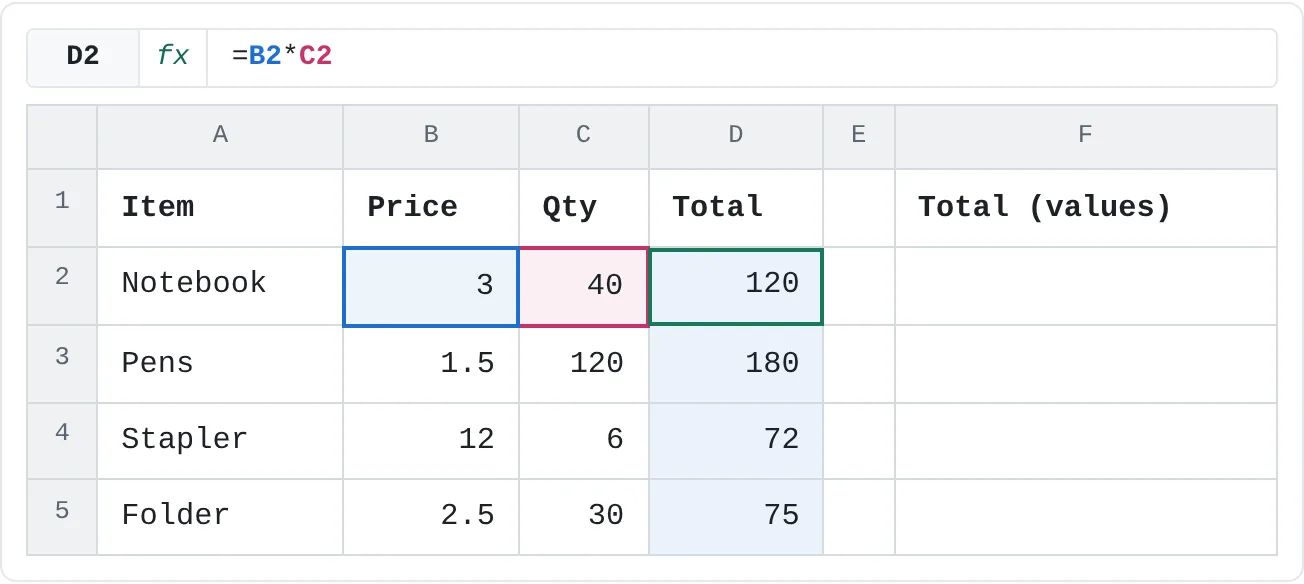
The order sheet below works out each total with a formula in column D. To keep a fixed record of the totals, paste them as values into column F.
| A | B | C | D | E | F | |
|---|---|---|---|---|---|---|
| 1 | Item | Price | Qty | Total | Total (values) | |
| 2 | Notebook | 3 | 40 | 120 | ||
| 3 | Pens | 1.5 | 120 | 180 | ||
| 4 | Stapler | 12 | 6 | 72 | ||
| 5 | Folder | 2.5 | 30 | 75 |
Copy the formulas
Select D2:D5 and press Ctrl+C. A moving border appears around the copied cells.
Open Paste Special at the destination
Click F2 and press Ctrl+Alt+V.
Choose Values
Under Paste, choose Values and click OK.
Values pastes the results of the copied cells and nothing else. Check the result
Click F2. The formula bar shows 120, a plain number, where D2 shows
=B2*C2. Press Esc to clear the moving border.A B C D E F 1 Item Price Qty Total Total (values) 2 Notebook 3 40 120 120 3 Pens 1.5 120 180 180 4 Stapler 12 6 72 72 5 Folder 2.5 30 75 75 F2:F5 hold the totals as fixed numbers. Change a price in column B and only column D updates.
The fastest keyboard route is Ctrl+Alt+V, then V (the underlined letter of Values), then Enter.
Turn rows into columns with Transpose
Transpose flips a copy on its side: the first column becomes the first row. Here, a list of months down column A becomes a row of headings.
| A | B | |
|---|---|---|
| 1 | Month | Sales |
| 2 | Jan | 820 |
| 3 | Feb | 940 |
| 4 | Mar | 760 |
| 5 | Apr | 1,010 |
Copy the list
Select A1:B5 and press Ctrl+C.
Click an empty cell
Click D1. The transposed copy fills cells to the right of and below this cell, so pick a spot with nothing in the way.
Tick Transpose
Press Ctrl+Alt+V, leave All selected, tick Transpose and click OK.
Transpose is a check box, so it works together with any Paste option. A B C D E F G H 1 Month Sales Month Jan Feb Mar Apr 2 Jan 820 Sales 820 940 760 1,010 3 Feb 940 4 Mar 760 5 Apr 1,010 The same five rows and two columns, now two rows and five columns in D1:H2.
Five rows by two columns became two rows by five columns. The original stays where it was; delete it if you no longer need it.
Do the same math on a whole range
The Operation options combine the copied number with the numbers already in the destination. To raise every price by 10%, multiply them all by 1.1.
Type the number and copy it
Type
1.1in an empty cell, here D2, and copy it with Ctrl+C.A B C D 1 Item Price Increase 2 Mug 8 1.1 3 T-shirt 20 4 Cap 12.5 5 Sticker pack 4 The multiplier 1.1 in D2, and the four prices to change in B2:B5. Select the cells to change
Select B2:B5 and press Ctrl+Alt+V.
Choose Values and Multiply
Under Paste choose Values, under Operation choose Multiply, and click OK. Choosing Values rather than All keeps the prices' own formatting; with All, D2's formatting would come along too.
Values with Multiply: each selected cell is multiplied by the copied 1.1. A B C D 1 Item Price Increase 2 Mug 8.8 1.1 3 T-shirt 22 4 Cap 13.75 5 Sticker pack 4.4 Every price is 10% higher: 8 became 8.8, 20 became 22, 12.5 became 13.75 and 4 became 4.4. Delete the helper cell
The prices are now plain numbers, so the 1.1 in D2 isn't needed. Select it and press Delete.
Add, Subtract and Divide work the same way. If a destination cell holds a formula rather than a number, Excel wraps the formula instead: =B2*C2 becomes =(B2*C2)*1.1.
Every Paste Special option
| Option | What it pastes |
|---|---|
| All | Everything, the same as a normal paste |
| Formulas | Formulas (or typed values), without formatting |
| Values | The results you see, without formulas or formatting |
| Formats | Formatting only: number format, font, fill, borders |
| Comments and Notes | Only the comments and notes attached to the cells |
| Validation | Only the data validation rules |
| All using Source theme | Everything, with the theme colors and fonts of the copied workbook |
| All except borders | Everything except borders |
| Column widths | Only the width of the copied columns |
| Formulas and number formats | Formulas plus their number formats |
| Values and number formats | Results plus their number formats |
| All merging conditional formats | Everything, keeping the destination's conditional formatting rules as well as the copied ones (available when the copy has conditional formatting) |
| Operation: Add, Subtract, Multiply, Divide | Combines each copied number with the number already in the destination |
| Skip blanks | Blank cells in the copy don't overwrite cells in the destination |
| Transpose | Rows become columns and columns become rows |
| Paste Link (button) | Formulas that point back to the copied cells, so the copy keeps updating |
Real-world scenarios
Show a report in thousands
A revenue table is easier to read in thousands. Type 1000 in an empty cell (D2), copy it, select B2:B5, and open Paste Special. Choose Values and Divide.
| A | B | C | D | |
|---|---|---|---|---|
| 1 | Region | Revenue (thousands) | Divide by | |
| 2 | North | 1,245 | 1,000 | |
| 3 | South | 980 | ||
| 4 | East | 1,532 | ||
| 5 | West | 876 |
The numbers themselves changed, not only their display, so totals and charts built on them now work in thousands too. Rename the heading so nobody misreads them.
Names across an attendance sheet
A teacher's class list runs down column A, but the attendance sheet needs one column per student. Copy A2:A5, click D1, open Paste Special and tick Transpose.
| A | B | C | D | E | F | G | |
|---|---|---|---|---|---|---|---|
| 1 | Students | Date | Mia Chen | Leo Grant | Zoe Patel | Sam Ortiz | |
| 2 | Mia Chen | 2026-03-02 | |||||
| 3 | Leo Grant | 2026-03-03 | |||||
| 4 | Zoe Patel | 2026-03-04 | |||||
| 5 | Sam Ortiz |
The names now run across row 1, and each date in column C gets a row to mark who was present. If the class list changes later, transpose it again; a transposed copy is a one-time copy, not a link.
Update only the changed amounts
Column D lists only the budget lines that changed this month: Groceries goes up to 500 and Fun drops to 100. The other cells in D are empty. Copy D2:D6, click B2, open Paste Special, choose Values and tick Skip blanks.
| A | B | C | D | |
|---|---|---|---|---|
| 1 | Category | Budget | Changes | |
| 2 | Rent | 1,200 | ||
| 3 | Groceries | 500 | 500 | |
| 4 | Transport | 120 | ||
| 5 | Phone | 60 | ||
| 6 | Fun | 100 | 100 |
Without Skip blanks, the three empty cells would have been pasted too, and Rent, Transport and Phone would now be blank.
Common mistakes
- Pasting values over the only copy of a formula. Once you save, the formula is gone. Paste values into a new column or a copy of the sheet, or press Ctrl+Z straight away.
- Dates turn into numbers. Values doesn't bring number formats, so a date pasted into a cell with the General format shows as a number such as 46083 (that's 2026-03-02). Choose Values and number formats instead, or format the cells as dates afterwards.
- Paste Special is grayed out or looks different. It works after Copy, not after Cut. And if you copied from a web page or another program, the dialog lists data formats (such as HTML or Text) instead of the options above. To paste plain text from outside Excel, choose one of the text formats.
- The helper cell's formatting spreads. An Operation with All selected also pastes the copied cell's formatting. Choose Values with the operation.
- Transposing on top of the original. Paste the transposed copy in an empty area that doesn't overlap the cells you copied. If the copied cells contain formulas, check the results: their references are adjusted for the new positions.
Practice
Practice
Freeze, flip and adjust a price list
In a new sheet, type four products in A2:A5 with prices in B2:B5 (any numbers), and a heading in A1 and B1. Then, in your own Excel:
- In C2, type
=B2*2and fill it down to C5. Copy C2:C5 and paste it into D2 as Values. Click D2 and check that the formula bar shows a number, not a formula. - Copy A1:B5 and paste it at F1 with Transpose ticked.
- Type
1.05in an empty cell, copy it, select B2:B5 and use Values with Multiply. Check that each price went up by 5% and that column C updated while column D didn't. - Delete the 1.05 helper cell.
Related
Was this guide helpful? Spot a mistake? Send feedback · admin@arumsoft.com