Everyday Excel Skills · Tutorial 8 of 14
How to Hide and Unhide Rows, Columns and Sheets in Excel
Hide rows, columns and sheets you don't need to see, bring them back, and know how hidden cells affect formulas, copying and charts.
- Level
- Beginner
- Time
- 8 min read
- Updated:
- Applies to:
- Excel for Microsoft 365, Excel 2021, Excel 2019, Excel for the web
What you'll learn
- Hide and unhide rows and columns with the mouse, the ribbon and shortcuts
- Unhide everything at once, including row 1 or column A
- Hide sheets and unhide one or several of them
- Copy, total and chart only the cells you can see
Before you start
Hiding takes rows, columns or whole sheets out of view without deleting anything. Use it to tuck away helper columns, raw numbers behind a summary, or a sheet of lookup lists, so the people reading the workbook see only what matters. Formulas keep using the hidden cells, and you can bring them back at any time. The quickest shortcuts are Ctrl+9 to hide rows and Ctrl+0 to hide columns.
Where to find it
The fastest way is to right-click: on the column letters or row numbers for columns and rows, or on a sheet tab for sheets. Every hide and unhide command is also on the ribbon, under Home then Cells then Format then Hide & Unhide.
The Hide & Unhide submenu has six commands: Hide Rows, Hide Columns, Hide Sheet, Unhide Rows, Unhide Columns and Unhide Sheet.
| To do this | Shortcut |
|---|---|
| Hide the selected rows | Ctrl+9 |
| Unhide rows inside the selection | Ctrl+Shift+9 |
| Hide the selected columns | Ctrl+0 |
| Unhide columns inside the selection | Ctrl+Shift+0 (often doesn't work; see Common mistakes) |
| Select only the visible cells | Alt+; |
Hide columns or rows
This order list has a Qty and a Price column that feed the Total in column E. A manager only needs the totals.
| A | B | C | D | E | |
|---|---|---|---|---|---|
| 1 | Order | Customer | Qty | Price | Total |
| 2 | A-101 | Bright Cafe | 12 | 4.5 | 54 |
| 3 | A-102 | Oak Books | 5 | 12 | 60 |
| 4 | A-103 | Corner Deli | 20 | 3 | 60 |
| 5 | A-104 | Blue Gym | 8 | 25 | 200 |
Select the columns
Click the C column letter and drag to D, so both whole columns are selected. To pick columns that aren't next to each other, hold Ctrl as you click their letters.
Hide them
Right-click either selected letter and choose Hide, or press Ctrl+0.
Check the result
The column letters now jump from B to E, which is how you can always tell that columns are hidden. The totals in column E haven't changed: 54, 60, 60 and 200. Their formulas, such as
=C2*D2, still read the hidden cells.
Rows work the same way. Select whole rows by their numbers, then right-click and choose Hide, or press Ctrl+9. The row numbers skip where rows are hidden, for example from 4 to 8.
Unhide columns or rows
To bring hidden columns back, select the columns on both sides of them, then unhide.
Select across the gap
Drag across the column letters B to E. The hidden C and D are inside the selection.
Unhide
Right-click the selection and choose Unhide. For rows, select the rows above and below the gap and choose Unhide, or press Ctrl+Shift+9.
Two situations need a different approach:
- Unhide everything. Click the Select All button (the triangle where the row numbers and column letters meet) or press Ctrl+A until the whole sheet is selected. Right-click any column letter and choose Unhide, then right-click any row number and choose Unhide.
- Row 1 or column A is hidden. There's no row or column before it to select. Type
A1in the Name Box to the left of the formula bar and press Enter. Then choose Home then Cells then Format then Hide & Unhide then Unhide Columns (or Unhide Rows).
Hide and unhide sheets
Right-click a sheet tab and choose Hide. The tab disappears, and formulas that refer to the sheet keep working. You can hide several sheets at once: Ctrl-click their tabs first. Excel won't hide the last visible sheet, because a workbook must always show at least one.
To bring a sheet back:
Open the Unhide dialog
Right-click any sheet tab and choose Unhide. If it's grayed out, no sheets are hidden.
Pick the sheets
Click the sheet to show. In Microsoft 365 you can hold Ctrl or Shift to pick several. Click OK.
The Unhide dialog lists every hidden sheet. In Microsoft 365 you can select more than one.
Hiding isn't protection: anyone can unhide a sheet in two clicks. To stop people unhiding, deleting or renaming sheets, protect the workbook's structure with Review then Protect then Protect Workbook. Sheets that someone has made "very hidden" with VBA don't appear in the Unhide dialog at all.
How hidden cells affect formulas, copying and charts
Hidden cells are still part of the sheet, and different features treat them differently:
| Feature | What happens to hidden rows and columns |
|---|---|
Formulas such as SUM and AVERAGE | Still included |
SUBTOTAL with 101 to 111 | Hidden rows are left out |
| Copy and paste | Hidden cells are copied too, unless you select visible cells only |
| Charts | Not plotted, by default |
| Printing | Not printed |
To total only the visible rows, use 109 (sum, ignoring hidden rows) as the first argument of SUBTOTAL:
=SUBTOTAL(109,E2:E5)With all four orders showing, it returns 374, the same as =SUM(E2:E5). Hide row 5 and it returns 174, while SUM still says 374.
To copy only what you can see, select the range, press Alt+; to select the visible cells only, then copy and paste. The same command is at Home then Editing then Find & Select then Go To Special, Visible cells only.
Real-world scenarios
Hide salaries before sharing your screen
You're about to share a staff list in a video call, and the salary column shouldn't be on screen. Click the C column letter and press Ctrl+0.
| A | B | C | D | |
|---|---|---|---|---|
| 1 | Name | Dept | Salary | Ext. |
| 2 | Priya Nair | Engineering | 98,000 | 214 |
| 3 | Marcus Webb | Sales | 71,000 | 305 |
| 4 | Lena Ortiz | Engineering | 105,000 | 220 |
| 5 | Omar Haddad | Support | 58,000 | 118 |
After the call, select columns B to D and press Ctrl+Shift+0, or right-click and choose Unhide. Don't send the file to anyone who shouldn't see salaries: they can unhide the column just as easily.
Mark a quiz with the key out of sight
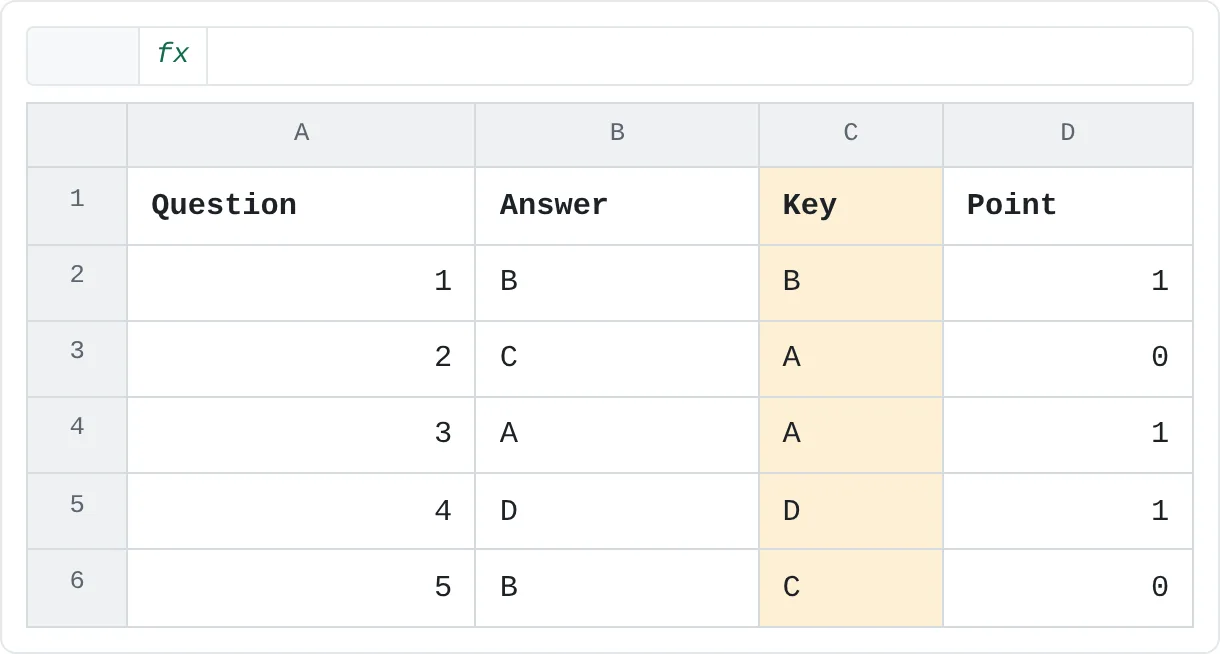
Column C holds the answer key and column D gives a point for each match with =IF(B2=C2,1,0). Hide column C while students check their own answers on the projector.
| A | B | C | D | |
|---|---|---|---|---|
| 1 | Question | Answer | Key | Point |
| 2 | 1 | B | B | 1 |
| 3 | 2 | C | A | 0 |
| 4 | 3 | A | A | 1 |
| 5 | 4 | D | D | 1 |
| 6 | 5 | B | C | 0 |
The points still work, because the formulas read the hidden key: questions 1, 3 and 4 score 1, and 2 and 5 score 0. For a quiz file you hand out, delete the key instead of hiding it.
Focus on recent months in a budget
A budget has a column for each month and a Total column with =SUM(B2:E2). To focus on March and April, hide the January and February columns.
| A | B | C | D | E | F | |
|---|---|---|---|---|---|---|
| 1 | Category | Jan | Feb | Mar | Apr | Total |
| 2 | Rent | 1,200 | 1,200 | 1,200 | 1,200 | 4,800 |
| 3 | Groceries | 430 | 410 | 455 | 440 | 1,735 |
| 4 | Transport | 120 | 135 | 110 | 125 | 490 |
Rent totals 4,800, groceries 1,735 and transport 490 whether or not B and C are visible, because SUM always includes hidden cells. If you want a total of only the visible months, add up just those columns instead of hiding.
Common mistakes
- Selecting only one side of the gap. Unhide works on hidden columns or rows inside the selection. If you select only column B, nothing happens. Select across the gap.
- Ctrl+Shift+0 does nothing. On many Windows computers, that key combination is reserved for switching keyboard languages, so Excel never receives it. Right-click and choose Unhide instead.
- Treating hidden as secret. Hidden rows, columns and sheets are one right-click away from being seen. Delete confidential data from copies you share.
- Pasting hidden rows by accident. A copied range brings its hidden rows and columns with it. Press Alt+; before copying.
- A chart loses a series. Charts skip hidden rows and columns by default. Select the chart, choose Chart Design then Data then Select Data, click Hidden and Empty Cells and tick Show data in hidden rows and columns.
Practice
Practice
Hide and bring back
Type the order list from this page into a new sheet, with =C2*D2 in E2 filled down to E5. Then:
- Hide columns C and D. Check that the totals in column E haven't changed.
- Unhide them by selecting columns B to E.
- Hide row 5 with Ctrl+9. In an empty cell, compare
=SUM(E2:E5)with=SUBTOTAL(109,E2:E5). - Hide column A, then bring it back using the Name Box and the Hide & Unhide menu.
- Add a second sheet, hide it, then unhide it from the sheet tab menu.
Related
Was this guide helpful? Spot a mistake? Send feedback · admin@arumsoft.com