Everyday Excel Skills · Tutorial 2 of 14
How to Use AutoFill and the Fill Handle in Excel
Fill days, months, numbers, dates and numbered labels by dragging the fill handle, and control the result with Auto Fill Options and the Series dialog.
- Level
- Beginner
- Time
- 9 min read
- Updated:
- Applies to:
- Excel for Microsoft 365, Excel 2021, Excel 2019, Excel for the web
What you'll learn
- Fill days, months and numbered labels by dragging the fill handle
- Make AutoFill count in steps by giving it two starting values
- Fill dates by day, weekday or month with Auto Fill Options
- Fill a series up to a stop value with the Series dialog
- Fix a fill that copied when it should have counted, or the other way round
Before you start
Typing Mon, Tue, Wed or 1, 2, 3 by hand gets old fast. AutoFill continues a pattern for you: type the first value, drag the small square at the corner of the cell, and Excel fills in the rest. It knows days, months, dates and numbers, and it copies formulas too. Drag the fill handle with the mouse, or press Ctrl+D to fill down and Ctrl+R to fill right.
Where to find it
The fill handle is the small square at the bottom-right corner of the selected cell or range. Point at it and the pointer becomes a thin black cross; that's when you can drag.
The same filling commands are on the ribbon, for when you'd rather not drag:
- Fill handle: drag it down, up, left or right. Double-click it to fill down as far as the data in the next column goes.
- Ribbon: Home then Editing then Fill. Select the source cell and the cells to fill, then choose Down or Right. Series fills a pattern to an exact end point.
- Keyboard: select the source cell and the cells below it and press Ctrl+D (fill down), or the cells to its right and press Ctrl+R (fill right). To type the same entry into every selected cell at once, type it and press Ctrl+Enter.
Fill a series by dragging
The sheet below has one starting value in each column, except column D, which has two.
| A | B | C | D | E | |
|---|---|---|---|---|---|
| 1 | Day | Month | 1 only | 5 and 10 | Item |
| 2 | Mon | Jan | 1 | 5 | Item 1 |
| 3 | 10 | ||||
| 4 | |||||
| 5 | |||||
| 6 | |||||
| 7 |
Select the starting cell
Click A2 (Mon).
Drag the fill handle
Point at the square in the bottom-right corner of A2. When the pointer turns into a thin cross, hold the mouse button down and drag to A7. A small tip next to the pointer shows the value each cell will get. Let go.
Repeat for the other columns
Do the same for B2, C2 and E2. For column D, select both D2:D3 first, then drag the fill handle of that selection down to D7.
A B C D E 1 Day Month 1 only 5 and 10 Item 2 Mon Jan 1 5 Item 1 3 Tue Feb 1 10 Item 2 4 Wed Mar 1 15 Item 3 5 Thu Apr 1 20 Item 4 6 Fri May 1 25 Item 5 7 Sat Jun 1 30 Item 6 After dragging to row 7: Mon to Sat, Jan to Jun, the number 1 copied, 5 to 30 in steps of 5, and Item 1 to Item 6.
Each column shows a different rule:
| You start with | Dragging gives | Why |
|---|---|---|
| Mon (or Monday) | Tue, Wed, Thu … | Day names are a built-in list |
| Jan (or January) | Feb, Mar, Apr … | So are month names |
| 1 (one number) | 1, 1, 1 … | A single number is copied |
| 5 and 10 (two cells) | 15, 20, 25 … | Two values set the step: +5 |
| Item 1 | Item 2, Item 3 … | Text that ends in a number counts up |
| A date | The next day, and the next … | Dates count up by one day |
| A formula | The same formula, references adjusted | Relative references move with each copy |
To count up from a single number instead of copying it, hold Ctrl while you drag: 1 becomes 1, 2, 3. Lists repeat when they reach the end, so dragging Sun further gives Mon again.
Choose what the fill does with Auto Fill Options
When you let go of the fill handle, a small Auto Fill Options button appears at the bottom-right of the filled cells. Click it to change what Excel did:
- Copy Cells repeats the starting value instead of continuing the pattern.
- Fill Series continues the pattern instead of copying.
- Fill Formatting Only copies only the look of the starting cell, and Fill Without Formatting fills the values but keeps the cells' existing formatting.
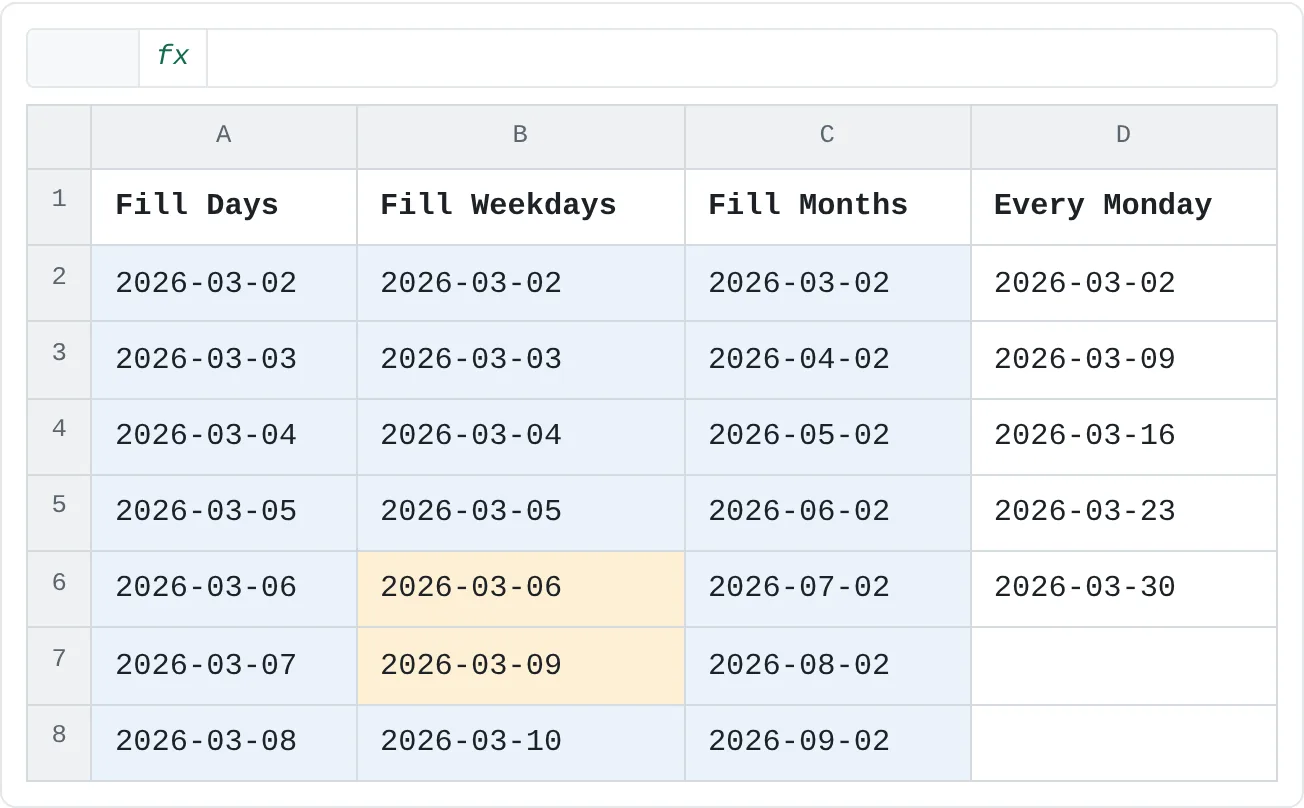
- For dates, Fill Days, Fill Weekdays, Fill Months and Fill Years set the step.
Here, the same start date, 2026-03-02 (a Monday), was dragged down three times and a different option was chosen each time:
| A | B | C | D | |
|---|---|---|---|---|
| 1 | Fill Days | Fill Weekdays | Fill Months | Every Monday |
| 2 | 2026-03-02 | 2026-03-02 | 2026-03-02 | 2026-03-02 |
| 3 | 2026-03-03 | 2026-03-03 | 2026-04-02 | 2026-03-09 |
| 4 | 2026-03-04 | 2026-03-04 | 2026-05-02 | 2026-03-16 |
| 5 | 2026-03-05 | 2026-03-05 | 2026-06-02 | 2026-03-23 |
| 6 | 2026-03-06 | 2026-03-06 | 2026-07-02 | 2026-03-30 |
| 7 | 2026-03-07 | 2026-03-09 | 2026-08-02 | |
| 8 | 2026-03-08 | 2026-03-10 | 2026-09-02 |
Fill Weekdays skips Saturdays and Sundays only; it doesn't know about public holidays. If you drag with the right mouse button instead, a menu with the same choices appears as soon as you let go, so you can pick before anything is filled.
Fill to an exact end with the Series dialog
Dragging is fine for a few rows. To fill every Monday up to the end of March, or the numbers 1 to 500, use the Series dialog, which stops at a value you choose.
Type the first value and select it
Type
2026-03-02in D2 and keep D2 selected.Open Series
Go to Home then Editing then Fill then Series.
Set the direction, type and step
Under Series in choose Columns. Under Type choose Date, and under Date unit choose Day. Type
7in Step value and2026-03-30in Stop value. Click OK.A step of 7 days from a Monday gives every Monday, and the stop value ends the series at March 30. A B C D 1 Fill Days Fill Weekdays Fill Months Every Monday 2 2026-03-02 2026-03-02 2026-03-02 2026-03-02 3 2026-03-03 2026-03-03 2026-04-02 2026-03-09 4 2026-03-04 2026-03-04 2026-05-02 2026-03-16 5 2026-03-05 2026-03-05 2026-06-02 2026-03-23 6 2026-03-06 2026-03-06 2026-07-02 2026-03-30 7 2026-03-07 2026-03-09 2026-08-02 8 2026-03-08 2026-03-10 2026-09-02 Column D: every Monday in March 2026, from 03-02 to 03-30. Excel stopped at the stop value.
For numbers, choose Linear: a start of 1, a step of 1 and a stop value of 500 fills 1 to 500 in one go, without dragging past hundreds of rows. Growth multiplies by the step instead of adding it.
Add your own list
If you type the same sequence often, such as your team's regions or the stages of a project, make it a custom list. Go to File then Options, choose Advanced, scroll to the General section and click Edit Custom Lists. Type your entries one per line (or import them from cells on the sheet), click Add, then OK. From then on, typing the first entry and dragging fills the rest, in your order. Custom lists are saved in your copy of Excel, not in the workbook.
Real-world scenarios
Numbered invoices on working days
A new invoice log needs numbers and dates. Type INV-1001 in A2 and drag down: the number at the end counts up. Type the first date in B2, drag down, and choose Fill Weekdays from Auto Fill Options.
| A | B | C | |
|---|---|---|---|
| 1 | Invoice | Date | Amount |
| 2 | INV-1001 | 2026-03-02 | 420 |
| 3 | INV-1002 | 2026-03-03 | 1,150 |
| 4 | INV-1003 | 2026-03-04 | 380 |
| 5 | INV-1004 | 2026-03-05 | 960 |
| 6 | INV-1005 | 2026-03-06 | 2,240 |
| 7 | INV-1006 | 2026-03-09 | 515 |
Only the amounts in column C were typed by hand.
A weekly timetable
For a class timetable, type Mon in B1 and drag right to F1 to get the school days. Type 1 in A2 and drag down to A7 while holding Ctrl, so the periods count 1 to 6 instead of repeating 1.
| A | B | C | D | E | F | |
|---|---|---|---|---|---|---|
| 1 | Period | Mon | Tue | Wed | Thu | Fri |
| 2 | 1 | Math | English | Science | Math | History |
| 3 | 2 | Science | Math | Art | English | Math |
| 4 | 3 | English | History | Math | Music | Science |
| 5 | 4 | |||||
| 6 | 5 | |||||
| 7 | 6 |
Subjects that repeat, such as Math, can be filled too: drag a cell's fill handle across the periods that share it.
A six-month budget
Type Jan in B1 and drag right to G1. Rent is the same every month, so type 1200 in B2 and drag right: a single number is copied. Savings should grow by 50 each month, so type 200 in B3 and 250 in C3, select both and drag right.
| A | B | C | D | E | F | G | |
|---|---|---|---|---|---|---|---|
| 1 | Category | Jan | Feb | Mar | Apr | May | Jun |
| 2 | Rent | 1,200 | 1,200 | 1,200 | 1,200 | 1,200 | 1,200 |
| 3 | Savings | 200 | 250 | 300 | 350 | 400 | 450 |
One drag per row built the whole grid.
Common mistakes
- The number copied instead of counting. One number on its own is copied. Give Excel two values (1 and 2) and drag both, hold Ctrl while dragging, or choose Fill Series from Auto Fill Options.
- Dates went up by day when you wanted months. Click Auto Fill Options and choose Fill Months (or Fill Weekdays, Fill Years).
- The fill wiped out formatting. Borders or fill colors in the target cells were replaced by the starting cell's. Choose Fill Without Formatting from Auto Fill Options.
- A double-click filled too few rows. Double-clicking the fill handle stops at the first blank cell in the neighboring column. Drag instead, or select the range and press Ctrl+D.
- The cells moved instead of filling. If the pointer is a four-headed arrow, you're dragging the border, which moves the cells. Press Ctrl+Z and grab the small square in the corner.
- There's no fill handle. It can be turned off. Go to File then Options, choose Advanced and tick Enable fill handle and cell drag-and-drop.
Practice
Practice
Build a planner with AutoFill
In a new sheet, using only the fill handle and the Series dialog for everything except the first value of each pattern:
- Type
Januaryin A1 and fill right to L1. - Type
Week 1in A3 and fill down to A14. - Type
10in B3 and20in B4, then fill down to B14. Check that B14 shows 120. - Type today's date in C3, fill down to C14, and switch to Fill Weekdays. Check that no Saturday or Sunday appears.
- Type
1in D3 and use Home then Editing then Fill then Series with Series in set to Columns, a step of 1 and a stop value of 12.
Related
Was this guide helpful? Spot a mistake? Send feedback · admin@arumsoft.com