Everyday Excel Skills · Tutorial 11 of 14
How to Remove Duplicates in Excel
Delete repeated rows from a list with Remove Duplicates, choose which columns decide what counts as a duplicate, and check for duplicates before you delete.
- Level
- Beginner
- Time
- 8 min read
- Updated:
- Applies to:
- Excel for Microsoft 365, Excel 2021, Excel 2019, Excel for the web
What you'll learn
- Remove rows that are repeated in every column
- Choose which columns decide whether two rows are duplicates
- Find and count duplicates before deleting anything
- Avoid the mistakes that leave duplicates behind or misalign rows
Before you start
Lists collect duplicates: the same person signs up twice, two exports get pasted together, a form is submitted again. Remove Duplicates deletes the repeated rows in one step and keeps the first copy of each. You decide which columns have to match for two rows to count as duplicates, which is the part that needs care.
Where to find it
Click any cell in your list and go to Data then Data Tools then Remove Duplicates. From the keyboard, press Alt, then A, then M. There's no right-click command. If your list is an Excel table, the same command is also on the Table Design tab, in the Tools group.
Remove rows that repeat in every column
This sign-up sheet has eight rows. Ana Lopez and Carla Diaz each signed up for Yoga twice, with exactly the same details. Ben Cho appears twice too, but for two different classes, so both of his rows are real sign-ups.
| A | B | C | |
|---|---|---|---|
| 1 | Name | Class | |
| 2 | Ana Lopez | ana@example.com | Yoga |
| 3 | Ben Cho | ben@example.com | Pottery |
| 4 | Ana Lopez | ana@example.com | Yoga |
| 5 | Carla Diaz | carla@example.com | Yoga |
| 6 | Ben Cho | ben@example.com | Painting |
| 7 | Dan Kim | dan@example.com | Pottery |
| 8 | Carla Diaz | carla@example.com | Yoga |
| 9 | Eve Park | eve@example.com | Painting |
Click in the list
Click any cell from A1 to C9. Excel selects the whole list for you when the dialog opens. If you select a range yourself, Excel uses that range instead, so let Excel pick it unless you have a reason not to.
Open Remove Duplicates
Go to Data then Data Tools then Remove Duplicates. The dialog lists every column of the list, all ticked.
With My data has headers ticked, the dialog lists your headings. All three columns are ticked, so a row is removed only if all three match an earlier row. Check the header box and the columns
Make sure My data has headers is ticked. When it is, the column list shows your headings (Name, Email, Class) and row 1 is never removed. Leave all three columns ticked. Click OK.
Read the message
Excel reports 2 duplicate values found and removed; 6 unique values remain. Click OK. Rows 4 and 8 are gone and the rows below moved up. Ben keeps both sign-ups, because his Class values differ.
A B C 1 Name Email Class 2 Ana Lopez ana@example.com Yoga 3 Ben Cho ben@example.com Pottery 4 Carla Diaz carla@example.com Yoga 5 Ben Cho ben@example.com Painting 6 Dan Kim dan@example.com Pottery 7 Eve Park eve@example.com Painting Six sign-ups remain. The first copy of each repeated row was kept.
Remove Duplicates always keeps the first (highest) copy and deletes the ones below it. If you'd rather keep the newest entry, sort the list newest first before you remove duplicates.
Choose which columns count
The ticked columns decide what a duplicate is. Untick a column and Excel ignores it when comparing rows.
Say you need a mailing list with one row per person. Run Remove Duplicates on the original eight rows again, click Unselect All, and tick only Email. Now Excel reports 3 duplicate values found and removed; 5 unique values remain: it also removes Ben's Painting row, because his email already appeared in row 3.
| A | B | C | |
|---|---|---|---|
| 1 | Name | Class | |
| 2 | Ana Lopez | ana@example.com | Yoga |
| 3 | Ben Cho | ben@example.com | Pottery |
| 4 | Carla Diaz | carla@example.com | Yoga |
| 5 | Dan Kim | dan@example.com | Pottery |
| 6 | Eve Park | eve@example.com | Painting |
That's right for a mailing list and wrong for a class register. Before you click OK, ask: "If two rows match in these columns only, is it really the same record?"
| Columns ticked | Rows removed | What it's good for |
|---|---|---|
| Name, Email, Class (all) | 4 and 8 | Removing exact repeats, keeping every real sign-up |
| Email only | 4, 6 and 8 | One row per person, such as a mailing list |
| Class only | All but the first row of each class | A list of the classes on offer (best done on a copy) |
Check for duplicates first
Remove Duplicates deletes rows. You can undo it with Ctrl+Z straight away, but it's safer to look before you delete, or to work on a copy of the sheet.
- Highlight repeated values: select a column and go to Home then Styles then Conditional Formatting then Highlight Cells Rules then Duplicate Values. This colours every cell whose value appears more than once in the selection. It looks at single cells, so it can't tell you whether whole rows match.
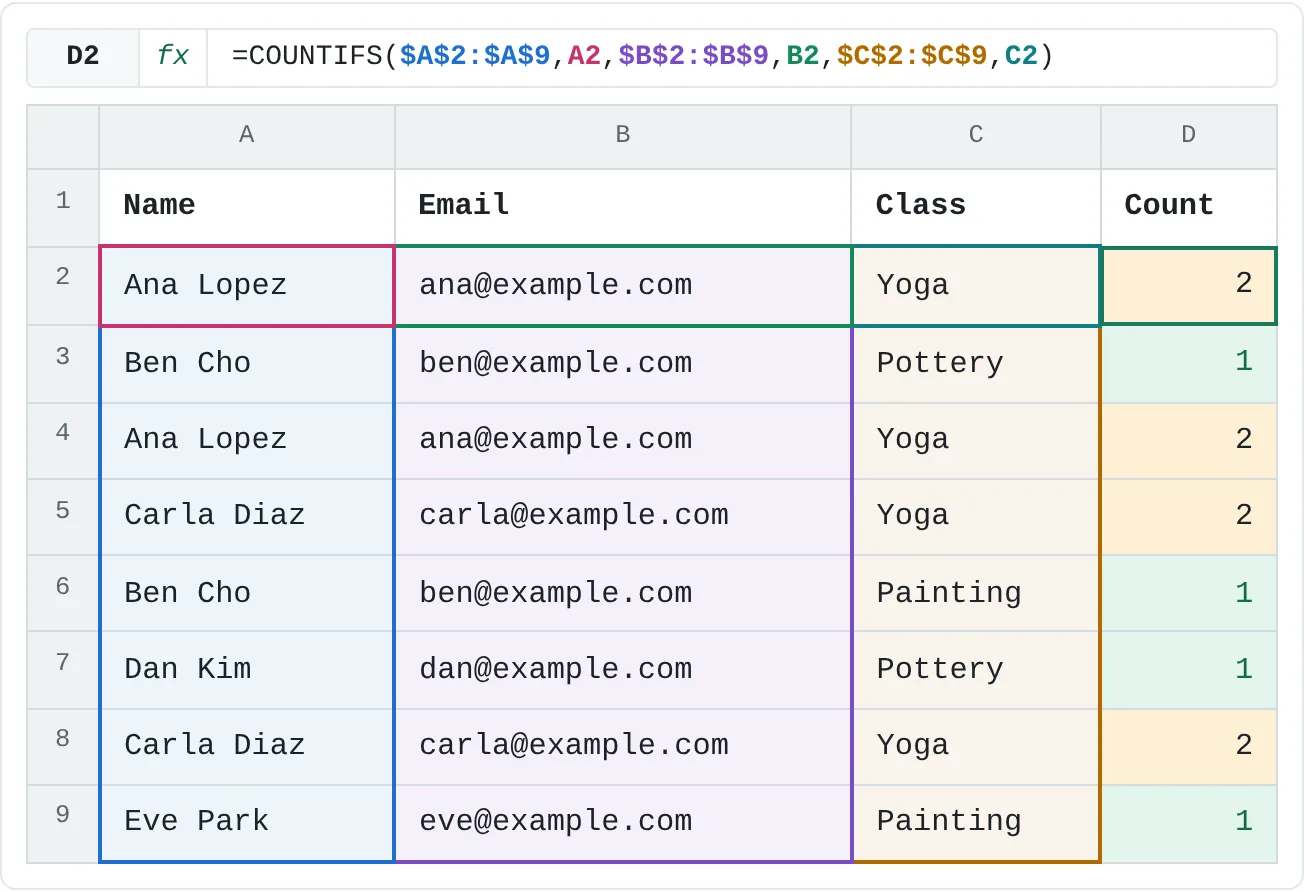
- Count matching rows: add a helper column with
COUNTIFS, one pair of arguments per column you'd tick in the dialog. Any result above 1 is a row that Remove Duplicates would treat as a duplicate.
=COUNTIFS($A$2:$A$9,A2,$B$2:$B$9,B2,$C$2:$C$9,C2)| A | B | C | D | |
|---|---|---|---|---|
| 1 | Name | Class | Count | |
| 2 | Ana Lopez | ana@example.com | Yoga | 2 |
| 3 | Ben Cho | ben@example.com | Pottery | 1 |
| 4 | Ana Lopez | ana@example.com | Yoga | 2 |
| 5 | Carla Diaz | carla@example.com | Yoga | 2 |
| 6 | Ben Cho | ben@example.com | Painting | 1 |
| 7 | Dan Kim | dan@example.com | Pottery | 1 |
| 8 | Carla Diaz | carla@example.com | Yoga | 2 |
| 9 | Eve Park | eve@example.com | Painting | 1 |
If you want the unique rows without touching the original, use =UNIQUE(A2:C9) in Microsoft 365 or Excel 2021 and later, or Advanced Filter with Unique records only. Both copy the unique rows elsewhere and leave the list as it is.
Real-world scenarios
One row per customer ID
Two exports were combined, and some customers appear twice with their name typed slightly differently. The Customer ID is the reliable key.
| A | B | C | |
|---|---|---|---|
| 1 | Customer ID | Name | City |
| 2 | 1001 | Oak Cafe | Boston |
| 3 | 1002 | Pine Books | Denver |
| 4 | 1001 | Oak Café | Boston |
| 5 | 1003 | Lake Gym | Austin |
| 6 | 1002 | Pine Books Ltd | Denver |
| 7 | 1004 | Hill Bakery | Seattle |
With all columns ticked, nothing would be removed, because "Oak Cafe" and "Oak Café" aren't the same text. Tick only Customer ID and click OK. Excel removes 2 rows and keeps 4 customers, each with the spelling from its first row.
Which electives were chosen?
A form collected each student's elective. You want a short list of the electives that were picked, without changing the form responses.
| A | B | C | D | |
|---|---|---|---|---|
| 1 | Student | Elective | Elective | |
| 2 | Mia | Art | Art | |
| 3 | Leo | Music | Music | |
| 4 | Sara | Art | Drama | |
| 5 | Tom | Drama | Robotics | |
| 6 | Nina | Music | ||
| 7 | Omar | Art | ||
| 8 | Jade | Robotics | ||
| 9 | Ivy | Drama |
Copy B1:B9 to D1, select D1:D9, and run Remove Duplicates. Because column C is empty, Excel works on column D alone and leaves the responses alone. The result is Art, Music, Drama and Robotics.
A holiday card list
You merged two address lists. Uncle Sam is listed twice, and so is Grandma Rose, but one of her rows has an invisible space after the name.
| A | B | |
|---|---|---|
| 1 | Name | Address |
| 2 | Grandma Rose | 12 Elm St |
| 3 | Uncle Sam | 5 Oak Ave |
| 4 | Grandma Rose | 12 Elm St |
| 5 | Aunt May | 9 Pine Rd |
| 6 | Uncle Sam | 5 Oak Ave |
Remove Duplicates removes Uncle Sam's second row but keeps both Grandma Rose rows, because "Grandma Rose " with a trailing space is different text. Clean the names first with =TRIM(A2) in a helper column, paste the results back as values, then run Remove Duplicates again.
Common mistakes
- Selecting one column of a bigger list. If you select cells in one column and other columns are next to it, Excel warns you and offers to expand the selection. Choose Expand the selection. If you continue with only your selection, Excel removes cells in that column alone and shifts the cells below up, so rows no longer line up with their other columns.
- Leaving My data has headers unticked. The dialog then lists Column A, Column B and so on, and your heading row is compared like any other row. Tick the box when row 1 holds headings.
- Unticking too many columns. Fewer ticked columns means more rows count as duplicates. Ticking only Name merges two different people who share a name.
- Expecting near-duplicates to be removed. Extra spaces, different spellings and different formats aren't duplicates. Excel compares the values as they appear in the cells, so the same date shown in two different formats counts as two values. Clean the data first with
TRIMand consistent formats. - Running it on subtotals or an outline. Remove Duplicates doesn't work on data that has subtotals or an outline. Remove them first (Data then Outline then Subtotal, then Remove All).
Practice
Practice
Clean a sign-up list
- Type the eight-row sign-up list from the top of this page into a new sheet, or use a list of your own with a few repeated rows.
- Add the
COUNTIFShelper column and find the rows that show 2. - Copy the sheet (right-click the sheet tab, choose Move or Copy and tick Create a copy).
- On the copy, run Remove Duplicates with all columns ticked. Check that 6 rows remain.
- Undo, then run it again with only Email ticked. Which row disappears this time, and would you want that for a class register?
Related
Was this guide helpful? Spot a mistake? Send feedback · admin@arumsoft.com