Everyday Excel Skills · Tutorial 12 of 14
Comments and Notes in Excel
Ask questions with threaded comments, mention and reply to colleagues, resolve finished threads, and explain cells with notes.
- Level
- Beginner
- Time
- 9 min read
- Updated:
- Applies to:
- Excel for Microsoft 365, Excel 2024, Excel 2021, Excel for the web
What you'll learn
- Choose between a comment and a note for what you want to say
- Add a comment, reply to it and mention a colleague
- Resolve, reopen and delete a comment thread
- Add, show and edit a note
Before you start
Excel has two ways to attach words to a cell without changing what's in it. A comment is a conversation: you ask a question, others reply underneath, and someone marks the thread as resolved when it's settled. A note is a sticky label that explains a number and stays put. Press Ctrl+Shift+F2 for a new comment or Shift+F2 for a new note.
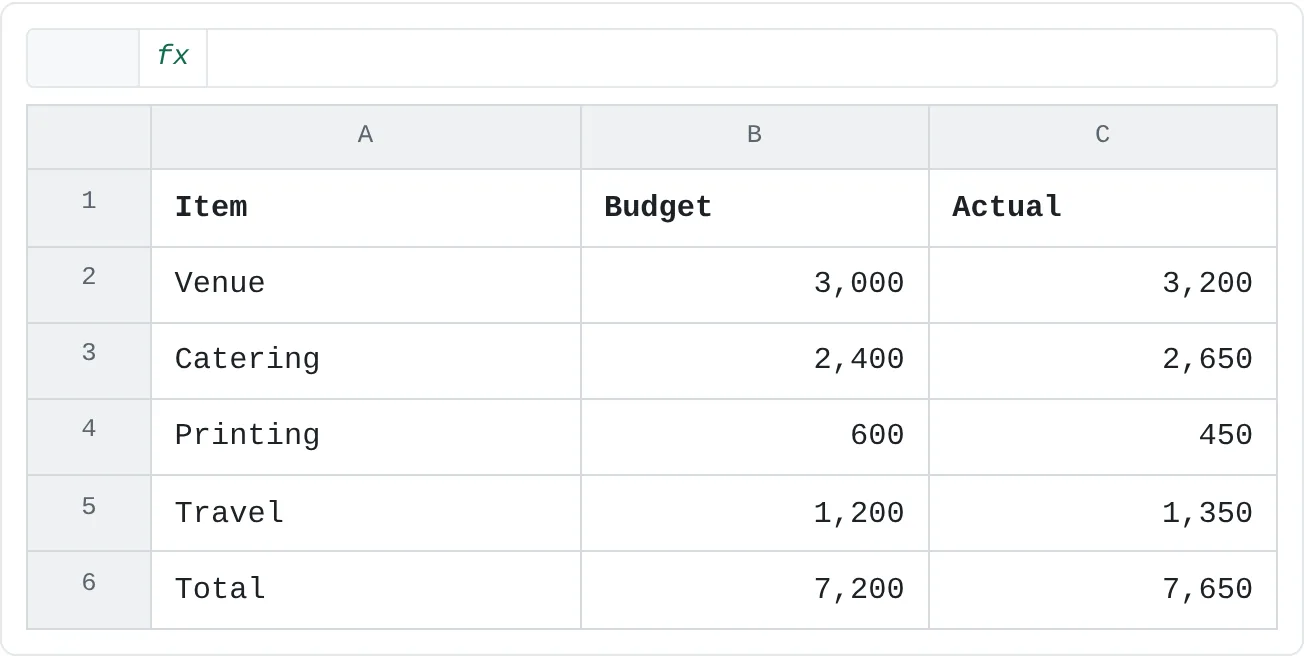
The examples use this event budget. The catering line is over budget, so it needs a question, and the venue figure needs an explanation of where it came from.
| A | B | C | |
|---|---|---|---|
| 1 | Item | Budget | Actual |
| 2 | Venue | 3,000 | 3,200 |
| 3 | Catering | 2,400 | 2,650 |
| 4 | Printing | 600 | 450 |
| 5 | Travel | 1,200 | 1,350 |
| 6 | Total | 7,200 | 7,650 |
Where to find it
Both live on the Review tab. Comments have their own group; notes have a Notes button with a menu of note commands next to it.
- Comment: Review then Comments then New Comment, or right-click the cell and choose New Comment. The same command is on the Insert tab as Comment.
- Note: Review then Notes then Notes then New Note, or right-click the cell and choose New Note.
- All comments at once: Review then Comments then Show Comments opens the Comments pane on the right.
Comment or note?
| Comment | Note | |
|---|---|---|
| Best for | A question or a discussion | A lasting explanation |
| Replies | Yes, as a thread under the first comment | No |
| Marker on the cell | A small purple marker in the top-right corner | A small red triangle in the top-right corner |
| Mention someone with @ | Yes, in files saved to OneDrive or SharePoint for work or school | No |
| Mark as finished | Resolve the thread, and reopen it if needed | Delete it when it's no longer true |
| Who can edit the text | Only the person who wrote that comment | Anyone who can edit the workbook |
A rule of thumb: if you expect an answer, use a comment. If you want the next reader to understand a number without asking anyone, use a note.
Add a comment and reply
Select the cell
Click C3, the catering actual of 2,650.
Start a new comment
Press Ctrl+Shift+F2, or right-click the cell and choose New Comment. A comment box opens next to the cell with your name at the top.
Type and post
Type
Why is catering 250 over budget?and click Post, or press Ctrl+Enter. The comment is saved and a purple marker appears in the corner of C3.A B C 1 Item Budget Actual 2 Venue 3,000 3,200 3 Catering 2,400 2,650 4 Printing 600 450 5 Travel 1,200 1,350 6 Total 7,200 7,650 C3 now carries a comment thread. Point at the cell to read it and reply. Reply
Whoever opens the file next points at C3 (or clicks it) and types an answer in the reply box at the bottom of the thread, such as
Ten extra guests confirmed last week.Posting a reply works the same way: Post or Ctrl+Enter. Right-clicking the cell and choosing Reply to Comment does the same.
To change something you wrote, point at your comment in the thread and click Edit. You can edit only your own comments; replies from other people stay as they wrote them.
Mention a colleague
Type @ followed by the first letters of a name, and pick the person from the list. When you post, Excel sends them an email with the comment and a link to the cell. Mentions work when you're signed in with a work or school account and the file is saved in OneDrive for work or school or SharePoint.
Resolve, reopen and delete a thread
When the question is answered, resolve the thread instead of deleting it. Resolving keeps the conversation as a record but takes it out of the way.
Open the thread menu
Point at the cell with the comment, then click More thread actions (the
...button in the top-right corner of the thread).Resolve it
Choose Resolve thread. The thread is marked as resolved and can't be replied to until it's reopened. Anyone who can edit the workbook can resolve or reopen a thread.
Find it again later
Click Review then Comments then Show Comments. The Comments pane lists every thread on the sheet, resolved ones included. Open a resolved thread and click Reopen if the question comes back.
To remove a thread for good, right-click the cell and choose Delete Comment, or use Delete thread in the thread menu. To remove only one reply, point at that reply and click its delete button. Review then Comments then Delete deletes the comments in the selected cells.
Add a note
Notes are for explanations that should stay with a number: where it came from, what it includes, when it was last checked.
Select the cell and start a note
Click B2, the venue budget. Press Shift+F2, or right-click and choose New Note.
Type the explanation
A yellow box appears, starting with your user name in bold. Type
Quote from Hall A, valid until 30 June.You can delete the name line if you don't need it.Click outside the note
Click any other cell. The note is saved and a red triangle marks B2. Point at the cell to read the note.
A B C 1 Item Budget Actual 2 Venue 3,000 3,200 3 Catering 2,400 2,650 4 Printing 600 450 5 Travel 1,200 1,350 6 Total 7,200 7,650 B2 now has a note and C3 has a comment thread. In Excel, a red triangle marks the note and a purple marker the comment; pointing at either cell shows its text.
Show, edit and convert notes
| To do this | Use |
|---|---|
| Keep one note visible all the time | Right-click the cell › Show/Hide Note |
| Show every note on the sheet | Review then Notes then Notes then Show All Notes |
| Change a note's text | Right-click the cell › Edit Note, or select the cell and press Shift+F2 |
| Step through notes | Previous Note and Next Note in the Notes menu |
| Turn notes into comments | Review then Notes then Notes then Convert to Comments |
| Delete a note | Right-click the cell › Delete Note |
Converting is one-way in practice: a note becomes the first comment of a thread that others can reply to. Use it when a workbook full of old-style notes needs answers from several people.
Real-world scenarios
A question for the person who owns the number
A marketing team keeps quarterly spend in a shared workbook. Search ads jumped from 1,150 in May to 1,900 in June, and the analyst wants the campaign owner to explain it before the report goes out.
| A | B | C | D | |
|---|---|---|---|---|
| 1 | Channel | Apr | May | Jun |
| 2 | Search ads | 1,200 | 1,150 | 1,900 |
| 3 | Social | 800 | 820 | 790 |
| 4 | 300 | 310 | 305 |
The analyst selects D2, presses Ctrl+Shift+F2 and types @Dana Is the June jump the summer campaign? Please confirm before Friday. Dana gets an email with a link straight to D2, replies in the thread, and the analyst resolves it. Later readers can still open the resolved thread in the Comments pane and see why June is high.
Flag an odd result in a group lab sheet
Four students record reaction times in one shared sheet. Trial 3 took 3.95 seconds while the others took about 2.4.
| A | B | |
|---|---|---|
| 1 | Trial | Time (s) |
| 2 | 1 | 2.41 |
| 3 | 2 | 2.38 |
| 4 | 3 | 3.95 |
| 5 | 4 | 2.44 |
| 6 | 5 | 2.4 |
One student adds a comment to B4: Should we redo trial 3? A teammate replies that the timer started late, and the group resolves the thread once they've decided. Because the reason matters to whoever grades the sheet, they also add a note. A cell holds either a comment or a note, not both, so the note goes on the trial number in A4: Timer started late; excluded from the average. The comment holds the discussion; the note holds the conclusion.
Reminders on a household bills list
A bills list shows each bill's due day and whether it's paid automatically. Some bills need a reminder that has nothing to do with anyone else.
| A | B | C | |
|---|---|---|---|
| 1 | Bill | Due day | Autopay |
| 2 | Rent | 1 | No |
| 3 | Electricity | 15 | Yes |
| 4 | Internet | 20 | Yes |
| 5 | Phone | 22 | Yes |
| 6 | Insurance | 28 | No |
A note on A4 reads Promo price ends in August; call to renegotiate. and one on C2 reads Pay by bank transfer, reference = flat number. Notes suit this list: nobody needs to reply, the file isn't shared, and the red triangles show at a glance which bills have something to remember.
Common mistakes
- Using a comment as a label. A comment that nobody answers sits open forever and clutters the Comments pane. Use a note for explanations, or resolve the thread once it has served its purpose.
- Deleting a thread instead of resolving it. Deleting throws away the answer. Resolve it, and the reasoning is still there when someone asks again.
- @mentions that don't send anything. Mentions need a work or school account and a file saved in OneDrive for work or school or SharePoint. In a file saved only on your computer, nobody is notified.
- Expecting comments in a printout. Comments and notes don't print by default. To include them, open the Page Setup dialog (the small arrow at the corner of Page Layout then Page Setup), go to the Sheet tab and choose an option under Comments and notes, such as At end of sheet.
- Typing explanations into the cell. Text like
3200 (incl. deposit)turns a number into text, andSUMignores it. Keep the number on its own and put the explanation in a note.
Practice
Practice
Comment on a budget and explain a number
- Type the event budget from the top of this page into a new sheet (or use one of your own lists of numbers).
- Add a note to the venue budget that explains where the figure came from.
- Add a comment to the catering actual that asks why it's over budget, and post it with Ctrl+Enter.
- Reply to your own comment with an answer, then resolve the thread.
- Open Review then Comments then Show Comments and find the resolved thread in the pane. Reopen it, then resolve it again.
- Use Show All Notes to show every note, then turn it off again.
Related
Was this guide helpful? Spot a mistake? Send feedback · admin@arumsoft.com