Everyday Excel Skills · Tutorial 5 of 14
How to Use Find and Replace in Excel
Find any value on a sheet or in a whole workbook, change every copy of it at once, and use options and wildcards so you replace only what you mean to.
- Level
- Beginner
- Time
- 9 min read
- Updated:
- Applies to:
- Excel for Microsoft 365, Excel 2021, Excel 2019, Excel for the web
What you'll learn
- Open Find and Replace from the ribbon or with Ctrl+F and Ctrl+H
- Replace every copy of a value in one step without changing similar values
- Use Match case, Match entire cell contents and Within to control what gets changed
- Find text with the * and ? wildcards, and find a real asterisk with ~
- List every match with Find All and select them all at once
Before you start
Find and Replace looks for a word, number or code in your cells and, if you want, changes every copy of it in one go. Use it when a product code changes, when a name is spelled two ways, or when you need to know where a value appears in a long sheet. Press Ctrl+F to find and Ctrl+H to replace.
Where to find it
Both commands are in the Find & Select menu in the Editing group of the Home tab.
- Home then Editing then Find & Select then Find or Ctrl+F opens the Find and Replace dialog on the Find tab.
- Home then Editing then Find & Select then Replace or Ctrl+H opens it on the Replace tab.
The dialog has both tabs, so you can switch between finding and replacing without closing it. After you close it, Shift+F4 finds the next match of your last search.
Replace one value with another
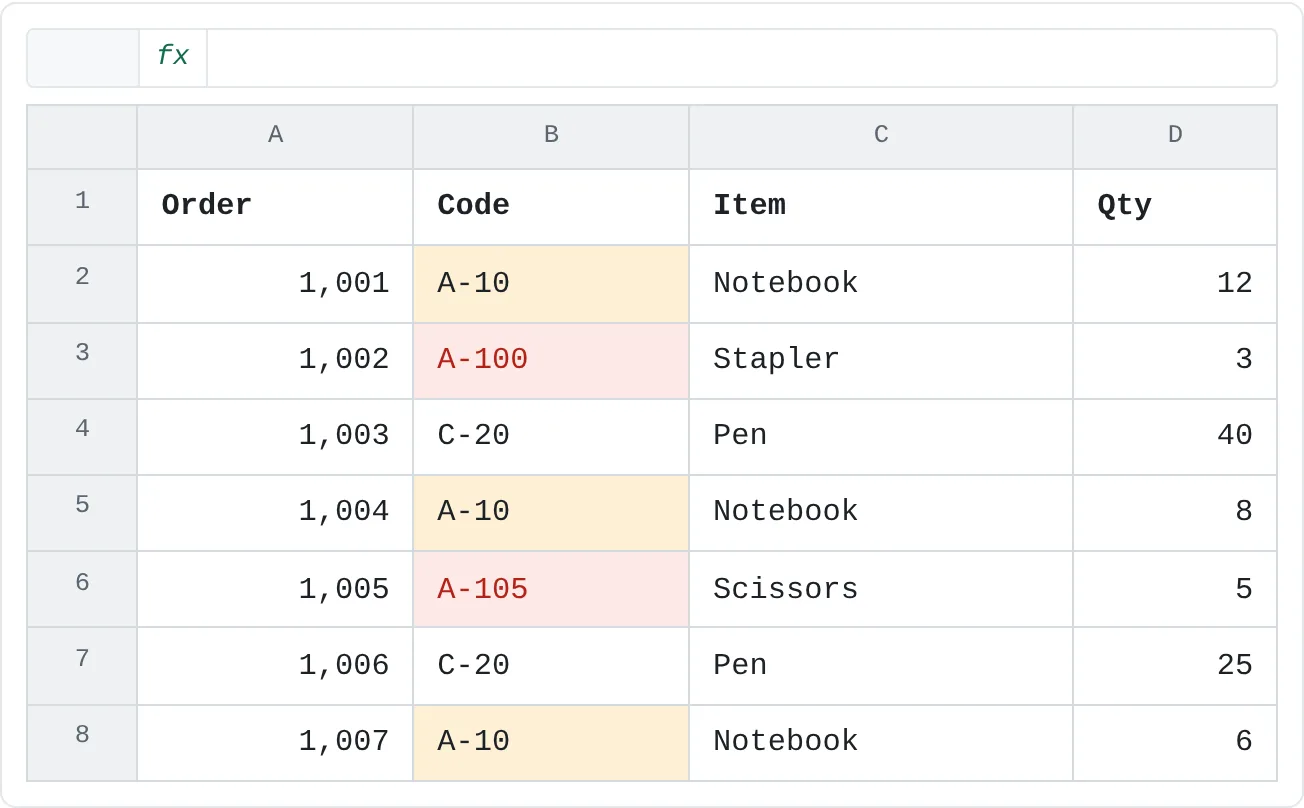
A supplier has changed the code for notebooks from A-10 to N-10, and the order list below uses the old code three times. There's a trap: the codes A-100 and A-105 both contain "A-10".
| A | B | C | D | |
|---|---|---|---|---|
| 1 | Order | Code | Item | Qty |
| 2 | 1,001 | A-10 | Notebook | 12 |
| 3 | 1,002 | A-100 | Stapler | 3 |
| 4 | 1,003 | C-20 | Pen | 40 |
| 5 | 1,004 | A-10 | Notebook | 8 |
| 6 | 1,005 | A-105 | Scissors | 5 |
| 7 | 1,006 | C-20 | Pen | 25 |
| 8 | 1,007 | A-10 | Notebook | 6 |
Select where to search
Click one cell to search the whole sheet, or select a range to search only inside it. Here, select B2:B8 so nothing outside the Code column can change.
Open the Replace tab
Press Ctrl+H. Type
A-10in Find what andN-10in Replace with.Show the options
Click Options to expand the dialog, then tick Match entire cell contents. Now a cell matches only if it holds exactly "A-10" and nothing else.
The Replace tab after clicking Options: Match entire cell contents is ticked, so A-100 and A-105 are left alone. Replace them all
Click Replace All. Excel tells you how many replacements it made: 3. Click OK, then Close.
A B C D 1 Order Code Item Qty 2 1,001 N-10 Notebook 12 3 1,002 A-100 Stapler 3 4 1,003 C-20 Pen 40 5 1,004 N-10 Notebook 8 6 1,005 A-105 Scissors 5 7 1,006 C-20 Pen 25 8 1,007 N-10 Notebook 6 After Replace All with Match entire cell contents: only the three notebook rows changed.
Without Match entire cell contents, Excel replaces "A-10" wherever it appears inside a cell. You'd get 5 replacements, and two of them are wrong:
| A | B | C | D | |
|---|---|---|---|---|
| 1 | Order | Code | Item | Qty |
| 2 | 1,001 | N-10 | Notebook | 12 |
| 3 | 1,002 | N-100 | Stapler | 3 |
| 4 | 1,003 | C-20 | Pen | 40 |
| 5 | 1,004 | N-10 | Notebook | 8 |
| 6 | 1,005 | N-105 | Scissors | 5 |
| 7 | 1,006 | C-20 | Pen | 25 |
| 8 | 1,007 | N-10 | Notebook | 6 |
If that happens, press Ctrl+Z straight away to undo the whole Replace All, then try again with the option ticked.
To check before you change anything, use Replace instead of Replace All. Click Find Next to go to the first match, then Replace to change it and move to the next one; click Find Next to skip one you want to keep.
The options, one by one
Click Options to see them. Excel remembers your choices until you close Excel, so check them each time you open the dialog.
| Option | What it does |
|---|---|
| Within | Sheet searches the active sheet; Workbook searches every sheet in the file. |
| Search | By Rows or By Columns: the order in which Find Next moves through the matches. It doesn't change which cells match. |
| Look in | Formulas searches what's typed in each cell, including the text of formulas. Values searches the results you see. On the Replace tab, Excel always searches formulas. |
| Match case | "Ana" no longer matches "ANA" or "ana". |
| Match entire cell contents | Matches only cells that contain exactly what you typed, nothing more. |
| Format | Finds cells by their formatting, such as a fill color, and on the Replace tab can give the replaced cells a new format. |
Look in matters for numbers. If D9 holds =SUM(D2:D8) and shows 99, searching for 99 with Look in: Formulas doesn't find it, because the cell contains a formula, not 99. Switch to Look in: Values on the Find tab and it does.
Wildcards: * and ?
Two characters in Find what stand for other characters:
?stands for any one character.Sm?thfinds Smith and Smyth.*stands for any number of characters, including none.North*finds North, Northeast and North Coast.
Combined with Match entire cell contents, *Ltd finds only cells that end in "Ltd".
To find a real *, ? or ~, put a tilde in front of it: ~* finds an asterisk, ~? a question mark.
Find every match at once with Find All
Find Next jumps to one match at a time. Find All lists them all at the bottom of the dialog, with the sheet, cell, value and formula for each one, and the number of cells found underneath.
- Click a row in the list to go to that cell.
- Click in the list and press Ctrl+A to select every found cell on the sheet. Close the dialog, and they stay selected, ready for a fill color, bold, or a new value typed and entered with Ctrl+Enter.
Real-world scenarios
A department changes its name
Customer Care is now called Client Services, and the name appears on several sheets of the staff workbook.
| A | B | C | |
|---|---|---|---|
| 1 | Name | Department | Ext. |
| 2 | Maya Brooks | Customer Care | 214 |
| 3 | Leo Grant | Finance | 230 |
| 4 | Iris Kemp | Customer Care | 216 |
| 5 | Owen Price | Sales | 241 |
| 6 | Nadia Shah | Customer Care | 219 |
Press Ctrl+H, type Customer Care in Find what and Client Services in Replace with. Click Options, set Within to Workbook and tick Match entire cell contents, then click Replace All. Every sheet is updated in one step, and a cell such as "Customer Care training" in a notes column is left alone.
Highlight every absence
A teacher wants every absence in the attendance sheet to stand out before a parents' evening.
| A | B | C | D | E | |
|---|---|---|---|---|---|
| 1 | Student | Mon | Tue | Wed | Thu |
| 2 | Aiden | Absent | |||
| 3 | Bella | ||||
| 4 | Caleb | Absent | Absent | ||
| 5 | Daisy | Late | |||
| 6 | Ethan | Absent |
Press Ctrl+F, type Absent and click Find All. The list shows 4 cells found. Press Ctrl+A while the list is active, close the dialog and click Fill Color on the Home tab. All four cells are colored at once; the Late cell in D5 isn't touched.
Remove the pending marks from a bank export
A bank export marks pending payments with an asterisk at the end of the description. Before you sort and total, the marks have to go.
| A | B | C | |
|---|---|---|---|
| 1 | Date | Description | Amount |
| 2 | 2026-09-01 | Groceries | 64.2 |
| 3 | 2026-09-02 | Bus pass | 30 |
| 4 | 2026-09-04 | Gas | 48.75 |
| 5 | 2026-09-05 | Phone bill | 45 |
| 6 | 2026-09-06 | Pharmacy | 12.4 |
Select B2:B6, press Ctrl+H, type ~* in Find what, leave Replace with empty and click Replace All. Excel removes the three asterisks. Typing * without the tilde would match every cell and replace each description with nothing.
Common mistakes
- Replacing part of a longer value. Replacing "A-10" also changes "A-100" unless Match entire cell contents is ticked. Undo with Ctrl+Z and tick it.
- Changing formulas by accident. The Replace tab searches the text of formulas too. Replacing "B" with "C" in a selection that includes
=SUM(B2:B8)turns it into=SUM(C2:C8). Select only the cells you mean to change. - Options left over from last time. Within: Workbook or Match case stay switched on after you use them. If Replace finds too much or nothing at all, open Options and check them.
- "We couldn't find what you were looking for." Check for a leftover option, extra spaces in Find what, or a number that is really a formula result (try Look in: Values on the Find tab).
- An asterisk that replaces everything.
*is a wildcard. To find the character itself, type~*.
Practice
Practice
Clean up a list with Find and Replace
Type the order list from the top of this page into a new sheet (or use a list of your own with a code column).
- Select the Code column and replace
A-10withN-10without ticking Match entire cell contents. How many replacements did Excel make? Press Ctrl+Z. - Do it again with Match entire cell contents ticked. Check that A-100 and A-105 didn't change.
- Use Find All to list every cell that contains "Pen", then select them all with Ctrl+A and make them bold.
- Type
Tape*in an empty cell, then use~*to remove the asterisk. - Add a second sheet with one more A-10 order, and replace the code on both sheets at once with Within: Workbook.
Related
Was this guide helpful? Spot a mistake? Send feedback · admin@arumsoft.com