Everyday Excel Skills · Tutorial 3 of 14
How to Use Flash Fill in Excel
Split, combine and reformat text by typing one example and letting Flash Fill complete the column, and know when a formula is the better choice.
- Level
- Beginner
- Time
- 9 min read
- Updated:
- Applies to:
- Excel for Microsoft 365, Excel 2021, Excel 2019, Excel for the web
What you'll learn
- Fill a column from one typed example with Ctrl+E
- Extract part of a text value, such as the name in an email address
- Combine values from several columns into one
- Correct Flash Fill when it guesses the wrong pattern
- Choose between Flash Fill, a formula and Text to Columns
Before you start
Flash Fill fills a column by example. Type what you want for the first row, such as the name part of an email address or a name and department joined together, and Excel works out the pattern from the columns next to it and fills in the rest. There's no formula to write. The shortcut is Ctrl+E.
Where to find it
- Ribbon: Data then Data Tools then Flash Fill, or Home then Editing then Fill then Flash Fill.
- Keyboard: Ctrl+E.
- Automatically: often you don't need either. When you start typing a second example and Excel sees the pattern, it shows the rest of the column in light gray. Press Enter to accept it, or keep typing to ignore it.
Flash Fill is also in Excel for Mac and Excel for the web, on the Data tab.
Fill a column from one example
The contact list below has full email addresses in column C. Column D should hold only the part before the @.
Type the first result
Click D2, type
ana.lopezand press Enter. Type it exactly as you want every result to look.A B C D E 1 Name Dept Email Username Name tag 2 Ana Lopez Sales ana.lopez@northwind.com ana.lopez 3 Ben Carter Finance ben.carter@northwind.com 4 Chloe Park IT chloe.park@northwind.com 5 David Moss Sales david.moss@northwind.com 6 Ella Nunez HR ella.nunez@northwind.com One example in D2: the part of Ana's email address before the @. Press Ctrl+E
With D3 selected, press Ctrl+E. Excel fills D3:D6 and stops at the last row of the data.
Check every result
Read down the column. Flash Fill copies a pattern; it doesn't know what the data means, so a row that breaks the pattern can come out wrong.
A B C D E 1 Name Dept Email Username Name tag 2 Ana Lopez Sales ana.lopez@northwind.com ana.lopez 3 Ben Carter Finance ben.carter@northwind.com ben.carter 4 Chloe Park IT chloe.park@northwind.com chloe.park 5 David Moss Sales david.moss@northwind.com david.moss 6 Ella Nunez HR ella.nunez@northwind.com ella.nunez Flash Fill took the pattern from D2 and filled D3:D6. The formula bar shows a plain value, not a formula.
A small Flash Fill Options button appears next to the filled cells. Use it to undo the fill or to select the cells Flash Fill changed, so you can check or format them.
Combine columns
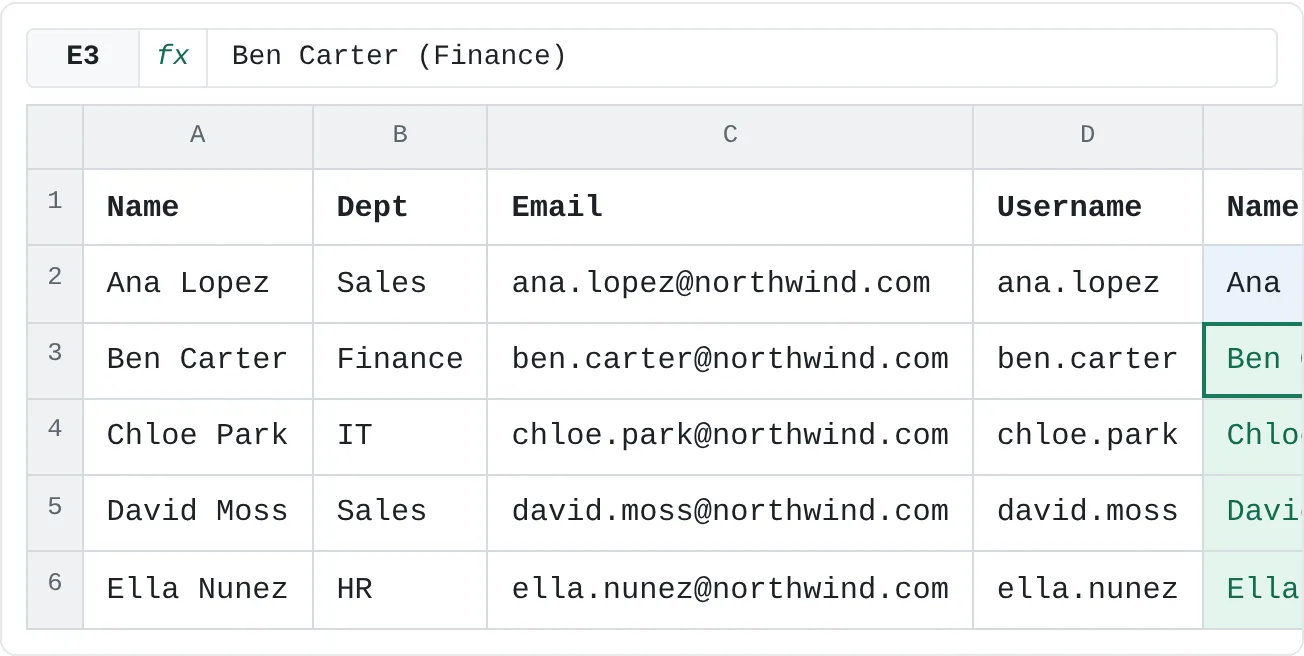
Flash Fill also joins values. Column E should read like a name tag: the name, then the department in parentheses.
Click E2, type Ana Lopez (Sales) and press Enter, then press Ctrl+E.
| A | B | C | D | E | |
|---|---|---|---|---|---|
| 1 | Name | Dept | Username | Name tag | |
| 2 | Ana Lopez | Sales | ana.lopez@northwind.com | ana.lopez | Ana Lopez (Sales) |
| 3 | Ben Carter | Finance | ben.carter@northwind.com | ben.carter | Ben Carter (Finance) |
| 4 | Chloe Park | IT | chloe.park@northwind.com | chloe.park | Chloe Park (IT) |
| 5 | David Moss | Sales | david.moss@northwind.com | david.moss | David Moss (Sales) |
| 6 | Ella Nunez | HR | ella.nunez@northwind.com | ella.nunez | Ella Nunez (HR) |
Flash Fill read the example, found "Ana Lopez" in A2 and "Sales" in B2, and repeated that arrangement, spaces and parentheses included, for every row.
When Flash Fill guesses wrong
One example can fit more than one pattern. If you type Mia as the first name from Mia Chen, the rule could be "the first word" or "the first three letters". Flash Fill picks one, and a row such as Christopher Hall shows which: Christopher or Chr.
- Type a second example. Overwrite the first wrong result with the right value. Flash Fill uses it as another example and updates the cells below it.
- Give more examples up front. Type two or three results before pressing Ctrl+E when the data is irregular, such as names with and without a middle name.
- Excel can't see a pattern. If nothing happens or Excel says it can't find one, check that the column you're filling is right next to the data, then add another example and try again.
Flash Fill, a formula or Text to Columns?
| Flash Fill | A formula | Text to Columns | |
|---|---|---|---|
| How you set it up | Type an example | Write the logic, such as =LEFT(C2,FIND("@",C2)-1) | Choose a delimiter in a wizard |
| What ends up in the cells | Plain values | Formulas | Plain values |
| When the source data changes | Nothing changes; fill again | Updates by itself | Nothing changes; split again |
| Best for | One-off cleanup, combining, reformatting | Data that keeps changing or arriving | Splitting at a delimiter into several columns at once |
=LEFT(C2,FIND("@",C2)-1) returns ana.lopez for the first contact, just like the Flash Fill example: FIND returns the position of the @, and LEFT takes everything before it. If new contacts arrive every week, the formula is the better choice; in Excel for Microsoft 365 and Excel 2024, =TEXTBEFORE(C2,"@") does the same job.
Real-world scenarios
Split product codes
Every SKU holds a product type, a color and a size, separated by hyphens. Type GRY in B2 and press Ctrl+E, then type XL in C2 and press Ctrl+E again.
| A | B | C | |
|---|---|---|---|
| 1 | SKU | Color | Size |
| 2 | HD-GRY-XL | GRY | XL |
| 3 | TS-BLK-M | BLK | M |
| 4 | TS-WHT-L | WHT | L |
| 5 | HD-NVY-S | NVY | S |
| 6 | CP-RED-OS | RED | OS |
The first example in C2 is the two-letter size XL, which makes the pattern clear: everything after the last hyphen. Starting from M in a row like TS-BLK-M would also fit "the eighth character", so check the longer sizes if you start there.
Homeroom labels from year and class
A class list keeps the year and the class number in separate columns, but name cards need one label. Type Class 2-3 in D2 and press Ctrl+E.
| A | B | C | D | |
|---|---|---|---|---|
| 1 | Name | Year | Class | Homeroom |
| 2 | Mia Chen | 2 | 3 | Class 2-3 |
| 3 | Leo Grant | 2 | 3 | Class 2-3 |
| 4 | Zoe Patel | 2 | 5 | Class 2-5 |
| 5 | Sam Ortiz | 3 | 1 | Class 3-1 |
| 6 | Ivy Brooks | 3 | 4 | Class 3-4 |
The word "Class" matters: typed on its own, 2-3 would be read as a date. Flash Fill takes numbers from the source cells as easily as text.
Tidy up phone numbers
Your contacts' numbers were saved as bare digits. Type the first one the way you like to read it, (212) 555-0147, in C2 and press Ctrl+E.
| A | B | C | |
|---|---|---|---|
| 1 | Contact | Phone | Formatted |
| 2 | Mom | 2125550147 | (212) 555-0147 |
| 3 | Jun | 6465550199 | (646) 555-0199 |
| 4 | Dr. Lee | 7185550123 | (718) 555-0123 |
| 5 | Gym | 9175550168 | (917) 555-0168 |
Flash Fill added the parentheses, the space and the hyphen in the same places for every number. The original digits stay in column B, so you can delete that column once you've checked the results.
Common mistakes
- A blank column between the data and the example. Flash Fill looks at the block of data your example sits in. Put the new column directly next to the data, or delete the empty column first.
- Expecting the results to update. Flash Fill writes values. If an email address changes later, the username in column D stays as it was. Run Flash Fill again, or use a formula for data that changes.
- Not checking irregular rows. Middle names, missing values and extra spaces are where Flash Fill goes wrong. Scan the column, or use the Flash Fill Options button to select the changed cells and look at them.
- No gray preview while typing. Automatic suggestions can be turned off. Go to File then Options, choose Advanced and tick Automatically Flash Fill. Ctrl+E works either way.
Practice
Practice
Clean a contact list with Flash Fill
In a new sheet, type five full names in column A (include one with a middle name) and an email address for each in column B. Then:
- In C2, type the first name of the person in A2 and press Ctrl+E. Check the row with the middle name.
- In D2, type the last name and press Ctrl+E. If the middle-name row is wrong, type the correct value over it.
- In E2, type the email's domain (the part after the @) and fill the column.
- In F2, type the last name, a comma, a space and the first name, such as
Lopez, Ana, and fill the column. - Change one name in column A and notice that columns C to F don't update.
Related
Was this guide helpful? Spot a mistake? Send feedback · admin@arumsoft.com