Everyday Excel Skills · Tutorial 9 of 14
How to Use Format Painter in Excel
Copy the look of one cell to other cells with Format Painter: number formats, fonts, fills, borders and highlight rules, once or many times.
- Level
- Beginner
- Time
- 8 min read
- Updated:
- Applies to:
- Excel for Microsoft 365, Excel 2021, Excel 2019, Excel for the web
What you'll learn
- Copy formatting from one cell to another range with Format Painter
- Keep Format Painter on to paint several separate ranges
- Repeat a pattern of formatting, such as shaded rows, down a list
- Copy formatting with Paste Special when you prefer the keyboard
Before you start
Format Painter copies the look of a cell, not its contents. When one cell already has the right number format, font, fill and borders, you click it, click the paintbrush and then click the cells that should match. It's faster than repeating every formatting step, and it keeps a sheet consistent. Click the brush once to paint one range; double-click it to keep painting until you press Esc.
Where to find it
Format Painter is the paintbrush in the Clipboard group, at the left end of the Home tab.
- Click Home then Clipboard then Format Painter once to paint a single range. The brush switches off as soon as you release the mouse.
- Double-click it to paint as many ranges as you like. It stays on until you press Esc or click the button again.
- Right-click a cell: the mini toolbar that appears above the shortcut menu also has a Format Painter button.
There's no single shortcut key for the brush itself. The keyboard route is copy and Paste Special › Formats, shown further down.
Copy formatting to other cells
In this sales summary, D2 is already formatted as a percentage, so it shows 10%. The growth figures below it were typed in later and still show raw decimals such as -0.05.
| A | B | C | D | |
|---|---|---|---|---|
| 1 | Store | Sales | Last year | Growth |
| 2 | North | 11,000 | 10,000 | 10% |
| 3 | South | 7,600 | 8,000 | -0.05 |
| 4 | East | 12,600 | 12,000 | 0.05 |
| 5 | West | 10,400 | 10,000 | 0.04 |
| 6 | Total | 41,600 | 40,000 | 0.04 |
Click the cell that looks right
Click D2. Format Painter copies the formatting of whatever you select first, so pick a cell, not the whole column.
Click Format Painter
Click Home then Clipboard then Format Painter. A moving dashed border appears around D2 and the pointer turns into a plus sign with a paintbrush.
Paint the target cells
Drag over D3:D6 and release the mouse. The cells take D2's percentage format, and the brush switches off.
A B C D 1 Store Sales Last year Growth 2 North 11,000 10,000 10% 3 South 7,600 8,000 -5% 4 East 12,600 12,000 5% 5 West 10,400 10,000 4% 6 Total 41,600 40,000 4% After: D3:D6 show -5%, 5%, 4% and 4%. The values didn't change, only how they're displayed.
The numbers underneath are exactly the same: -0.05 is still -0.05, now displayed as -5%. That's why Format Painter is safe to use on cells with formulas or data. It never touches the contents.
To make the Total row stand out like the header, click A1, click Format Painter and drag over A6:D6. If the header's cells were formatted differently from one another, select the whole header A1:D1 first: Format Painter copies each cell's format to the matching cell of the target. The header's number format comes along too, so D6 goes back to showing 0.04; click D6 and choose Home then Number then Percent Style to make it a percentage again without losing the bold and fill.
| A | B | C | D | |
|---|---|---|---|---|
| 1 | Store | Sales | Last year | Growth |
| 2 | North | 11,000 | 10,000 | 10% |
| 3 | South | 7,600 | 8,000 | -5% |
| 4 | East | 12,600 | 12,000 | 5% |
| 5 | West | 10,400 | 10,000 | 4% |
| 6 | Total | 41,600 | 40,000 | 4% |
What Format Painter copies
| Copied | Not copied |
|---|---|
| Number format (percent, date, currency…) | Values and formulas |
| Font, size, bold, italic, font color | Comments and notes |
| Fill color and borders | |
| Alignment, including Wrap Text | |
| Conditional formatting rules |
If you paint from a whole column (click its letter first) onto another whole column, the column width comes along too. The same goes for row heights when you paint whole rows.
Paint several places at once
When the cells that should match aren't next to each other, double-click the brush instead of clicking it.
Select the source and double-click Format Painter
Click the formatted cell, then double-click Format Painter. The button stays highlighted.
Click or drag over each target
Paint the first range, then the next, then the next. You can scroll, and you can even switch to another sheet or another open workbook and keep painting.
Turn it off
Press Esc or click Format Painter again. The pointer goes back to normal.
Copy formatting with the keyboard
Format Painter is a mouse tool. If you'd rather stay on the keyboard, copy and paste only the formats:
- Select the formatted cell and press Ctrl+C.
- Select the target range and press Ctrl+Alt+V to open Paste Special.
- Choose Formats and click OK.
The result is the same as painting. Paste Special stays available after you paste, so you can select another range and paste the formats again while the copied cell still has its moving border.
To start over on a range that's been painted wrongly, use Home then Editing then Clear then Clear Formats. It removes all formatting and leaves the contents.
Real-world scenarios
Extend a highlight rule to a new month
In January's column, a conditional formatting rule (Highlight Cells Rules › Less Than 5,000) colors weak months red. February's numbers have just been typed in. Select B2:B5, click Format Painter and drag over C2:C5.
| A | B | C | |
|---|---|---|---|
| 1 | Rep | Jan | Feb |
| 2 | Ana | 5,200 | 5,400 |
| 3 | Ben | 4,800 | 5,100 |
| 4 | Chris | 6,100 | 4,700 |
| 5 | Dana | 4,500 | 4,900 |
The rule is copied with the formatting, so February is checked against the same 5,000 threshold. Chris and Dana fall below it in February; Ben and Dana did in January.
Shade every other row of a grade list
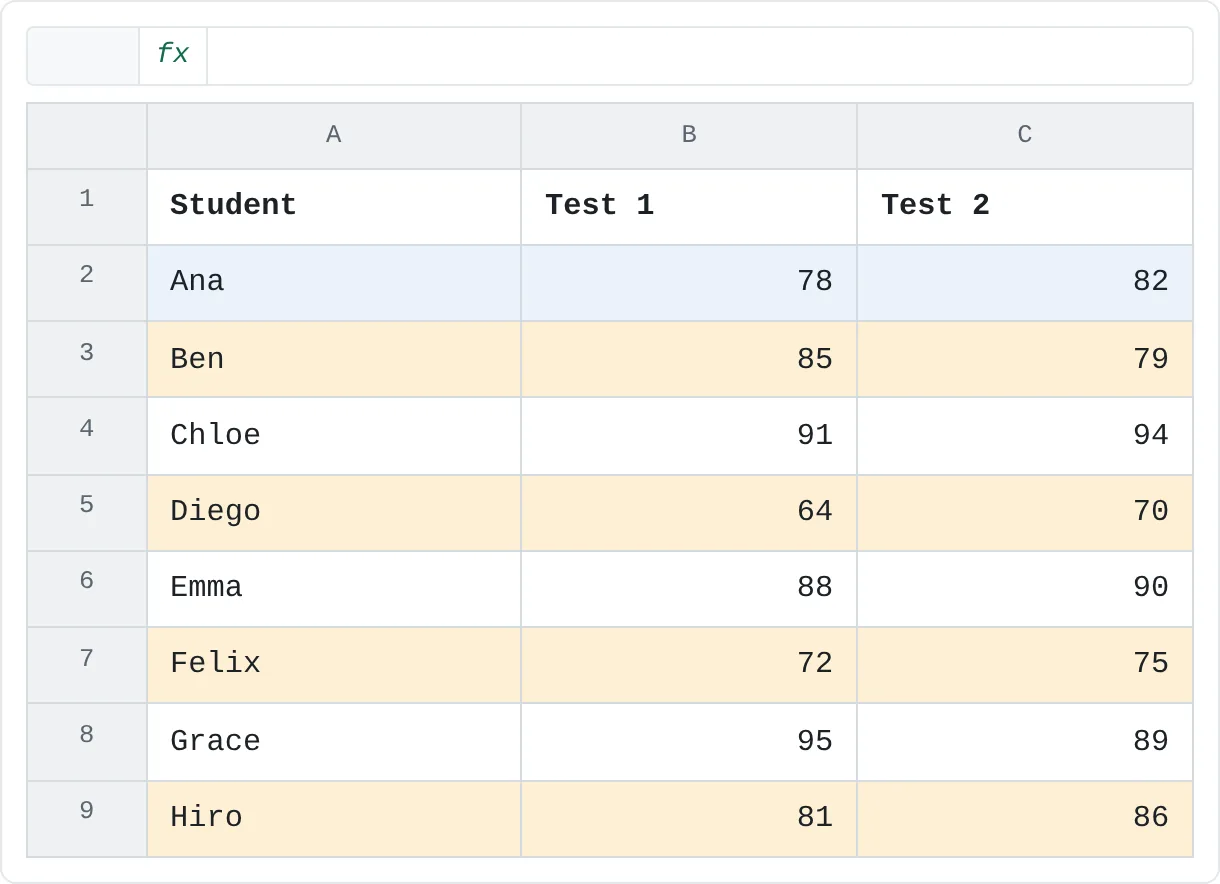
Shaded rows make a long list easier to read across. Format the first two rows the way you want (row 2 plain, row 3 shaded), select A2:C3 and click Format Painter. Then drag over A4:C9.
| A | B | C | |
|---|---|---|---|
| 1 | Student | Test 1 | Test 2 |
| 2 | Ana | 78 | 82 |
| 3 | Ben | 85 | 79 |
| 4 | Chloe | 91 | 94 |
| 5 | Diego | 64 | 70 |
| 6 | Emma | 88 | 90 |
| 7 | Felix | 72 | 75 |
| 8 | Grace | 95 | 89 |
| 9 | Hiro | 81 | 86 |
When the source is several rows, Format Painter repeats the pattern to fill the target, so rows 5, 7 and 9 get the shading and rows 4, 6 and 8 stay plain. Painting an odd number of rows still works; the pattern simply stops where the target ends.
Match the section headings of a budget
A monthly budget has three sections. The Home heading in row 1 is bold with a fill; Food and Fun are still plain. Select A1:B1, double-click Format Painter, drag over A4:B4, drag over A7:B7 and press Esc.
| A | B | |
|---|---|---|
| 1 | Home | Amount |
| 2 | Rent | 1,200 |
| 3 | Utilities | 140 |
| 4 | Food | Amount |
| 5 | Groceries | 420 |
| 6 | Eating out | 160 |
| 7 | Fun | Amount |
| 8 | Streaming | 25 |
| 9 | Hobbies | 80 |
Double-clicking saved a trip back to the ribbon. If you later restyle the Home heading, paint it again to keep the three in step, or switch to a cell style, which updates every heading at once.
Common mistakes
- Clicking once, then trying to paint a second range. A single click paints one range and switches off, so the second click just selects cells. Double-click the brush when you have more than one place to paint.
- Selecting a whole column as the source by accident. If you paint from a column and the target suddenly changes width, you copied the column width as well. Press Ctrl+Z and start from a single cell.
- Painting over a highlight rule you wanted to keep. Format Painter replaces the target's formatting, conditional formatting included. Undo straight away if a rule disappears.
- Expecting the values to copy. Format Painter never copies contents. To copy values and formats together, use ordinary copy and paste.
- Leaving the brush on. If clicks seem to change the look of cells, Format Painter is still on. Press Esc.
Practice
Practice
Tidy up a report with Format Painter
Type the sales summary from the top of this page into a new sheet (or use any small table of your own), then:
- Format the header row A1:D1: bold, with a light fill color.
- Format D2 as a percentage with Home then Number then Percent Style.
- Use Format Painter to copy D2's format to D3:D6. Check that the values in the formula bar haven't changed.
- Paint the header's format onto the Total row, then give D6 its percentage format back with Percent Style.
- Double-click Format Painter and paint the header's format onto two separate cells elsewhere on the sheet, then press Esc.
- Copy D2 and use Paste Special › Formats on another cell to get the same result from the keyboard.
Related
Was this guide helpful? Spot a mistake? Send feedback · admin@arumsoft.com