Everyday Excel Skills · Tutorial 1 of 14
How to Save, AutoSave and Undo in Excel
Save a workbook, let AutoSave keep cloud files up to date, undo and redo mistakes, and get back work after Excel closes unexpectedly.
- Level
- Beginner
- Time
- 9 min read
- Updated:
- Applies to:
- Excel for Microsoft 365, Excel 2021, Excel 2019, Excel for the web
What you'll learn
- Save a new workbook and save changes to an existing one
- Explain when AutoSave is on and what it saves
- Undo and redo one action or several at once
- Recover work with AutoRecover after Excel closes unexpectedly
- Pick the right safety net for a mistake, from Undo to Version History
Before you start
Three features keep your work safe. Save writes your changes to the file. AutoSave does that for you, every few seconds, when the file lives in OneDrive or SharePoint. Undo takes back your last actions, one at a time or several at once. The shortcuts are worth learning on day one: Ctrl+S to save, Ctrl+Z to undo and Ctrl+Y to redo.
Where to find it
- Save: press Ctrl+S, or go to File then Save. Save As (F12) saves a new copy under another name or in another place.
- AutoSave: the AutoSave switch at the top-left corner of the Excel window, in the title bar.
- Undo and Redo: the first buttons on the Home tab, or Ctrl+Z and Ctrl+Y.
If you've turned on the Quick Access Toolbar, Undo and Redo may appear there as well.
Save a workbook
Save it the first time
Press Ctrl+S. A new workbook has no name yet, so Excel asks for a file name and a location. Choose a OneDrive or SharePoint folder if you want AutoSave and version history, or a folder on your computer if not. Excel saves workbooks as
.xlsxfiles by default.Save your changes as you go
After that, Ctrl+S saves straight into the same file without asking anything. Press it after every important change.
Keep the original with Save As or Save a Copy
To save your changes as a new file and leave the original untouched, press F12 or go to File then Save As. When AutoSave is on, the File menu shows Save a Copy instead of Save As: make the copy before you make changes, then open it and work there.
Let AutoSave do the saving
AutoSave saves your changes every few seconds while you work, so there's nothing to forget. It's on by default when all of these are true:
- you have a Microsoft 365 subscription,
- the file is stored in OneDrive, OneDrive for work or school, or SharePoint, and
- the file is in a current format such as
.xlsx,.xlsmor.xlsb. Older formats such as.xlscan't use AutoSave.
For a file on your computer the switch shows Off. If you click it, Excel asks you to choose a OneDrive or SharePoint location, saves the workbook there, and you carry on working in that cloud copy.
AutoSave also saves mistakes, but they aren't permanent. While the file is open, Ctrl+Z still undoes them. After you've closed it, go to File then Info then Version History to open or restore an earlier version of the file.
Undo and redo mistakes
Undo goes back one action at a time, starting with the most recent. Here's a classic mistake it fixes.
Start from a correct list
Each student's score sits next to their name.
A B 1 Student Score 2 Ana 72 3 Ben 91 4 Chris 64 5 Dana 85 6 Eli 78 Five students and their scores. Ana scored 72 and Ben 91. The mistake
Someone selects only B2:B6 and sorts it largest to smallest, choosing to continue with the current selection. The scores move but the names don't, so every score is now next to the wrong person.
A B 1 Student Score 2 Ana 91 3 Ben 85 4 Chris 78 5 Dana 72 6 Eli 64 After sorting column B on its own, Ana shows Ben's 91 and Eli shows Chris's 64. Undo it
Press Ctrl+Z, or click Undo on the Home tab. The scores go back to their original rows, exactly as in the first picture.
Redo if you went too far
If you undid one step too many, press Ctrl+Y or click Redo.
To undo several actions at once, click the small arrow next to Undo. The list shows your recent actions, newest at the top. Point to an older one and every action above it is selected too; click to undo them all in one go. Excel keeps up to 100 actions.
When there's nothing left to redo, Ctrl+Y (or F4) repeats your last action instead: apply a fill color to one cell, select another and press it to apply the same color.
Undo has limits. The list is cleared when you close the workbook, and running a macro clears it too. Saving doesn't clear it: you can save and still undo.
Get back work after a crash
For files that aren't using AutoSave, AutoRecover saves a recovery copy in the background, every 10 minutes by default. It's not a replacement for saving, but it means a crash or power cut costs you minutes, not hours.
- After a crash: start Excel again. A Document Recovery pane lists the files it saved; open the version you want and save it.
- A workbook you closed without saving: go to File then Info then Manage Workbook and choose Recover Unsaved Workbooks.
To check the settings, go to File then Options and choose Save:
Which safety net do you need?
| Problem | Use |
|---|---|
| A mistake a moment ago | Undo (Ctrl+Z) |
| You undid too much | Redo (Ctrl+Y) |
| You want to keep today's work | Save (Ctrl+S), or AutoSave for cloud files |
| You're about to try something risky | Save As or Save a Copy first |
| Excel crashed or you closed without saving | AutoRecover and Recover Unsaved Workbooks |
| A mistake that was saved yesterday | Version History (files in OneDrive or SharePoint) |
Real-world scenarios
A wrong number in a shared report
A sales report lives in OneDrive with AutoSave on. A colleague typed 10200 instead of 1020 for South in February this morning, and AutoSave saved it.
| A | B | C | D | |
|---|---|---|---|---|
| 1 | Region | Jan | Feb | Mar |
| 2 | North | 1,250 | 1,310 | 1,405 |
| 3 | South | 980 | 10,200 | 1,110 |
| 4 | East | 1,430 | 1,390 | 1,520 |
| 5 | West | 870 | 905 | 960 |
Your Undo can't take back someone else's edit. If it's a single cell, type the right number. If many cells changed, open File then Info then Version History, open the version from before the change, and copy the correct values back or restore that version.
Lab results after a crash
You're typing lab results into a workbook saved on your laptop when Excel closes unexpectedly. You'd last saved after trial 3.
| A | B | C | |
|---|---|---|---|
| 1 | Trial | Time (s) | Temp (°C) |
| 2 | 1 | 0 | 21.5 |
| 3 | 2 | 30 | 24 |
| 4 | 3 | 60 | 26.8 |
| 5 | 4 | 90 | 29.1 |
| 6 | 5 | 120 | 31 |
Start Excel again and open the file from the Document Recovery pane. AutoRecover saves every 10 minutes, so trials 4 and 5 are there if it ran after you typed them. Save straight away, and next time store the file in OneDrive so AutoSave keeps it up to date.
Undo three steps at once
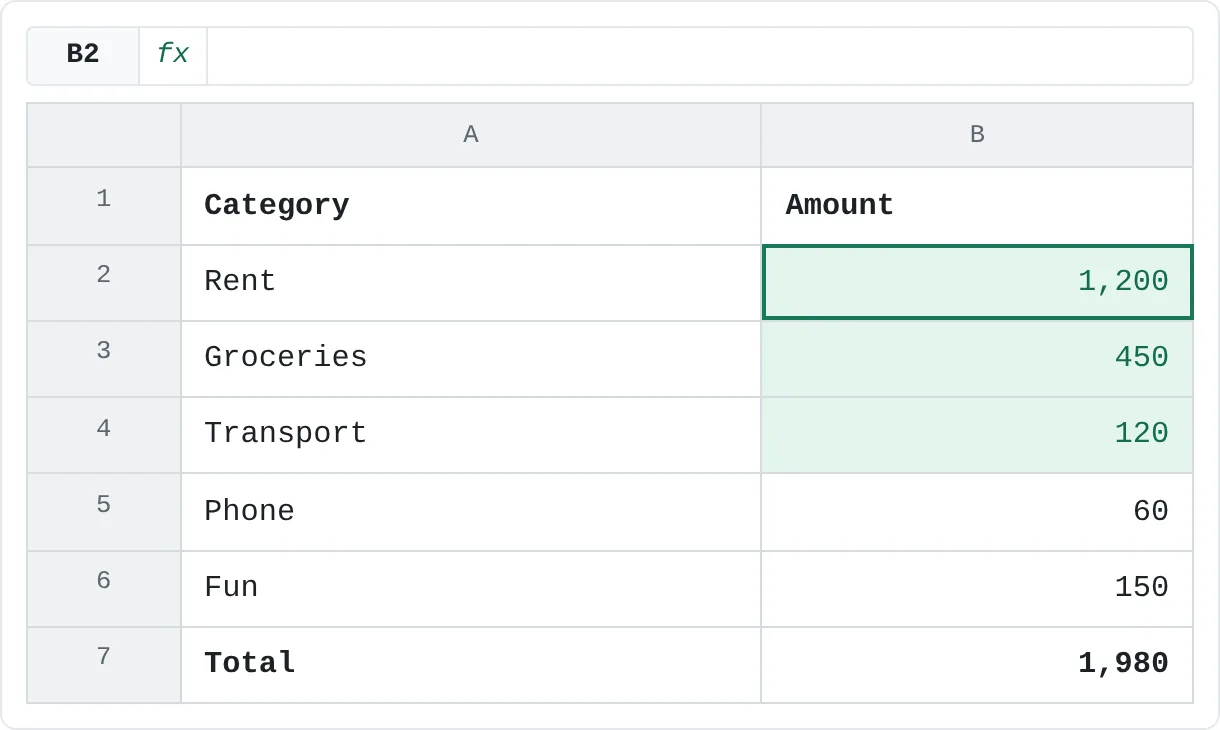
You cleared the Rent, Groceries and Transport amounts by mistake, then made two more changes before you noticed. Instead of pressing Ctrl+Z and checking after each press, open the list next to Undo and click the entry for the clear: it and the two later changes are undone together.
| A | B | |
|---|---|---|
| 1 | Category | Amount |
| 2 | Rent | 1,200 |
| 3 | Groceries | 450 |
| 4 | Transport | 120 |
| 5 | Phone | 60 |
| 6 | Fun | 150 |
| 7 | Total | 1,980 |
The total updates by itself because it's a formula, =SUM(B2:B6).
Common mistakes
- Never saving a new workbook. A workbook that has never been saved is the easiest to lose. Press Ctrl+S in the first minute and give it a name.
- Saving over the only good copy. Undo can't help after you close the file. Use Save As or Save a Copy before big changes.
- Thinking AutoSave is on when it isn't. Check the switch at the top-left. For files on your computer it's off, and only Ctrl+S and AutoRecover protect you.
- Relying on AutoRecover instead of saving. AutoRecover is for emergencies and keeps only recent recovery copies. Save the file properly.
- Pressing Ctrl+Z after closing. Undo history is cleared when you close the workbook. For an older state of a cloud file, use Version History.
Practice
Practice
Try every safety net once
In your own Excel:
- Create a new workbook, type a short list of five names and scores, and press Ctrl+S. Save it with a name you'll recognize.
- Look at the AutoSave switch. Is it on or off for this file, and why?
- Delete two scores, then type a new heading. Use the arrow next to Undo to undo all of these changes in one go, then redo one of them with Ctrl+Y.
- Use Save As (or Save a Copy) to save a second version with
_v2at the end of the name. - Open File then Options, choose Save, and note how often AutoRecover saves on your computer.
Related
Was this guide helpful? Spot a mistake? Send feedback · admin@arumsoft.com